Asset Tracking & Lifecycle
Create, categorize, and track assets through their entire lifecycle — from procurement to disposal — with full visibility into status, condition, location, transfers, maintenance, and financial details.
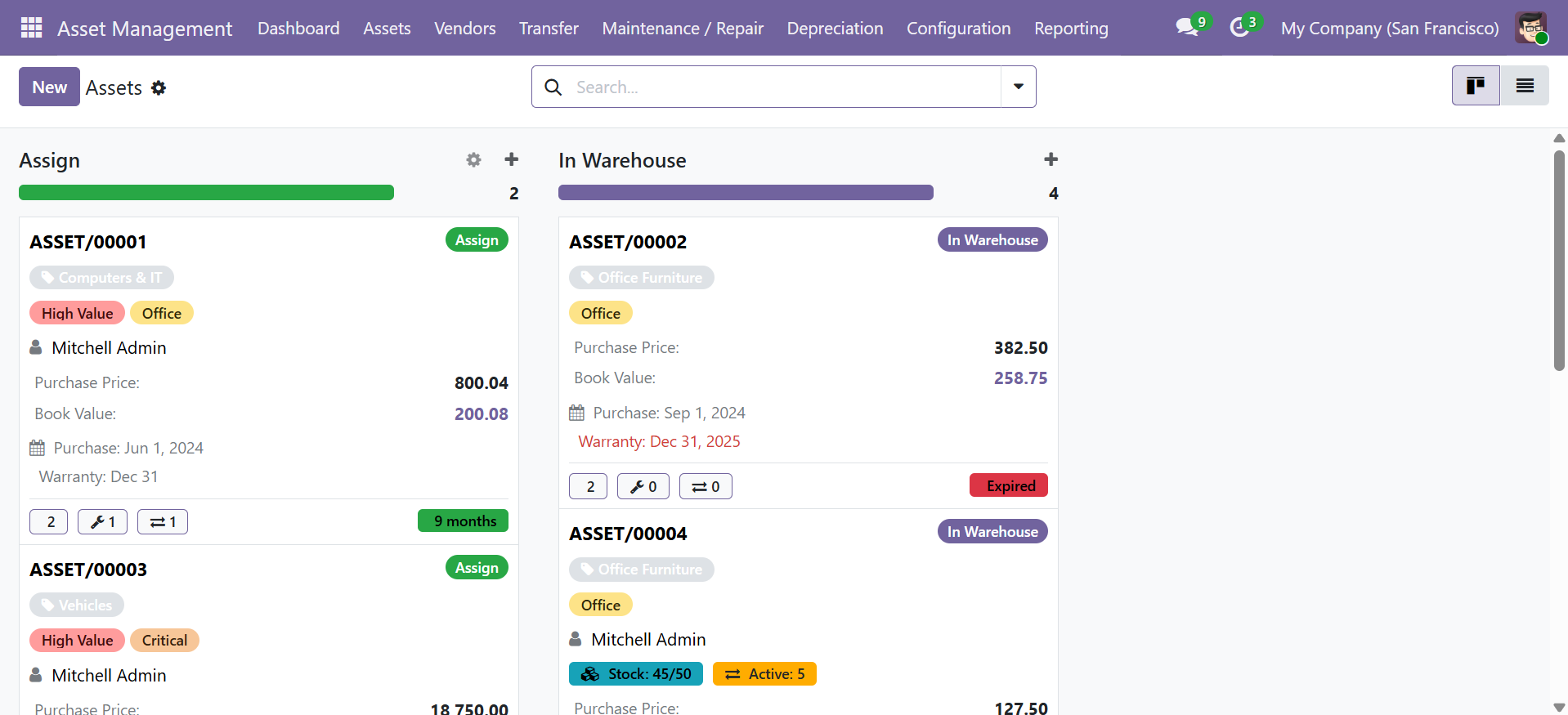
Asset Kanban View
The main Assets view displays all assets in a Kanban board grouped by status, with rich cards showing type, tags, assigned user, stock levels, financials, and warranty information.
Creating Assets
Navigate to Asset Management > Assets and click New to create an asset record.
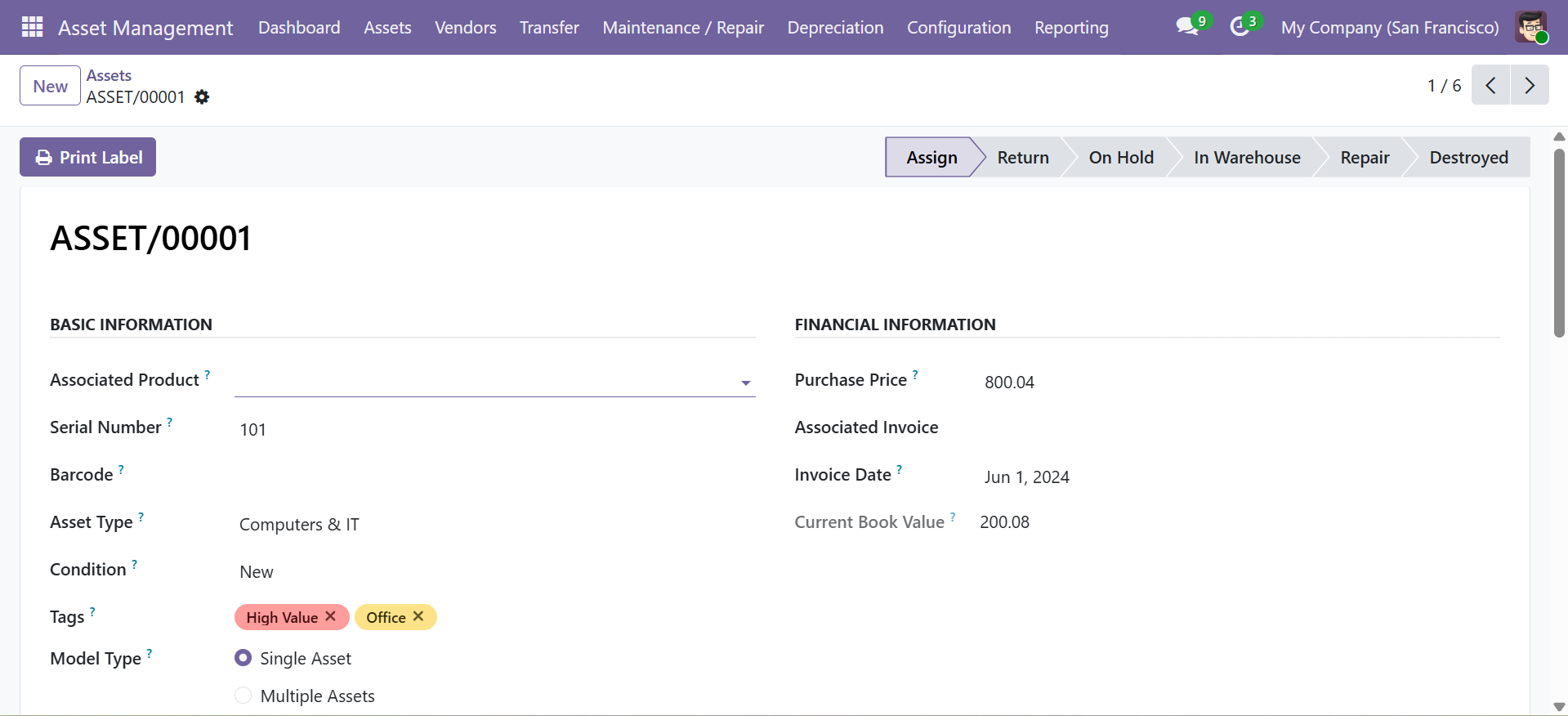
Asset Form — Basic & Financial Information
The asset form is organized into tabs covering all aspects of an asset record.
| Tab | Fields |
|---|---|
| Basic Information | Product, Asset Type, Tags, Serial Number, Barcode, Model Type (Single/Multiple), Initial Stock, Condition, Department, Responsible User, Status |
| Financial | Purchase Price, Invoice Date, Invoice Link, Current Book Value (computed), Total Depreciation (computed), Total Maintenance Cost (computed) |
| Depreciation | Enable Depreciation toggle, Last Depreciation Date, Depreciation Count, Inline depreciation entries table |
| Maintenance | Next Maintenance Date (computed), Maintenance Count, Inline maintenance entries table |
| Vendor / Warranty | Vendor, Warranty Expiration Date, Remaining Warranty (computed with color), Warranty Status badge |
| Assignment / Location | Current Location, Assigned User (computed), Assigned By (computed), Transfer Count, Inline transfer entries table |
| Documentation | Notes (text), Document Attachments (many2many to ir.attachment) |
Auto-Generated Fields
- Asset Code: Auto-generated via sequence (
ASSET/00001), readonly - Current Book Value: Purchase Price minus Total Depreciation
- Current Stock: Initial Stock minus Active Transfers (for multiple assets)
- Assigned User / Assign By / Current Location: Derived from the latest active transfer
Validation Rules
- Barcode must be unique across all assets
- Serial number must be unique across all assets
- Purchase price must be greater than or equal to 0
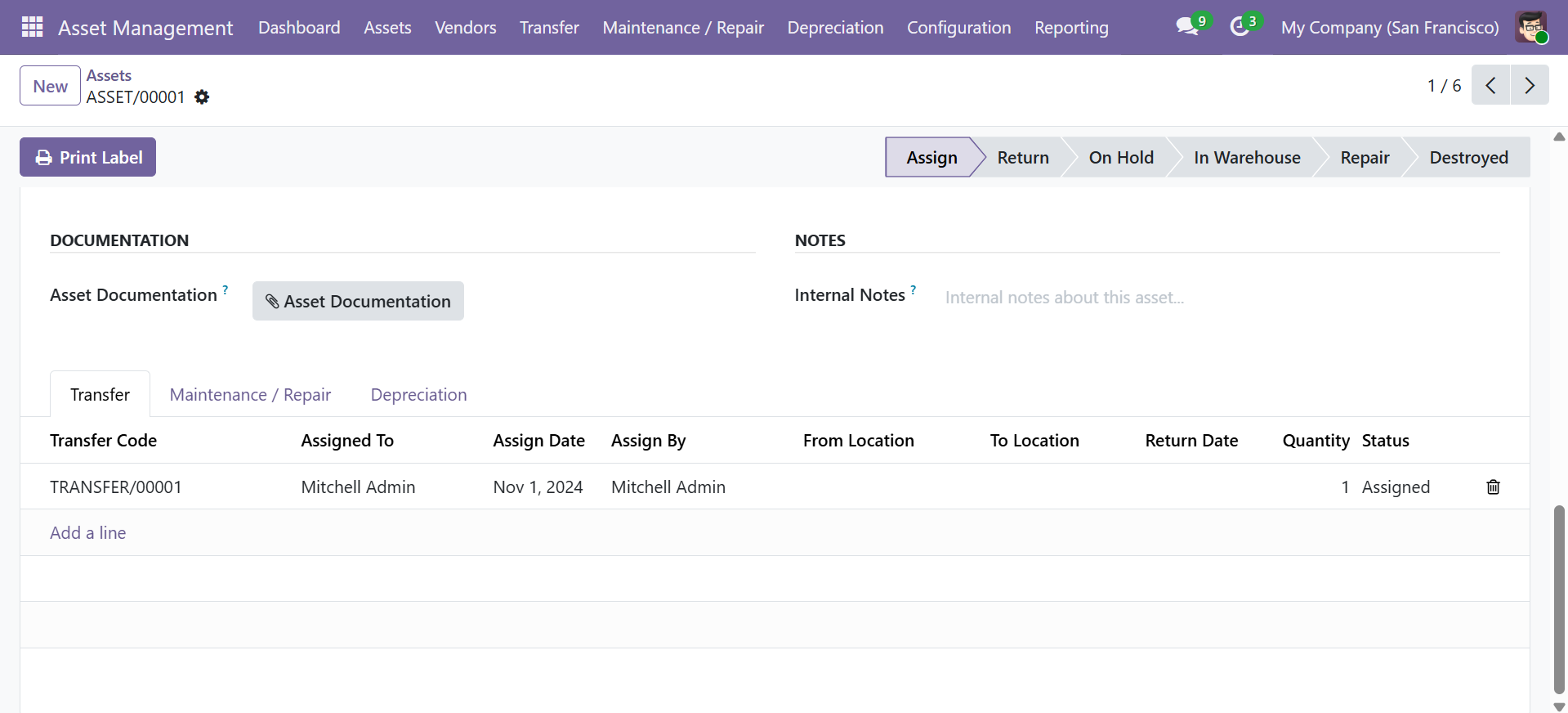
Asset Documentation & Transfer History
The asset form includes tabs for documentation, internal notes, and a complete transfer history showing all assignment records.
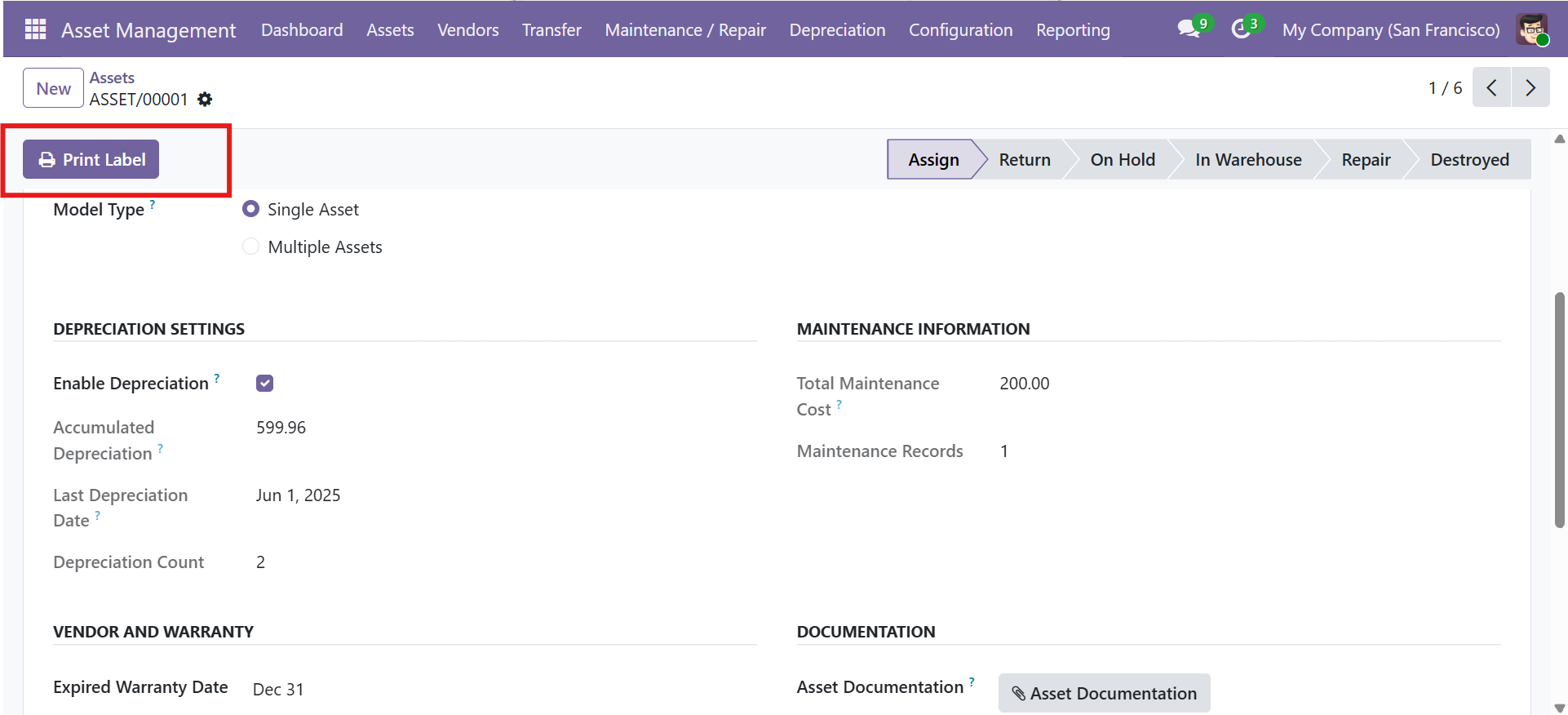
Depreciation & Maintenance Settings
Each asset has dedicated sections for depreciation settings (when enabled) and maintenance information, along with vendor and warranty details.
Asset Lifecycle Statuses
Assets move through 6 statuses throughout their lifecycle. Status is displayed as colored badges on the asset form and Kanban cards.
| Status | Description | Badge Color |
|---|---|---|
| Assign | Asset is assigned to an employee | Blue |
| Return | Asset has been returned from assignment | Green |
| On Hold | Asset is temporarily unavailable | Orange |
| In Warehouse | Asset is in storage / warehouse | Purple |
| Repair | Asset is undergoing maintenance or repair | Orange |
| Destroyed | Asset has been disposed / written off | Red |
Asset Conditions
Track the physical condition of each asset using 5 levels:
| Condition | Color |
|---|---|
| New | Green |
| Good | Blue |
| Fair | Orange |
| Poor | Orange |
| Damaged | Red |
Stock Management
The module supports two asset model types for different use cases.
| Model Type | Description | Example |
|---|---|---|
| Single | One unique physical item. Initial stock = 1. Transfers always move 1 unit. | Laptop, Vehicle, CNC Machine |
| Multiple | Stock-based items. Set initial quantity. Transfers deduct from available stock. | 50 Office Chairs, 25 Monitors |
Stock Calculations
| Field | Formula |
|---|---|
| Initial Stock | Set manually on creation (default: 1) |
| Active Transfers | Sum of stock_qty from all transfers with status = "assigned" |
| Current Stock | Initial Stock - Active Transfers |
When creating a transfer for a multiple-asset, the module validates that sufficient stock is available. If the requested quantity exceeds current stock, a validation error is raised.
Barcode Label Printing
Print professional barcode labels for physical asset identification directly from the asset form using the Print Label button.

Label Formats
| Format | Dimensions | Price | Best For |
|---|---|---|---|
| Dymo | 57 x 32mm | Optional | Dymo label printers |
| 2 x 7 with Price | 97 x 37.1mm | Yes (top-right) | Standard label sheets |
| 4 x 7 with Price | 47 x 37.1mm | Yes | Medium labels |
| 4 x 12 with Price | 43 x 19mm | Yes | Small labels |
| 4 x 12 no Price | 43 x 19mm | No | Small labels, no price |
| Custom | User-defined | Configurable | Custom label sheets |
Transfer Management
Assign assets to employees, track from/to locations, manage returns, and maintain full audit trails via chatter.
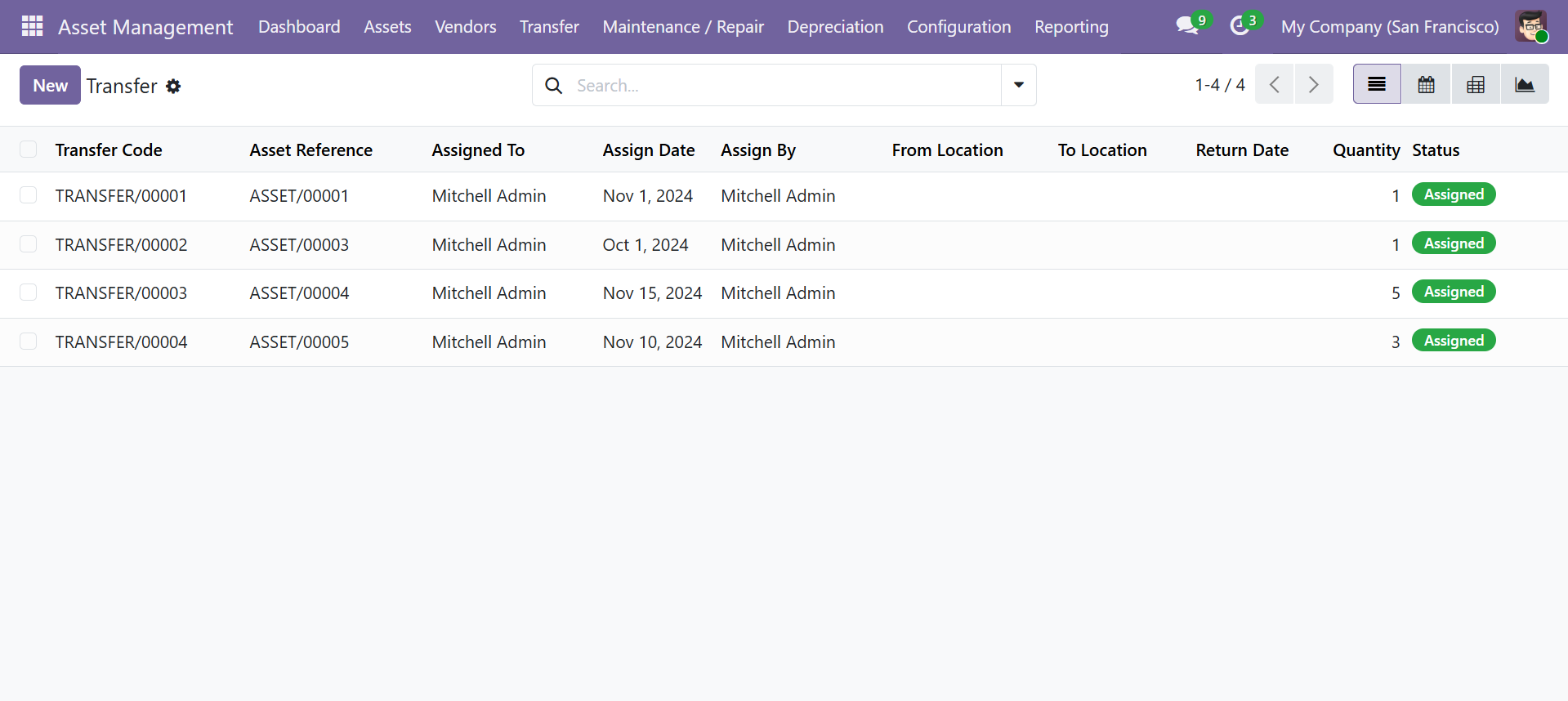
Transfer Fields
| Field | Description |
|---|---|
| Transfer Code | Auto-generated (TRANSFER/00001), unique, readonly |
| Asset | The asset being transferred (tracked) |
| Employee | Employee receiving the asset (tracked) |
| Assign Date | Date of assignment (tracked) |
| Assigned By | User who created the transfer (auto-filled, tracked) |
| From Location | Source location (dropdown + text, tracked) |
| To Location | Destination location (dropdown + text, tracked) |
| Return Date | When the asset was returned (must be >= assign date) |
| Quantity | Number of units (for multiple-asset types, default: 1) |
| Status | Assigned, Returned, or Under Maintenance (tracked) |
All key fields are tracked. Changes to asset, employee, dates, locations, and status are automatically logged as chatter messages with before/after values.
Vendor Management
Manage suppliers and service providers with contact details, service capabilities, ratings, and linked asset and maintenance records.
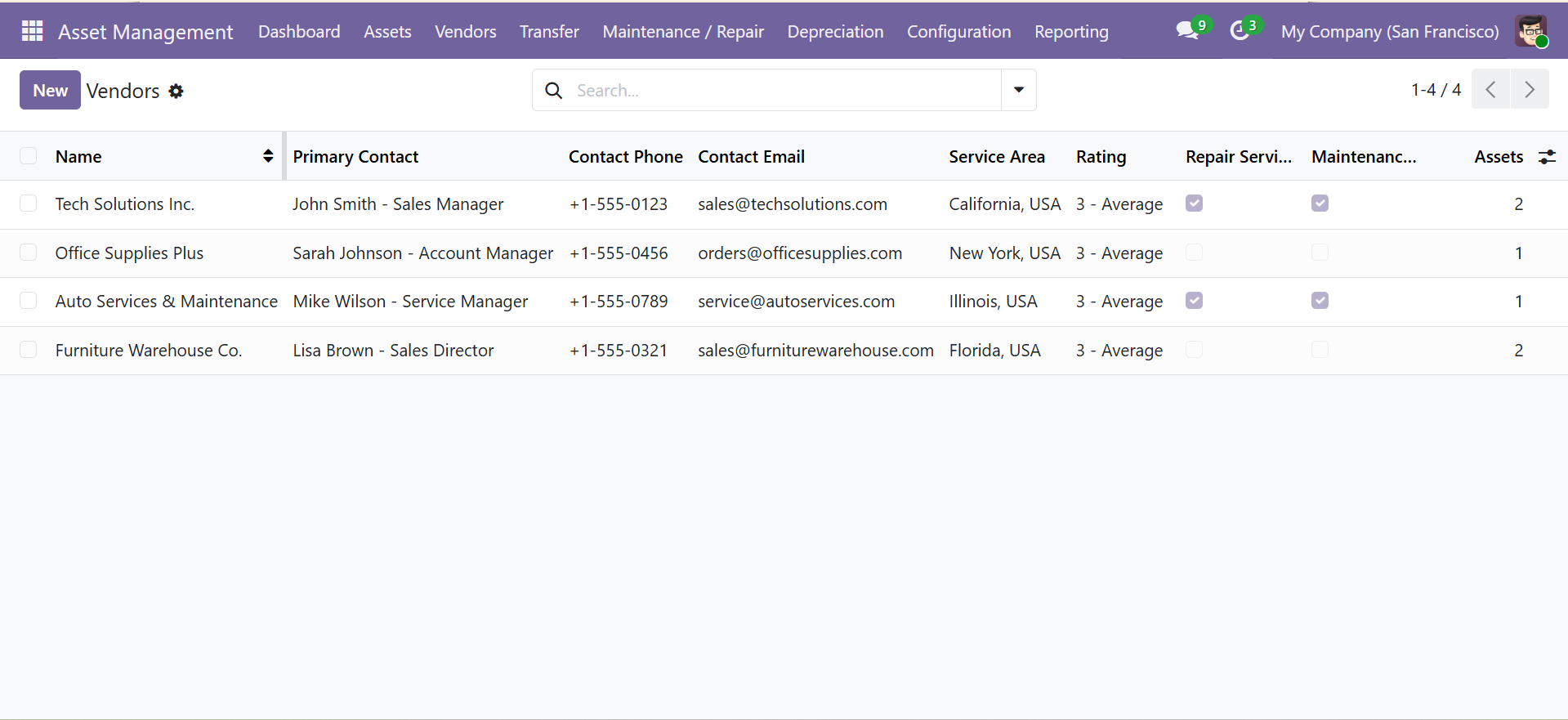
Vendor Fields
| Section | Fields |
|---|---|
| Profile | Name, Address, Location/Region, Website, Tax ID, Rating (1-5 stars) |
| Contact | Contact Person, Phone, Email (validated) |
| Services | Repair Service (toggle), Maintenance Service (toggle), Additional Services (toggle) |
| Counts | Asset Count (computed), Maintenance Count (computed) — clickable stat buttons |
Maintenance & Repair
Log corrective, preventive, and predictive maintenance with vendor tracking, cost recording, priority levels, and document attachments.
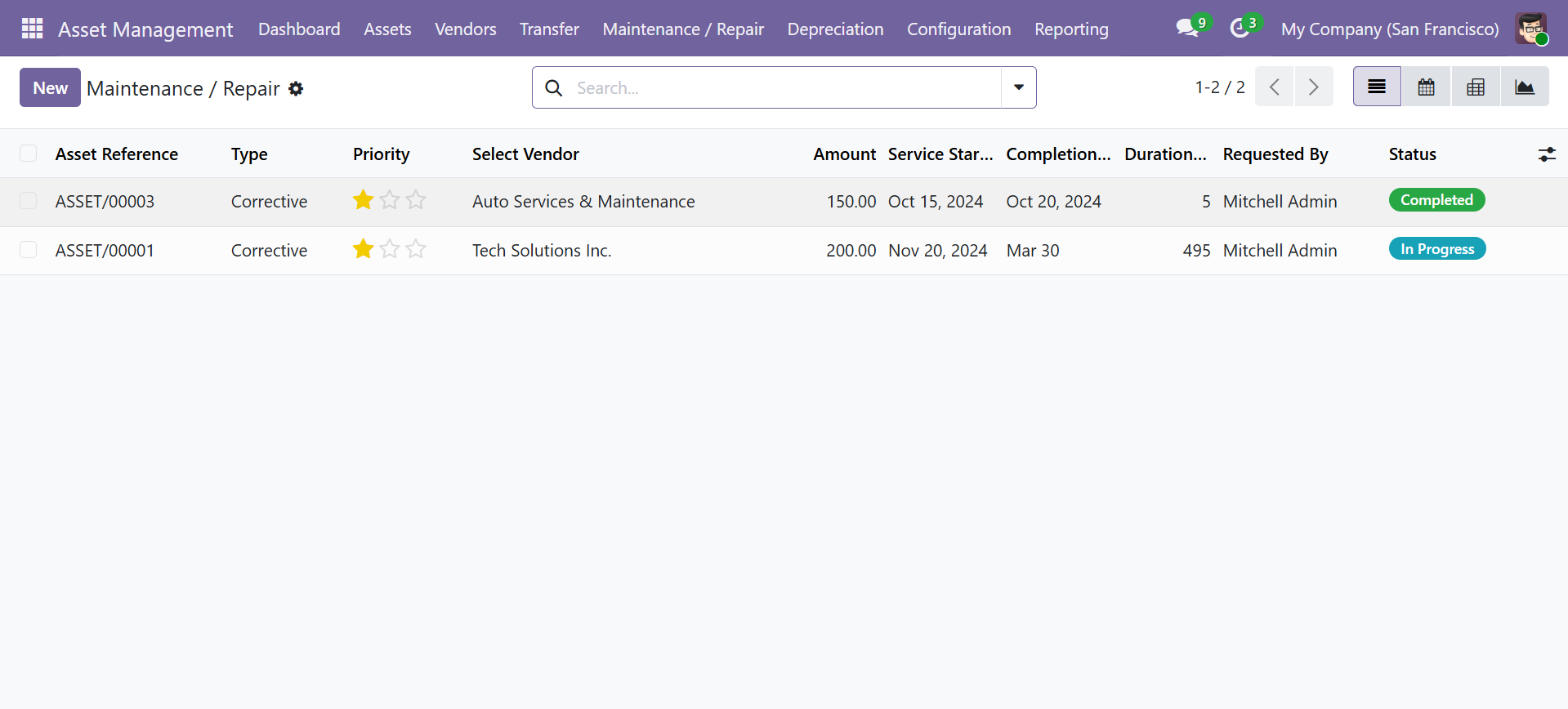
Maintenance Entry Fields
| Field | Description |
|---|---|
| Asset | Asset being serviced |
| Maintenance Type | Corrective, Preventive, or Predictive |
| Priority | Low (0), Medium (1), High (2), Urgent (3) — displayed as stars |
| Vendor | Service provider (from asset.vendor) |
| Start Date / End Date | Service period (end must be >= start) |
| Duration | Computed: End Date minus Start Date (in days) |
| Cost | Maintenance amount (must be >= 0) |
| Invoice | Link to accounting invoice |
| Status | Pending, In Progress, Completed |
| Description | Detailed service notes |
| Document | Attach service reports, photos, receipts |
Warranty Tracking
Monitor warranty expiration dates with color-coded indicators and dashboard alerts.
Warranty Status Colors
| Status | Condition | Color |
|---|---|---|
| Safe | More than 6 months remaining | Green |
| Warning | 3 to 6 months remaining | Yellow |
| Critical | Less than 3 months remaining | Red |
| Expired | Past expiration date | Red |
The Remaining Warranty field shows a human-readable countdown such as "2 Years, 3 Months, 15 Days" or "Expired". This appears on both the asset form and the Kanban card.
The dashboard shows a count of assets with warranties expiring within 30 days, displayed in the Alerts and Warnings panel.
Contact SDLC Corp at sdlccorp.com/contact-us or email sales@sdlccorp.com