SDLC Financial Reports — Troubleshooting and FAQ
Common questions and troubleshooting tips for the SDLC Financial Reports module.
Installation Issues
Module Not Visible in Apps List
- Ensure Developer Mode is enabled: go to Settings > General Settings and activate Developer Mode
- Verify that the
sdlc_financial_reportsfolder is placed in a directory listed in your Odooaddons_pathconfiguration - Go to Settings > Technical > Update Apps List and click Update
- Search for "SDLC Financial Reports" (not just "Financial Reports")
Installation Fails with Dependency Error
- Ensure the Accounting (
account) module is installed and configured with a chart of accounts - Ensure the Analytic Accounting (
analytic) module is installed - Install the
xlsxwriterPython library:pip install xlsxwriter
Excel Export Not Working
- The Excel export requires the
xlsxwriterPython library - Install it with:
pip install xlsxwriter - Restart the Odoo service after installation
- PDF export and interactive views will function normally without this library
Report Issues
Report Shows No Data
- Verify that journal entries exist within the selected date range
- Check the Target Moves filter -- Posted Entries excludes draft entries
- Check the Display Accounts filter -- With Movements hides accounts with no transactions
- Ensure the selected Company matches the company of your journal entries
Balances Look Incorrect
- Verify the Date From and Date To range covers the expected period
- Check if Initial Balance is enabled -- this includes opening balances before the date range
- For Balance Sheet, remember it uses As of Date (not a date range)
- Ensure all relevant journal entries are in Posted status
Trial Balance Debits and Credits Do Not Match
- This may indicate unbalanced journal entries in the system
- Set Target Moves to All Entries to include draft entries that might be causing the imbalance
- Review journal entries for the period to find any manual adjustments
Aged Partner Balance Shows Zero for All Partners
- Verify that there are open (unpaid) invoices or bills as of the selected As of Date
- Check the Partner Type filter -- ensure it matches the type of entries you expect (Receivable vs. Payable)
- Confirm that invoice maturity dates are set correctly
Export & Output
PDF Export Features
| Feature | Description |
|---|---|
| Paper Format | A4 Landscape with custom margins (top: 40mm, bottom: 23mm, left/right: 7mm) |
| Company Header | Company name and logo at the top |
| Date Range | Reporting period displayed below the header |
| Formatted Tables | Alternating row colors, bold section headers, highlighted totals |
| Currency Formatting | All monetary values use the company's currency format |
| Grand Totals | Yellow-highlighted total row at the bottom |
| Page Breaks | Intelligent page break handling to avoid splitting account sections |
Excel Export Features
| Feature | Description |
|---|---|
| Frozen Header Rows | Headers stay visible while scrolling |
| Number Formatting | All monetary values use #,##0.00 format |
| Date Formatting | Dates formatted as YYYY-MM-DD |
| Bold Headers | Column headers with grey background |
| Section Headers | Color-coded section headers for P&L, Balance Sheet, Cash Flow |
| Total Rows | Bold and highlighted total rows |
| Auto Column Widths | Columns sized appropriately for content |
| In-Memory Generation | No temporary files -- downloads directly |
Toolbar Export Buttons
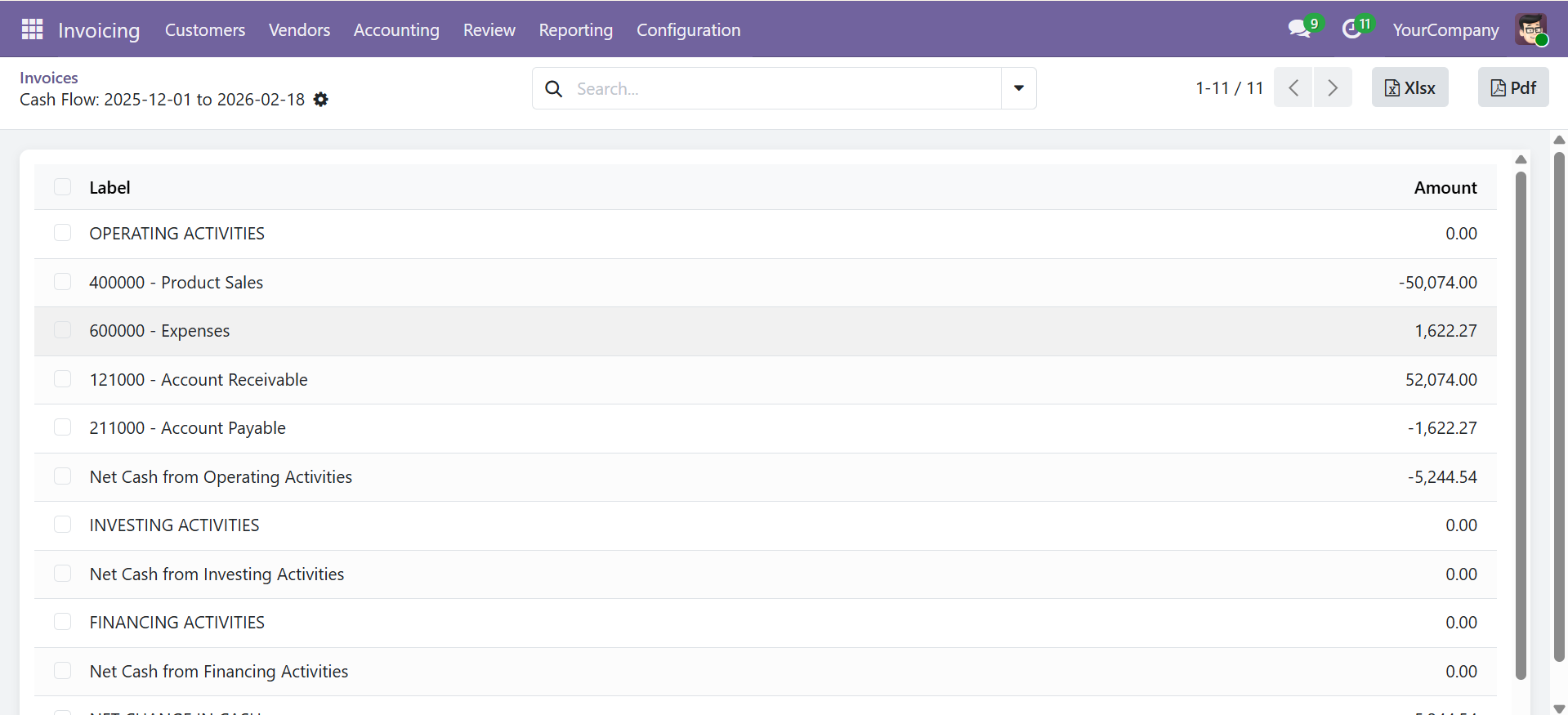
When viewing a report in the interactive list view, the Xlsx and Pdf export buttons appear in the control panel toolbar at the top. You can export at any time without returning to the wizard.
Filter Availability Matrix
Not all filters are available on every report. Use this reference to check which filters apply:
| Filter | GL | PL | TB | AP | P&L | BS | CF | AN |
|---|---|---|---|---|---|---|---|---|
| Company | Y | Y | Y | Y | Y | Y | Y | Y |
| Date From / To | Y | Y | Y | -- | Y | -- | Y | Y |
| As of Date | -- | -- | -- | Y | -- | Y | -- | -- |
| Target Moves | Y | Y | Y | Y | Y | Y | Y | Y |
| Display Accounts | Y | -- | Y | -- | -- | -- | -- | -- |
| Initial Balance | Y | Y | -- | -- | -- | -- | -- | -- |
| Sort By | Y | -- | -- | -- | -- | -- | -- | -- |
| Comparison Period | -- | -- | Y | -- | Y | -- | -- | -- |
| Hierarchy | -- | -- | Y | -- | -- | -- | -- | -- |
| Partner Type | -- | Y | -- | Y | -- | -- | -- | -- |
| Period Length | -- | -- | -- | Y | -- | -- | -- | -- |
| Journals | Y | -- | Y | -- | -- | -- | -- | -- |
| Accounts | Y | Y | Y | -- | -- | -- | -- | -- |
| Partners | Y | Y | -- | Y | -- | -- | -- | -- |
| Analytic Accounts | Y | -- | -- | -- | -- | -- | -- | Y |
| Account Tags | Y | -- | -- | -- | -- | -- | -- | -- |
GL = General Ledger, PL = Partner Ledger, TB = Trial Balance, AP = Aged Partner, P&L = Profit & Loss, BS = Balance Sheet, CF = Cash Flow, AN = Analytic Summary
Report Configuration (Advanced)
Custom Report Lines
Advanced users can create custom report line configurations for the Profit & Loss, Balance Sheet, and Cash Flow reports using the account.financial.report.config model.
| Field | Type | Description |
|---|---|---|
| Name | Char (required) | Display name of the report line |
| Code | Char (required) | Unique code for cross-referencing in formulas (e.g., PL001) |
| Report Type | Selection | pl (Profit & Loss), bs (Balance Sheet), cf (Cash Flow) |
| Sequence | Integer | Display order (default: 10) |
| Parent | Many2one | Parent line for hierarchical grouping |
| Sign | Selection | Positive (+1) or Negative (-1) for amount display |
| Accounts | Many2many | Directly assign specific accounts |
| Account Type | Selection | Auto-include accounts matching 18 Odoo account types |
| Account Tags | Many2many | Filter accounts by assigned tags |
| Formulas | Char | Formula referencing other lines by code (e.g., PL001 + PL002 - PL003) |
Support
| Channel | Details |
|---|---|
| Website | sdlccorp.com |
| sales@sdlccorp.com | |
| Module Name | sdlc_financial_reports |
| Supported Odoo Versions | 17.0, 18.0, 19.0 (Community Edition) |
| Module Version | 17.0.1.0.0 / 18.0.1.0.0 / 19.0.1.0.0 |
| License | LGPL-3 |
Contact SDLC Corp at sdlccorp.com/contact-us or email sales@sdlccorp.com