Balance Sheet
An automatic balance sheet showing Assets, Liabilities, and Equity with sub-section groupings as of a specified date.
Purpose
The Balance Sheet provides a snapshot of your organization's financial position at a specific point in time. It automatically categorizes accounts into Assets, Liabilities, and Equity sections based on Odoo account types, and validates that Total Assets = Total Liabilities + Total Equity.
Generating the Report
Navigate to Accounting > Reporting > Financial Reports > Balance Sheet to open the wizard.
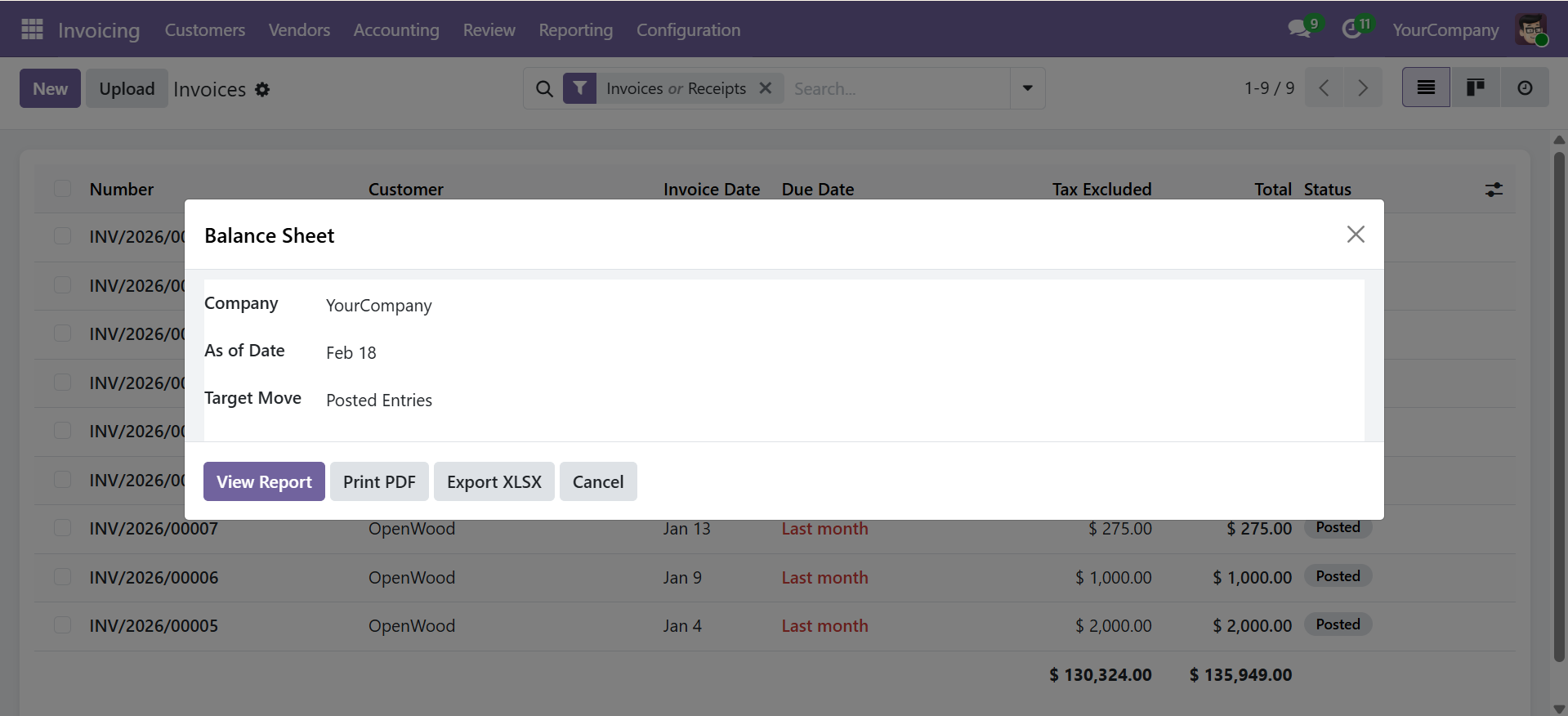
Wizard Parameters
| Parameter | Description |
|---|---|
| Company | Company to report on (required) |
| As of Date | Balance sheet date (required) |
| Target Moves | Posted Entries (default) or All Entries |
Click View Report to display the interactive view, Print PDF for a formatted document, or Export XLSX for a spreadsheet.
Report Structure
The report is automatically structured into three main sections based on Odoo account types:
| Section | Sub-Sections | Account Types |
|---|---|---|
| Assets | Current Assets, Bank & Cash, Fixed Assets, Non-current Assets, Prepayments | Receivable, Bank/Cash, Current Assets, Fixed Assets, Non-current Assets, Prepayments |
| Liabilities | Current Liabilities, Non-current Liabilities, Credit Card | Payable, Current Liabilities, Non-current Liabilities, Credit Card |
| Equity | Equity, Current Year Unallocated Earnings | Equity, Current Year Earnings |
Report Output
The report displays the following columns for each line:
| Column | Description |
|---|---|
| Section | Main section (Asset, Liability, Equity) |
| Sub Section | Sub-category within the section |
| Code | Account code |
| Account Name | Account name |
| Amount | Balance as of the selected date |
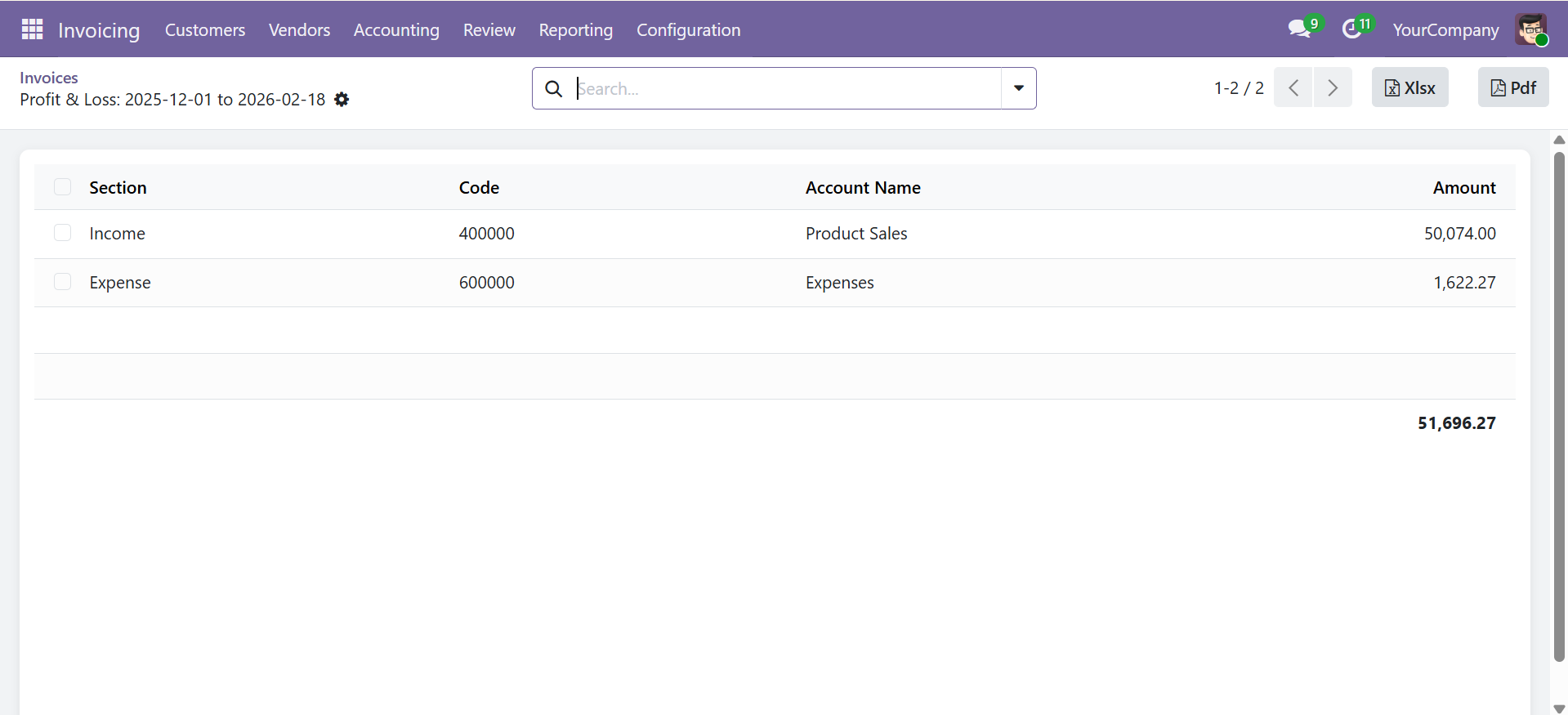
Each section shows individual account amounts, sub-section totals, and section grand totals. The final row displays the overall balance validating the accounting equation.
The report validates that Total Assets = Total Liabilities + Total Equity. Each section shows individual account amounts, sub-section totals, and section grand totals.
Export Options
- View Report -- Opens an interactive list view with sorting and searching
- Print PDF -- Generates a professional landscape A4 PDF with company branding
- Export XLSX -- Downloads a formatted Excel file with section highlighting
Contact SDLC Corp at sdlccorp.com/contact-us or email sales@sdlccorp.com