Calendar & Room Grid
Visualize reservations, room availability, and occupancy through interactive calendar and grid views.
Calendar View
Access via Dashboard > Calendar or the Calendar icon in the dashboard toolbar.
Month View
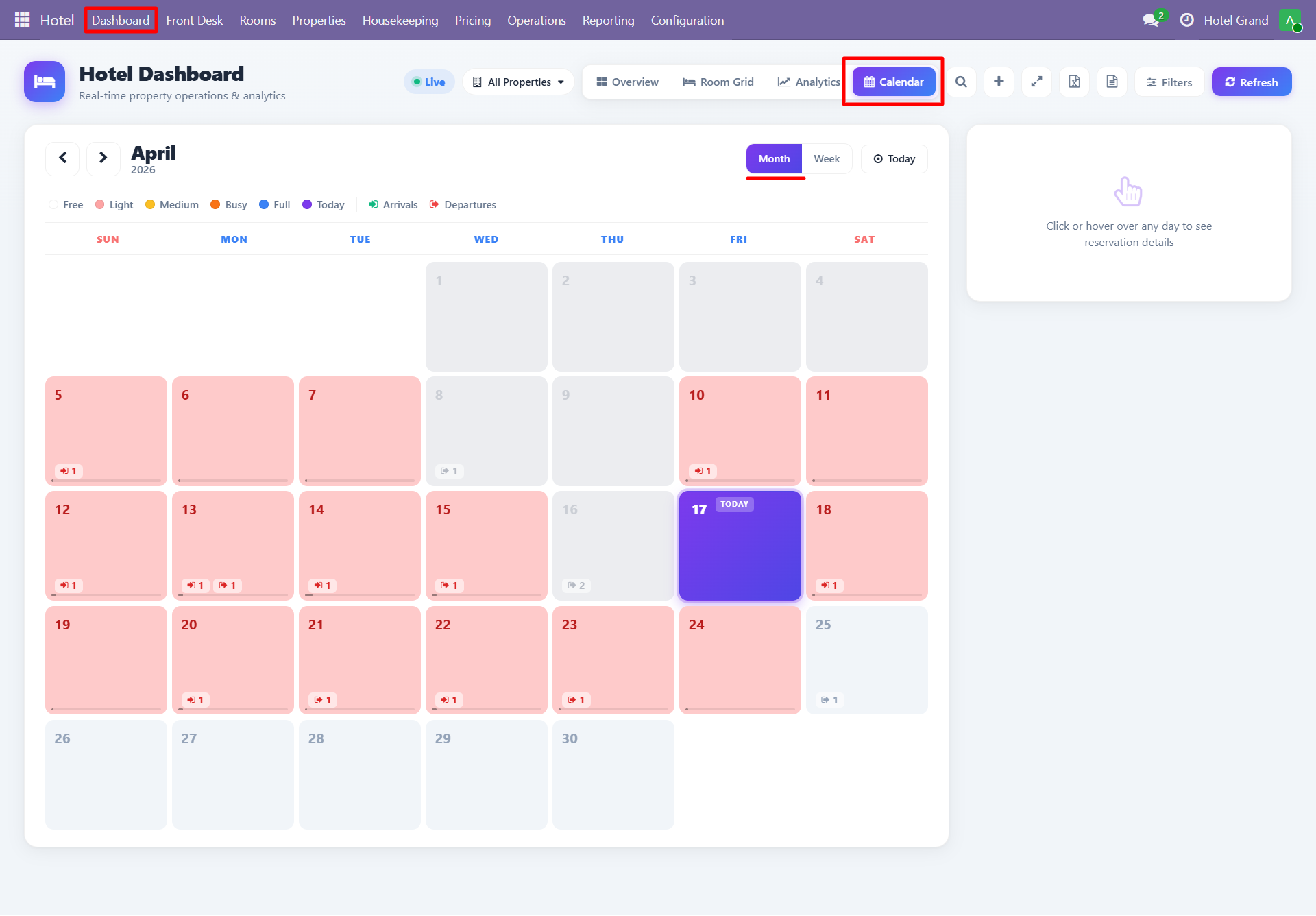
Shows all reservations for the current month with:
- Guest name
- Room number
- Check-in and check-out dates
- Status colors (draft, confirmed, checked in, etc.)
Week View
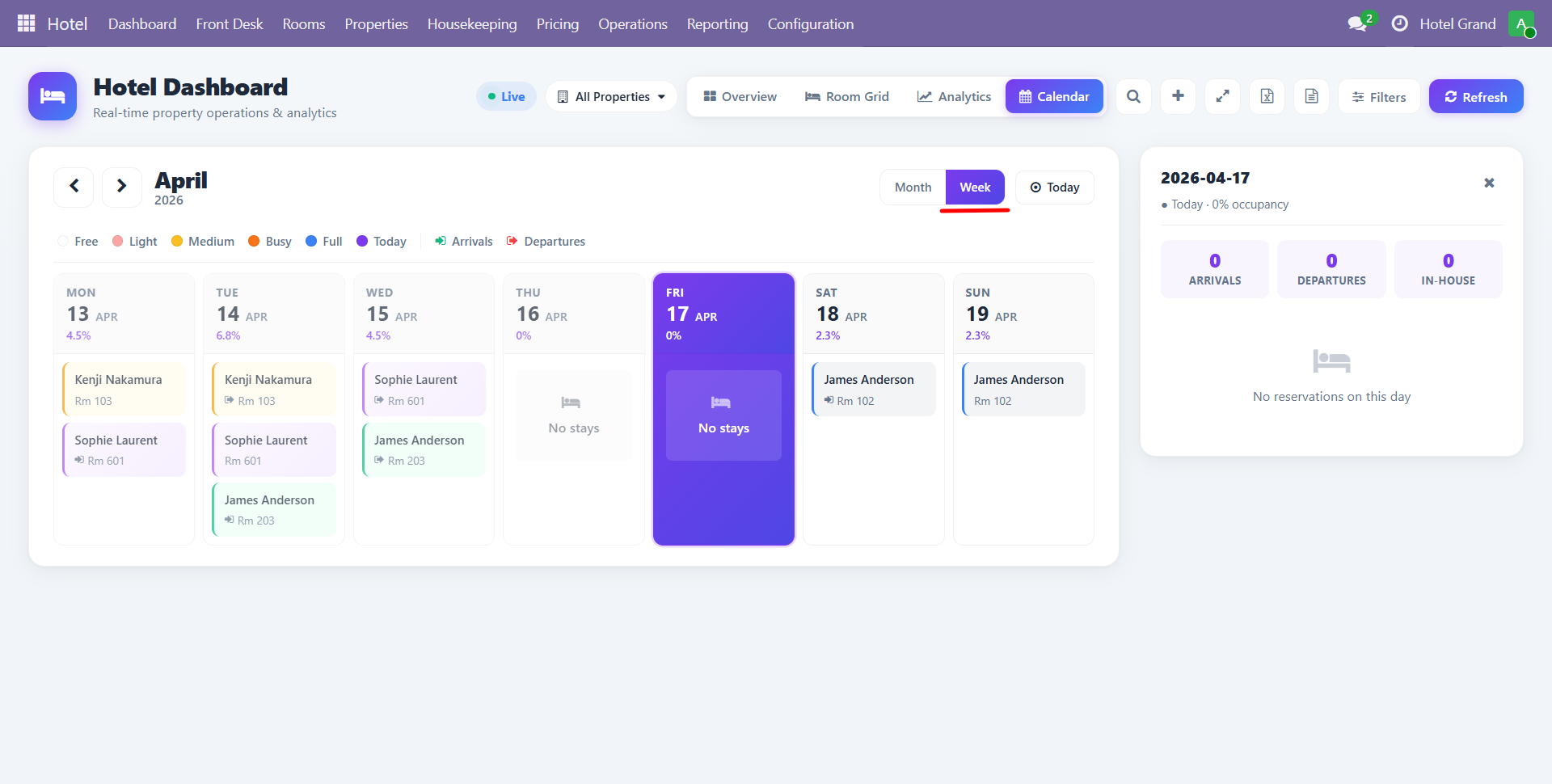
Detailed week view with:
- Day-by-day breakdown
- Hover for reservation details
- Click to open reservation
- Drag & drop to reschedule (if enabled)
Interactions
- Click a date — Create a new reservation for that date
- Click a reservation — Open the reservation form
- Drag a reservation — Move to different dates
- Filter — By property, room type, status
Room Grid View
The Room Grid provides a visual overview of all rooms and their current status.
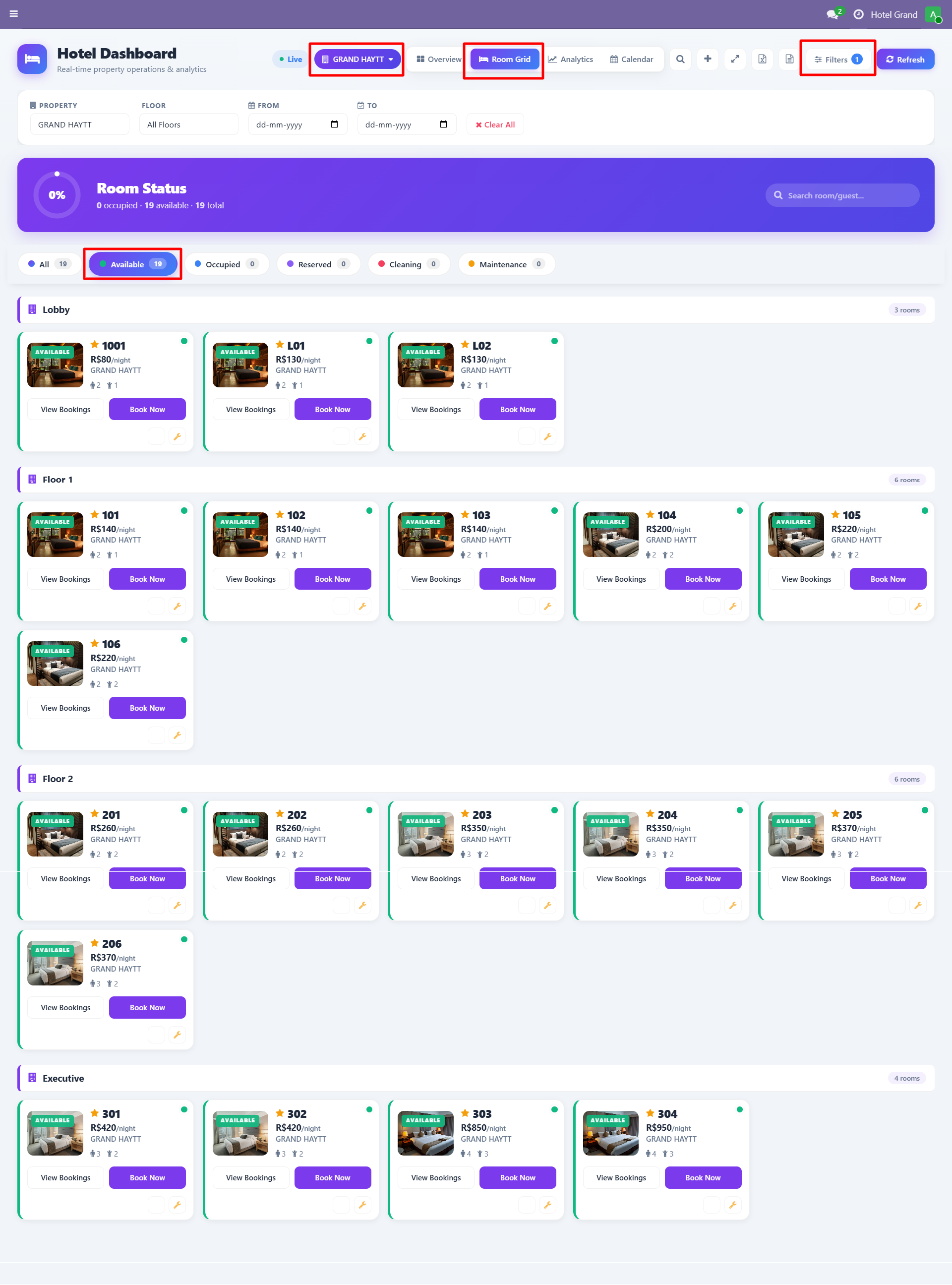
Status Colors
| Color | Meaning |
|---|---|
| Green | Available |
| Blue | Occupied |
| Yellow | Reserved (not yet checked in) |
| Orange | Checked out (needs cleaning) |
| Red | Out of service / Maintenance |
| Grey | Dirty / Housekeeping needed |
Filters
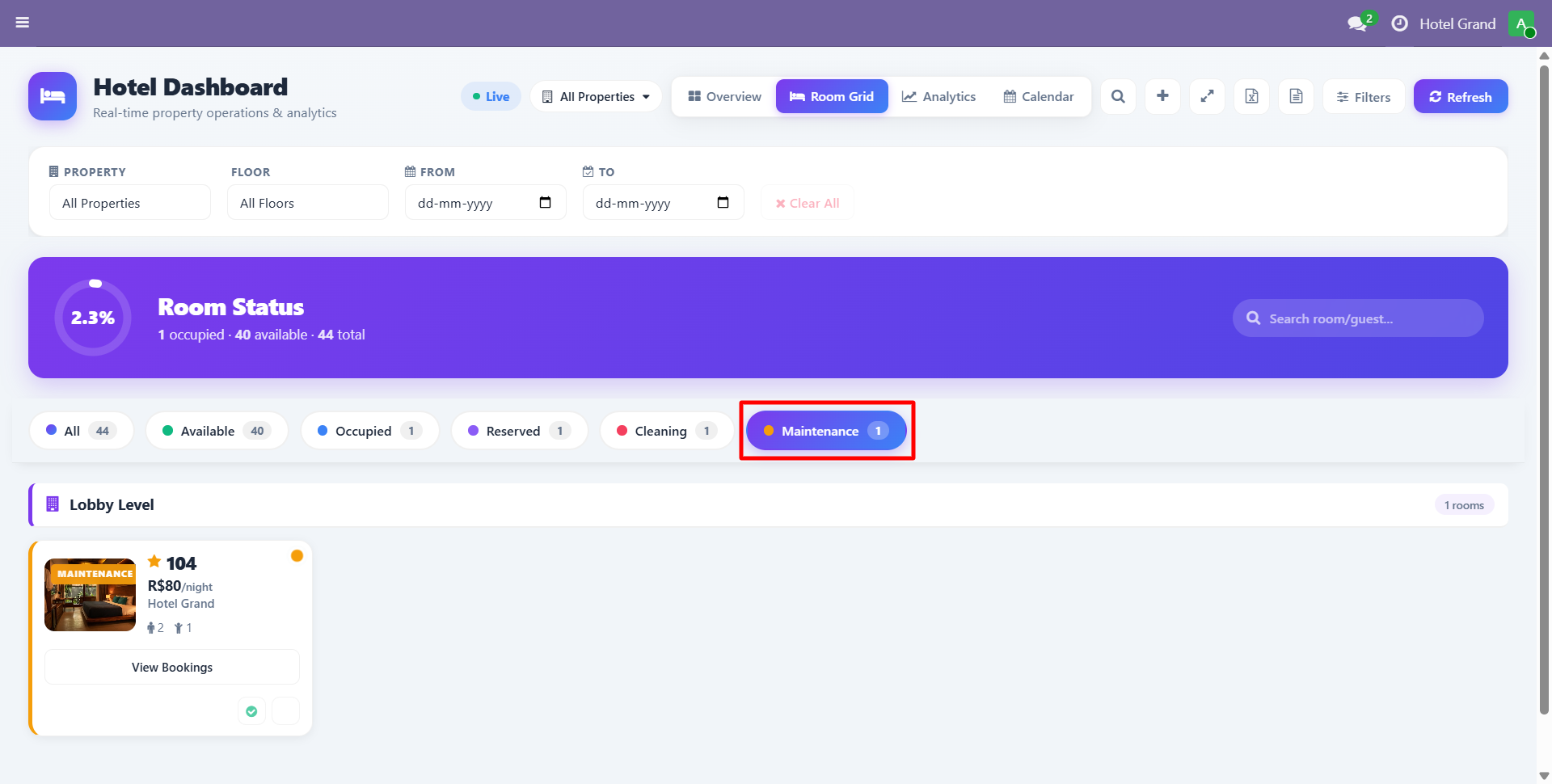
Filter the grid by:
- Property (for multi-property operations)
- Floor (show only specific floors)
- Room Type (Standard, Deluxe, Suite, etc.)
- Status (available, occupied, dirty, etc.)
- Date Range (see availability for future dates)
Quick Actions
Click any room to see:
- Current guest (if occupied)
- Next reservation
- Housekeeping status
- Recent history
- Quick buttons: Assign Reservation, Mark Clean, Report Issue
tip
Use the Room Grid during daily stand-up meetings. It gives everyone a clear visual of hotel status at a glance.
Need Help?
Contact SDLC Corp at sdlccorp.com/contact-us or email sales@sdlccorp.com