Hotel Management — Installation and Setup
Prerequisites
- Odoo 19 (Community or Enterprise)
- The following modules are required as dependencies and install automatically:
mail— Tracking and messagingaccount— Folios and invoicingcontacts— Guest profilesportal— Public booking portal
Installation
Step 1 — Install the Module
Go to Apps and search for "Hotel Management". Click Install.
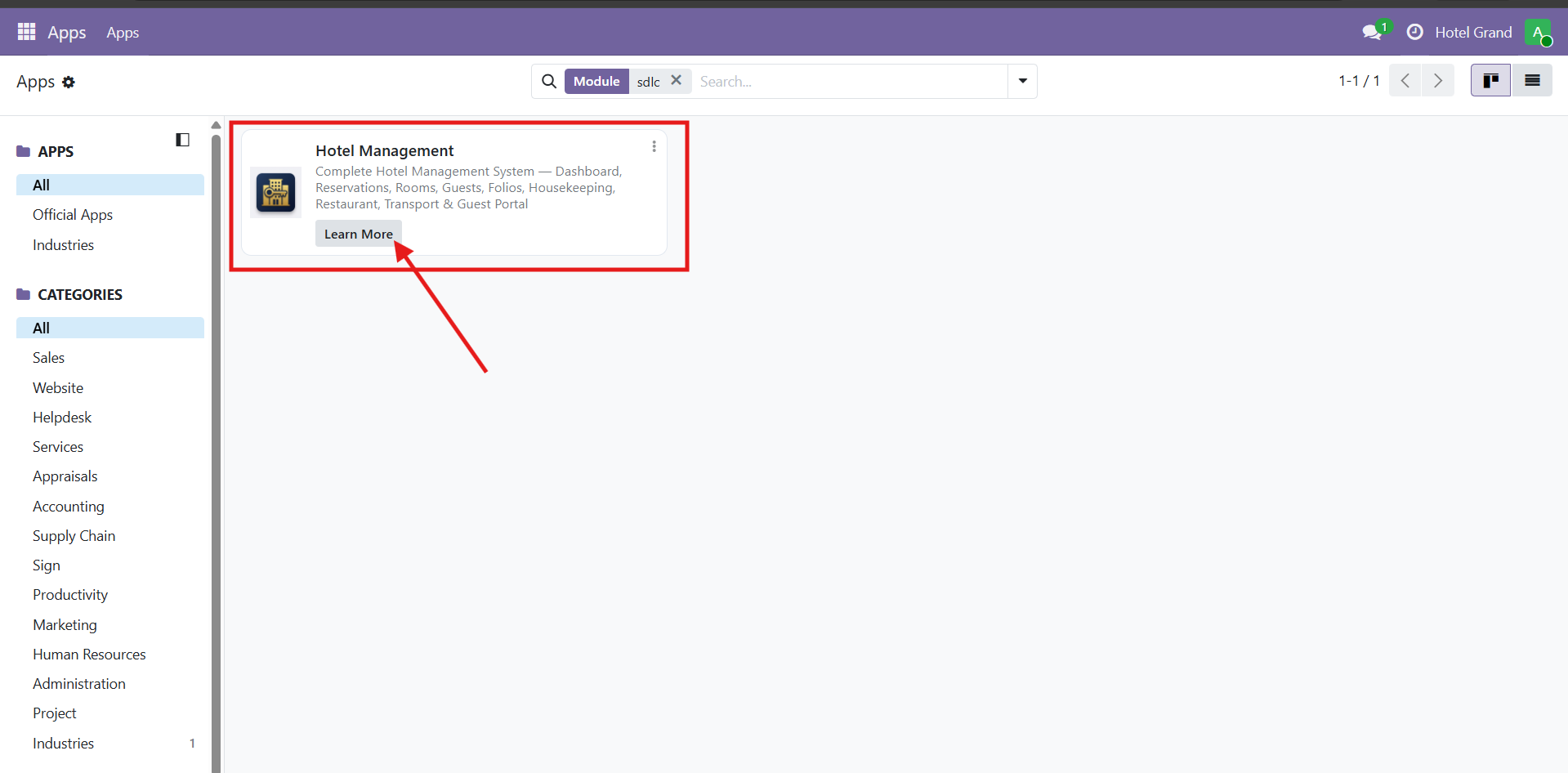
If the module doesn't appear, enable developer mode and click Update Apps List first.
Step 2 — Access the Hotel Menus
After installation, the Hotel top-level menu appears with all submenus:
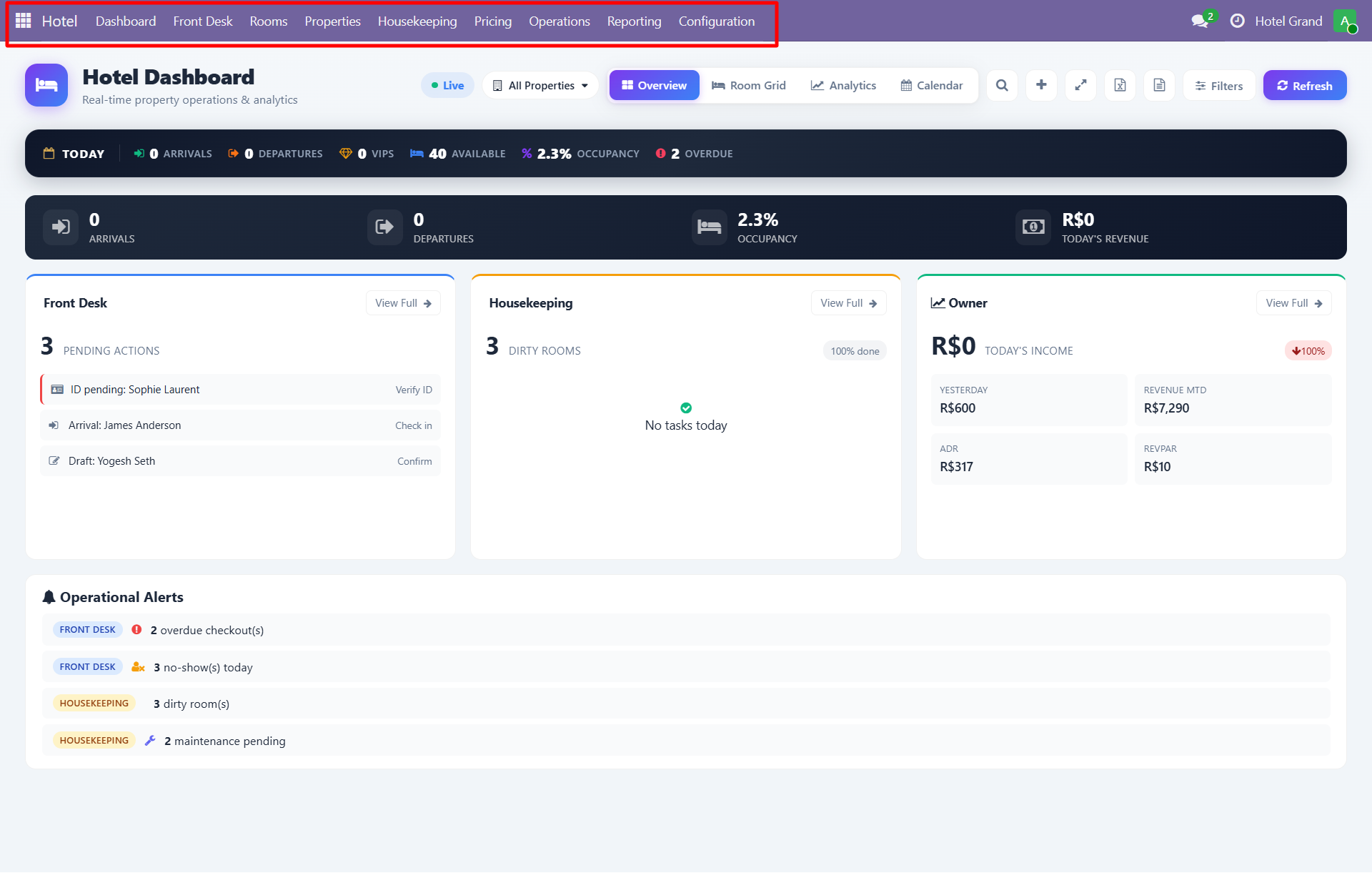
Main menus include:
- Dashboard — Role-based views (All / Front Desk / Housekeeping / Owner / Analytics)
- Front Desk — Reservations, check-in, check-out, calendar
- Rooms — Room configuration, room types, amenities, rate plans
- Properties — Multi-property management
- Housekeeping — Tasks, room cleaning, lost & found
- Pricing — Rate plans, minibar items
- Operations — Maintenance, notifications, restaurant, transport
- Reporting — Revenue, occupancy, VIP, booking source reports
- Configuration — Settings, sequences, security groups
Step 3 — Configure Your First Property
See the Property Configuration guide for adding properties, rooms, room types, and amenities.
Step 4 — Set Up Security Groups
Navigate to Configuration > Settings to configure role-based access:
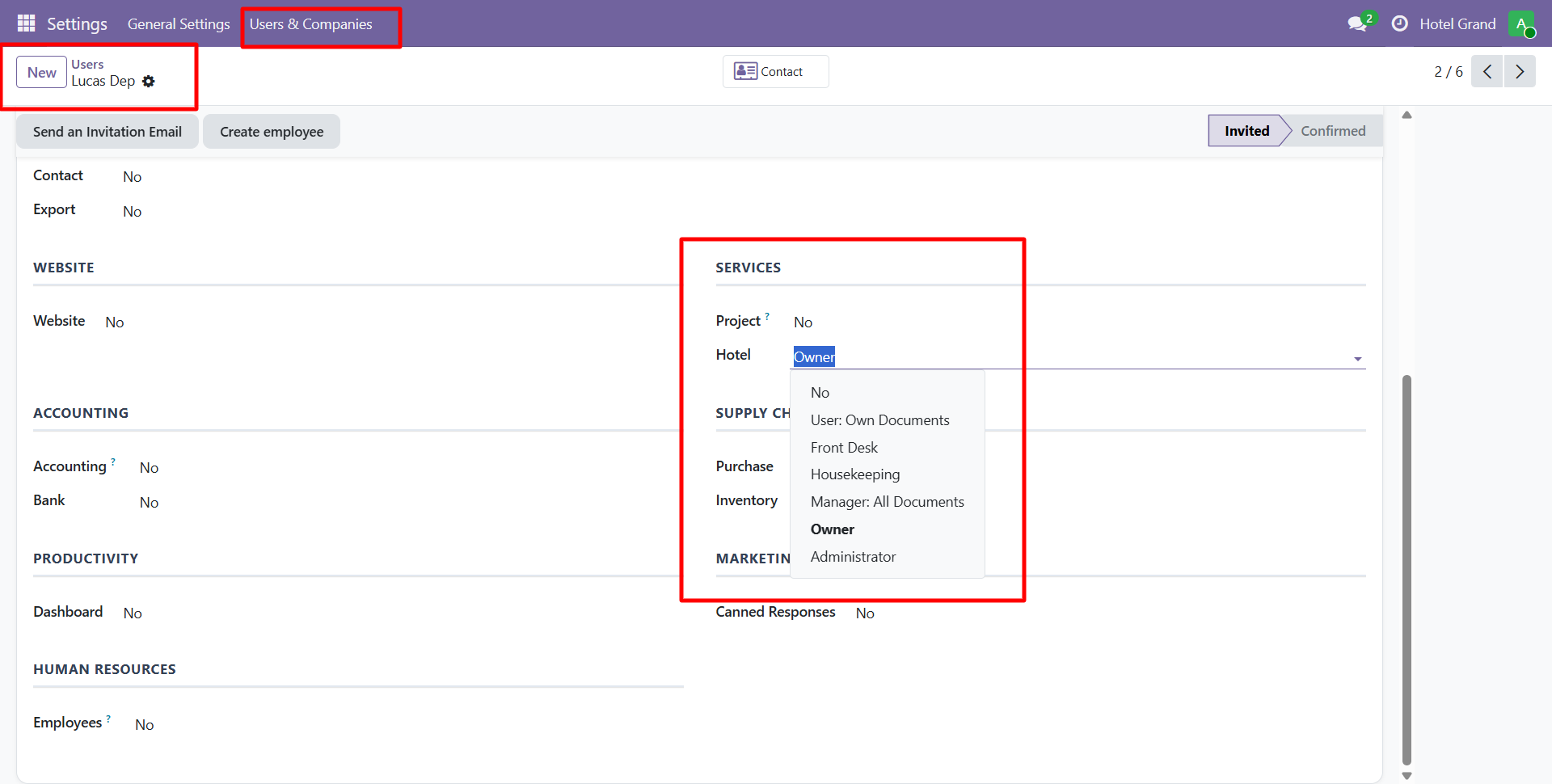
Roles available:
| Role | Access Level |
|---|---|
| Hotel User | View dashboards, create reservations |
| Front Desk | Check-in/out, folio management |
| Housekeeping | Manage rooms and tasks |
| Manager | Full access to all properties and reports |
| Administrator | Configuration, settings, security |
Step 5 — Enable Multi-Property (Optional)
If you operate multiple properties, use the property picker to switch between them:
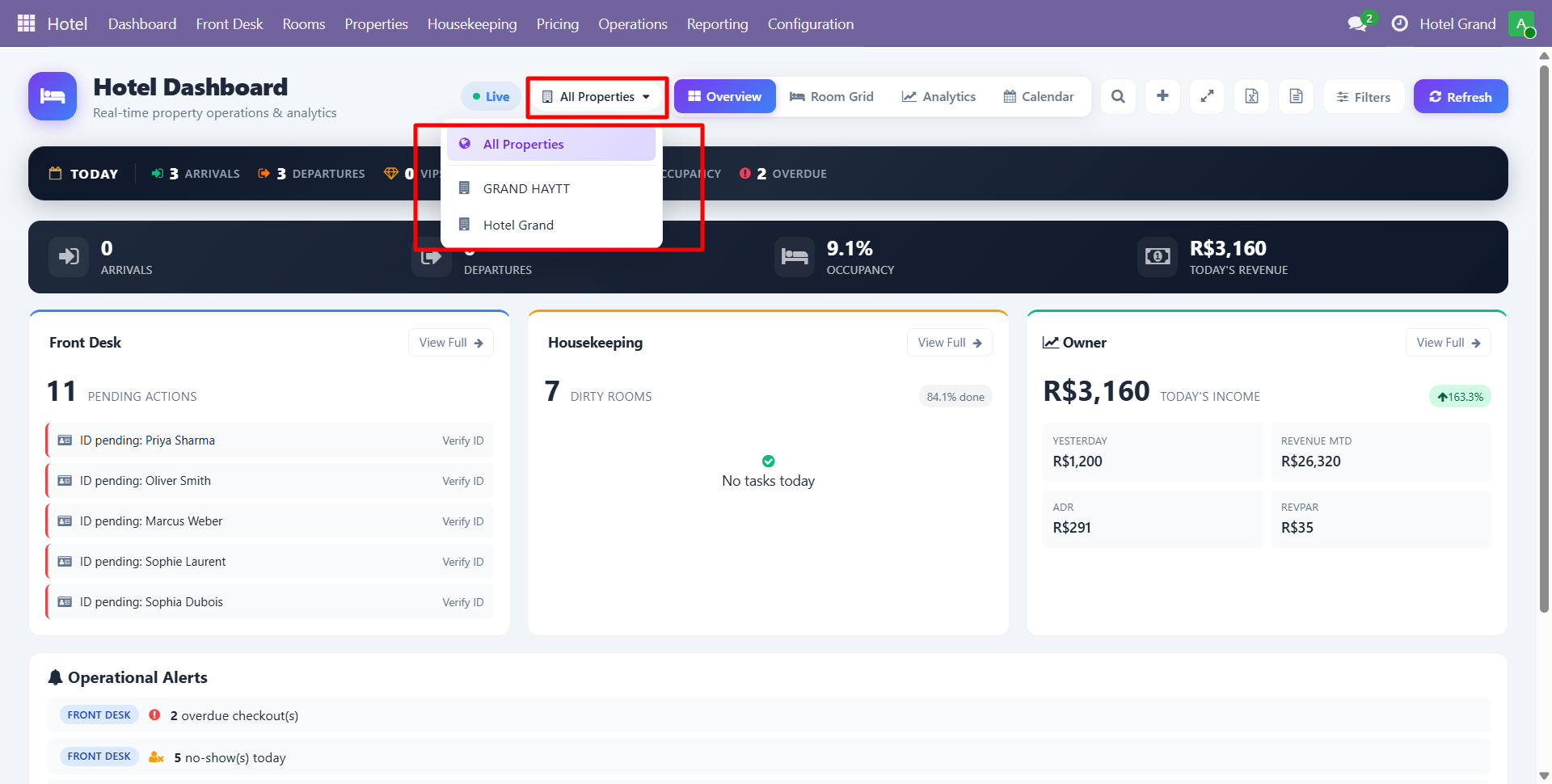
Each property has its own rooms, staff, and reports.
Demo Data
The module includes optional demo data with sample properties, rooms, guests, and reservations. This helps you explore features before going live.
To load demo data, install the module in a test database with demo data enabled.
Contact SDLC Corp at sdlccorp.com/contact-us or email sales@sdlccorp.com