Attendance Tracking
The HRMS Employee Dashboard provides powerful attendance tracking features including one-click check-in/check-out, a live work timer, and comprehensive monthly statistics.
Check-In / Check-Out
Employees can record their attendance directly from the dashboard with one-click check-in and check-out.
| Action | Behavior | Error Handling |
|---|---|---|
| Check In | Creates a new hr.attendance record with check_in = current UTC time. Displays the check-in time in the user's local timezone (HH:MM format). After success, both the attendance status and calendar data are reloaded. | If already checked in (an open record exists without check_out), a warning notification is shown: "Already checked in at HH:MM". If no employee record is linked, returns error: "No employee record found for current user". |
| Check Out | Finds the open attendance record (where check_out is empty) and updates it with the current UTC time. Displays the check-out time in local timezone. After success, both status and calendar are reloaded. | If no active check-in is found, a warning notification is shown: "No active check-in found. You are already checked out." |
All timestamps are automatically converted from UTC to the user's configured timezone using the tz field on the employee's related user record. The conversion uses the pytz library internally. You can set your timezone via My Profile > Preferences > Timezone.
The check-in action uses sudo() internally to bypass certain Odoo attendance constraints. This means the record is created with elevated privileges. The check-out action does not use sudo and respects standard access rights.
Work Timer
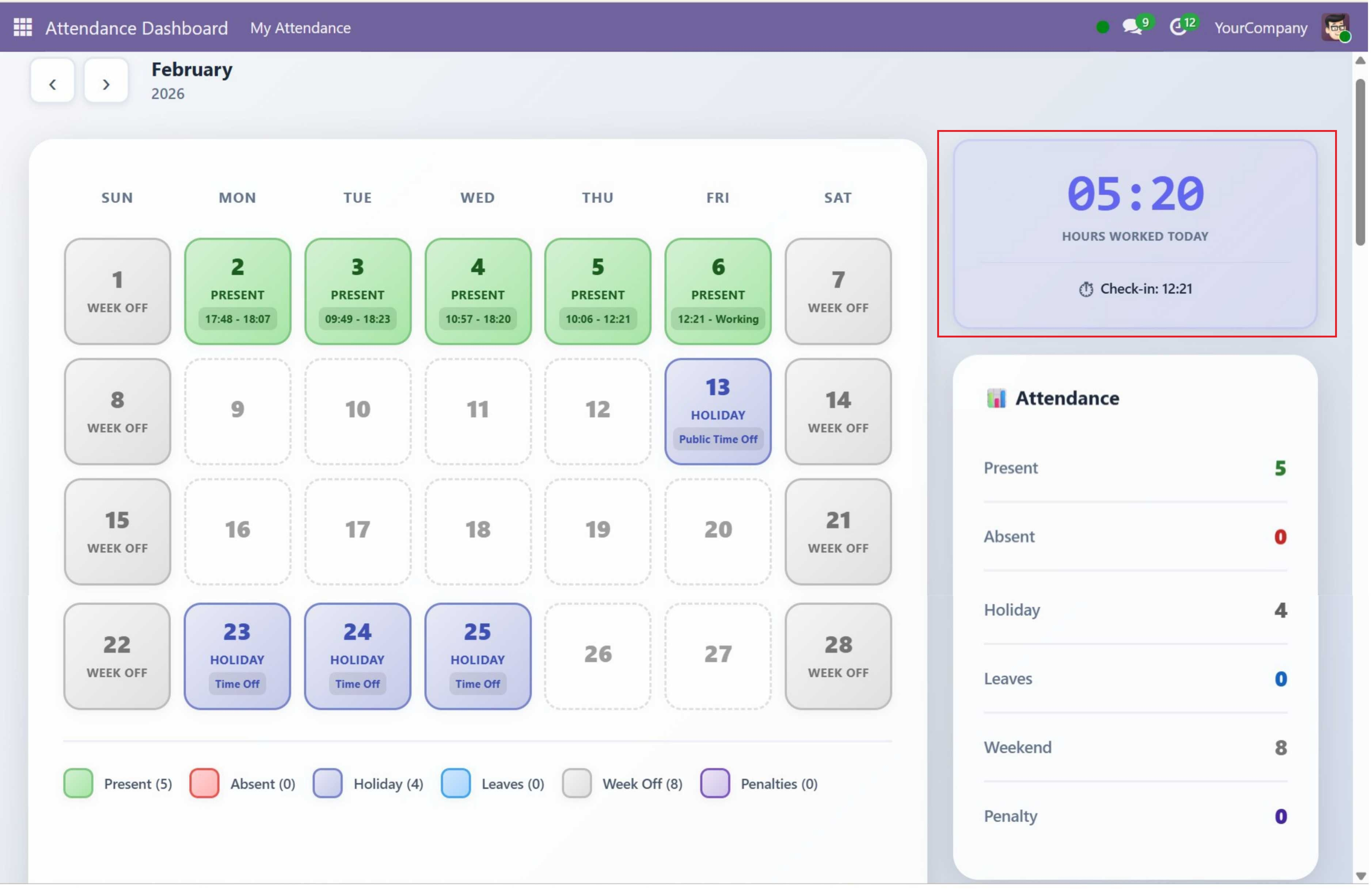
The Work Timer Widget is displayed at the top of the sidebar and shows a live count of hours and minutes worked today in large HH:MM format.
Visibility Condition
The Work Timer Widget is only visible when at least one of these conditions is true:
- The employee is currently checked in (an open attendance record exists)
- The employee has accumulated seconds > 0 (checked in and out at least once today)
If the employee has not checked in at all today, the work timer widget is hidden from the sidebar.
How the Timer Calculates
| Component | Description |
|---|---|
| Accumulated time | If you check in and out multiple times in a day, the timer sums up the duration of all completed check-in/check-out pairs from today (filtered to the user's local timezone date) |
| Live counter | While checked in, the timer adds the elapsed seconds since the current open check-in to the accumulated total. It updates every 1 second via a JavaScript setInterval |
| Display format | Total seconds are converted to HH:MM format (e.g., "03:45" means 3 hours 45 minutes) |
| Progress percentage | Calculated as (total minutes / 480) * 100, capped at 100%. 480 minutes = 8-hour standard workday |
Latest Action Display
Below the timer, a status row shows:
- A clock icon followed by either "Check-in: HH:MM" or "Check-out: HH:MM"
- This shows the most recent attendance action for the day, determined by comparing timestamps of all check-ins and check-outs
The live timer is a frontend display only. Your check-in record is stored on the server with the timestamp. When you re-open the dashboard, the timer recalculates the elapsed time from your stored check-in record, so no time is lost even if you close the browser.
Attendance Statistics
The Statistics Panel in the sidebar provides a quick monthly summary with the following counts:
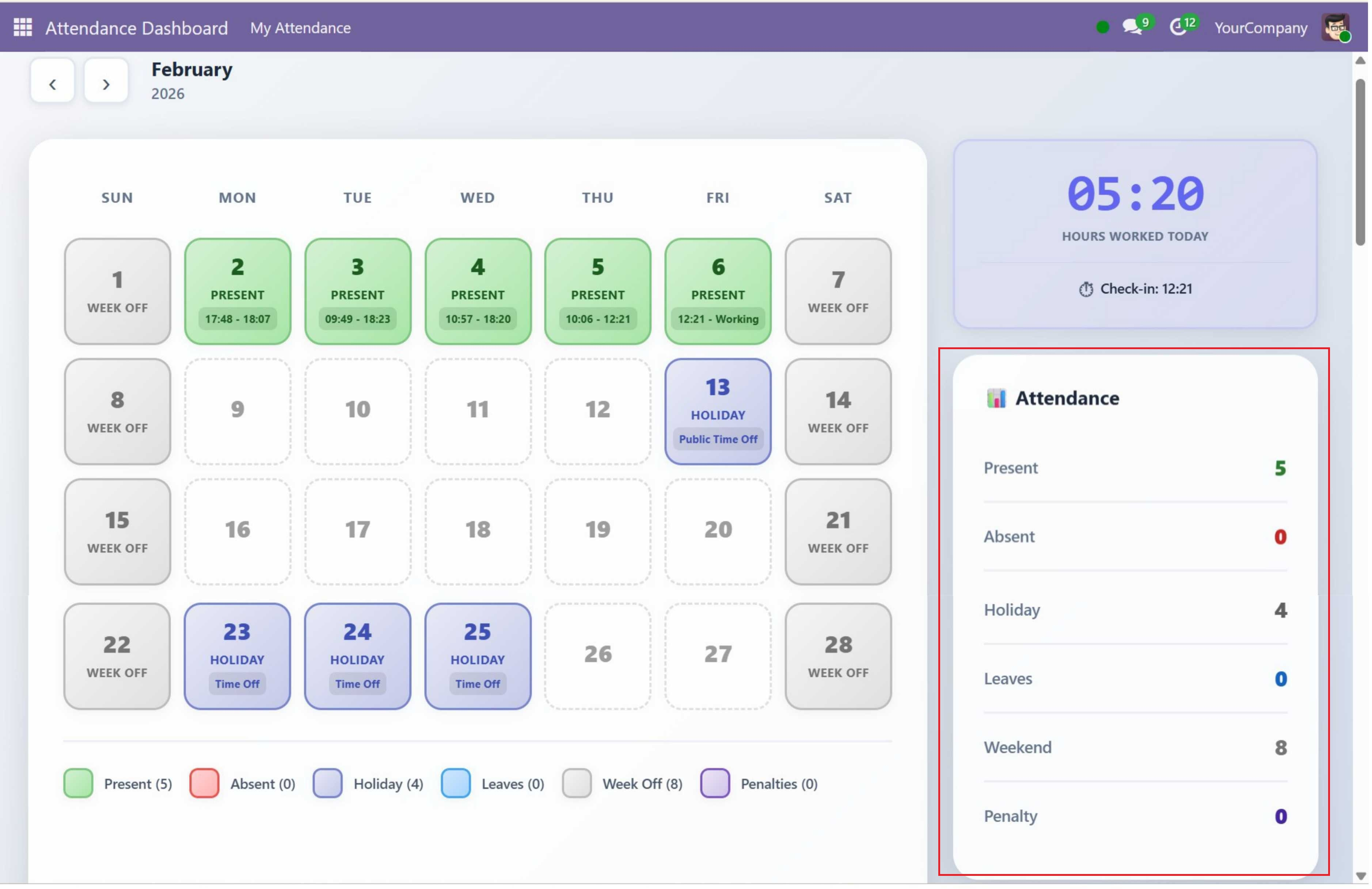
| Metric | Description |
|---|---|
| Present | Number of days the employee checked in and worked |
| Absent | Working days where no attendance was recorded and no leave was approved |
| Holiday | Public holidays and company-wide holidays for the month |
| Leaves | Days with approved leave requests |
| Weekend | Saturday and Sunday days in the month |
| Penalty | Days flagged with attendance penalties |
The statistics panel updates automatically when you navigate between months using the header arrows. It always reflects the data for the currently selected month.
Attendance Calendar Details
The attendance calendar is the centerpiece of the dashboard. Each day cell in the 7-column grid displays:
- Date number — The day of the month
- Status label — Color-coded status (Present, Absent, Holiday, Leave, Week Off, Penalty, or empty for future dates)
- Time info — For present days: first check-in and latest check-out times (e.g., "09:00 - 18:00"). If still checked in: "09:00 - Working"
Calendar Legend
Below the calendar grid, a color-coded legend shows each status with its current month count in parentheses:
| Status | Color | Meaning |
|---|---|---|
| Present | Green | Employee checked in and worked |
| Absent | Red | No attendance record and no approved leave |
| Holiday | Purple | Public or company-wide holiday |
| Leave | Blue | Approved leave request |
| Week Off | Gray | Saturday or Sunday |
| Penalty | Dark Red | Attendance penalty flagged |
Contact SDLC Corp at sdlccorp.com/contact-us or email sales@sdlccorp.com