Leave Management & Celebrations
The HRMS Employee Dashboard integrates leave balance tracking, holiday display, celebration tracking, and project assignments into a unified view.
Leave Balances
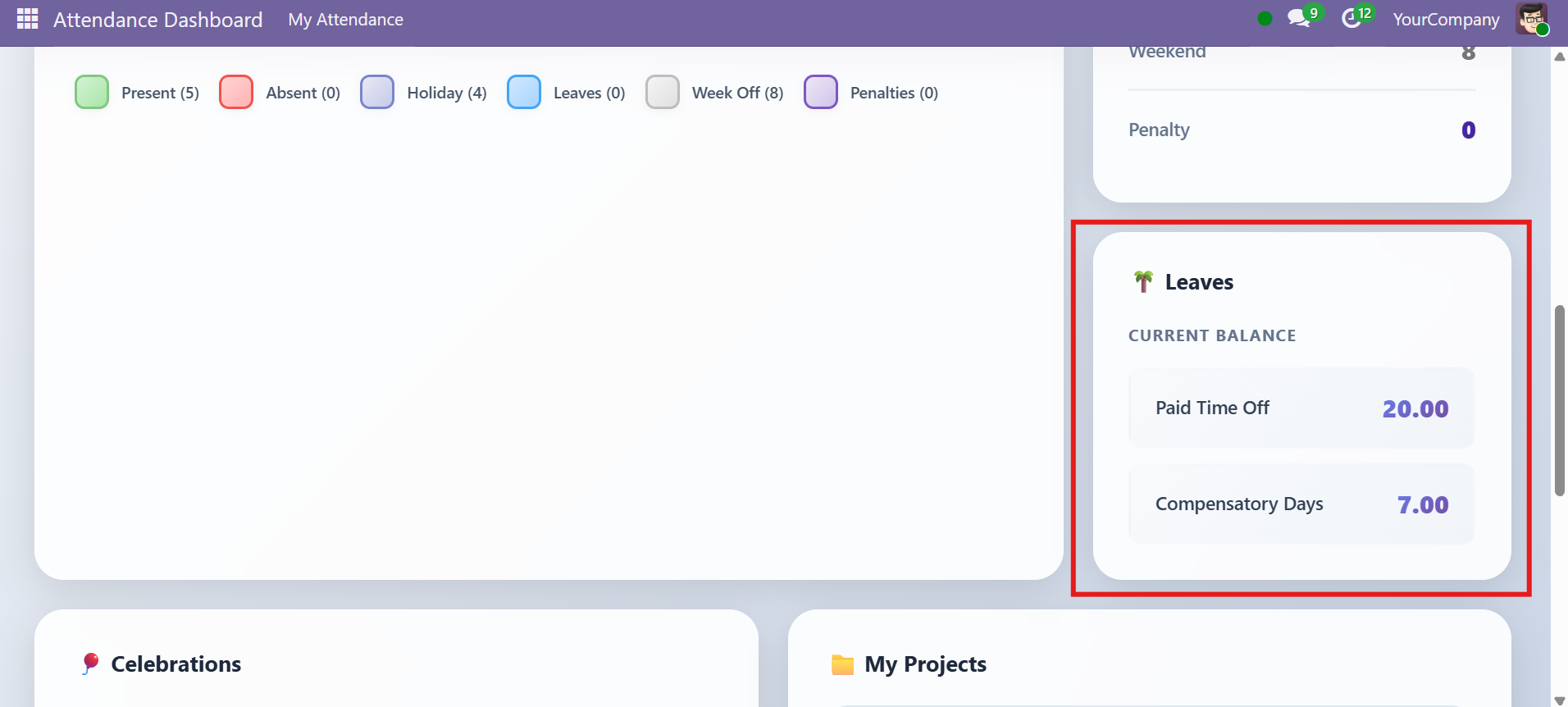
The Leaves Panel in the sidebar displays the employee's leave balance under the heading "CURRENT BALANCE". For each leave type with an approved allocation, you can see:
- Leave type name on the left (e.g., Casual Leave, Sick Leave, Annual Leave)
- Remaining days on the right — displayed with 2 decimal places (e.g., "10.00", "7.50")
Calculation Logic
The balance is calculated as: allocation.number_of_days - allocation.leaves_taken
| Step | Detail |
|---|---|
| 1 | The system searches all hr.leave.type records |
| 2 | For each leave type, it finds the approved allocation (state = 'validate') for the current employee |
| 3 | Only leave types with at least one approved allocation are shown |
| 4 | If no allocations exist at all, the panel shows the message: "No leave allocations found" |
Setting Up Leave Types
To configure leave types that appear on the dashboard:
- Go to Time Off > Configuration > Leave Types
- Create or edit leave types such as Casual Leave, Sick Leave, Annual Leave
- Ensure "Requires Allocation" is set to Yes for types you want to track balances for
- Go to Time Off > Managers > Allocation and create allocations for each leave type per employee
- The dashboard will automatically show allocated vs. remaining days
Public Holidays
Public holidays are displayed on the attendance calendar as purple-coded days with the holiday name shown as the time info text.
Configuring Public Holidays
- Go to Time Off > Configuration > Public Holidays
- Create holiday entries with the name and date
- The dashboard automatically picks these up and marks them on the calendar
Holidays are sourced from the resource.calendar.leaves model. Both company-wide and employee-specific calendar leaves are detected.
Celebrations
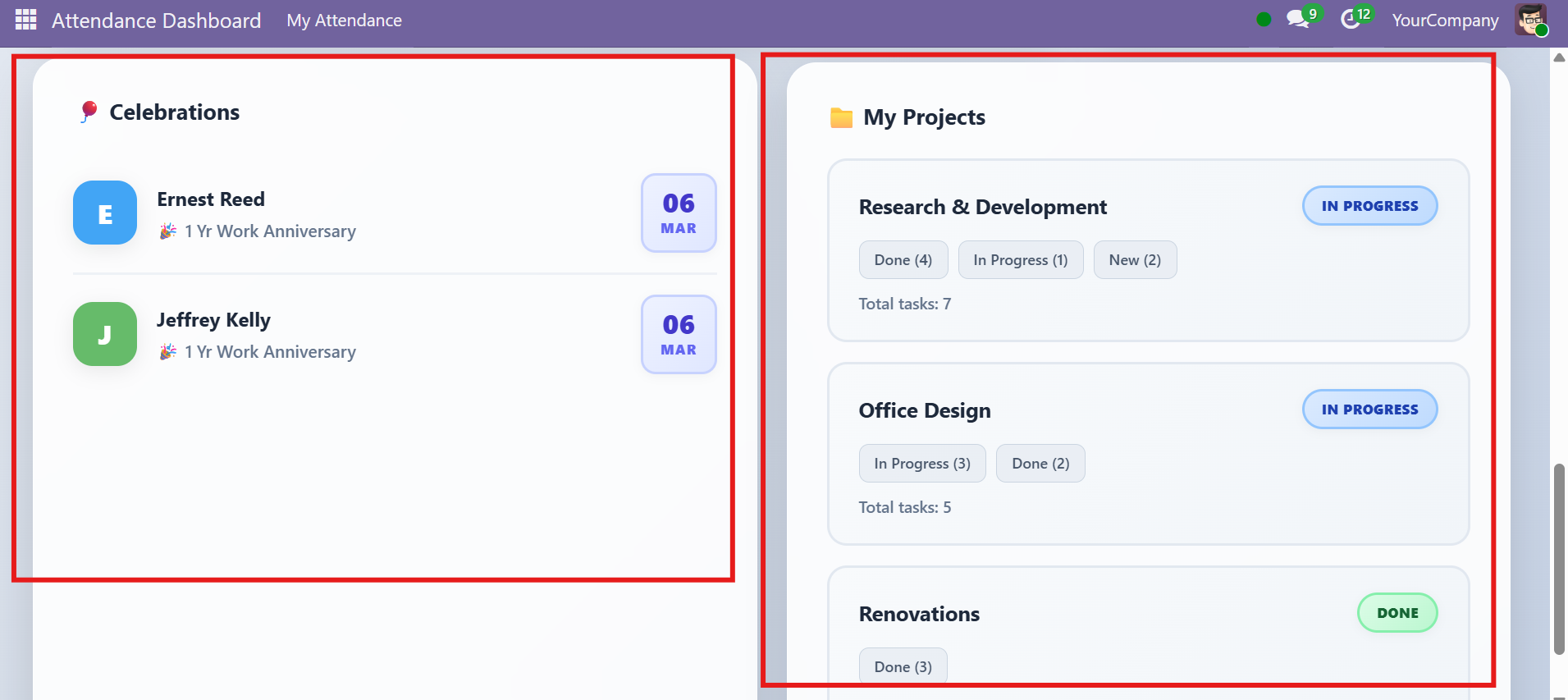
The Celebrations Panel at the bottom of the dashboard shows upcoming employee events within the next 30 days.
Event Types
| Type | Source Field | Display |
|---|---|---|
| Birthdays | Employee birthday field | Employee name, cake emoji, date, and days until the event |
| Work Anniversaries | Employee joining_date field (custom) | Employee name, party popper emoji, "X Yr Work Anniversary", date, and days until the event |
Display Details
Each celebration entry shows:
- Initials Avatar — A circular avatar with the employee's first initial (e.g., "J" for John). The background color is deterministic, assigned based on the character code of the first letter using a palette of 6 colors
- Employee Name — Full name of the employee
- Celebration Type — Birthdays show "Birthday", work anniversaries show "X Yr Work Anniversary" (e.g., "3 Yr Work Anniversary")
- Date — Displayed as DD MMM format (e.g., "15 Apr"), split into day number and month abbreviation
Results are sorted by the nearest upcoming event first (ascending days_until). The system handles leap year edge cases by falling back to Feb 28 for birthdays/anniversaries on Feb 29 in non-leap years.
Make sure the Joining Date field is filled in on the Employee form to enable work anniversary tracking. This field is added by the HRMS Dashboard module right after the Manager field.
Projects & Tasks
The Projects Panel at the bottom of the dashboard provides an overview of the employee's assigned projects and tasks.
For each project, you will see:
- Project name — displayed on the left of the project header
- Overall status badge — displayed on the right with color-coded styling
- Task breakdown by stage — individual stage tags showing stage name and count (e.g., "To Do (3)", "In Progress (2)", "Done (5)")
- Total task count — shown at the bottom as "Total tasks: X"
Status Badge Logic
The system examines all task stage names (lowercased) for the project and applies this logic:
| Badge | Condition |
|---|---|
| Done | ALL task stages match: "done", "closed", "finished", or "completed" |
| In Progress | ANY stage matches "done/closed/finished/completed" but not all, OR any stage matches "in progress", "doing", or "active" |
| On Hold | ANY stage matches "blocked" or "on hold" (and no done/in-progress stages) |
| New | None of the above conditions match (default fallback) |
Sort Order
Projects are sorted by status priority: In Progress (first) > New > On Hold > Done (last). This ensures the most active projects always appear at the top.
Only projects where the current user is assigned to at least one task (via project.task.user_ids) are shown. Tasks without a project (project_id = False) are excluded.
Contact SDLC Corp at sdlccorp.com/contact-us or email sales@sdlccorp.com