Magento 2 Connector — Inventory Management
The Magento 2 Connector provides real-time inventory synchronization between Odoo and Magento, ensuring stock levels are always accurate across both platforms.
Accessing Inventory
Navigate to Magento > Inventory to view the inventory synchronization dashboard.
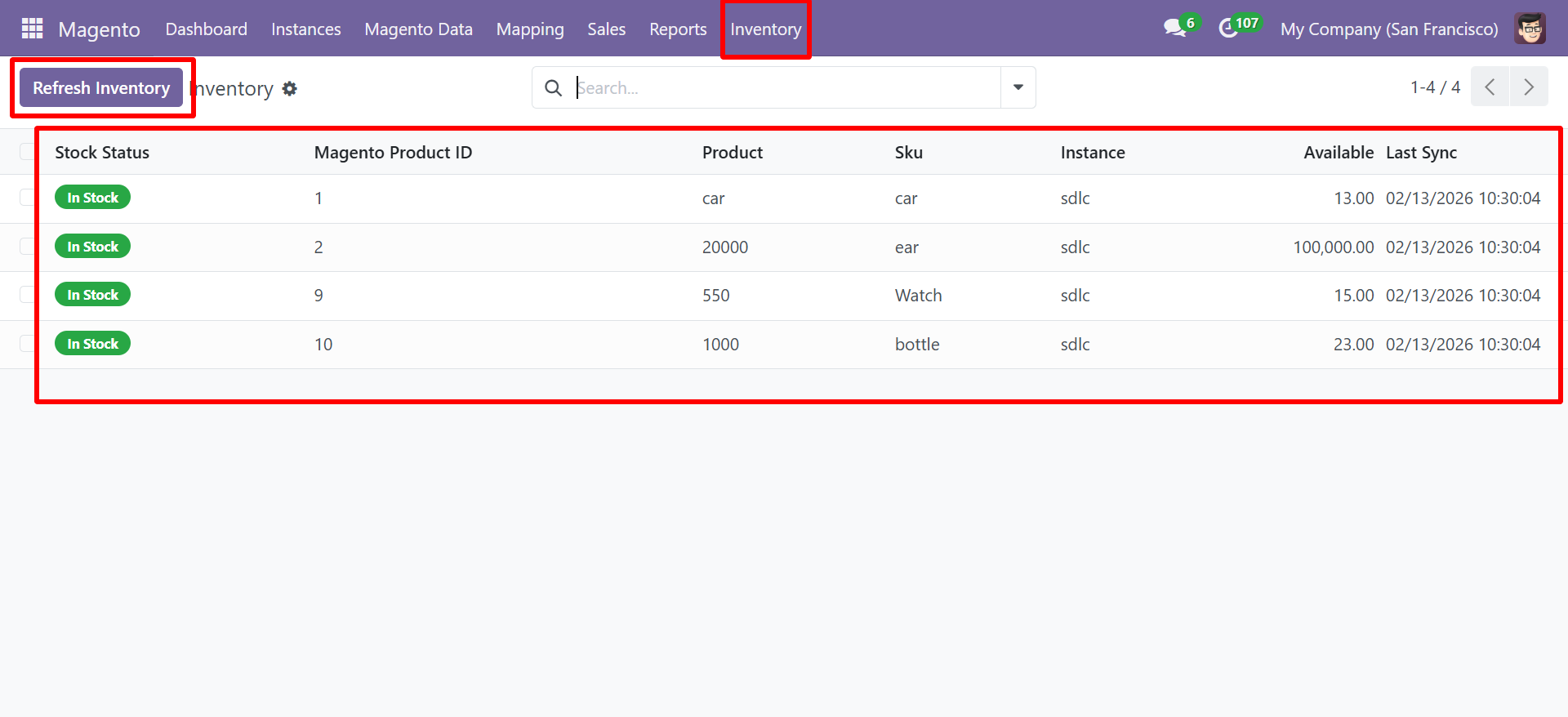
Inventory List View
The inventory view displays stock information for all synced products:
| Column | Description |
|---|---|
| Stock Status | Current stock status (In Stock, Out of Stock) |
| Magento Product ID | The product ID in Magento |
| Product | Product reference code in Odoo |
| SKU | Product SKU |
| Instance | The Magento instance this inventory record belongs to |
| Available | Current available quantity |
| Last Sync | Date and time of the last inventory sync |
Example Data
| Stock Status | Magento Product ID | Product | SKU | Instance | Available | Last Sync |
|---|---|---|---|---|---|---|
| In Stock | 1 | car | car | sdlc | 13.00 | 02/11/2026 10:30:04 |
| In Stock | 2 | 20000 | ear | sdlc | 100,000.00 | 02/11/2026 10:30:04 |
| In Stock | 9 | 550 | Watch | sdlc | 15.00 | 02/11/2026 10:30:04 |
| In Stock | 10 | 1000 | bottle | sdlc | 23.00 | 02/11/2026 10:30:04 |
Refresh Inventory
Click the Refresh Inventory button (green button in the toolbar) to manually trigger an inventory sync. This will:
- Query the Magento API for current stock levels of all products.
- Update the inventory view with the latest quantities and stock statuses.
- Compare Magento stock levels with Odoo's
qty_availableto identify discrepancies.
Use the Refresh Inventory button after making bulk stock adjustments in either system to immediately verify the sync.
Stock Status
Products are classified into two stock statuses:
| Status | Meaning |
|---|---|
| In Stock | Product has available quantity greater than zero and is saleable |
| Out of Stock | Product quantity is zero or below the minimum threshold |
Inventory Sync Behavior
Odoo to Magento
- When stock levels change in Odoo (via sales, purchases, inventory adjustments, or manufacturing), the updated quantities can be pushed to Magento.
- The sync uses Odoo's
qty_availablefield as the source of truth.
Magento to Odoo
- When inventory is updated in Magento (via admin panel, imports, or POS), the quantities are pulled into Odoo during the next sync.
- Magento's
quantity_and_stock_statusattribute is used.
If inventory is managed in both systems simultaneously, conflicts may arise. It is recommended to designate one system as the primary inventory manager and sync in one direction to avoid discrepancies.
Auto Inventory Sync
Inventory can be included in the auto-sync scope. When enabled:
- Stock levels are synchronized at the configured cron interval.
- Both stock quantities and stock status are updated.
- Sync results are logged in the Sync Reports.
See Auto Sync Cron Jobs to configure automatic inventory synchronization.
Best Practices
- Designate a primary system -- Choose either Odoo or Magento as the primary inventory management system to avoid conflicts.
- Sync frequently -- For high-volume stores, sync inventory at least every hour to prevent overselling.
- Monitor out-of-stock -- Regularly check the inventory view for products with zero quantity.
- Reconcile periodically -- Compare inventory levels between both systems monthly to catch any drift.