Magento 2 Connector — Customer Management
The Magento 2 Connector synchronizes customer data bidirectionally between Odoo and Magento. Customer records, including names, contact details, and addresses, are kept in sync across both platforms.
Accessing Magento Customers
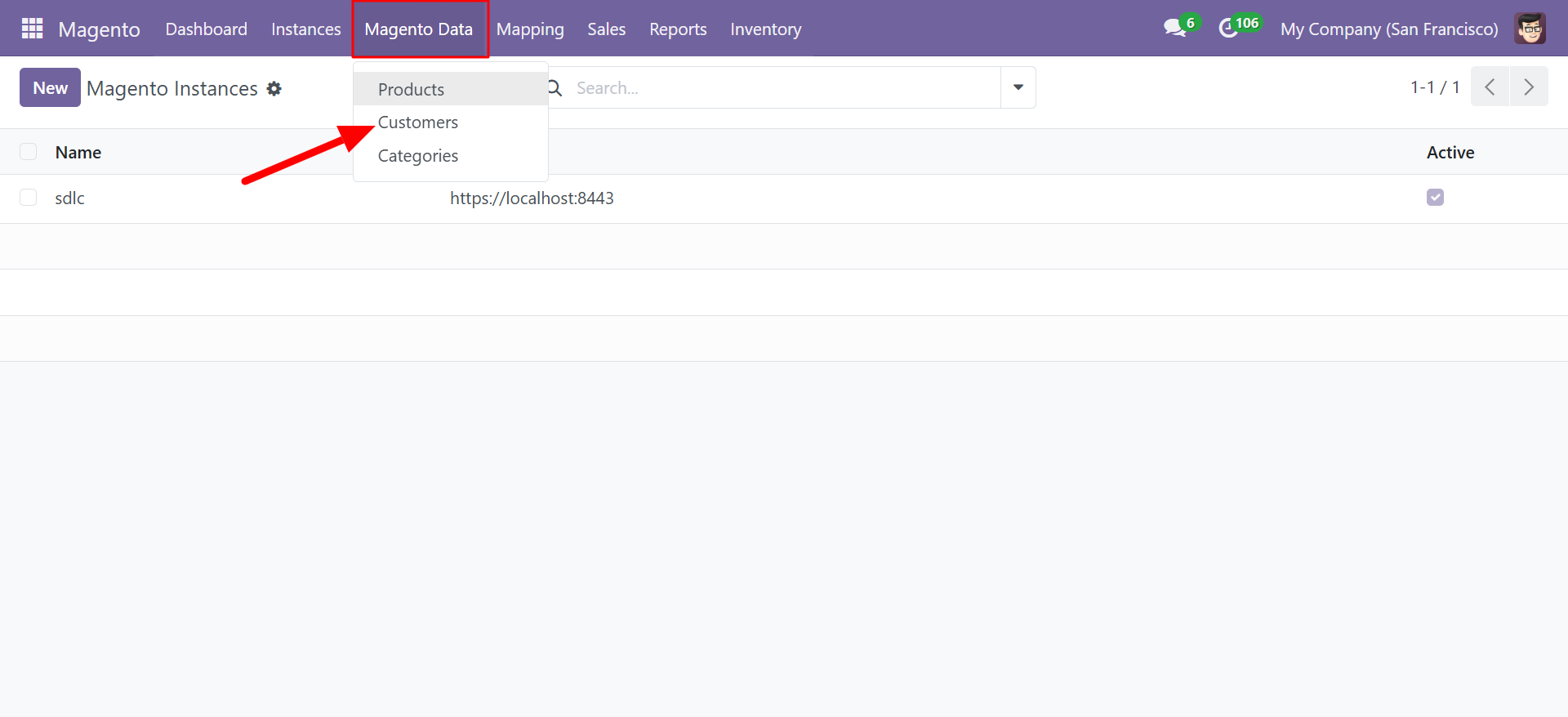
Navigate to Magento > Magento Data > Customers to view all synced customer records.
Customer List View
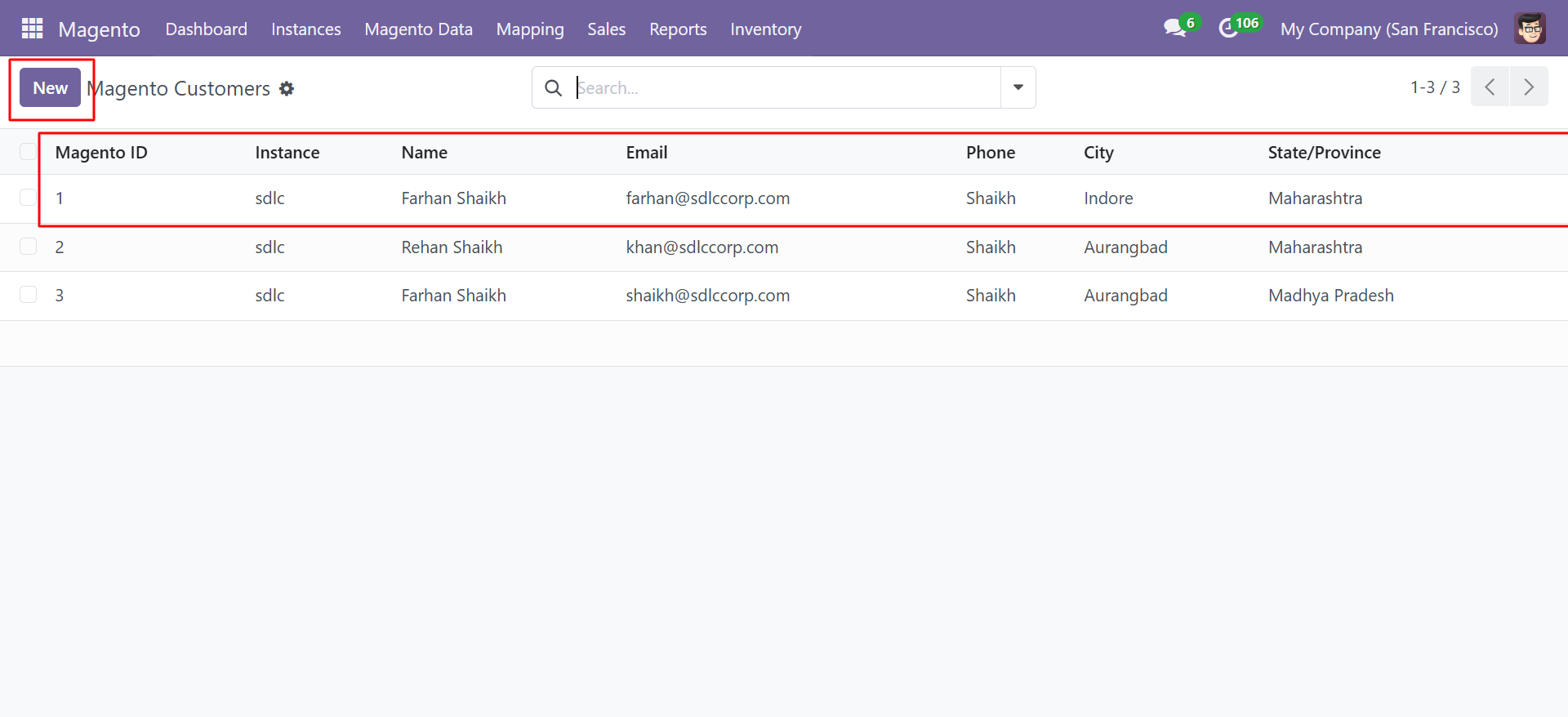
The customer list provides an overview of all synchronized customers:
| Column | Description |
|---|---|
| Magento ID | The customer ID in Magento |
| Instance | The Magento instance this customer belongs to |
| Name | Customer full name |
| Customer email address | |
| Phone | Customer phone number |
| City | Customer city |
| State/Province | Customer state or province |
Customer Form Fields
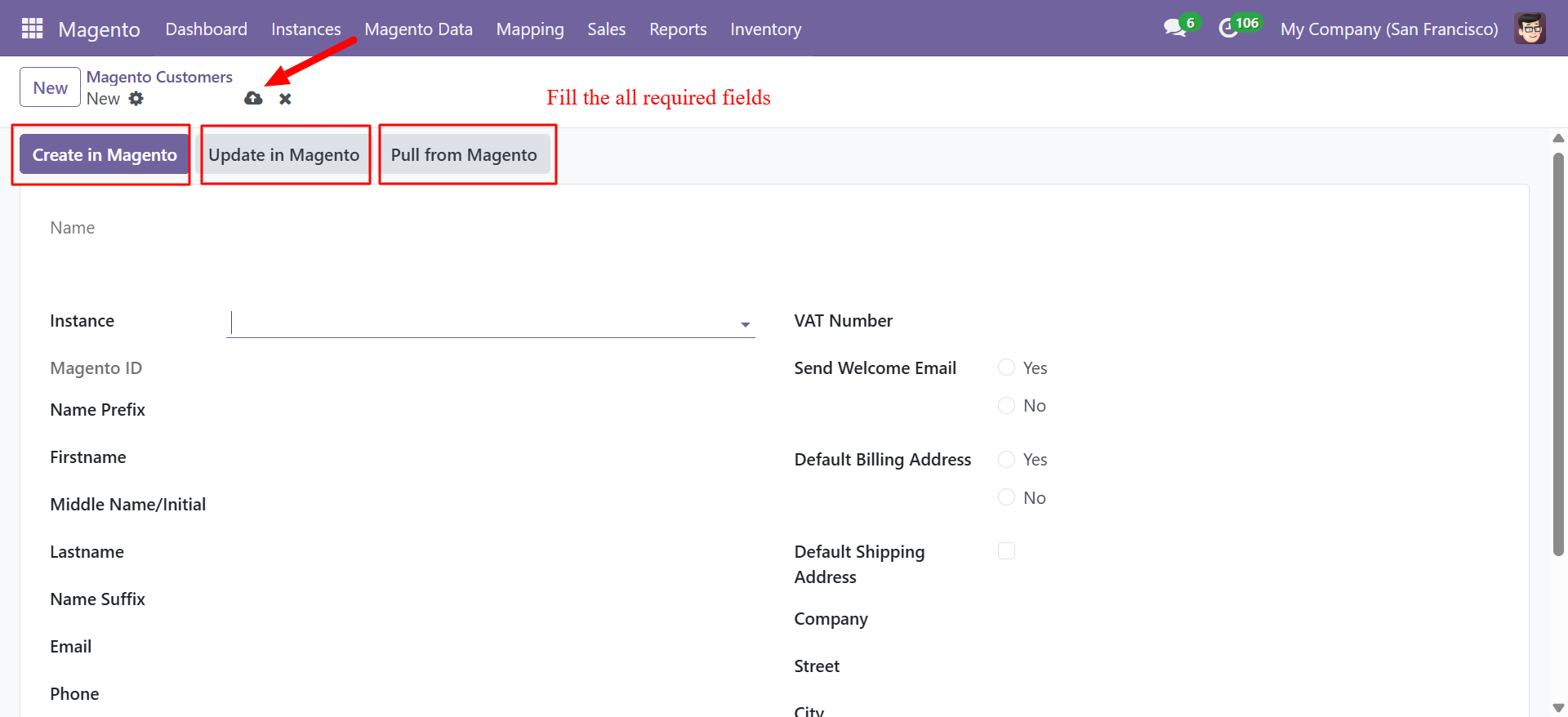
Click on a customer record to view or edit the full details:
| Field | Description |
|---|---|
| Instance | The Magento instance connection |
| Name | Full customer name |
| Magento ID | The Magento customer ID (auto-populated on sync) |
| Name Prefix | Customer name prefix (Mr., Mrs., etc.) |
| Firstname | Customer first name |
| Middle Name/Initial | Customer middle name or initial |
| Lastname | Customer last name |
| Name Suffix | Customer name suffix (Jr., Sr., etc.) |
| Customer email address | |
| Phone | Customer phone number |
| VAT Number | Customer VAT/Tax identification number |
| Send Welcome Email | Whether to send a welcome email (Yes/No) |
| Default Billing Address | Default billing address (Yes/No) |
| Default Shipping Address | Default shipping address (Yes/No) |
| Company | Customer company name |
| Street | Street address |
| City | City |
Customer Actions
The customer form provides three primary action buttons:
| Button | Description |
|---|---|
| Create in Magento | Push a new customer record from Odoo to Magento |
| Update in Magento | Push updated customer data from Odoo to Magento |
| Pull from Magento | Refresh the customer record with the latest data from Magento |
When creating a customer in Magento from Odoo, the system assigns a default password. Ensure you communicate password reset instructions to the customer, or configure Magento to send a welcome email with a password setup link by setting Send Welcome Email to Yes.
Syncing Customers
Pull Customers from Magento
- Go to Magento > Instances.
- Open your instance.
- Click Sync Customers.
- All customer records from Magento will be imported into Odoo.
Push a Customer to Magento
- Navigate to Magento > Magento Data > Customers.
- Click New.
- Select the Instance.
- Fill in all required fields.
- Click Create in Magento.
Customers synced from Magento are automatically linked to Odoo res.partner records. If a matching partner already exists (by email), the connector links to the existing record instead of creating a duplicate.