Magento 2 Connector — Installation & Setup
This guide walks you through installing the SDLC Magento 2 Connector module in Odoo and connecting it to your Magento 2 store.
Prerequisites
Before you begin, ensure you have the following:
| Requirement | Details |
|---|---|
| Odoo Instance | A running Odoo 17, 18, or 19 instance (Community or Enterprise) |
| Magento 2 Store | A Magento 2.3+ store with REST API enabled |
| Admin Access | Administrator privileges on both Odoo and Magento |
| API Token | A Magento Integration Access Token (see below) |
| Network Access | Odoo server must be able to reach Magento's API endpoint |
Step 1: Install the Module
- Download the SDLC Magento 2 Connector module from the Odoo App Store or your SDLC Corp delivery package.
- Place the module folder (
sdlc_magento_connector) in your Odoo addons directory. - Restart the Odoo server.
- Navigate to Apps in Odoo, click Update Apps List.
- Search for Magento and click Install.
tip
If you are using Odoo.sh, upload the module to your custom addons repository and trigger a rebuild.
Step 2: Generate a Magento API Access Token
The connector communicates with Magento via the REST API. You need an Integration Access Token:
- Log in to your Magento Admin Panel.
- Navigate to System > Extensions > Integrations.
- Click Add New Integration.
- Fill in the integration details:
- Name:
Odoo Connector - Email: Your admin email
- Password: Your Magento admin password
- Name:
- Go to the API tab and select the required resource access:
- Resource Access: Set to
All(or selectively grant Products, Customers, Orders, Sales, Catalog, and Inventory)
- Resource Access: Set to
- Click Save and then Activate.
- Confirm activation to receive the Access Token.
Important
Copy and securely store the Access Token immediately. Magento only displays it once. If lost, you must create a new integration.
Step 3: Configure the Magento Instance in Odoo
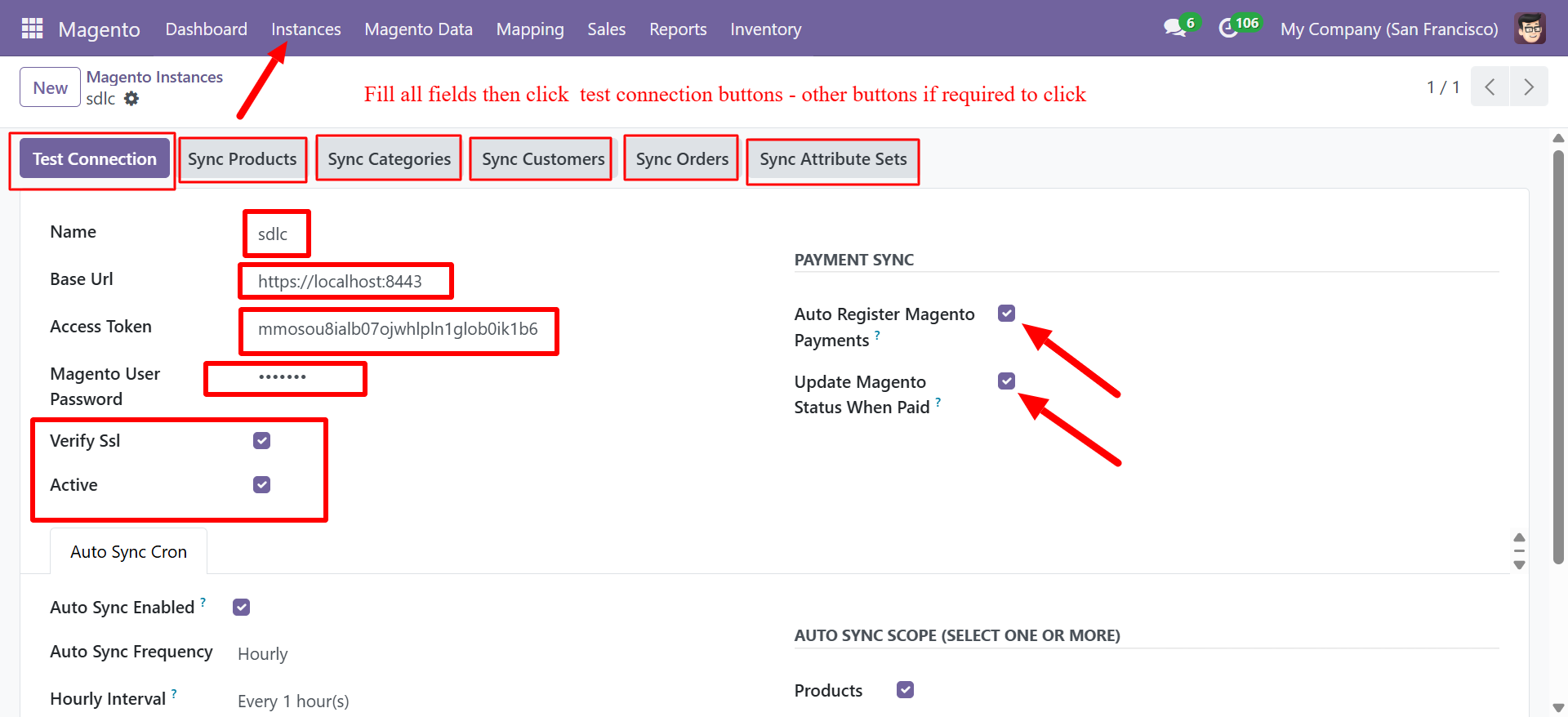
- Open Odoo and navigate to Magento > Instances.
- Click New to create a new instance.
- Fill in the connection details:
| Field | Description |
|---|---|
| Name | A descriptive name for this connection (e.g., My Magento Store) |
| Base URL | Your Magento store URL (e.g., https://magento.example.com) |
| Access Token | The integration token generated in Step 2 |
| Magento User Password | Your Magento admin password |
| Verify SSL | Enable for production environments with valid SSL certificates |
| Active | Check to enable this instance |
- Click Test Connection to verify the connection.
Step 4: Initial Sync
Once your connection is verified, perform the initial data sync:
- Click Sync Products to pull your Magento product catalog into Odoo.
- Click Sync Categories to import your category hierarchy.
- Click Sync Customers to import customer records.
- Click Sync Orders to pull existing orders.
info
The initial sync may take several minutes depending on the size of your Magento catalog. You can monitor progress in Reports > Sync Reports.