Magento 2 Connector — Sync Reports & Logs
The Magento 2 Connector provides comprehensive reporting for all synchronization operations. Sync Reports and Mapping Reports give you full visibility into what was synced, when, and whether it succeeded or failed.
Sync Reports
Accessing Sync Reports
Navigate to Magento > Reports > Sync Reports to view the sync operation log.
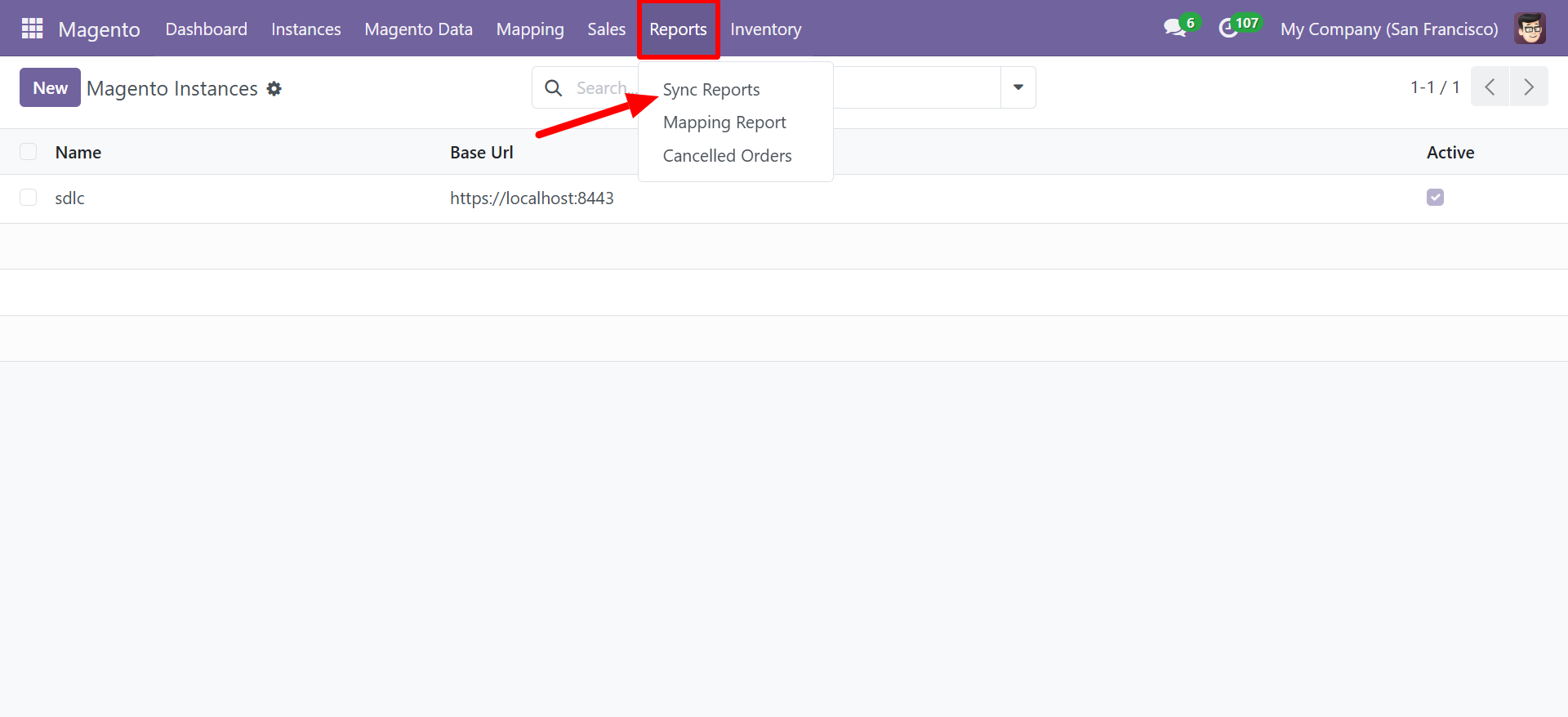
Sync Report List View
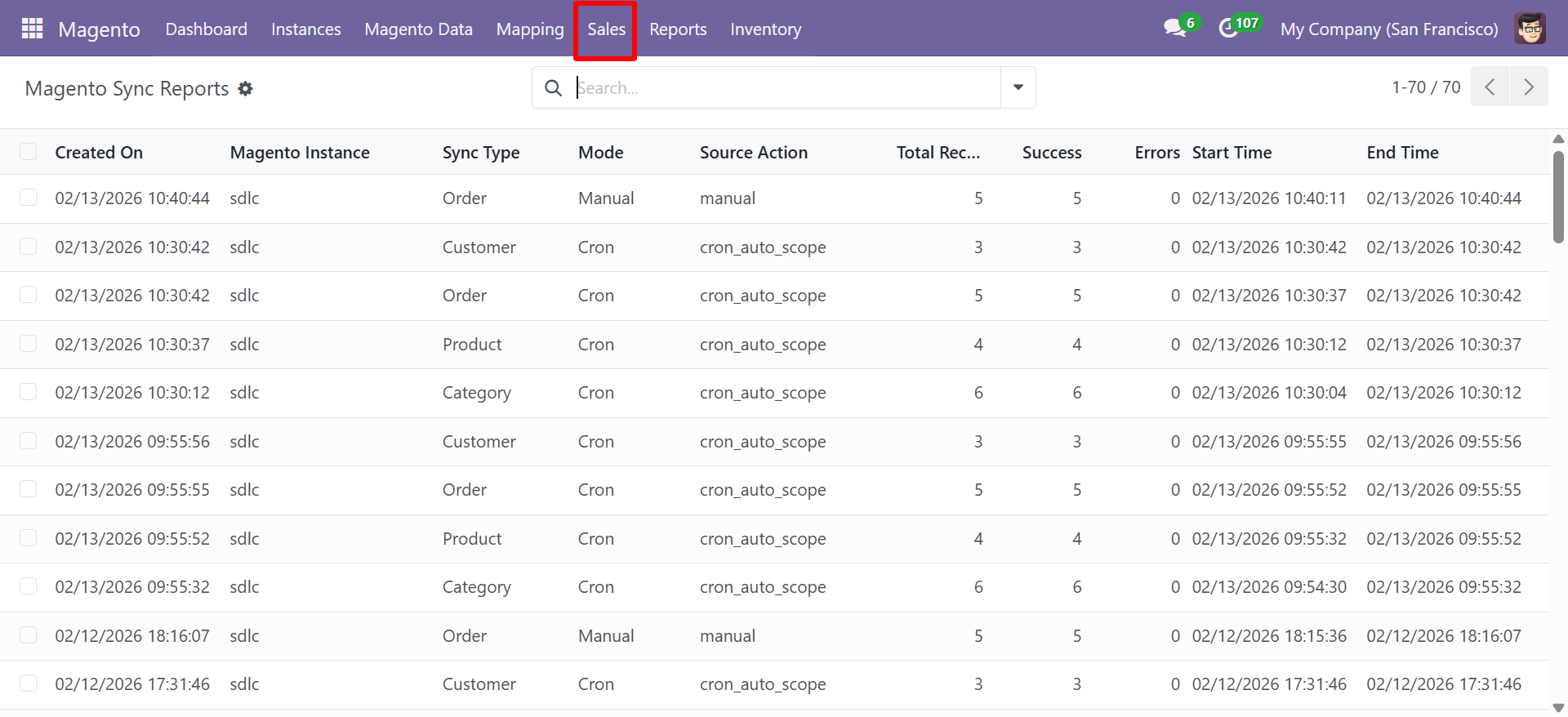
The Sync Reports list displays every synchronization operation with detailed metadata:
| Column | Description |
|---|---|
| Created On | Date and time the sync operation started |
| Magento Instance | The Magento instance that was synced |
| Sync Type | The type of data synced (Order, Customer, Product, Category) |
| Mode | How the sync was triggered (Manual, Cron) |
| Source Action | The technical action source (e.g., manual, cron_auto_scope) |
| Total Records | Total number of records processed in this sync |
| Success | Number of records successfully synced |
| Errors | Number of records that encountered errors |
| Start Time | Exact start timestamp of the sync operation |
| End Time | Exact end timestamp of the sync operation |
Reading Sync Reports
Each row represents a single sync operation. Key things to look for:
- Mode: Manual -- Indicates the sync was triggered by clicking a button (e.g., Sync Products).
- Mode: Cron -- Indicates the sync was triggered by an automated cron job.
- Errors > 0 -- Indicates some records failed to sync. Click the record for error details.
- Total Records vs. Success -- If these numbers differ, some records were skipped or encountered issues.
Sync reports are retained indefinitely by default. You can archive old reports through Odoo's standard archival functionality.
Filtering and Searching
Use the search bar and filters to narrow down sync reports:
- Filter by Sync Type to see only product, customer, or order syncs
- Filter by Mode to distinguish manual vs. automated syncs
- Filter by date range to investigate issues during a specific period
- Sort by Errors to find problematic sync operations quickly
Mapping Reports
Accessing Mapping Reports
Navigate to Magento > Reports > Mapping Report to view field mapping operation logs.
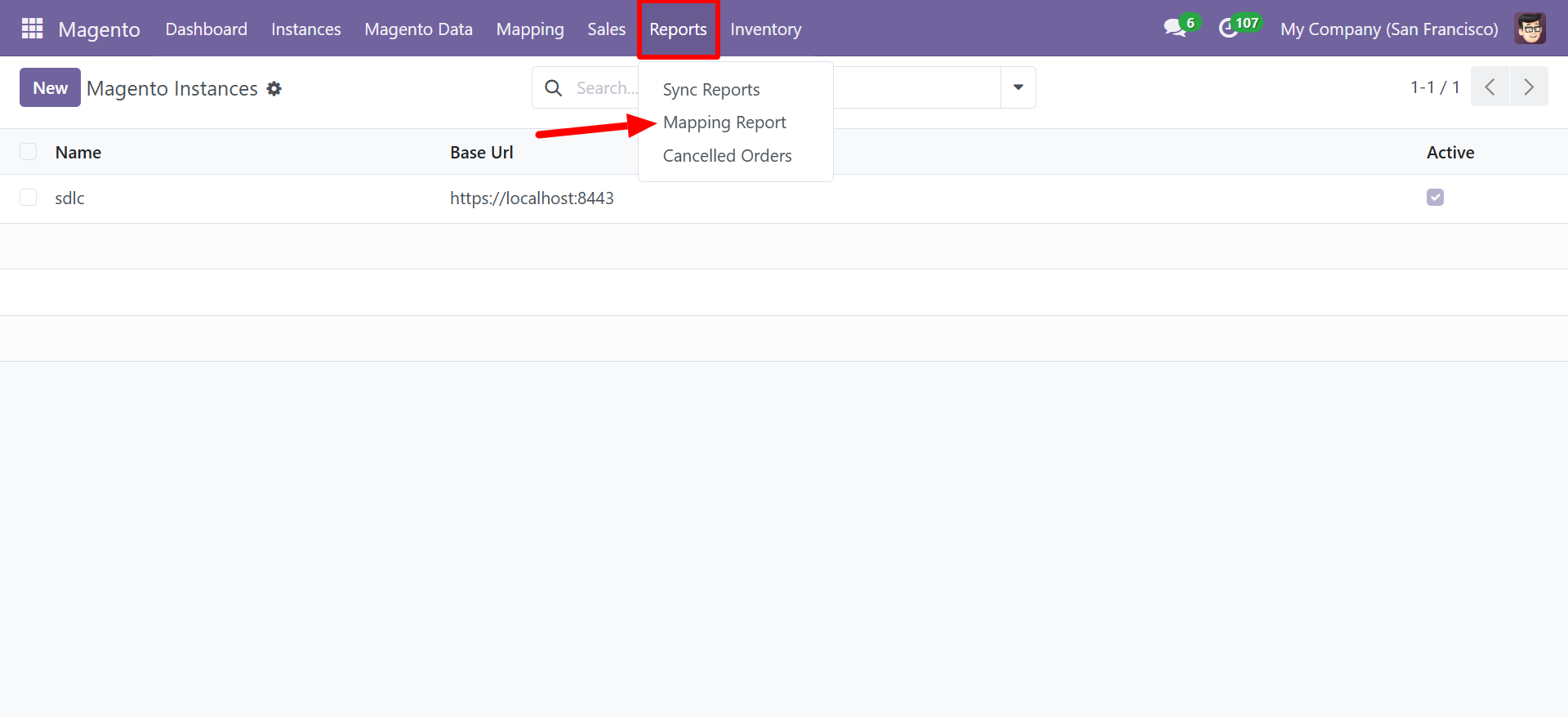
Mapping Report List View
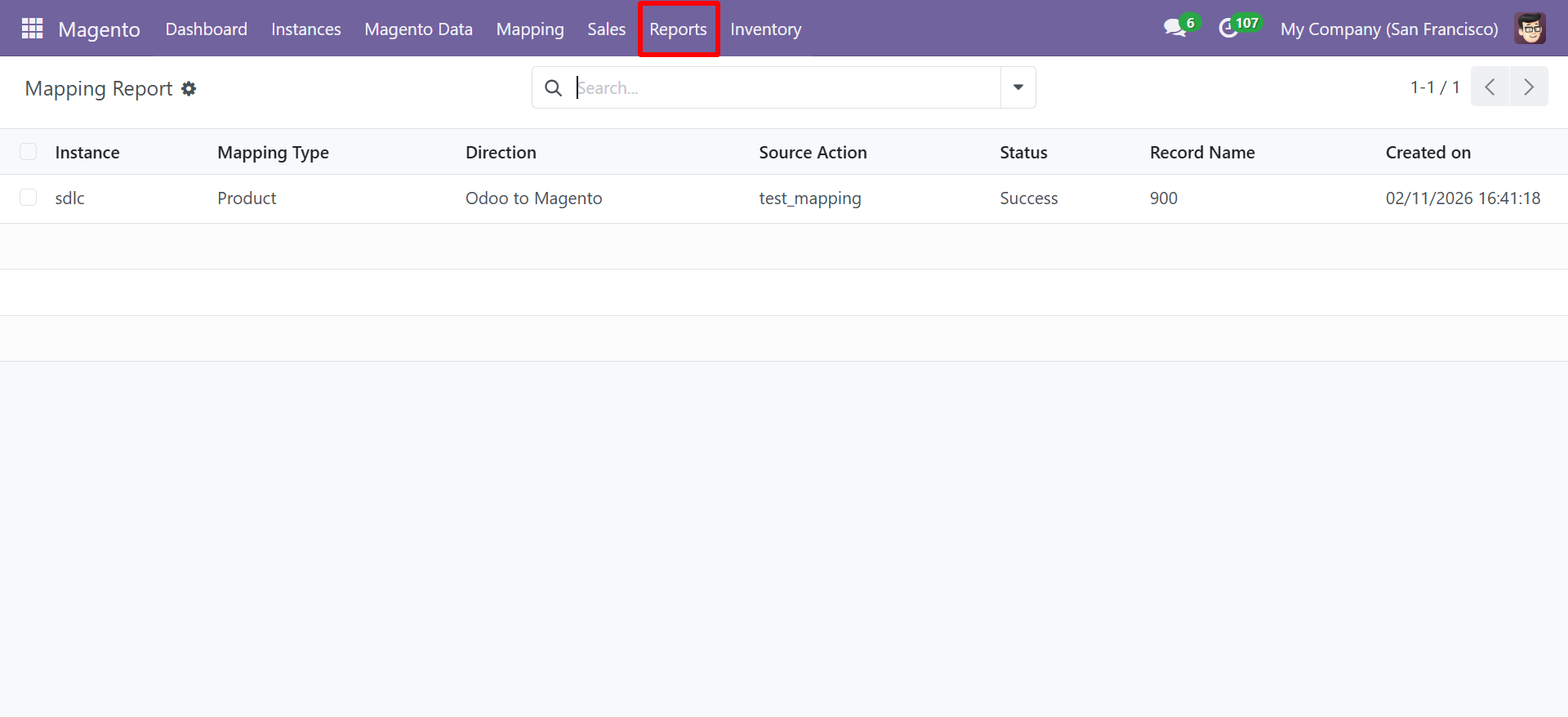
The Mapping Report tracks individual field mapping test and sync operations:
| Column | Description |
|---|---|
| Instance | The Magento instance the mapping was tested against |
| Mapping Type | The entity type (Product, Customer, Category) |
| Direction | Data flow direction (Odoo to Magento, Magento to Odoo) |
| Source Action | The action that triggered this report entry (e.g., test_mapping) |
| Status | Result of the operation (Success, Failed) |
| Record Name | The specific record that was tested or synced |
| Created On | Date and time of the operation |
Using Mapping Reports
Mapping reports are especially useful for:
- Verifying new mappings -- After creating a field mapping, use the Test button and check the mapping report for results.
- Debugging sync issues -- If products sync but with incorrect field values, check the mapping report to identify which field mapping is misconfigured.
- Audit trail -- Track all mapping operations for compliance and troubleshooting.
After making changes to field mappings, run a test sync on a single record and check the Mapping Report to verify the mapping works correctly before running a full sync.
Best Practices
- Review daily -- Check sync reports each day to catch errors early.
- Set up alerts -- Use Odoo's automated actions to send email notifications when sync errors exceed a threshold.
- Archive periodically -- Archive old sync reports to keep the list manageable.
- Investigate errors promptly -- A small number of errors can cascade into larger data inconsistencies if left unaddressed.