Magento 2 Connector — Order Management
The Magento 2 Connector supports full bidirectional order management. You can pull orders from Magento into Odoo for fulfillment, or create orders in Odoo and push them to Magento.
Accessing Magento Orders
Navigate to Magento > Sales > Orders to view all synced orders.
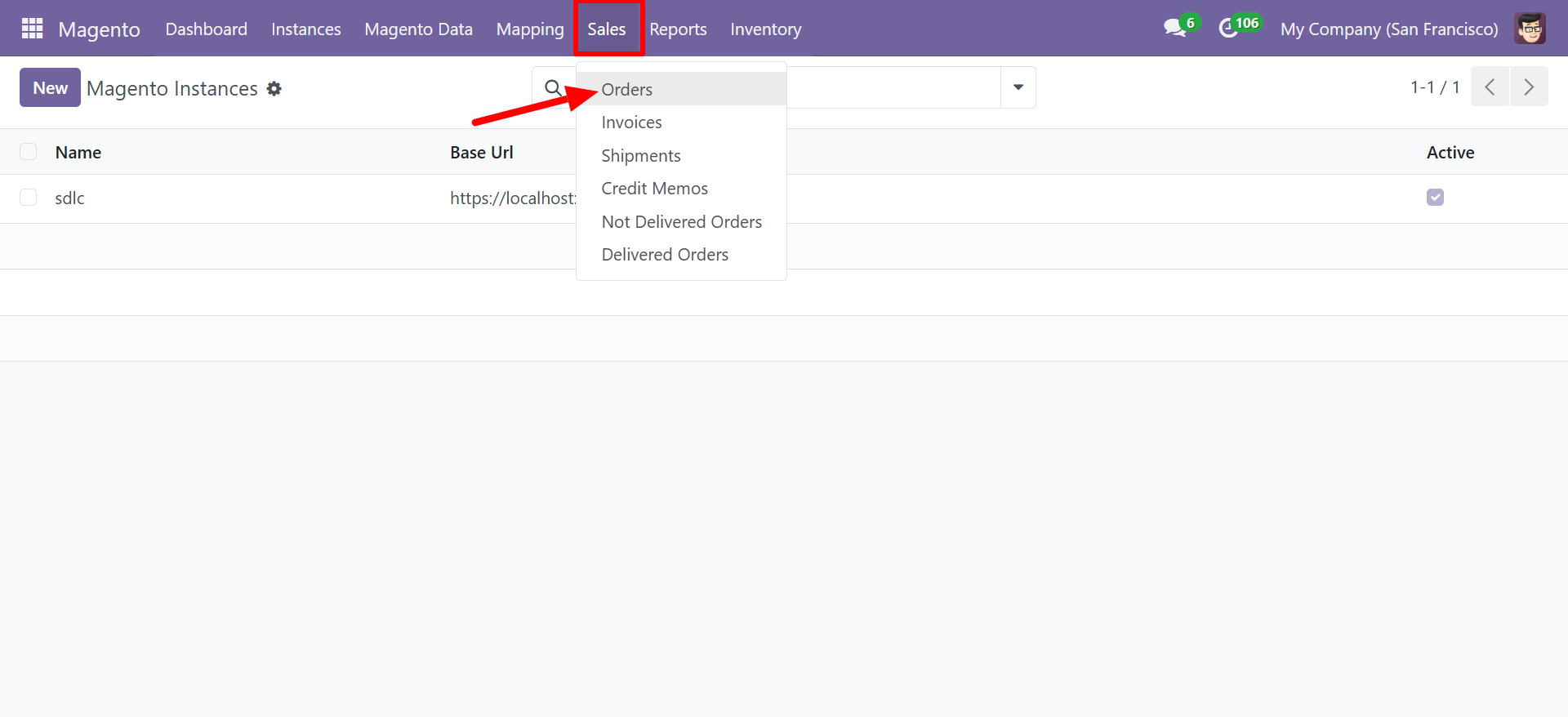
Order List View
The order list displays all synchronized orders with key details:
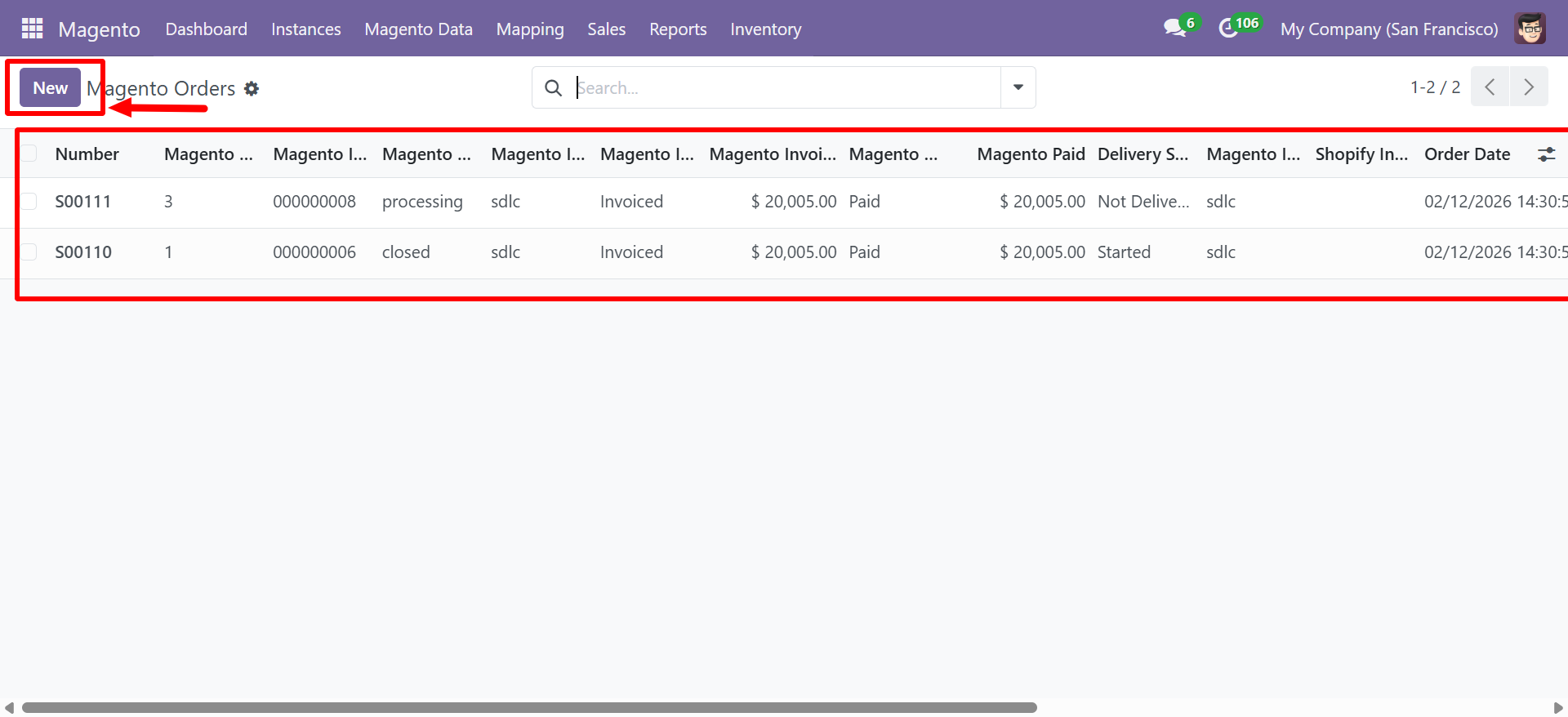
| Column | Description |
|---|---|
| Number | Odoo sale order reference (e.g., S00111) |
| Magento | Magento order increment ID |
| Magento ID | Magento internal order ID (e.g., 0000000008) |
| Magento Status | Order status in Magento (processing, closed, etc.) |
| Magento Invoice | Invoice status (Invoiced, Not Invoiced) |
| Magento Amount | Order total amount in Magento |
| Magento Paid | Payment status (Paid, Not Paid) |
| Delivery Status | Delivery status (Not Delivered, Started, Delivered) |
| Magento Instance | The Magento instance this order belongs to |
| Order Date | Date and time the order was placed |
Order Form
Click on an order or click New to view the full order form:
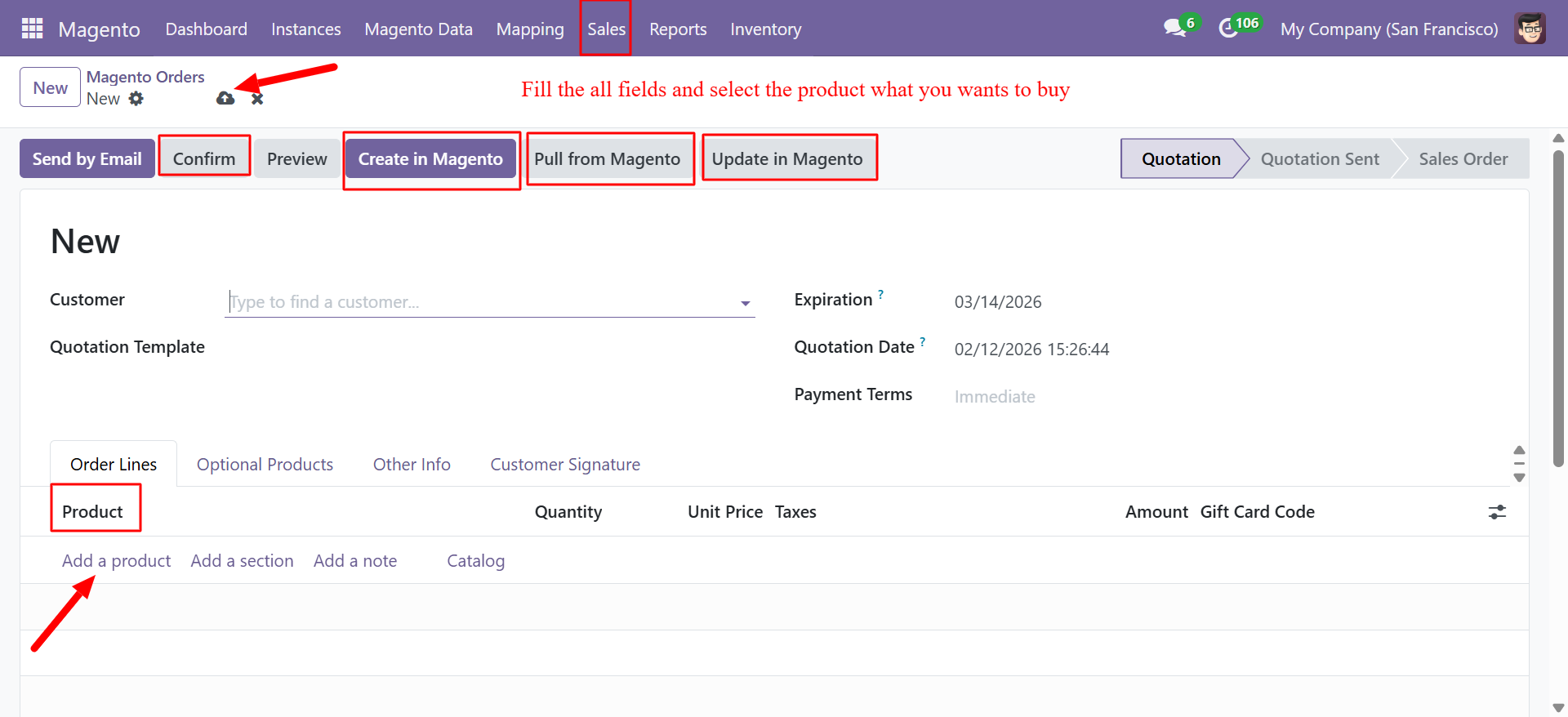
The order form includes:
- Customer -- The linked Odoo customer/partner
- Quotation Template -- Optional quotation template
- Quotation Date -- Date of the quotation
- Expiration -- Order expiration date
- Payment Terms -- Payment terms (e.g., Immediate)
- Order Lines -- Products, quantities, unit prices, taxes, and amounts
- Optional Products / Other Info / Customer Signature tabs
Order Action Buttons
| Button | Description |
|---|---|
| Send by Email | Email the order/quotation to the customer |
| Confirm | Confirm the quotation as a sale order |
| Preview | Preview the order in the portal |
| Create in Magento | Push this order to Magento |
| Pull from Magento | Import this order's latest data from Magento |
| Update in Magento | Push order updates to Magento |
Pull Workflow (Magento to Odoo)
When pulling orders from Magento, the connector follows this workflow:
- Fetch Orders -- The connector queries the Magento REST API for new or updated orders.
- Resolve Customer -- The customer is matched to an existing Odoo partner (by email) or a new partner is created.
- Resolve Products -- Each order line item is matched to an Odoo product (by SKU or Magento product ID).
- Create Sale Order -- A new sale order is created in Odoo with all line items, quantities, and prices.
- Register Payment -- If the order is paid in Magento and auto-payment registration is enabled, a payment is recorded.
- Update Status -- The Magento order status, invoice status, and payment status are stored on the Odoo record.
Orders are matched by Magento Order ID to prevent duplicates. If an order already exists in Odoo, it is updated rather than recreated.
Push Workflow (Odoo to Magento)
When pushing orders from Odoo to Magento:
- Create Quotation -- Create a new sale order in Odoo with the desired products and customer.
- Select Instance -- Ensure the order is associated with a Magento instance.
- Add Products -- Add order line items with products that are mapped to Magento products.
- Confirm Order -- Confirm the quotation to convert it to a sale order.
- Push to Magento -- Click Create in Magento to push the order to your Magento store.
For push operations, ensure the products and customer already exist in Magento (or have been synced). The connector uses the Magento product ID and customer ID to create the order.
Order Status Mapping
| Magento Status | Odoo Equivalent |
|---|---|
pending | Quotation |
processing | Sale Order (confirmed) |
complete | Sale Order (delivered) |
closed | Sale Order (closed/refunded) |
canceled | Cancelled |
holded | On Hold |