Maintenance QR Code — Installation and Setup
Prerequisites
- A working Odoo 17, 18, or 19 Community Edition instance
- The Maintenance (
maintenance) module installed and configured - Admin or Equipment Manager access
Installation Steps
- Download the Module -- Download
sdlc_maintenance_qr_codefrom the Odoo App Store or obtain it from SDLC Corp. - Upload to Your Server -- Place the folder in your Odoo addons directory.
- Update Apps List -- Go to Settings > Technical > Update Apps List and click Update.
- Install the Module -- Navigate to Apps, search for "SDLC Maintenance QR Code", and click Install.
Verify Installation
After installation you will see:
- A new Equipment QR Label button on the equipment form and list view header
- A new Equipment Code field and Generate Code button on the equipment form
- A new QR Code tab on the equipment form showing the live QR preview
- An Equipment Code column in the equipment list view
- Equipment Code searchable in the search bar
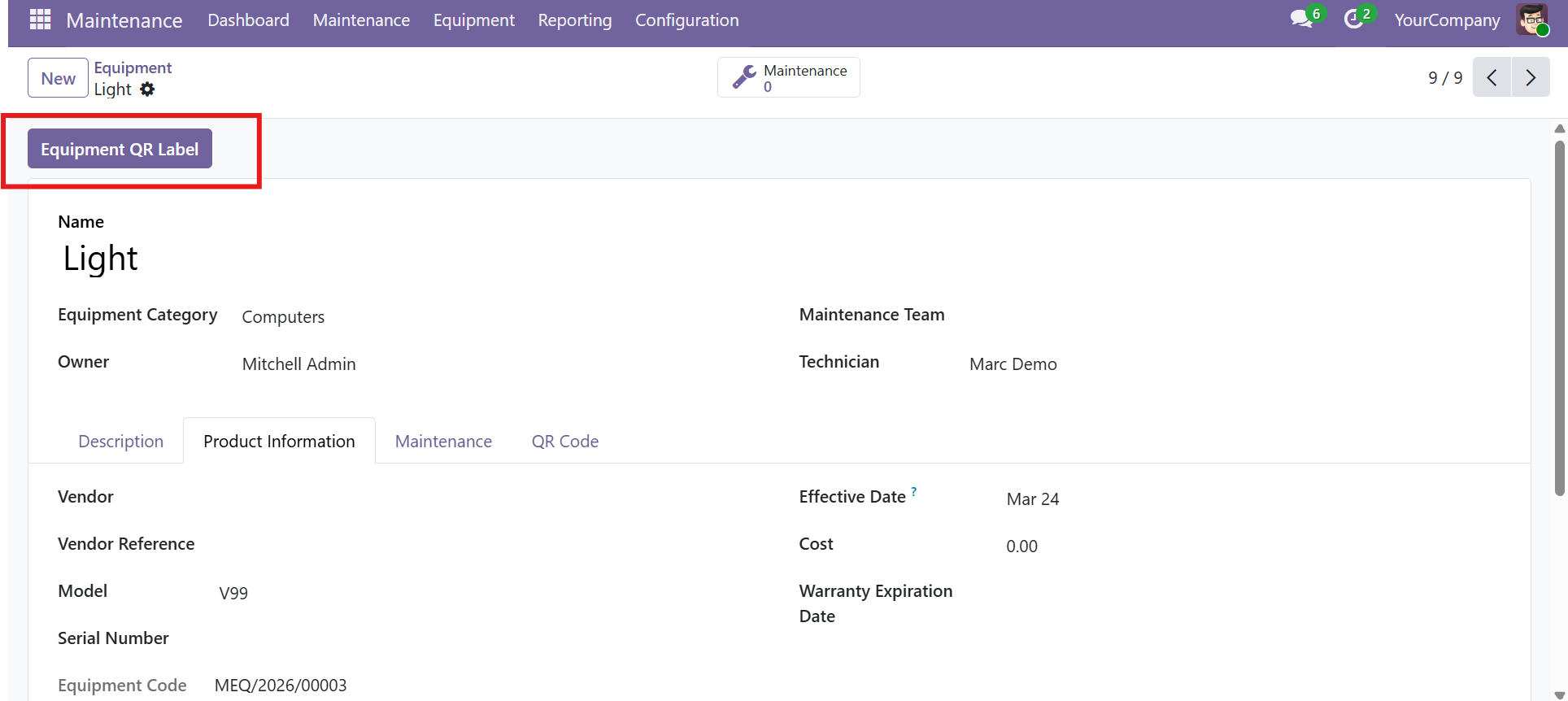
The module works out of the box. Equipment codes are auto-assigned on creation and the QR code sequence is set up automatically during installation.
Dependencies
The module has a single Odoo dependency and no external Python libraries.
Odoo Module Dependencies
| Module | Technical Name | Purpose |
|---|---|---|
| Maintenance | maintenance | Core maintenance module -- provides equipment model, forms, views, and Equipment Manager security group |
Built-in Odoo Features Used
| Feature | Purpose |
|---|---|
| Barcode endpoint | /report/barcode/ -- generates QR code images on the fly (built into Odoo) |
| ir.sequence | Auto-numbering for equipment codes with yearly reset |
| QWeb Reports | PDF label rendering via Odoo's built-in report engine |
This module does not require any external Python libraries. QR code generation uses Odoo's built-in barcode rendering endpoint.
Security and Access Control
The module uses Odoo's built-in Maintenance security groups with appropriate access levels for managers and regular users.
Access Control Rules
| Model | Group | Read | Write | Create | Delete |
|---|---|---|---|---|---|
maintenance.qr.print.wizard | Equipment Manager | Yes | Yes | Yes | Yes |
maintenance.qr.print.wizard | All Users (base.group_user) | Yes | Yes | Yes | No |
Code Generation Permissions
The Generate Code button on the equipment form is restricted:
- Only visible to users in the Equipment Manager group (
maintenance.group_equipment_manager) - If a non-manager user somehow triggers the action, a
UserErroris raised - The button is hidden automatically once an equipment code has been assigned
Equipment codes are auto-assigned when new equipment records are created, regardless of the user's group. The Generate Code button is only needed for equipment that existed before the module was installed.
Contact SDLC Corp at sdlccorp.com/contact-us or email sales@sdlccorp.com