Equipment Codes and QR Preview
Every piece of maintenance equipment receives a unique, auto-generated code that drives QR code creation and label printing.
Automatic Assignment (New Equipment)
When you create a new equipment record, the module automatically assigns an equipment code using the maintenance.equipment.code sequence. No action required.
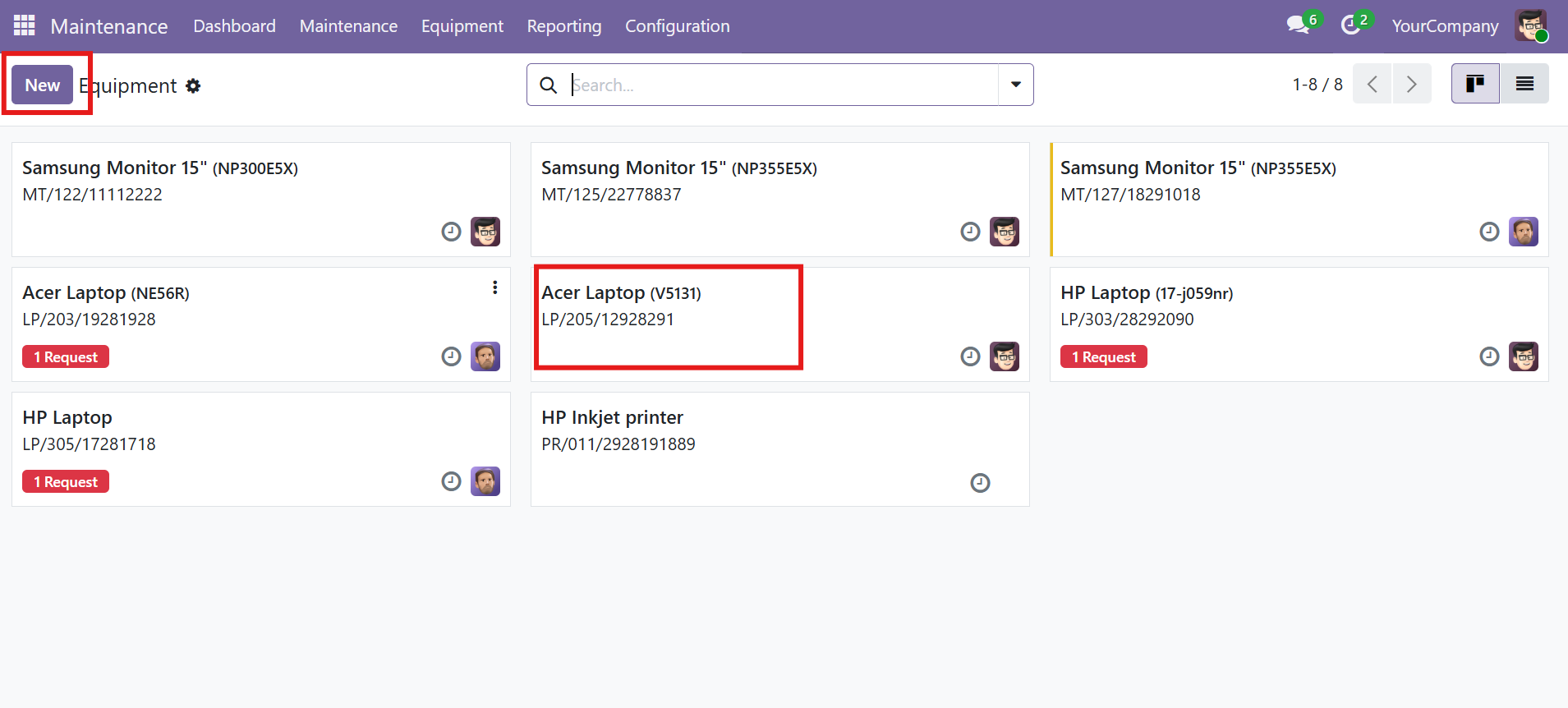
Manual Assignment (Existing Equipment)
For equipment that existed before the module was installed:
- Open the equipment record from Maintenance > Equipment
- Locate the Equipment Code field (below Serial Number)
- Click the Generate Code link button next to the empty field
- The code is assigned instantly and the QR code is generated
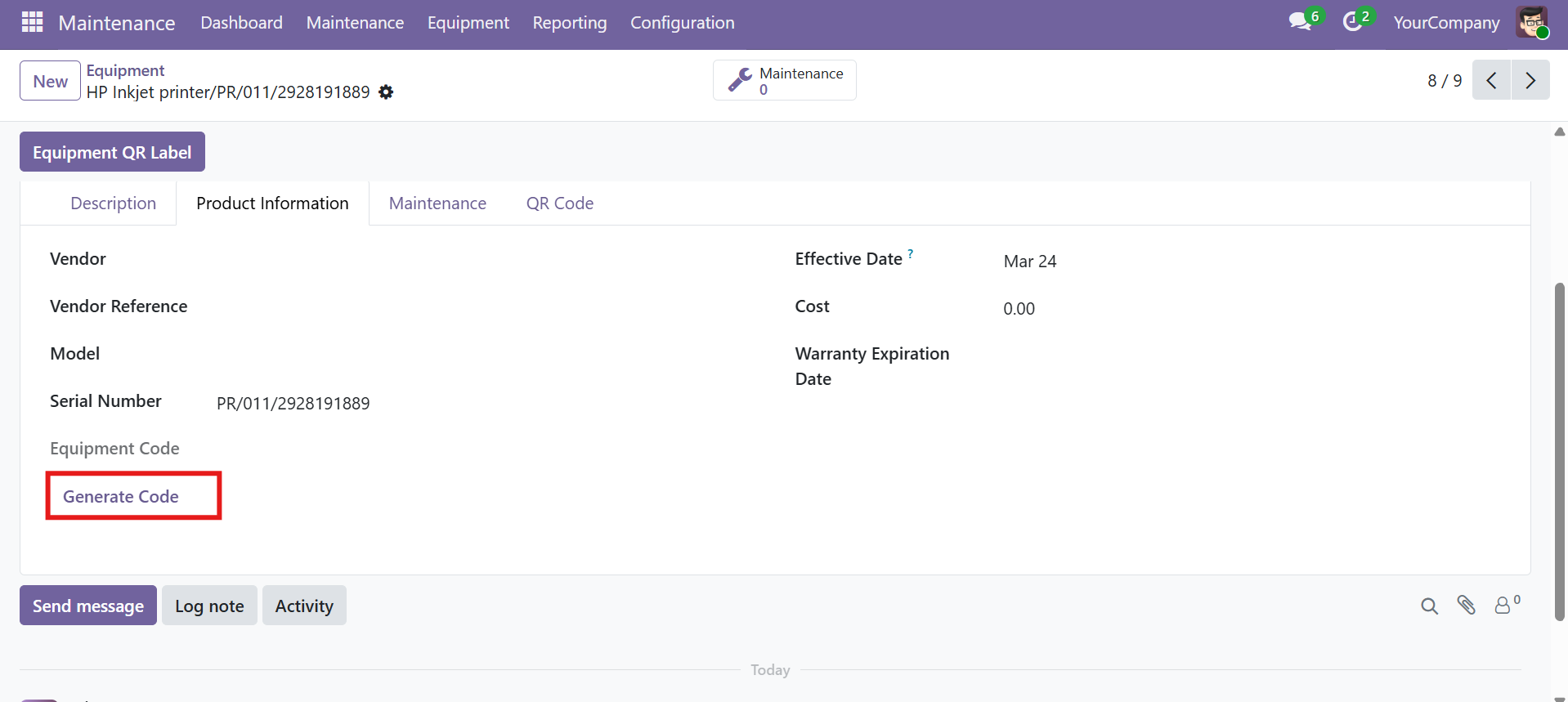
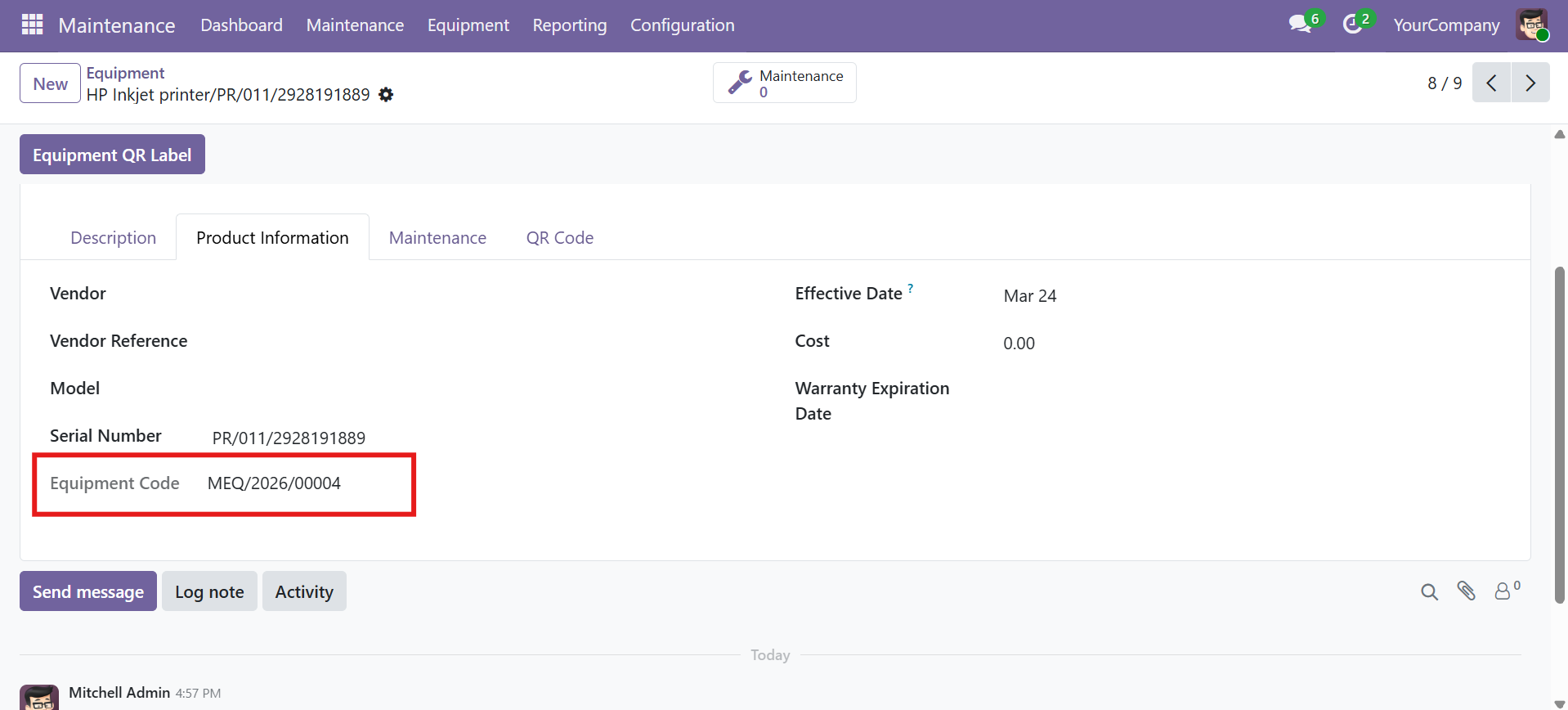
The Generate Code button is only visible to users in the Equipment Manager group. Non-manager users cannot manually generate codes.
Equipment Code Sequence
Equipment codes are generated automatically using an ir.sequence with a yearly-resetting counter.
Code Format
MEQ/%(year)s/#####
| Part | Description | Example |
|---|---|---|
| MEQ | Fixed prefix (Maintenance Equipment) | MEQ |
| %(year)s | Current year (resets counter each year) | 2026 |
| ##### | 5-digit zero-padded counter | 00001 |
Example Codes
MEQ/2026/00001-- First equipment created in 2026MEQ/2026/00042-- 42nd equipment in 2026MEQ/2027/00001-- First equipment in 2027 (counter resets)
Sequence Properties
| Property | Value |
|---|---|
| Sequence Code | maintenance.equipment.code |
| Prefix | MEQ/%(year)s/ |
| Padding | 5 digits |
| Company | Global (not company-specific) |
| No Update | True (not reset on module reinstall) |
UNIQUE(x_equipment_code) -- "Equipment code must be unique!" Attempting to assign a duplicate code will raise a database error.
Equipment Code Field Properties
| Property | Value |
|---|---|
| Field Name | x_equipment_code |
| Type | Char (text) |
| Readonly | Yes (on the form view) |
| Indexed | Yes (for fast database lookups) |
| Tracked | Yes (changes logged in chatter) |
| Copy | No (not copied when duplicating equipment) |
| Unique | Yes (SQL constraint) |
| Searchable | Yes (added to search view) |
QR Code Preview
Each equipment record with a code displays a live QR code preview in a dedicated tab on the form view.
QR Code Tab
Open any equipment record and navigate to the QR Code tab. The tab shows:
- QR Payload (URL) -- The full URL encoded in the QR code, displayed as a clickable link
- QR Code Image -- A 220x220 pixel live QR code rendered from the payload
QR Payload Format
The QR code encodes a direct deep-link to the equipment form:
<base_url>/web#id=<record_id>&model=maintenance.equipment&view_type=form
For example: https://myodoo.com/web#id=42&model=maintenance.equipment&view_type=form
Computed Fields
| Field | Type | Description |
|---|---|---|
x_qr_payload | Char (computed) | Full URL that the QR code encodes |
x_qr_url | Char (computed) | URL to Odoo's barcode endpoint that generates the QR image |
x_qr_image_html | Html (computed) | HTML <img> tag displaying the QR code |
QR fields are computed automatically whenever the x_equipment_code or company_id changes. If no equipment code exists, all QR fields are set to empty.
Scanning QR Codes
Scan printed QR labels with any mobile device to instantly access the equipment record in Odoo.
Scanning Workflow
- Locate the QR label on the physical equipment
- Open your camera app or any QR scanner on your mobile device
- Point at the QR code -- the device reads the encoded URL
- Tap the link -- your browser opens directly to the equipment form in Odoo
- View or update the equipment details, log maintenance requests, etc.
The user scanning the QR code must be logged into Odoo in their browser. If not logged in, they will be redirected to the Odoo login page first, then forwarded to the equipment record after authentication.
Use Cases
- Maintenance technicians -- Scan equipment labels on the shop floor to quickly view maintenance history and log new requests
- Inventory audits -- Scan labels during physical inventory checks to verify equipment records
- Onboarding -- New team members can scan equipment to learn about each asset
- Asset tracking -- Track physical location by scanning labels during facility walks
Contact SDLC Corp at sdlccorp.com/contact-us or email sales@sdlccorp.com