Print Wizard and Label Layouts
The Print Equipment QR Labels wizard lets you configure and generate professional QR label sheets as PDF.
Opening the Wizard
You can open the wizard in two ways:
From the Equipment Form
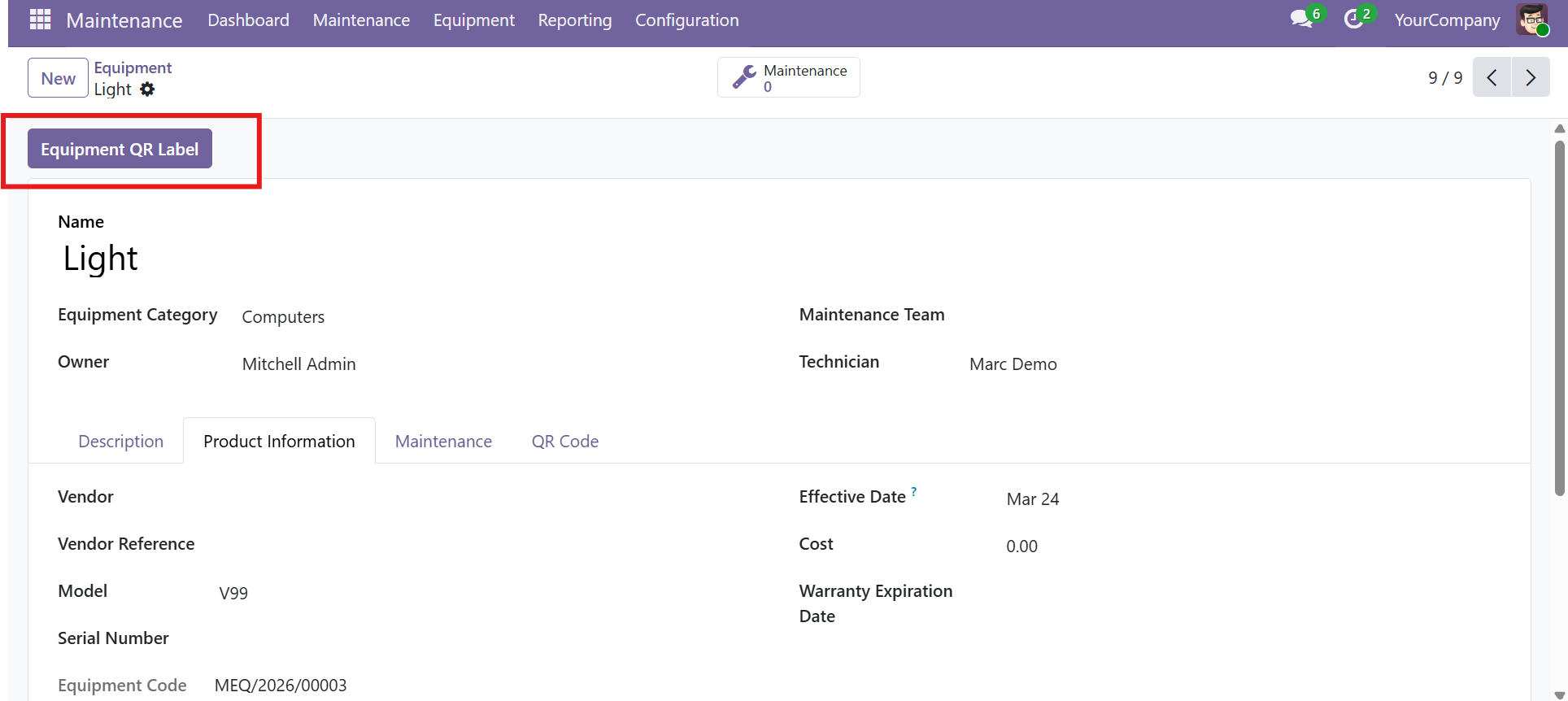
- Open an equipment record
- Click the Equipment QR Label button in the header
- The wizard opens pre-filled with the current equipment
From the Equipment List (Batch)
- Go to Maintenance > Equipment list view
- Select multiple equipment using checkboxes
- Click the Equipment QR Label button in the list header
- The wizard opens pre-filled with all selected equipment
Wizard Options
| Field | Type | Default | Description |
|---|---|---|---|
| Equipment | Many2many tags | Pre-filled | Equipment records to print labels for. Add or remove as needed. |
| Copies | Integer | 1 | Number of label copies per equipment (e.g., 2 = two labels for each equipment) |
| Label Layout | Radio selection | 2 x 7 | Predefined or custom label grid layout |
| Columns | Integer | 2 | Custom column count (only visible when layout is "Custom") |
| Rows | Integer | 7 | Custom row count (only visible when layout is "Custom") |
| Header Color | Color picker | #6b4096 | Background color of the "PROPERTY OF..." header band on each label |
Printing
- Configure the layout, copies, and color as desired
- Click Print Labels
- A PDF file is generated and downloaded or previewed in the browser
- Print the PDF on your label sheets or standard paper
Available Label Layouts
Choose from four label layout options to match your label sheets or printing requirements.
| Layout | Grid | Labels/Page | QR Size | Best For |
|---|---|---|---|---|
| Dymo | 1 x 1 | 1 | 320px | Dymo label printers, single large labels |
| 2 x 7 | 2 columns, 7 rows | 14 | 280px | Standard label sheets (e.g., Avery), default choice |
| 4 x 7 | 4 columns, 7 rows | 28 | 260px | Small labels, high-density printing |
| Custom | User-defined | Varies | Auto | Custom label sheets, special requirements |
QR Code Size Logic
The QR code pixel size adapts automatically based on the layout:
| Condition | QR Size |
|---|---|
| 1 column, 1 row (Dymo) | 320px (largest) |
| 2 or fewer columns | 280px (medium) |
| More than 2 columns | 260px (compact) |
Pagination
Labels are automatically distributed across multiple pages. If you have 20 equipment with 2 copies each (40 labels total) and use a 2x7 layout (14 per page), the report generates 3 pages.
Each page uses page-break-after: always in the PDF to ensure clean page separation. The PDF uses zero-margin A4 portrait paper format for printer-friendly output.
Label Anatomy
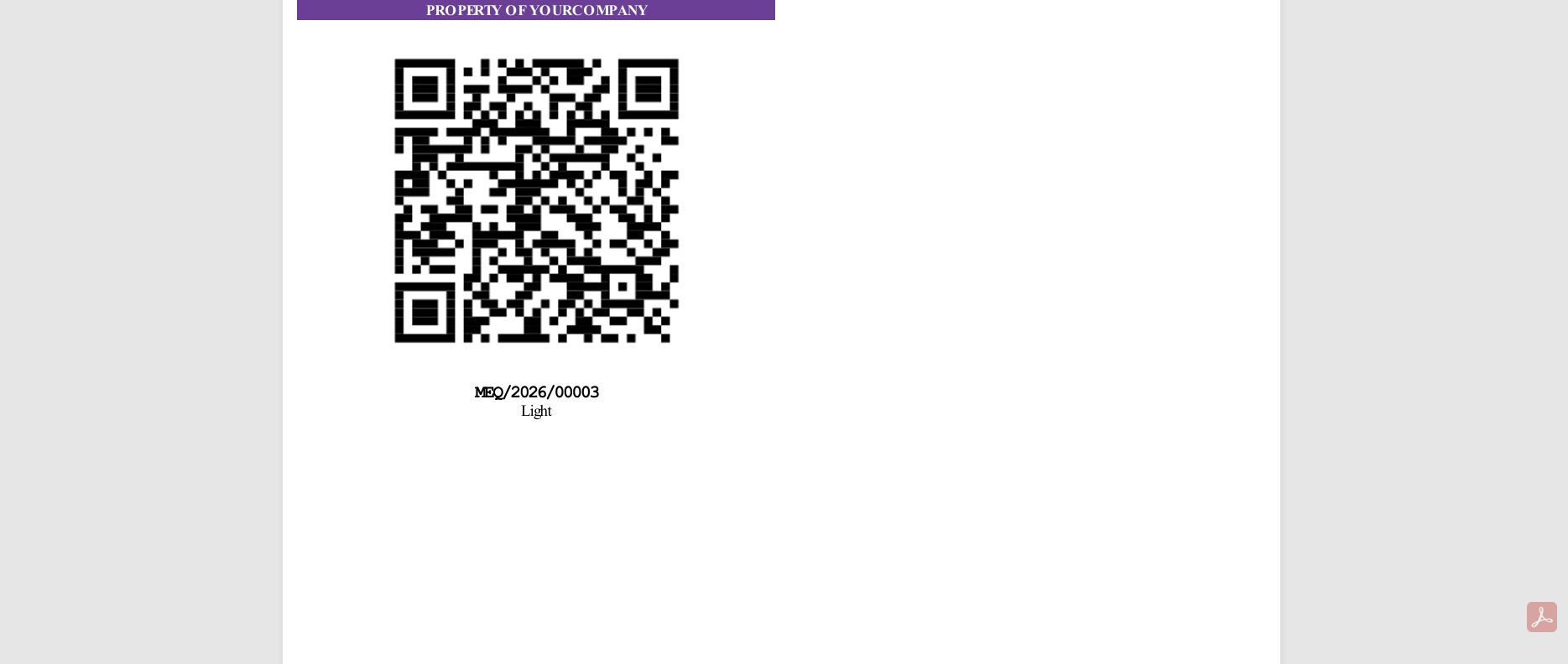
Each printed QR label consists of four distinct sections designed for quick identification and scanning.
| Section | Description |
|---|---|
| 1. Header Band | Colored banner with "PROPERTY OF [company name]" in white uppercase text (8pt bold) |
| 2. QR Code | Scannable QR code (260-320px) encoding the equipment URL |
| 3. Equipment Code | Monospace bold text (9pt) showing the code (e.g., MEQ/2026/00003) |
| 4. Equipment Name | Equipment name in 8pt text, truncated with ellipsis if too long |
Label Styling Details
| Element | Style |
|---|---|
| Cell Width | 100% / columns (dynamic based on layout) |
| Cell Padding | 4px |
| Text Alignment | Center |
| Header Font | Arial, 8pt bold, white, uppercase |
| Code Font | Courier New (monospace), 9pt bold |
| Name Font | Arial, 8pt |
| Overflow | Hidden with text-overflow: ellipsis |
Customization
Header Color
The header band color can be changed per print job via the color picker in the wizard:
| Setting | Default | Effect |
|---|---|---|
| Header Color | #6b4096 (purple) | Background color of the "PROPERTY OF..." banner on each label |
Use this to match your company brand colors. The text color on the header is always white for contrast.
Custom Grid Layout
Select the Custom layout option in the wizard to specify any number of columns and rows:
- Columns: Number of labels across the page (default: 2)
- Rows: Number of labels down the page (default: 7)
This allows you to match any custom label sheet dimensions.
Multi-Copy Printing
Set the Copies field to print multiple labels for the same equipment. For example:
- Copies = 1: One label per equipment (default)
- Copies = 2: Two labels per equipment (one for the asset, one for the file)
- Copies = 3: Three labels per equipment (spare copies for damaged labels)
Paper Format
| Property | Value |
|---|---|
| Format | A4 Portrait |
| Margins | All zero (0mm top, bottom, left, right) |
| DPI | 96 |
| Shrinking | Disabled (prevents scaling distortion) |
When printing the PDF, make sure to set your printer to "Actual size" (not "Fit to page") to ensure labels align correctly with your label sheets.
Contact SDLC Corp at sdlccorp.com/contact-us or email sales@sdlccorp.com