Export & Conversation History
Why export
Keeping conversations only in the AI Assistant is fine for ad-hoc Q&A. Exporting is useful when you want to:
- Share a chat with a colleague who doesn't have access to the assistant.
- Pull the data the AI returned (CSV from a SELECT-style query) into a spreadsheet.
- Keep an archive of high-value chats for future reference.
The export format you pick should match the destination — JSON for re-import, CSV for spreadsheets, screenshot for documentation.
Overview
Every chat with the Odoo AI Assistant is saved so you can revisit it, share it, or pull the structured data the AI returned. This page covers the two formats you can export in and the history management features around them.
Exporting Data
When the AI returns a table or list, you can export the results:
- CSV: spreadsheet-compatible format
- JSON: developer-friendly structured data
- Copy to clipboard: paste directly into other applications
Downloading Conversations
Click the Download Chat button to save the entire conversation as a text file:
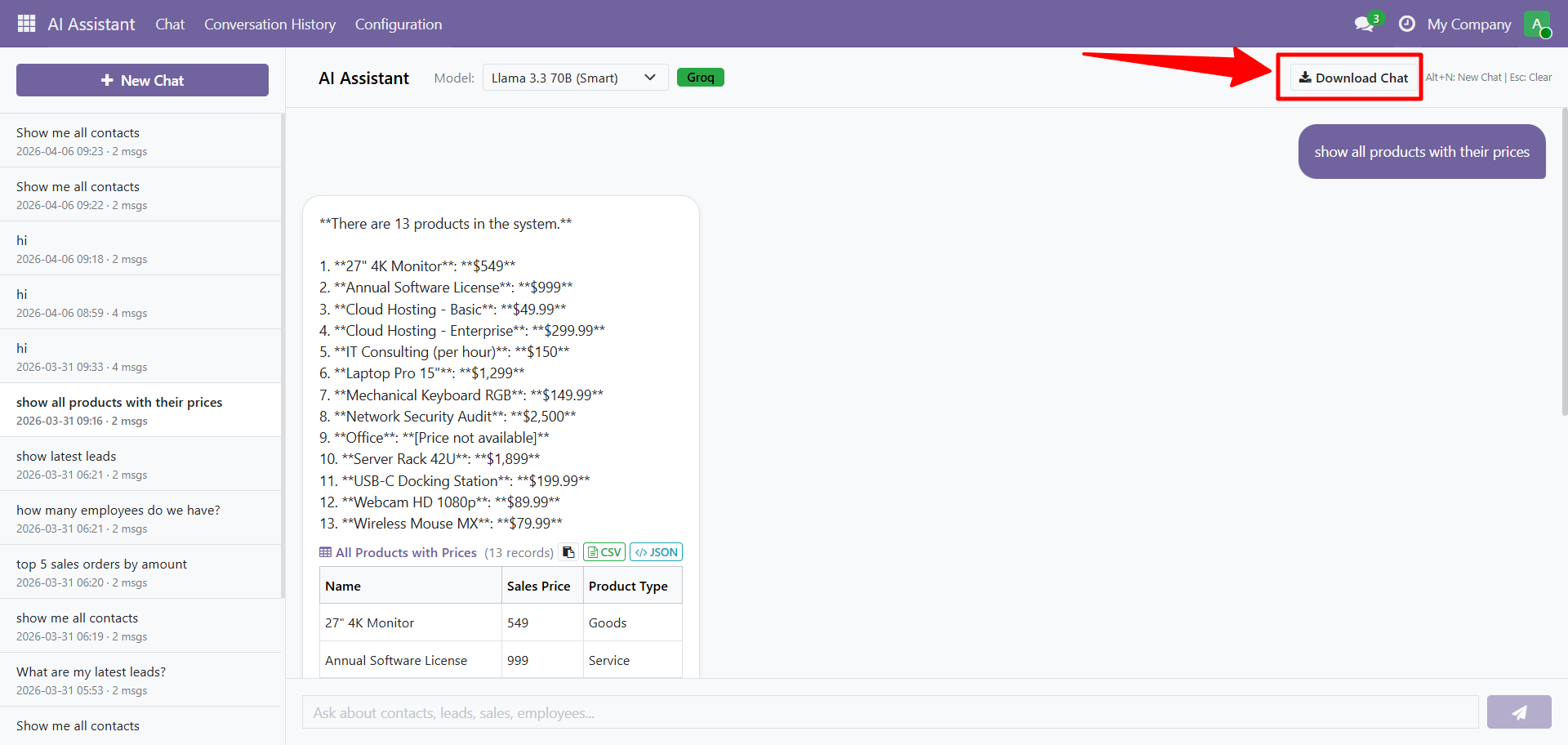
This exports:
- All your questions
- All AI responses
- Tables and data included in responses
Conversation History
Your past conversations are saved in the left sidebar:
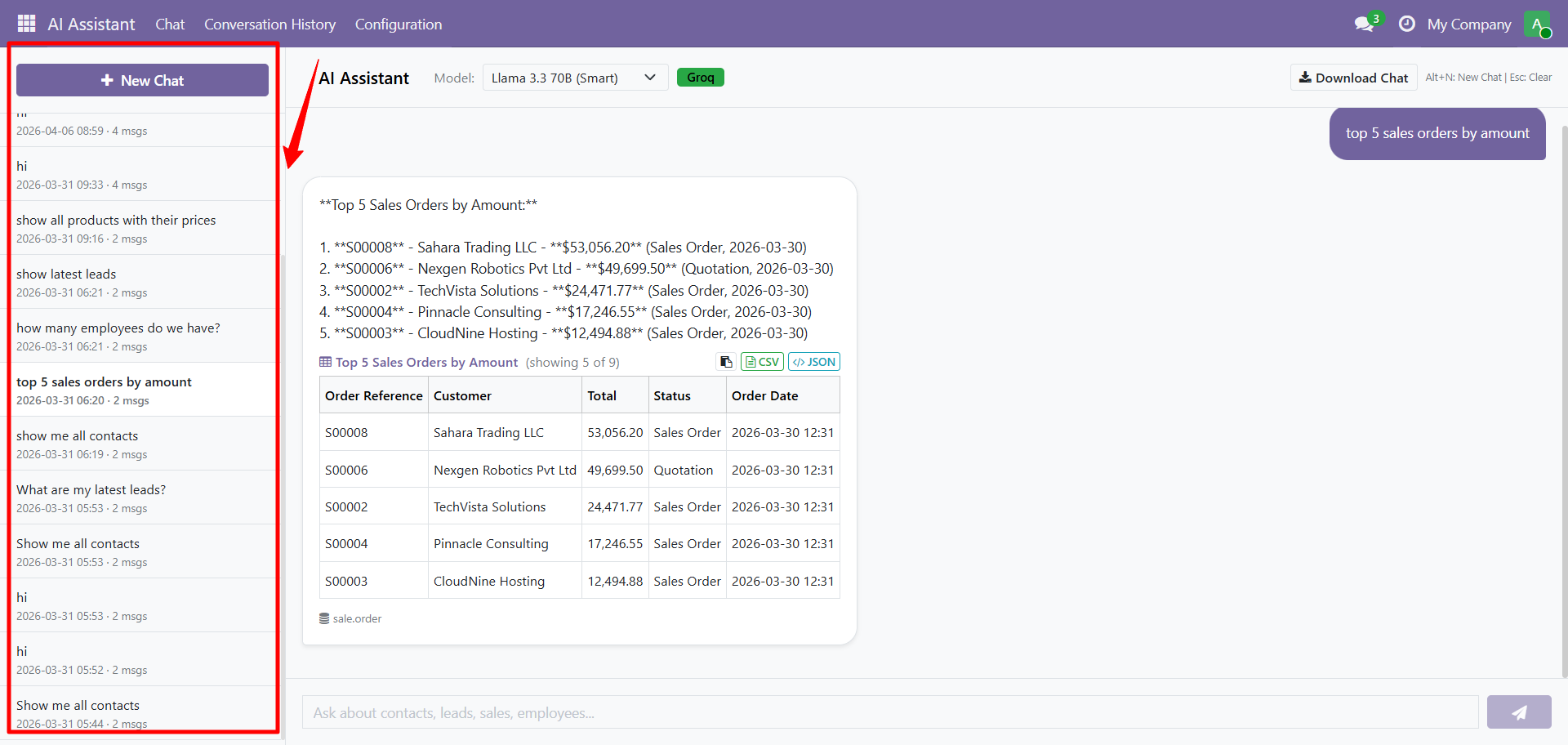
Managing Conversations
- New Chat: click the "+ New Chat" button to start a fresh conversation
- History: click any past conversation in the sidebar to reopen it
- Search: scroll through your conversation list to find previous queries
Each conversation is stored per-user: other users cannot see your chat history.
Contact SDLC Corp at sdlccorp.com/contact-us or email sales@sdlccorp.com