Project Cost Management — Installation & Setup
This guide walks you through installing and configuring the SDLC Project Costing module on your Odoo instance.
Prerequisites
Before installing the module, ensure you have:
- A working Odoo Community instance (v17, v18, or v19)
- Administrator access to your Odoo instance
- Developer Mode enabled (Settings > General Settings > Developer Tools)
- The following standard Odoo modules installed:
| Module | Technical Name | Purpose |
|---|---|---|
| Project | project | Core project management -- provides the project form, tasks, and settings |
| Employees | hr | Employee records -- used to link hourly cost rates to employees |
| Timesheets | hr_timesheet | Timesheet entries -- extended with auto-calculated cost field |
| Web | web | Web framework -- required for Owl.js dashboard components |
All dependencies will be automatically installed when you install the Project Costing module if they are not already present on your system.
Installation Steps
Step 1: Download the Module
Download the project_costing module from the Odoo App Store or obtain it directly from SDLC Corp. The module is distributed as a zip file or a folder.
Step 2: Upload to Your Server
Place the project_costing folder in your Odoo addons directory (e.g., /odoo/custom/addons/).
Step 3: Update Apps List
Go to Settings > Technical > Update Apps List and click Update.
Step 4: Install the Module
Navigate to Apps, search for "SDLC Project Cost", and click Install.
If you do not see the module in the Apps list, make sure Developer Mode is enabled and that the addons path in your Odoo configuration file includes the directory where the module is placed.
Verify Installation
After successful installation, you will see:
- A new Dashboard menu item under the Project module
- New fields (Project Type, Project Budget) on the project form
- New tabs (Extra Costs, Client Payments) on the project form
- A Cost column in all timesheet views
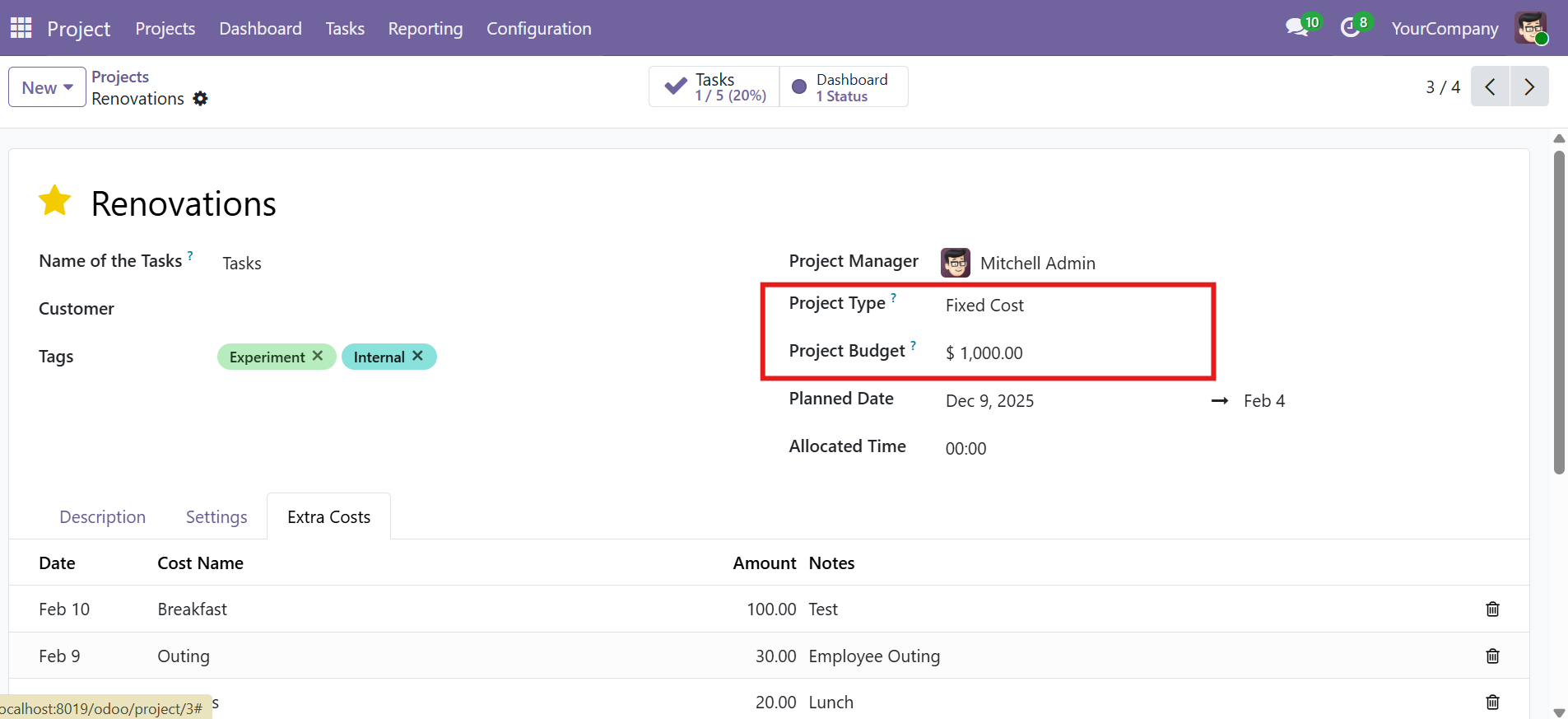 Project form after module installation -- showing Project Type, Budget, and the Extra Costs tab
Initial Configuration
1. Configure Project Types
Every project must be classified with a type, which determines how revenue and costs are calculated:
| Project Type | Revenue Source | Budget Field | Client Payments Tab |
|---|---|---|---|
| Fixed Cost | Project Budget amount | Active and required | Hidden |
| Variable Cost | Sum of Client Payments | Not used | Visible |
Steps:
- Open the desired project from Project > All Projects
- Set the Project Type field to Fixed Cost or Variable Cost
- For Fixed Cost projects, enter the approved amount in the Project Budget field
- Save the project
The Project Budget field is only meaningful for Fixed Cost projects. For Variable Cost projects, revenue is derived from recorded client payments instead.
2. Configure Employee Hourly Costs
The module calculates labor costs based on each employee's hourly cost rate. This must be configured for accurate cost tracking.
- Navigate to Employees > Employees
- Open the employee record
- Go to the HR Settings tab
- Set the Hourly Cost field to the employee's cost rate per hour
- Save the employee record
Timesheet Cost = Hours Logged x Employee Hourly Cost
For example, if an employee with a hourly cost of $50 logs 8 hours, the cost will be calculated as $400.
Make sure to set the hourly cost for all employees who will log timesheets. If an employee has no hourly cost set, their timesheet entries will show a cost of zero.
3. Set Up Security & Access
The module creates a security group called Project Finance Management. Users must be assigned to this group to access financial fields and the dashboard.
Access Rights:
| Model | Group | Read | Write | Create | Delete |
|---|---|---|---|---|---|
project.extra.cost | Project Users / Managers | Yes | Yes | Yes | Yes |
project.client.payment | Project Users / Managers | Yes | Yes | Yes | Yes |
project.dashboard | Project Users / Managers | Yes | Yes | Yes | Yes |
Assigning the Group:
- Go to Settings > Users & Companies > Users
- Select the user you want to grant access to
- Under the Project section, enable the Project Finance Management group
- Save the user record
Frontend Libraries
The module bundles the following JavaScript library for dashboard chart rendering:
| Library | Version | Purpose |
|---|---|---|
| Chart.js | UMD (bundled) | Renders bar charts and stacked bar charts for financial visualizations |
No additional frontend installation is required -- Chart.js is bundled with the module.
Next Steps
Contact SDLC Corp at sdlccorp.com/contact-us or email sales@sdlccorp.com