Filters, Quick Task & Navigation
Filter dashboard data, create tasks without leaving the page, navigate to Odoo views with a single click, and use fullscreen mode for presentations.
Filters
Click the filter icon in the dashboard header to expand the filter bar.
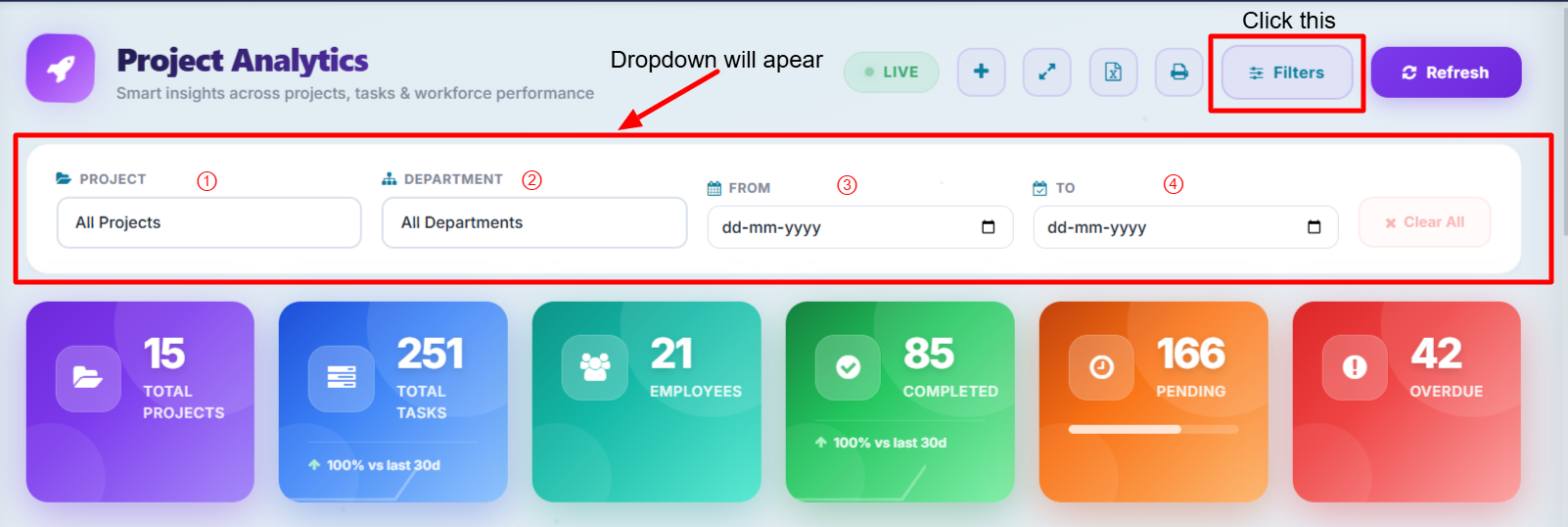
The following filters are available:
| Filter | Description |
|---|---|
| Project | Filter by a specific project |
| Department | Filter by HR department |
| Date From | Show tasks created on or after this date |
| Date To | Show tasks created on or before this date |
Applying Filters
Select your filter criteria and the dashboard updates instantly. A badge on the filter icon shows how many filters are currently active.
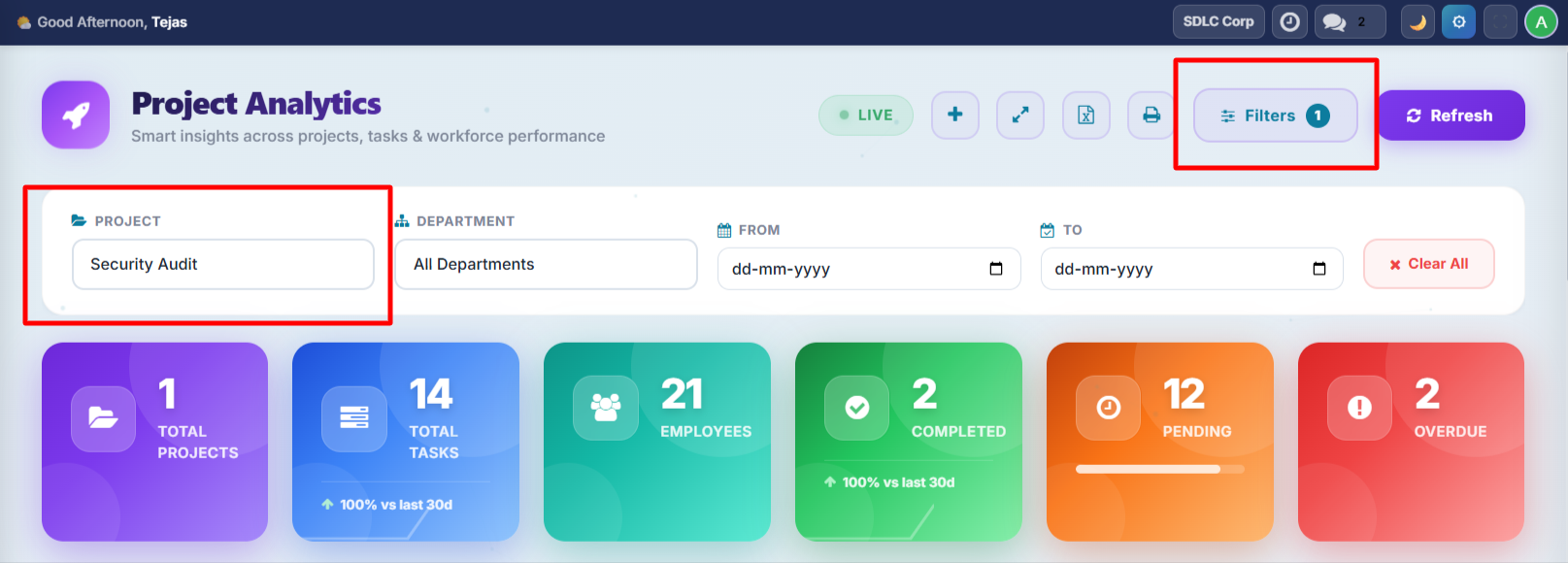
All charts, stat cards, insights, and the recent tasks table respond to the active filters immediately.
Clearing Filters
Click the Clear All button to reset all filters and return to the unfiltered dashboard view.
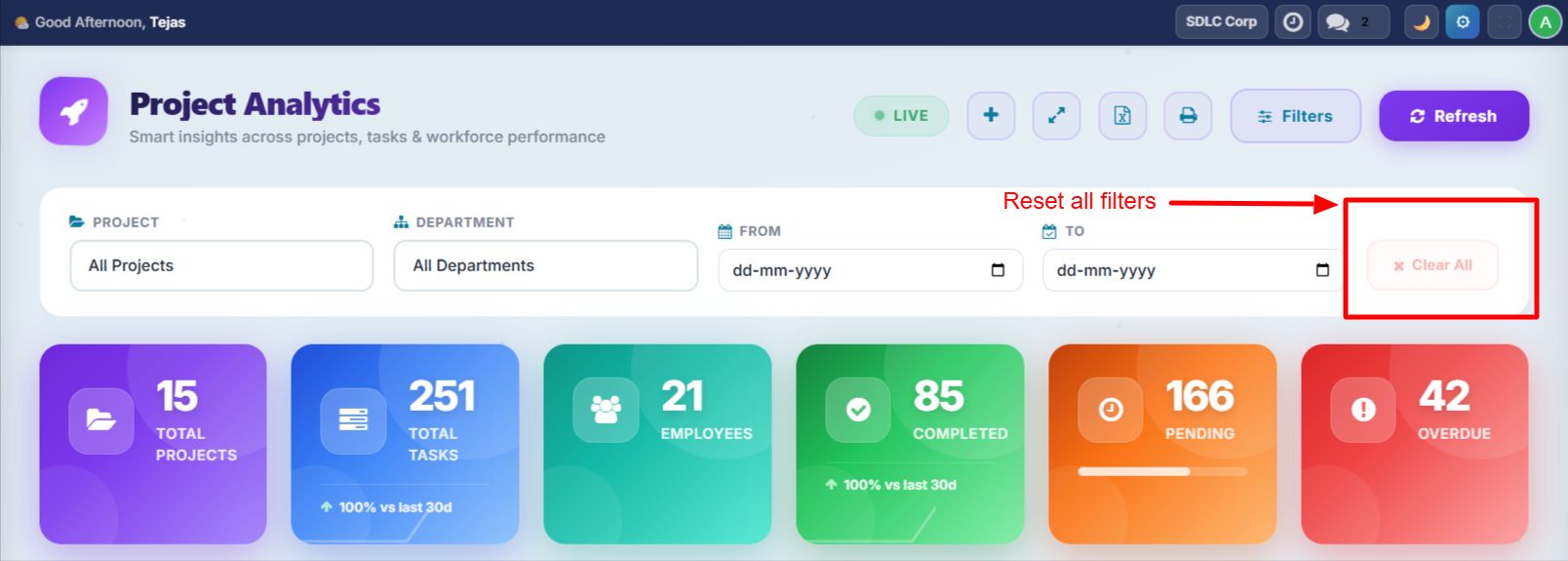
The Excel export respects your active filters. Apply filters first, then export to get a focused report.
Quick Task Create
Create a new task without navigating away from the dashboard.
Steps
- Press N on your keyboard or click the + Quick Task button in the header.
- Fill in the task name and select a project from the dropdown.
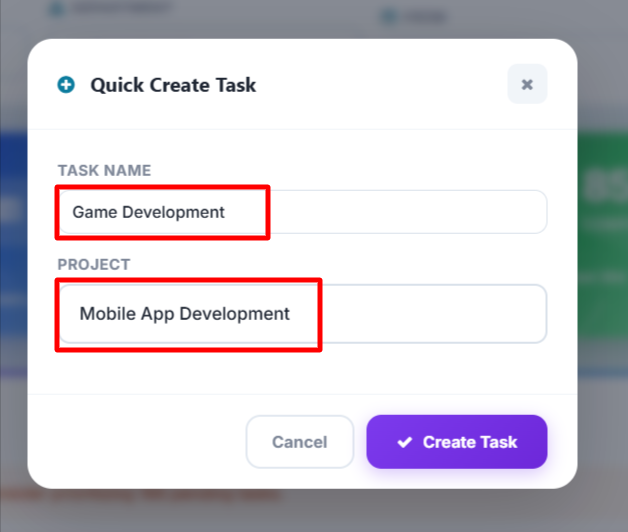
- Click Submit to create the task.
The task is created in Odoo and the dashboard refreshes automatically to reflect the new task in all relevant charts and metrics.
The quick task form creates tasks with default settings. For advanced options (assignees, deadlines, tags), open the task form after creation.
Navigation Clicks
Several dashboard elements are clickable and navigate directly to the corresponding Odoo views.
Projects Card
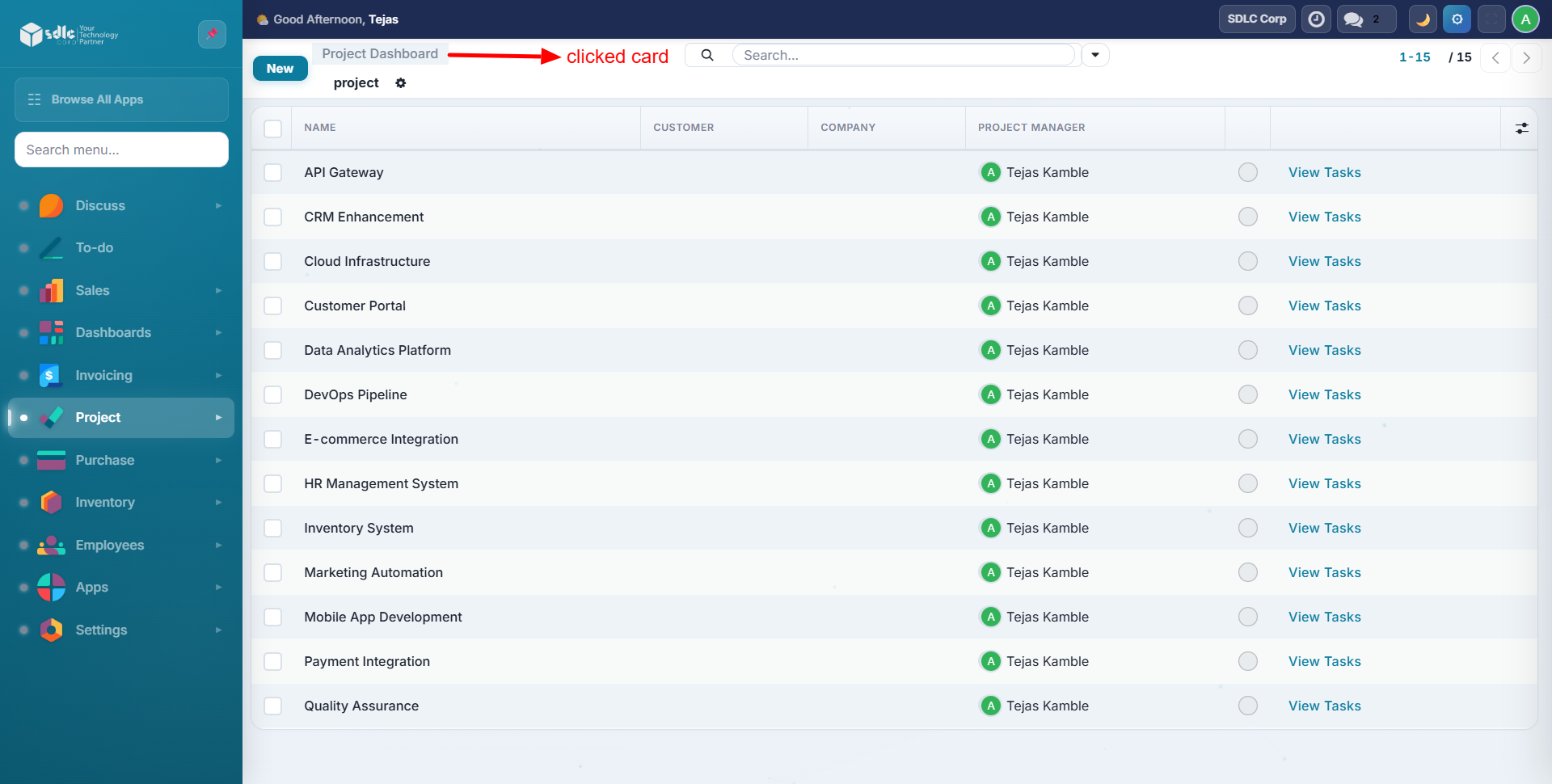
Click the Total Projects stat card to open the Odoo project list view.
Overdue Tasks Card
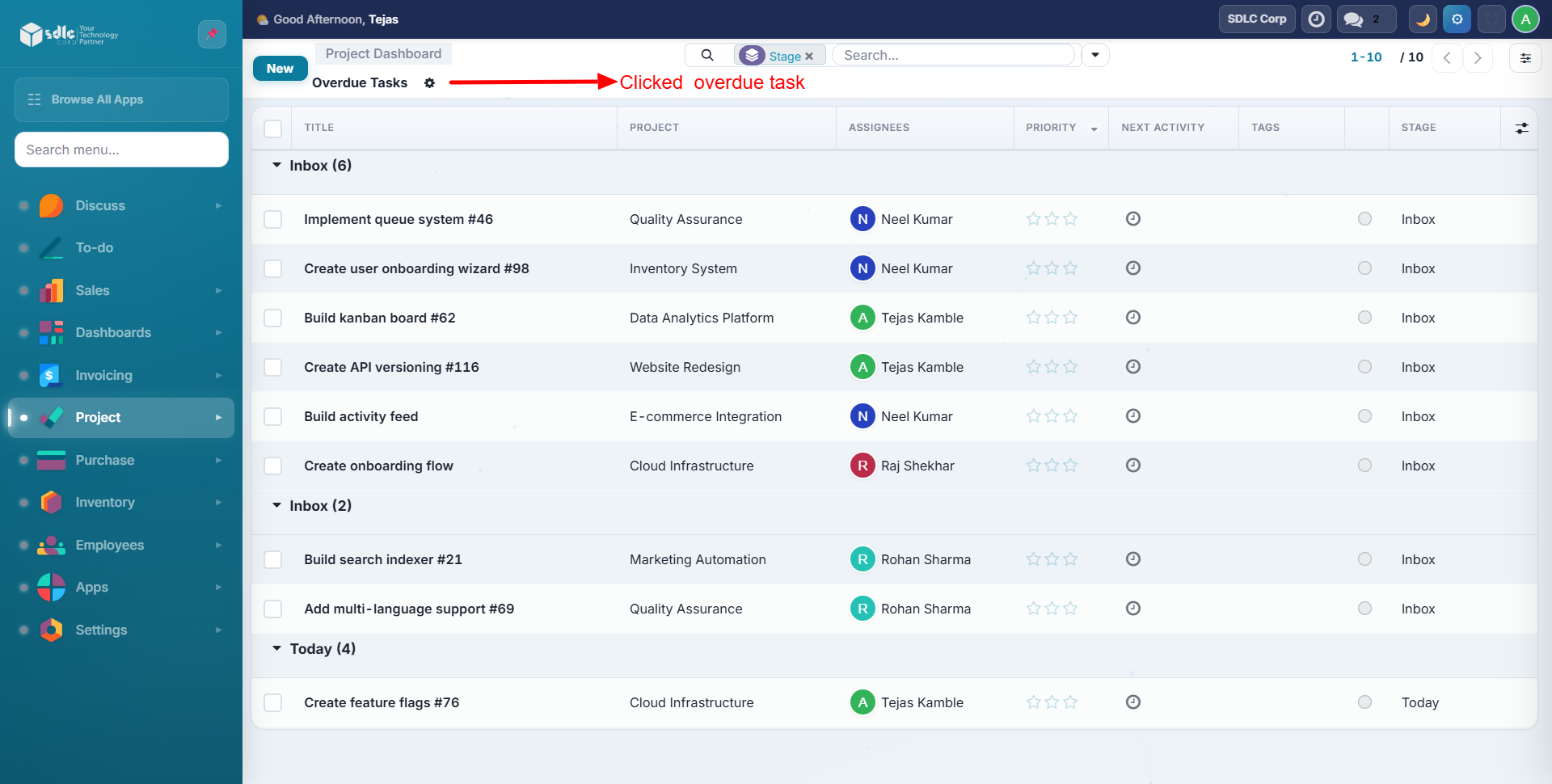
Click the Overdue Tasks stat card to see a filtered task list showing only overdue tasks.
Task Row
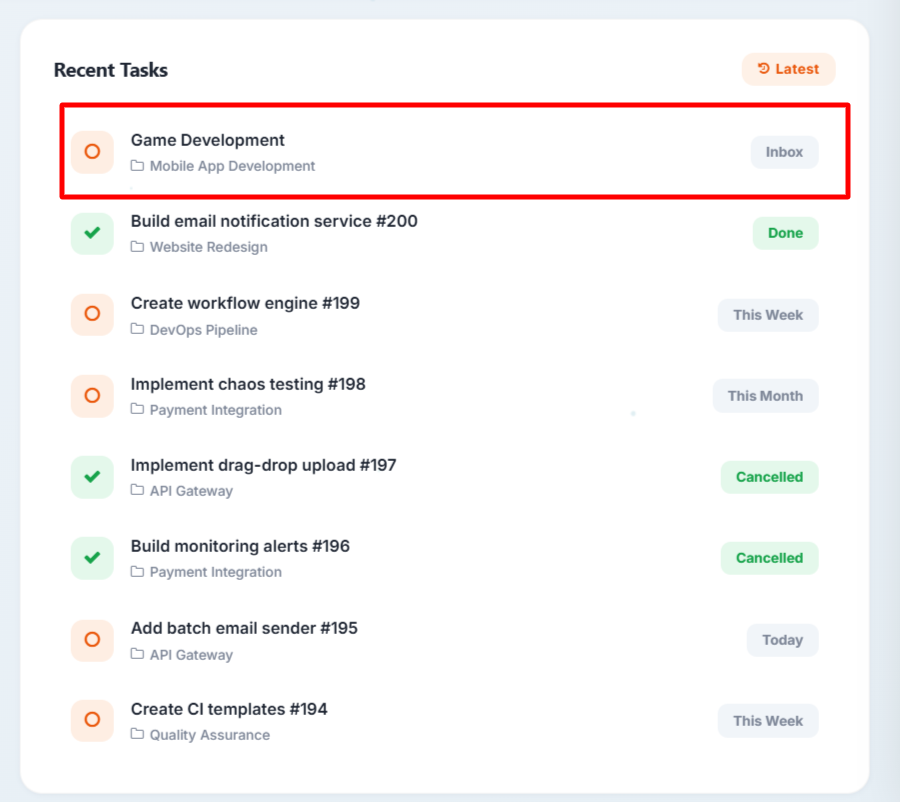
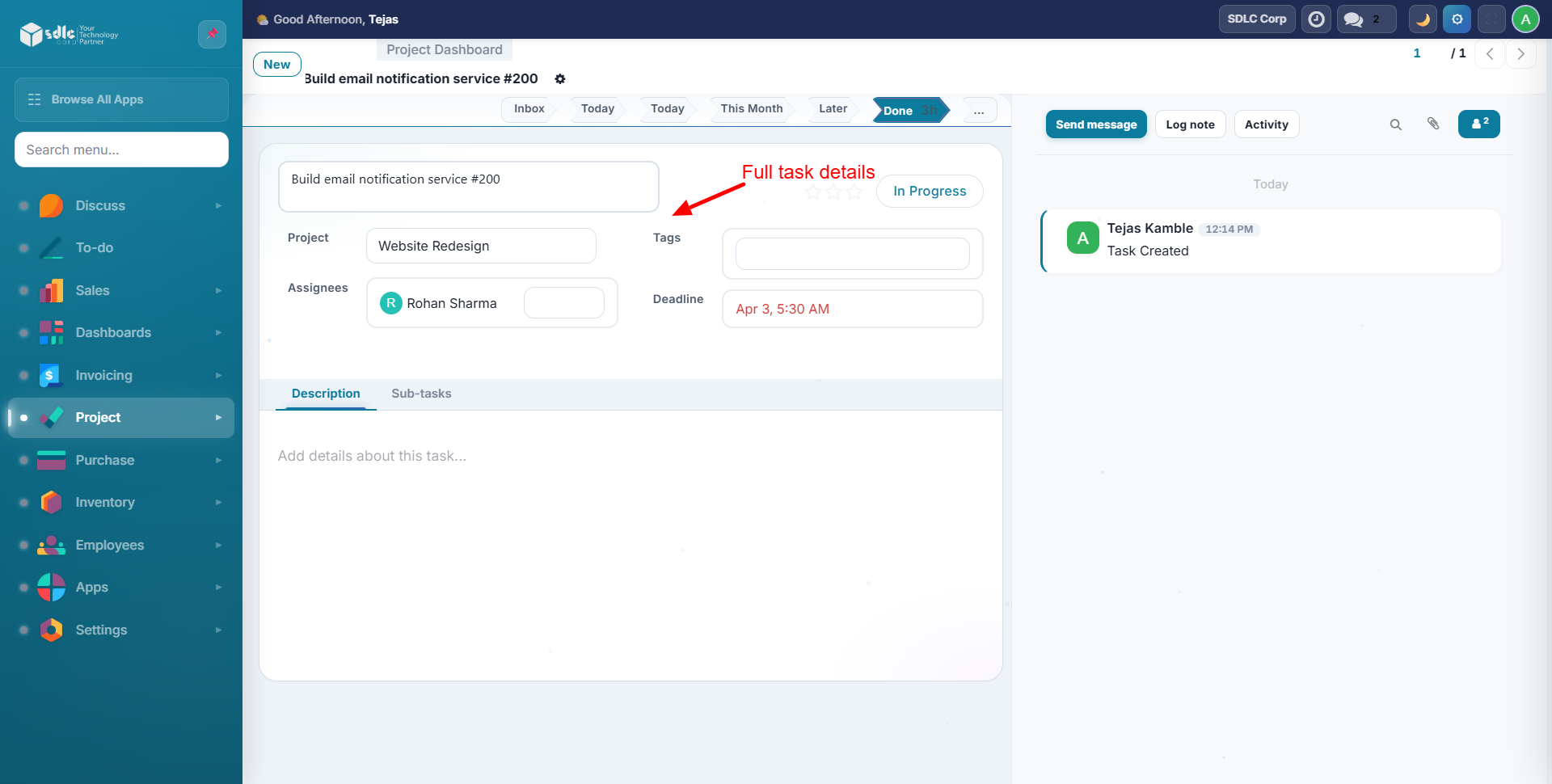
Click any row in the Recent Tasks table to open that task's form view for editing.
| Click Target | Where It Goes |
|---|---|
| Total Projects card | Project list view |
| Total Employees card | Employee list view |
| Overdue Tasks card | Filtered overdue task list |
| Recent task row | Task form view |
Fullscreen Mode
Press F or click the expand icon in the header to enter fullscreen mode.
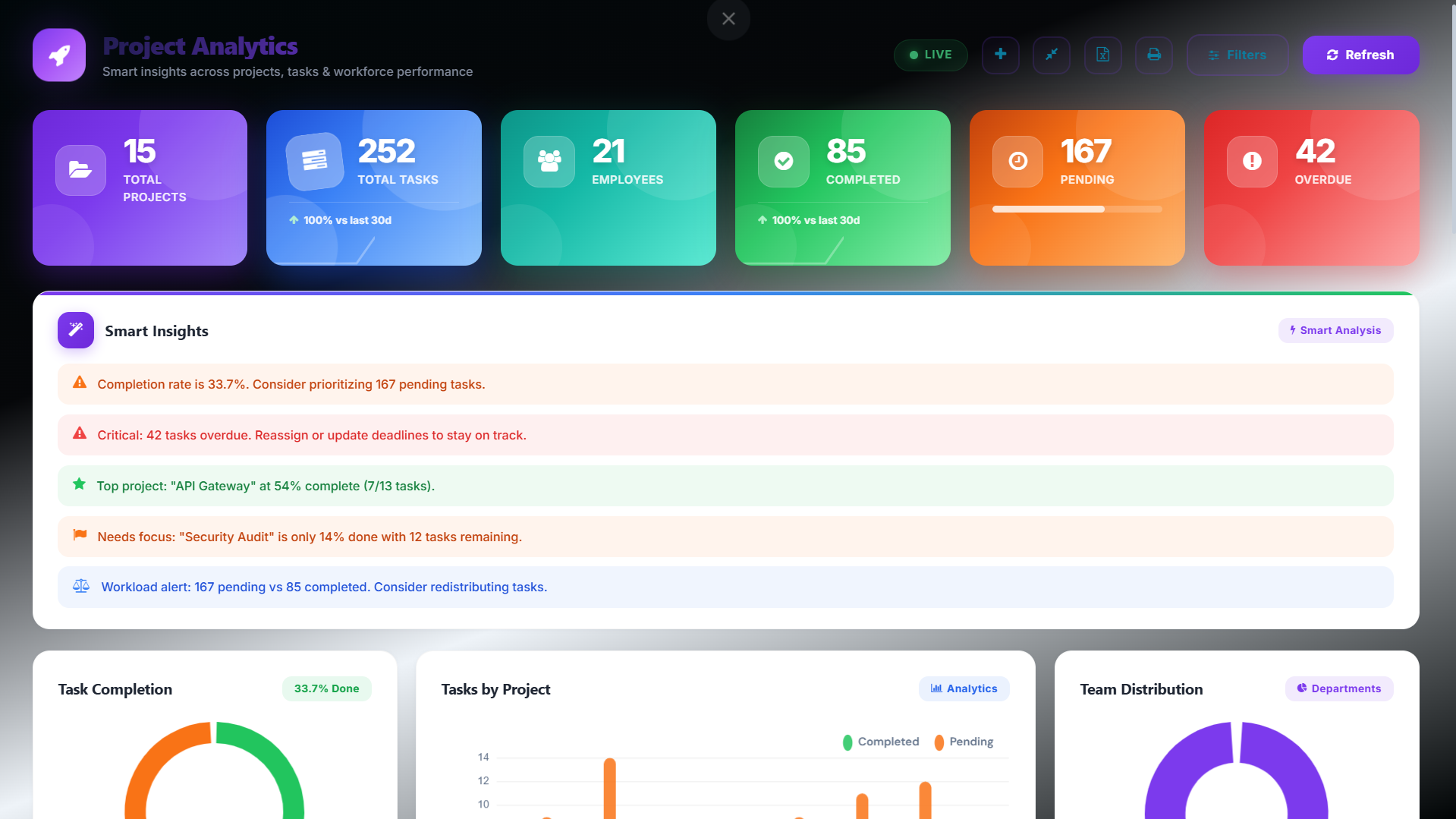
Fullscreen mode hides the browser chrome and Odoo navigation for maximum dashboard visibility. Auto-refresh continues every 60 seconds, making it ideal for TV displays, stand-up meetings, or war rooms.
Press F again or Escape to return to normal mode.
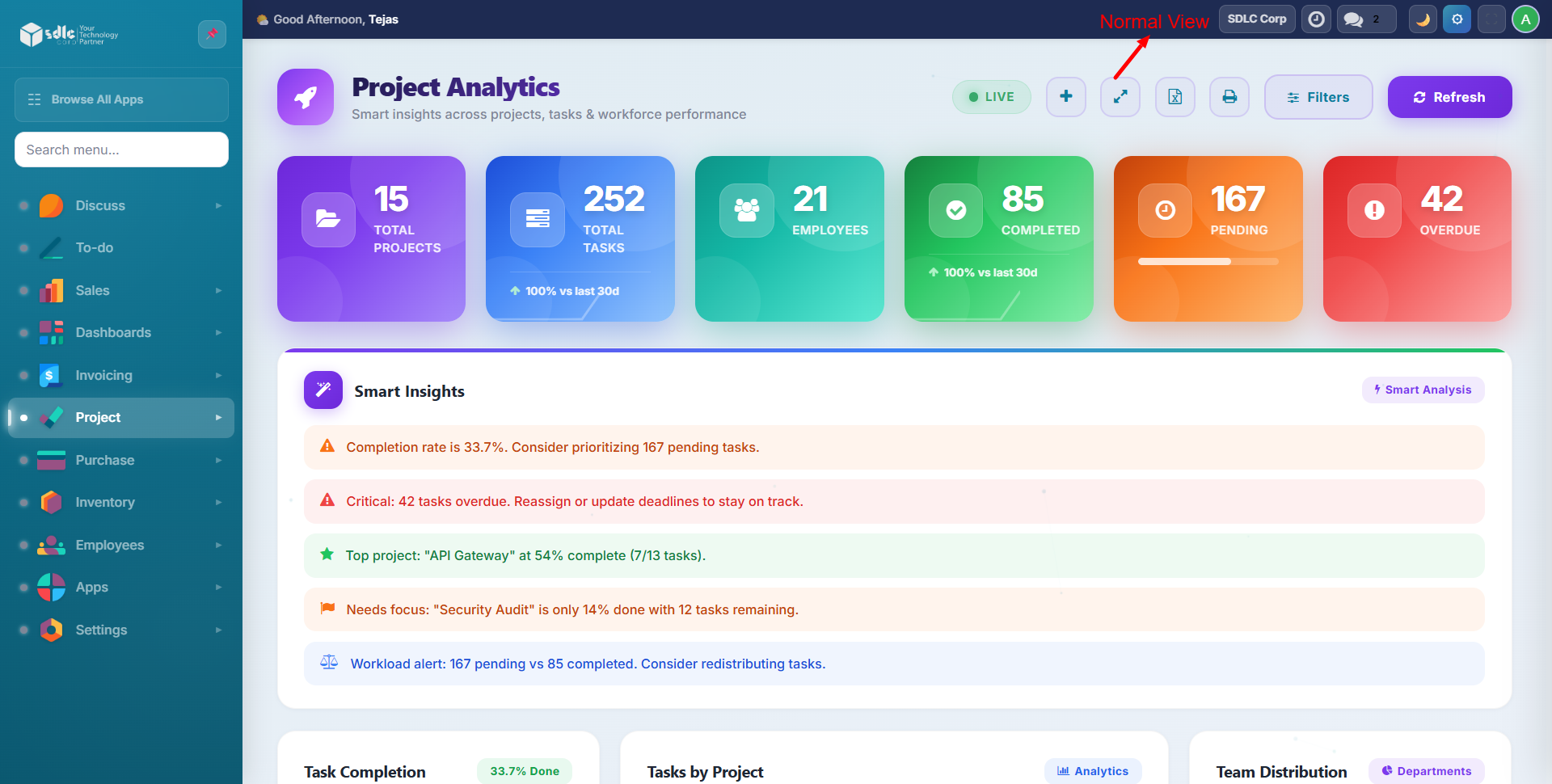
Keyboard Shortcuts
| Key | Action |
|---|---|
| R | Refresh dashboard data |
| F | Toggle fullscreen mode |
| N | Open quick task create modal |
Print / PDF
Click the printer icon to open the browser print dialog. Use your browser's Save as PDF option to download a snapshot of the dashboard.
Need Help?
Contact SDLC Corp at sdlccorp.com/contact-us