Project & Employee Dashboard — Getting Started
This guide walks you through installing and accessing the Project Analytics Dashboard for Odoo 19.
Requirements
| Requirement | Details |
|---|---|
| Odoo Version | 19.0 |
| Access Level | Administrator |
| Required Modules | Project, HR |
| Optional Modules | Timesheets (hr_timesheet) for timesheet chart |
| Python Library | xlsxwriter (for Excel export only) |
Installation Steps
Step 1: Find the Module
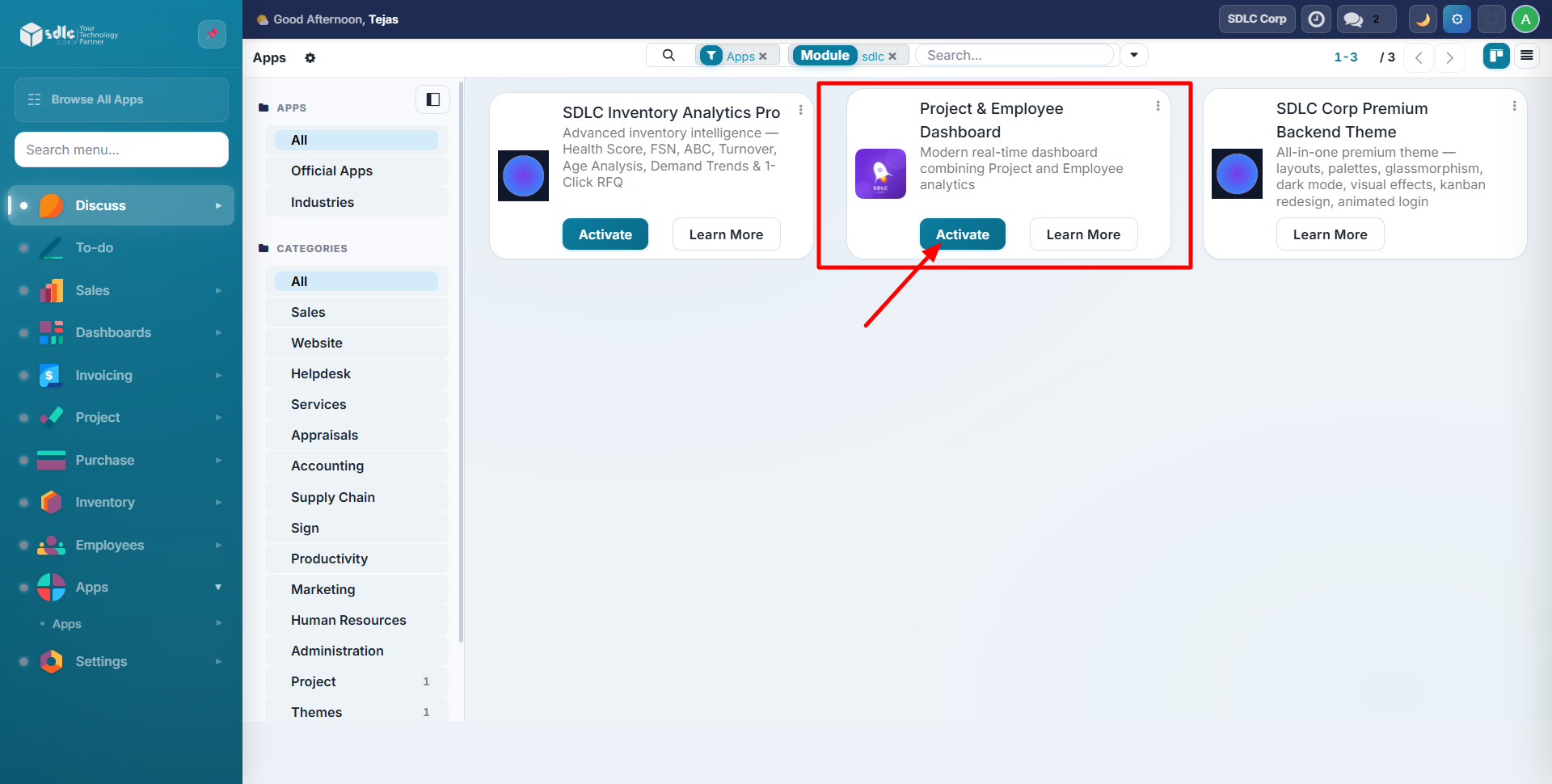
Go to Apps and search for Project Analytics Dashboard or SDLC Corp in the Apps store.
Step 2: Install the Module
Click the Install button on the module card. Odoo will install the module and its dependencies automatically.
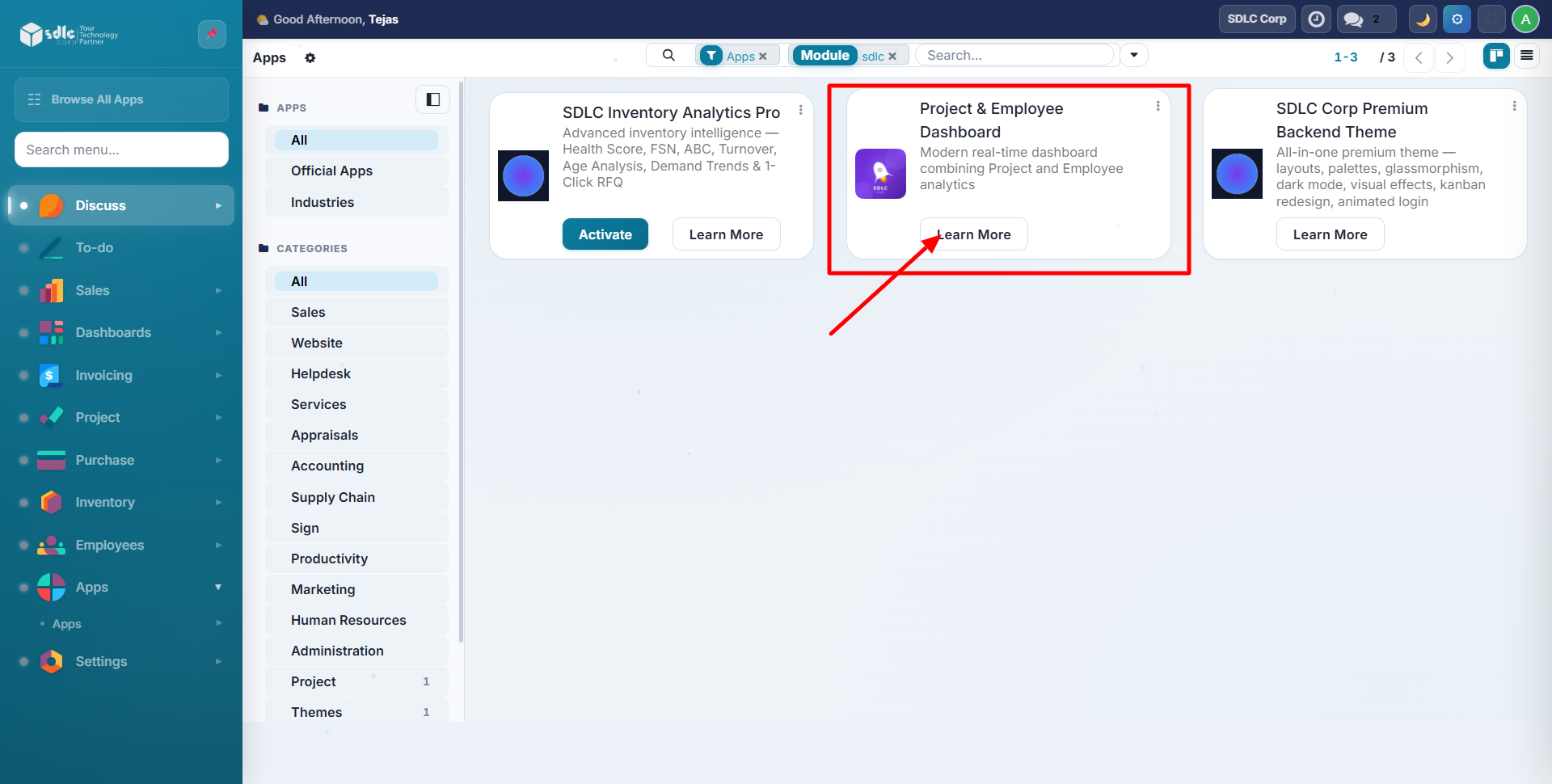
The module depends on project and hr. If these are not already installed, Odoo will install them as part of the process.
Step 3: Access the Dashboard
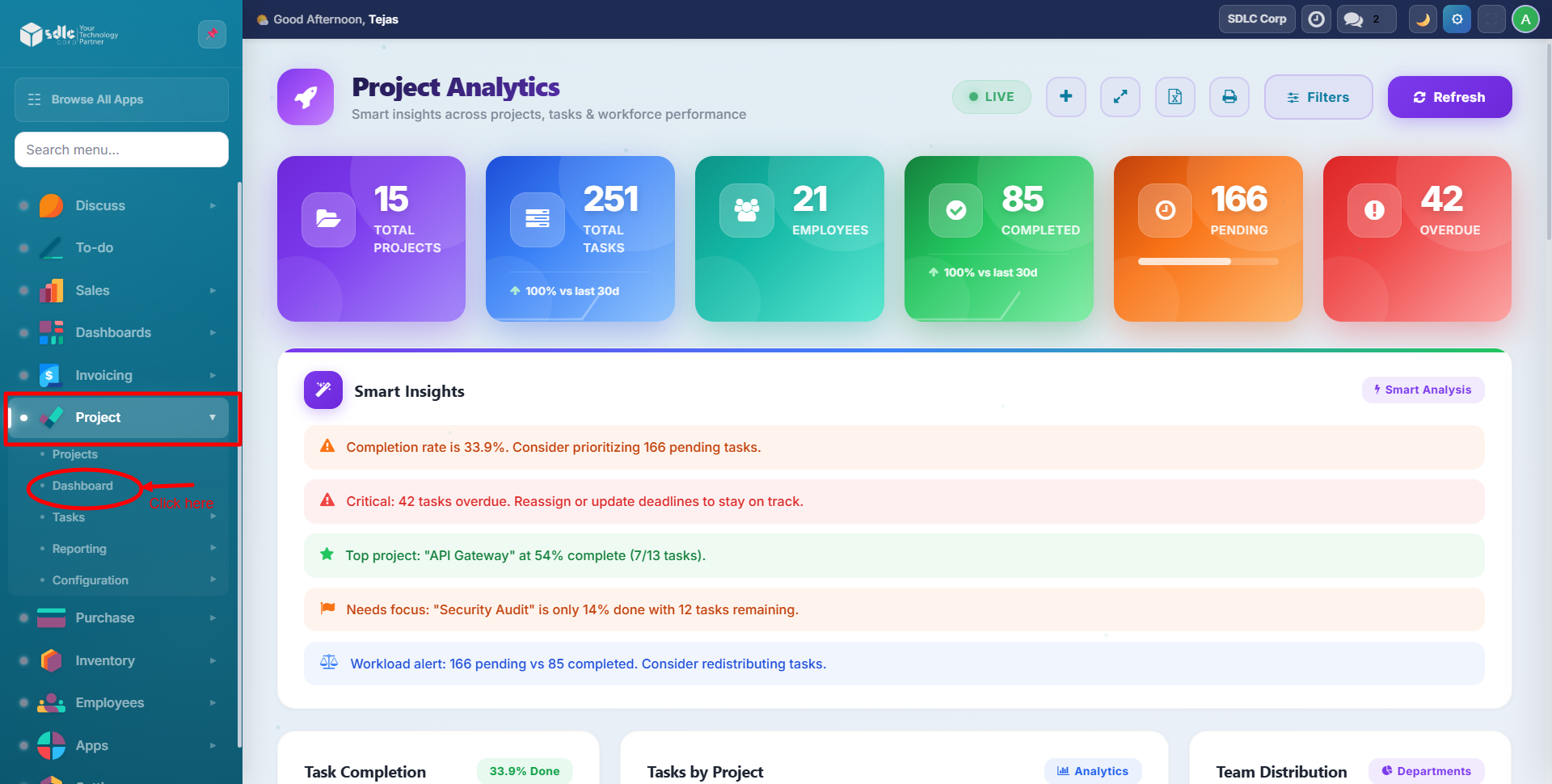
After installation, navigate to Project in the main menu. The Dashboard option appears as the first item in the sidebar.
No Configuration Required
The dashboard works immediately with your existing project and HR data. There is no setup wizard or initial configuration needed. All charts and metrics populate automatically from your Odoo database.
Install the hr_timesheet module to enable the Timesheet Hours chart on the dashboard. If not installed, the chart is automatically hidden.
Optional: Excel Export Setup
For Excel export functionality, ensure xlsxwriter is installed on your server:
pip install xlsxwriter
If not installed, the export button displays a friendly error message instead of failing silently.
Next Steps
Need Help?
Contact SDLC Corp at sdlccorp.com/contact-us