ShipStation Connector — Data Synchronization
Order Sync
Navigate to ShipStation > ShipStation Data > Orders.
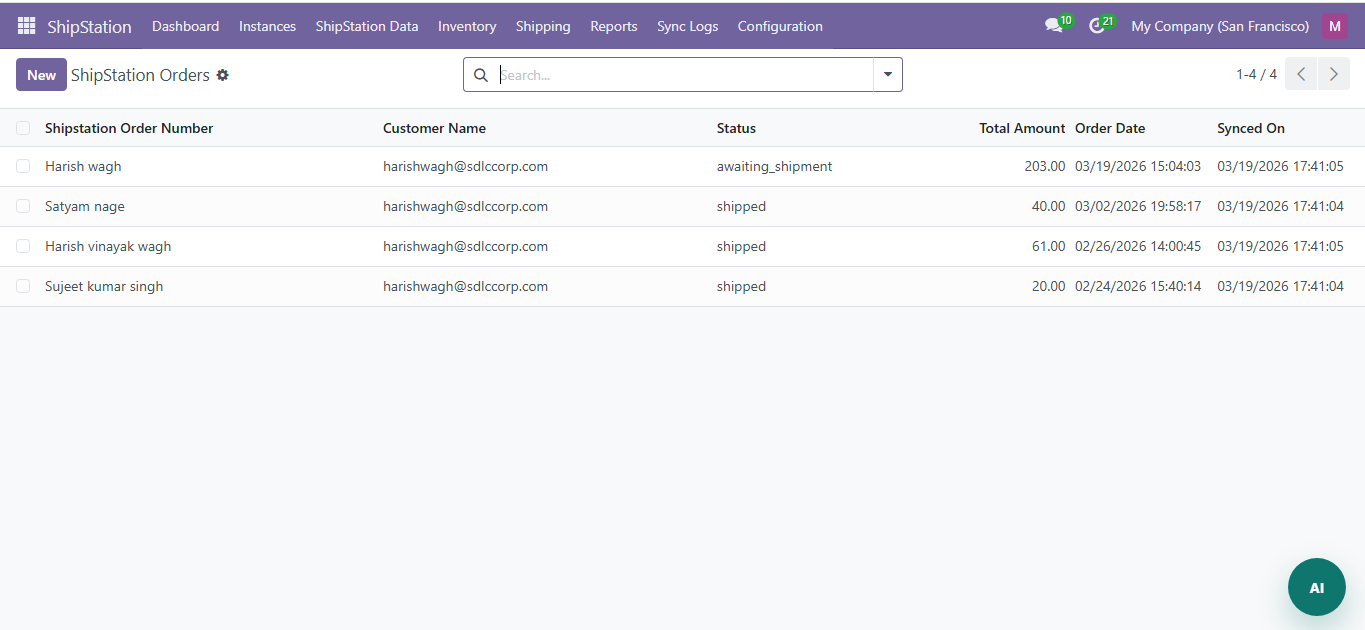
To sync orders manually, go to Instances, open an instance, and click Sync Orders.
- Orders include line items, shipping address, billing address, and rates
- Order status is mapped: awaiting_payment to Draft, awaiting_shipment to Confirmed, shipped to Shipped
- Each order links to the ShipStation instance and stores the ShipStation Order ID
Product Sync
Navigate to ShipStation Data > Products.
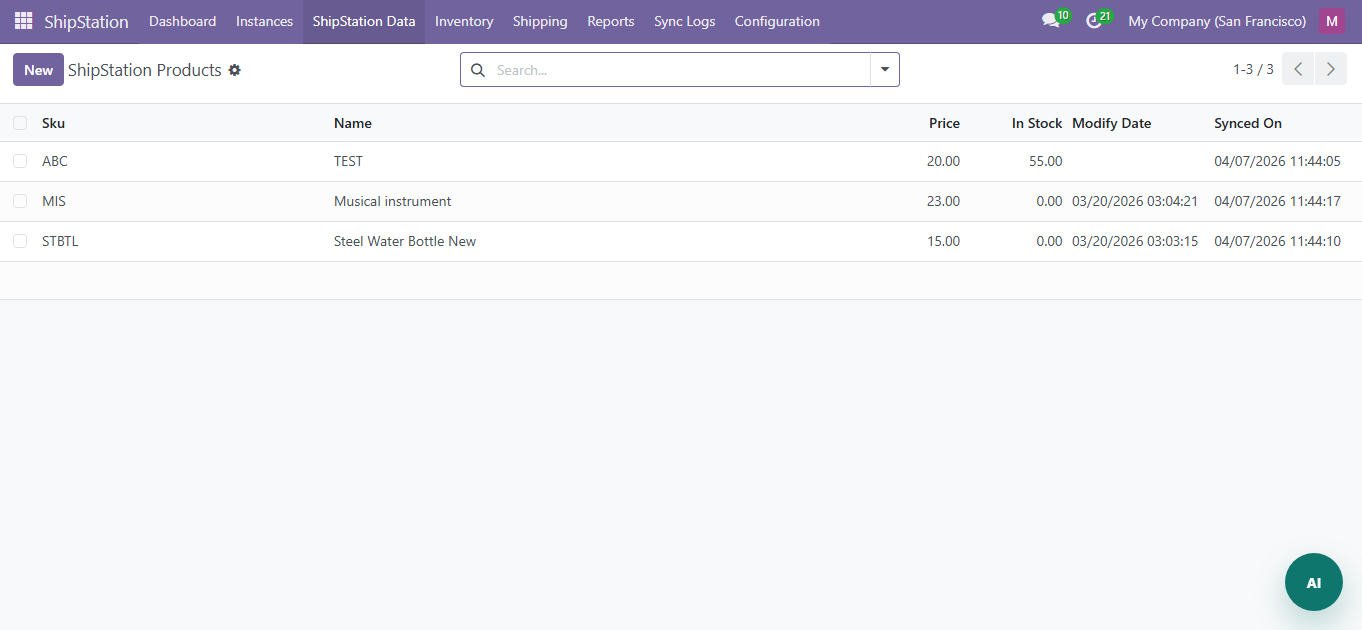
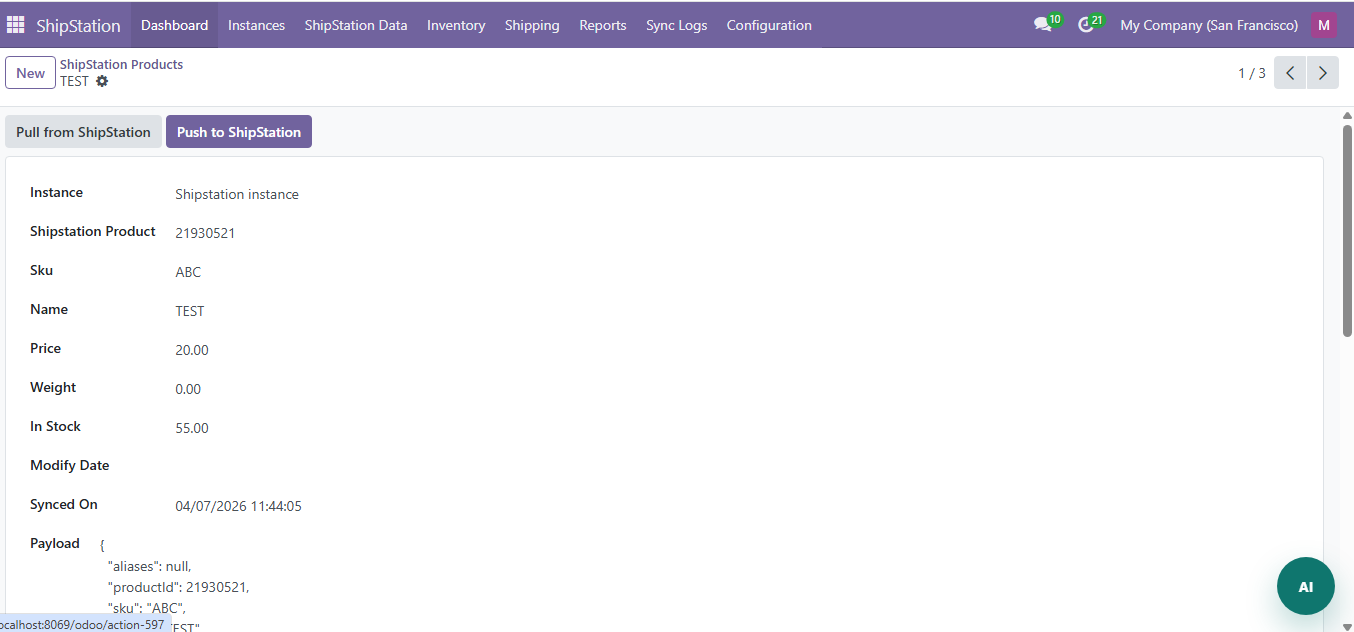
- Products sync with SKU, name, price, weight, and dimensions
- Matched to existing Odoo products by SKU/reference code
- New products are created automatically if no match found
Customer Sync
Navigate to ShipStation Data > Customers.
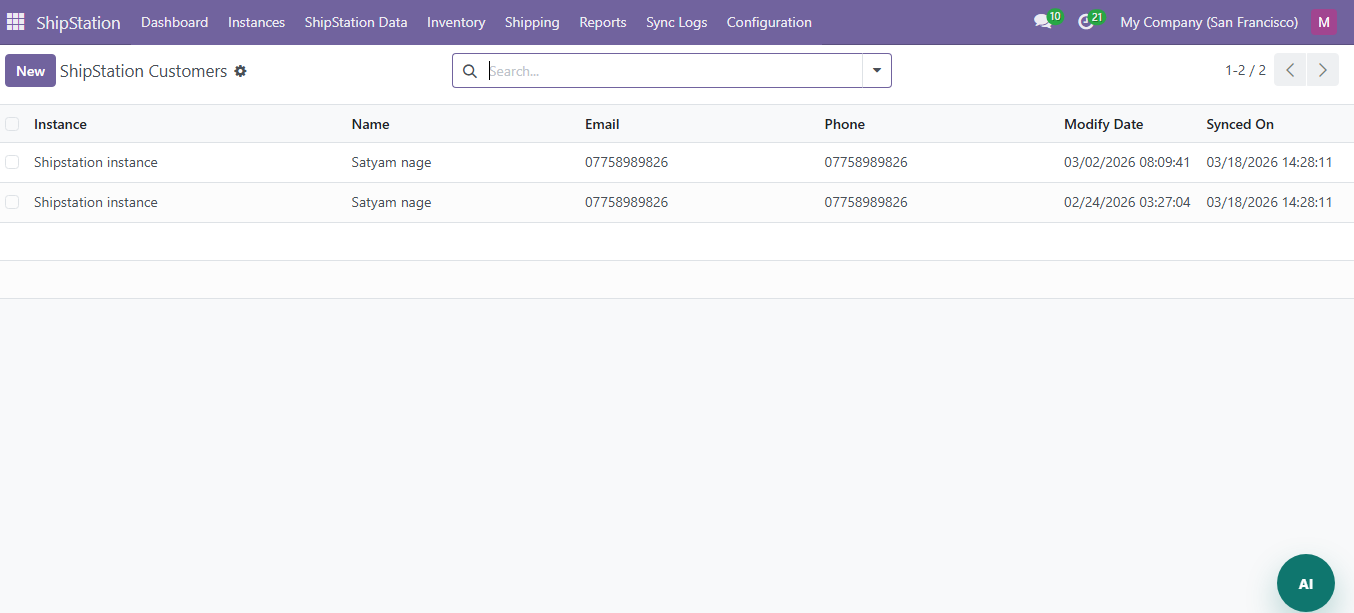
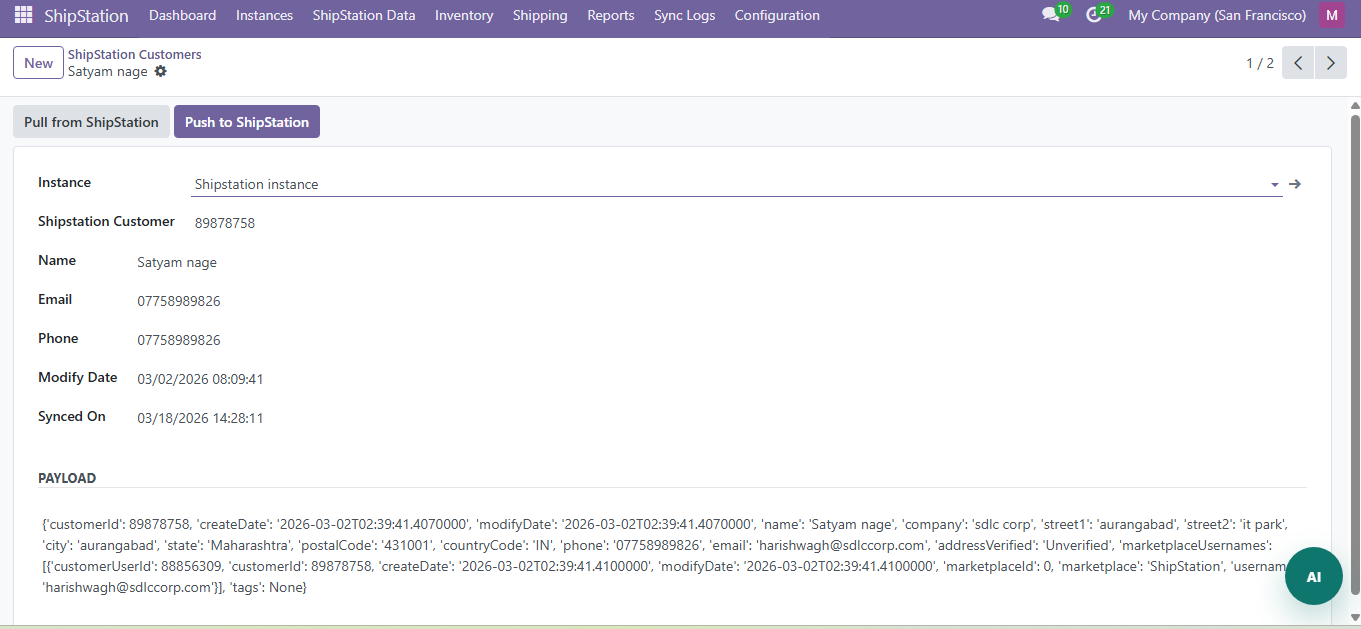
Customers are imported with name, email, and addresses.
Shipment Sync
Navigate to ShipStation Data > Shipments. Shipments include carrier, tracking number, and delivery status.
Category Sync
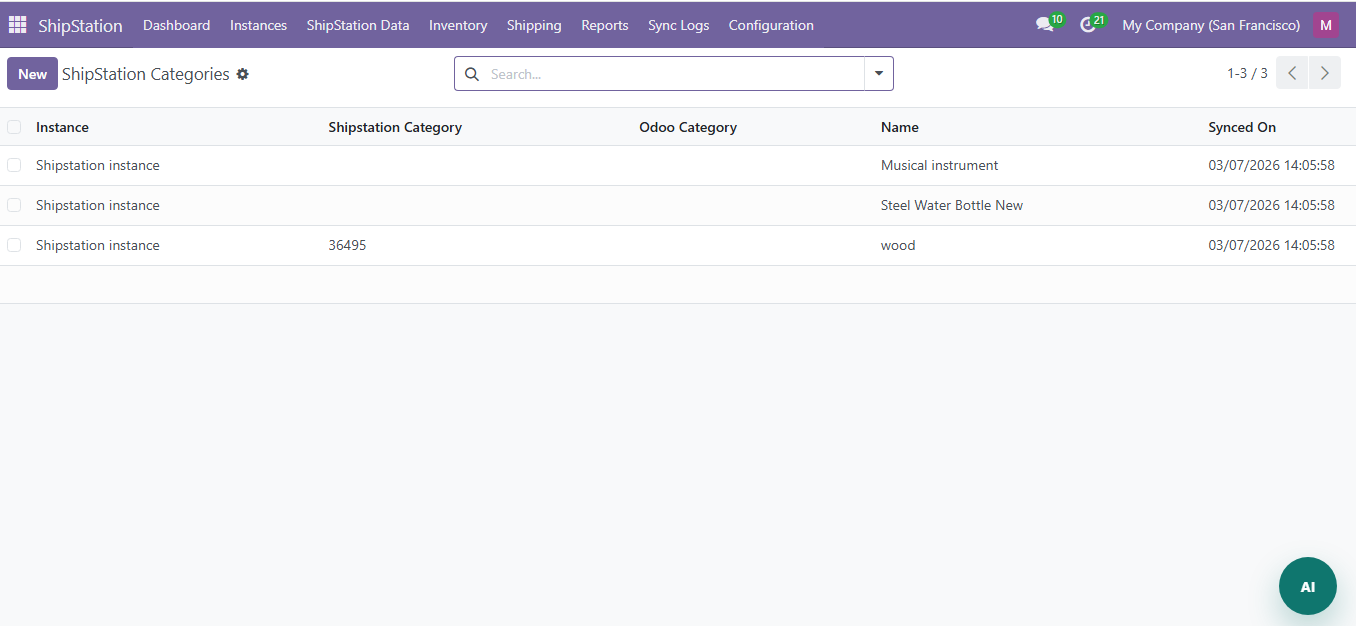
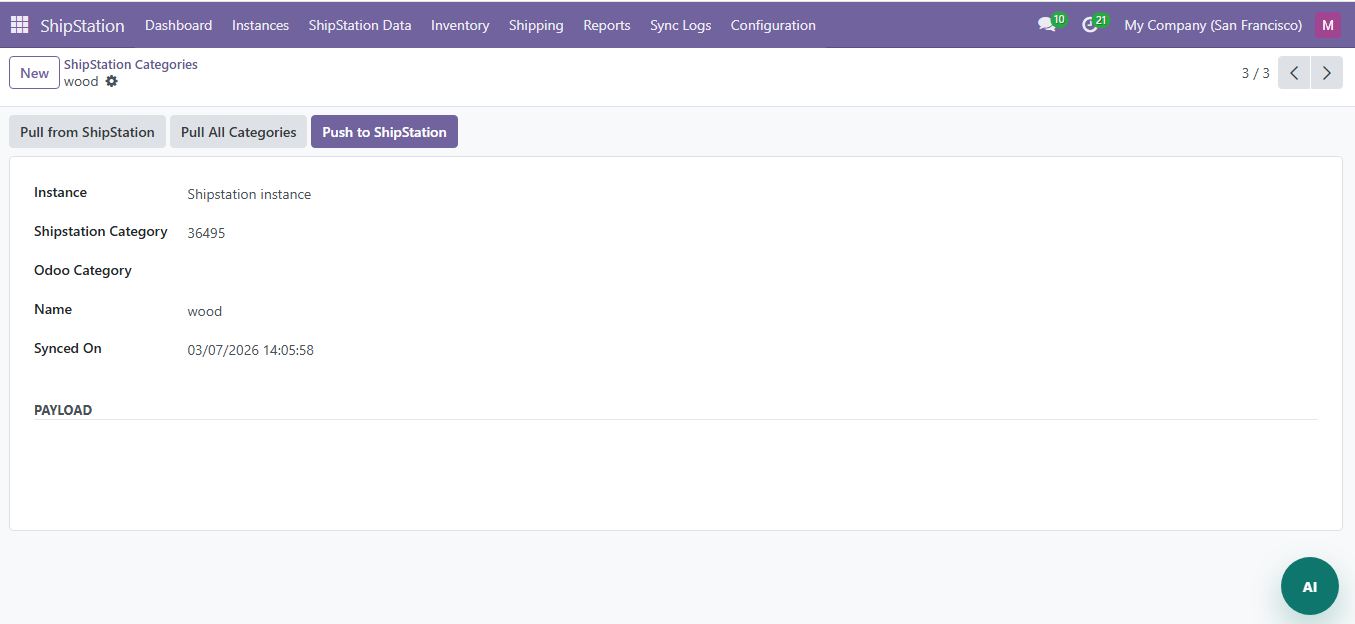
Categories can be synced from the respective menus under ShipStation Data.
Inventory Management
Navigate to ShipStation > Inventory.
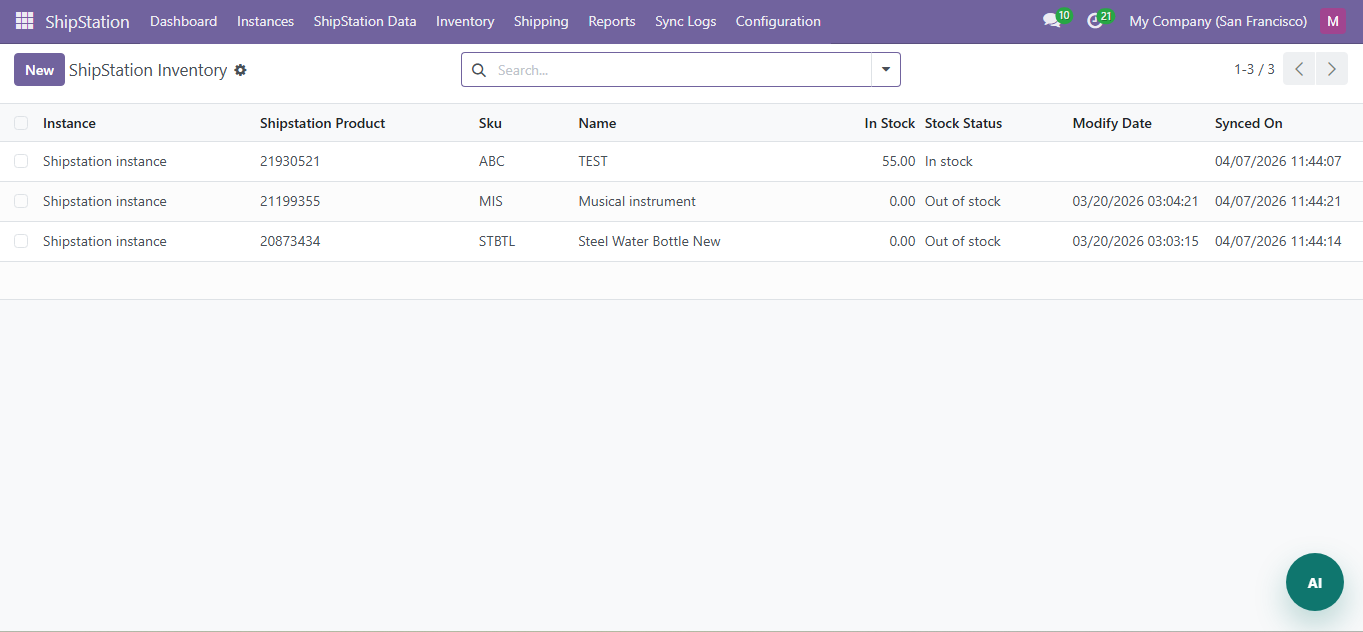
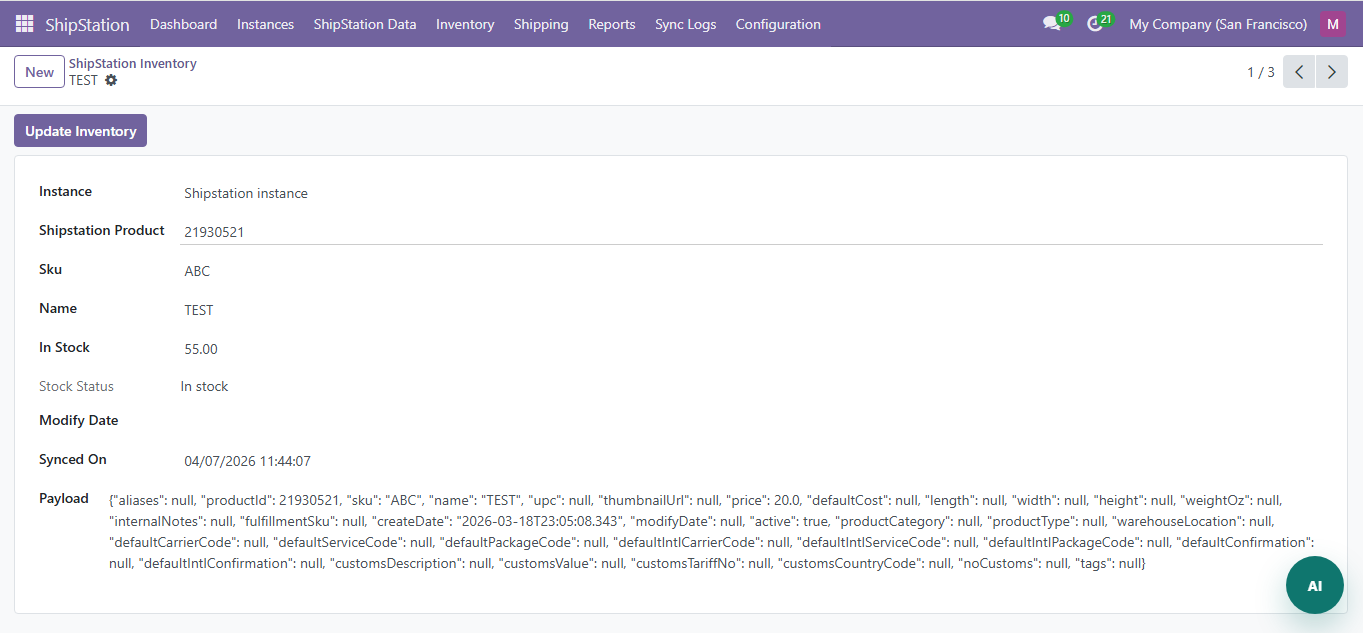
| Status | Color | Description |
|---|---|---|
| In Stock | Green | Quantity above the low stock threshold |
| Low Stock | Yellow | Quantity at or below threshold but above 0 |
| Out of Stock | Red | Quantity is 0 |
Actions:
- Refresh Inventory: Pull latest stock levels from ShipStation
- Export PDF: Download inventory report as a styled PDF
Shipping and Tracking
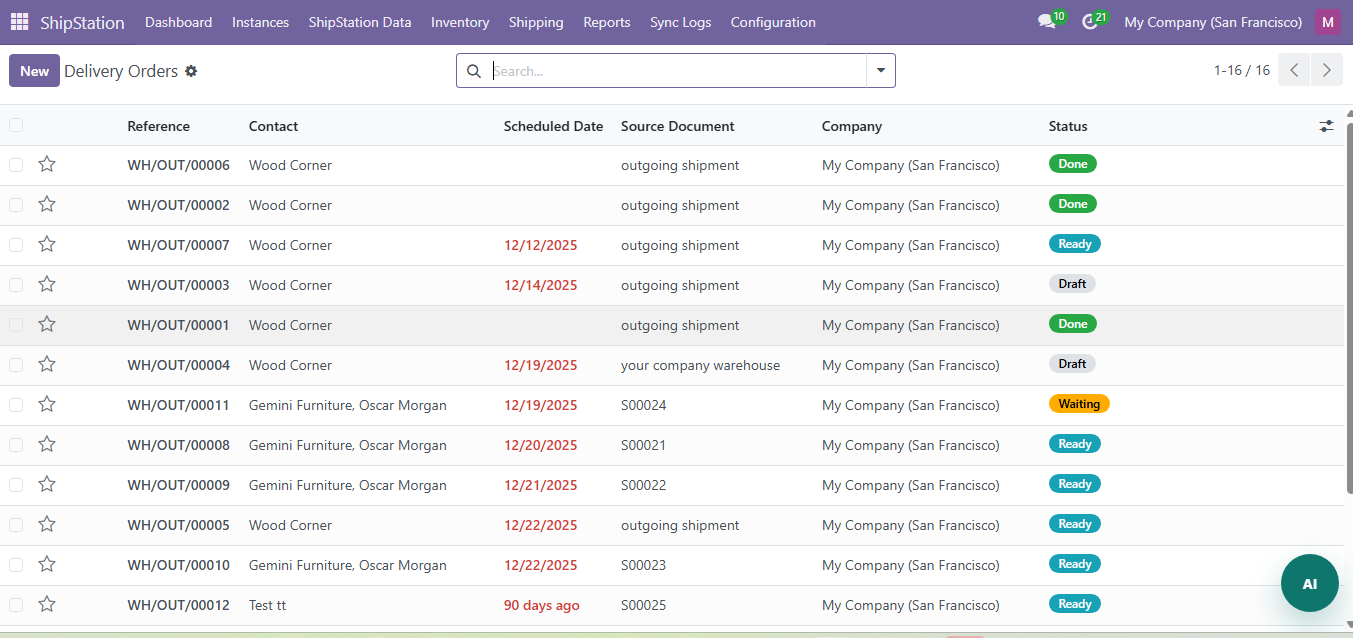
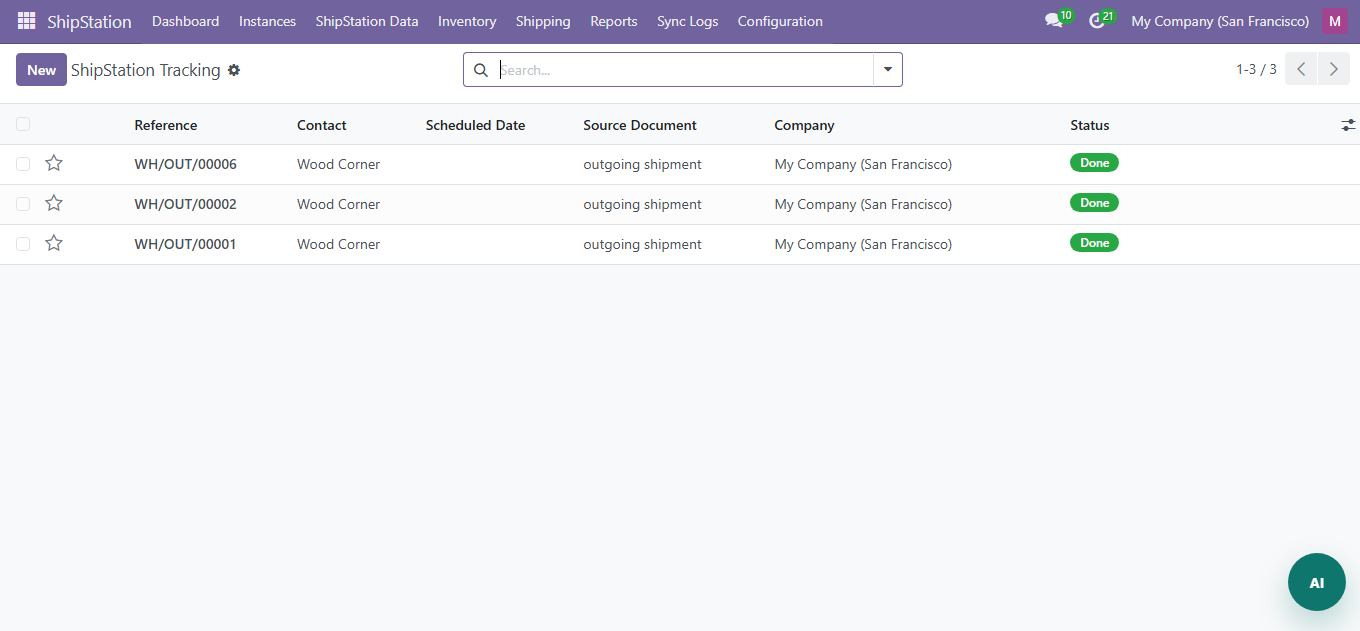
- Tracking numbers are automatically synced when shipments are created in ShipStation
- Tracking info appears on the order form in Odoo
- When an order is marked as 'Shipped', the tracking number is pushed to ShipStation
Need Help?
Contact SDLC Corp at sdlccorp.com/contact-us or email sales@sdlccorp.com