Send WhatsApp from a Sale Order
Step 1: Open the Sale Order
Go to Sales > Orders > Quotations and open the order you want to send.
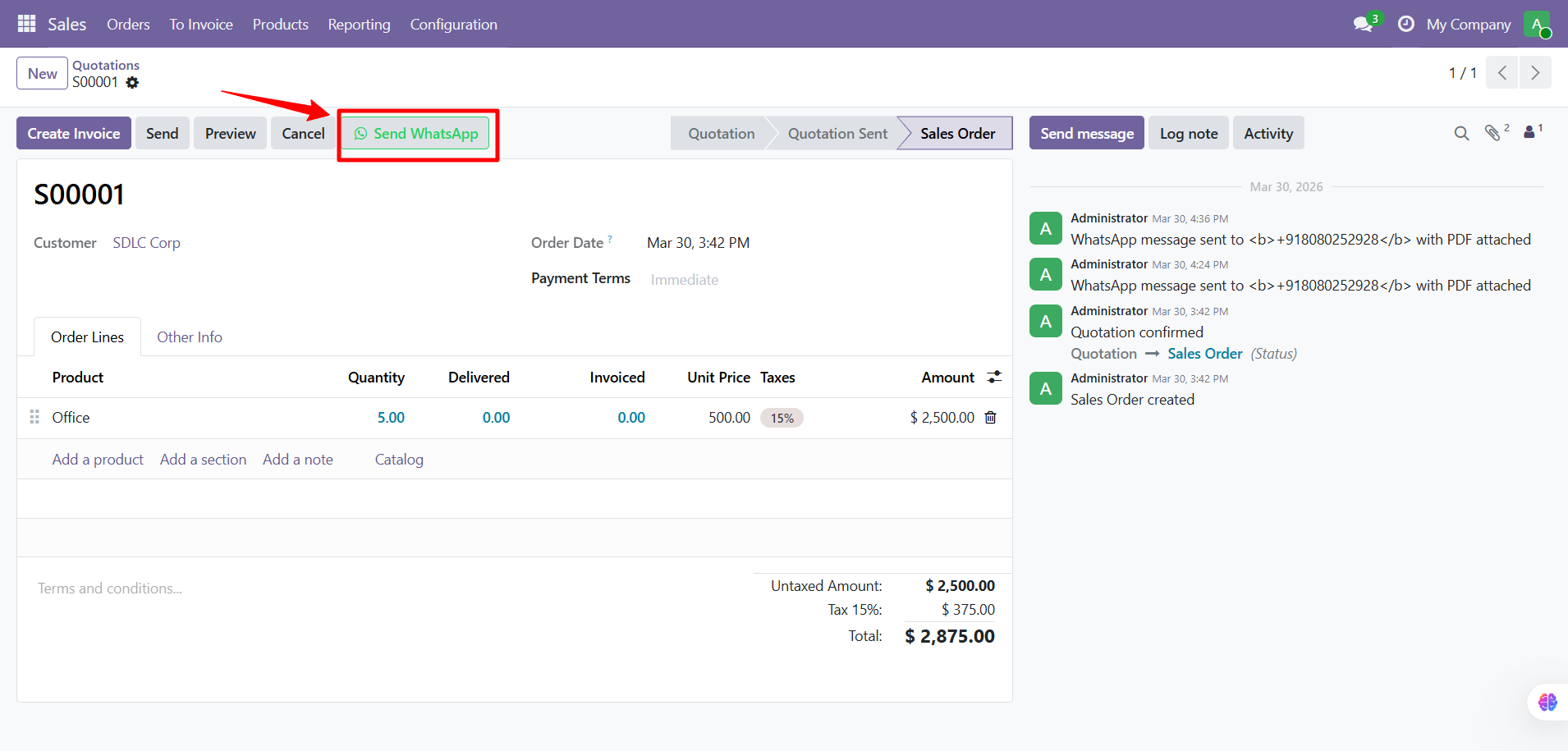
Step 2: Click "Send WhatsApp"
Click the Send WhatsApp button in the form header:
Step 3: Review the Composer
The composer popup opens with all fields auto-filled:
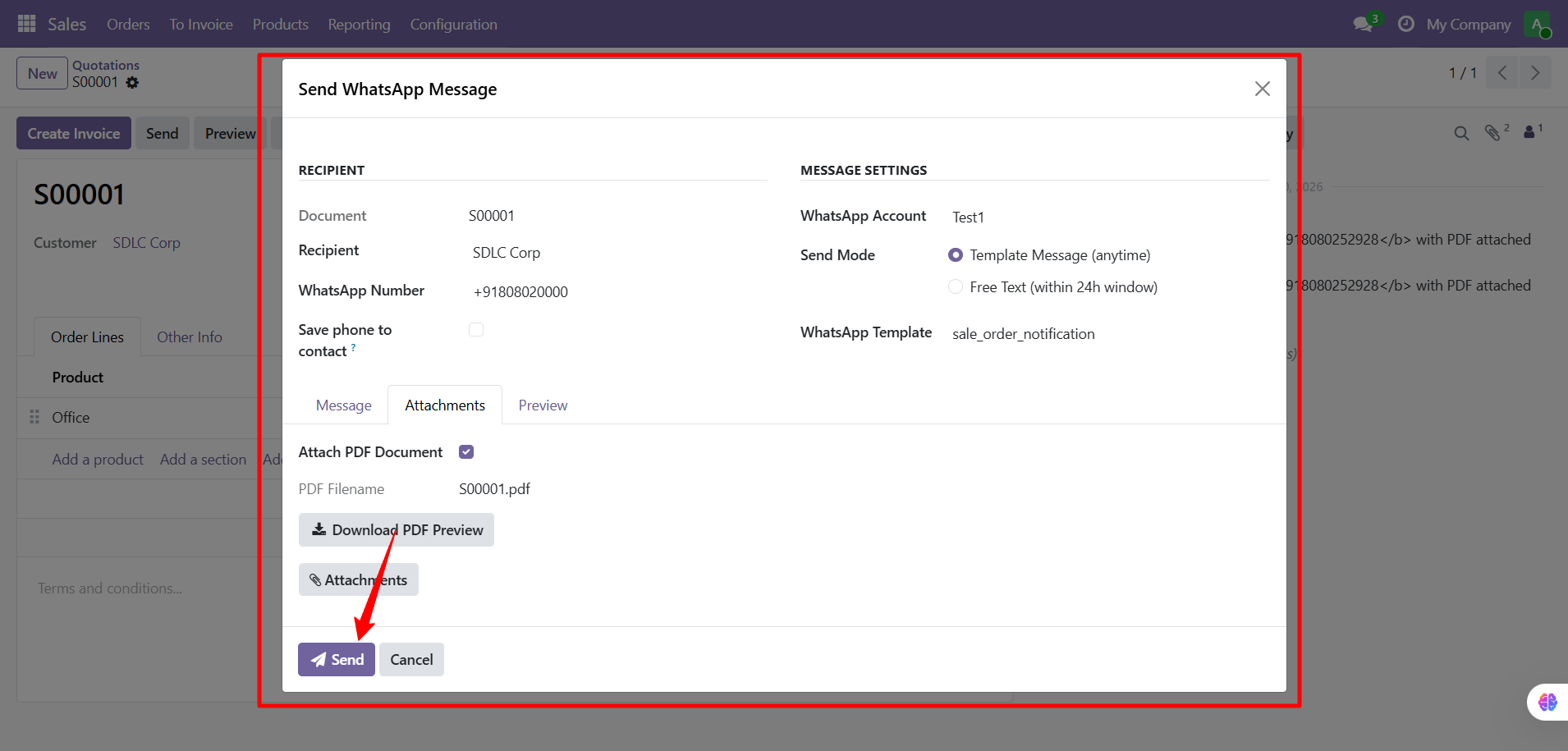
| Field | Description |
|---|---|
| Document | Order number (read-only) |
| Recipient | Customer name (changeable) |
| WhatsApp Number | Customer phone with country code (editable) |
| WhatsApp Account | Your connected business account |
| Send Mode | Template Message or Free Text |
| WhatsApp Template | Pre-approved message template |
Message Tab
The message body is pre-filled from your selected template with placeholders replaced (customer name, order number, company name). You can edit the text before sending.
Attachments Tab
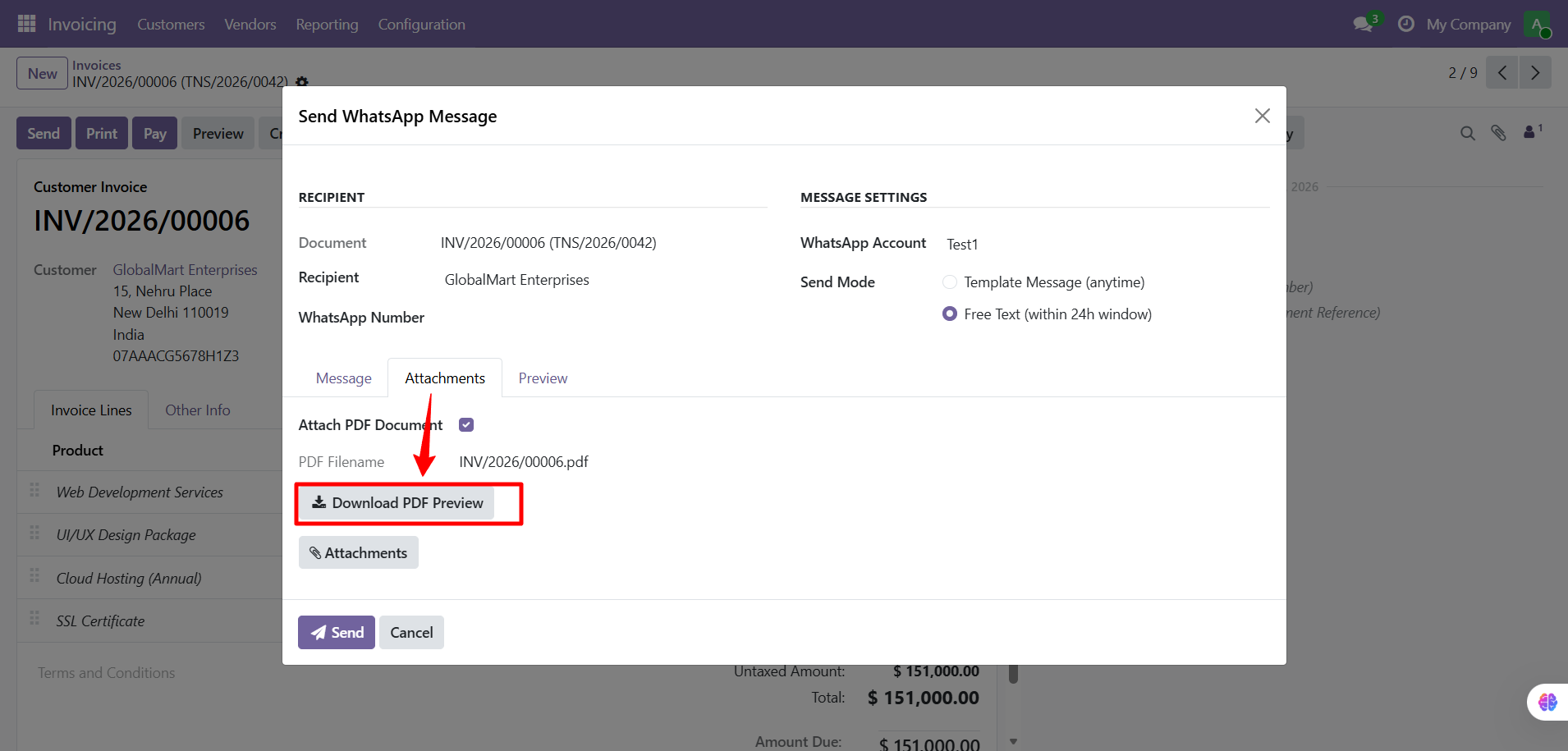
- Attach PDF Document: checked by default, attaches the order PDF
- Download PDF Preview: review the PDF before sending
- Attach Attachments: add extra files
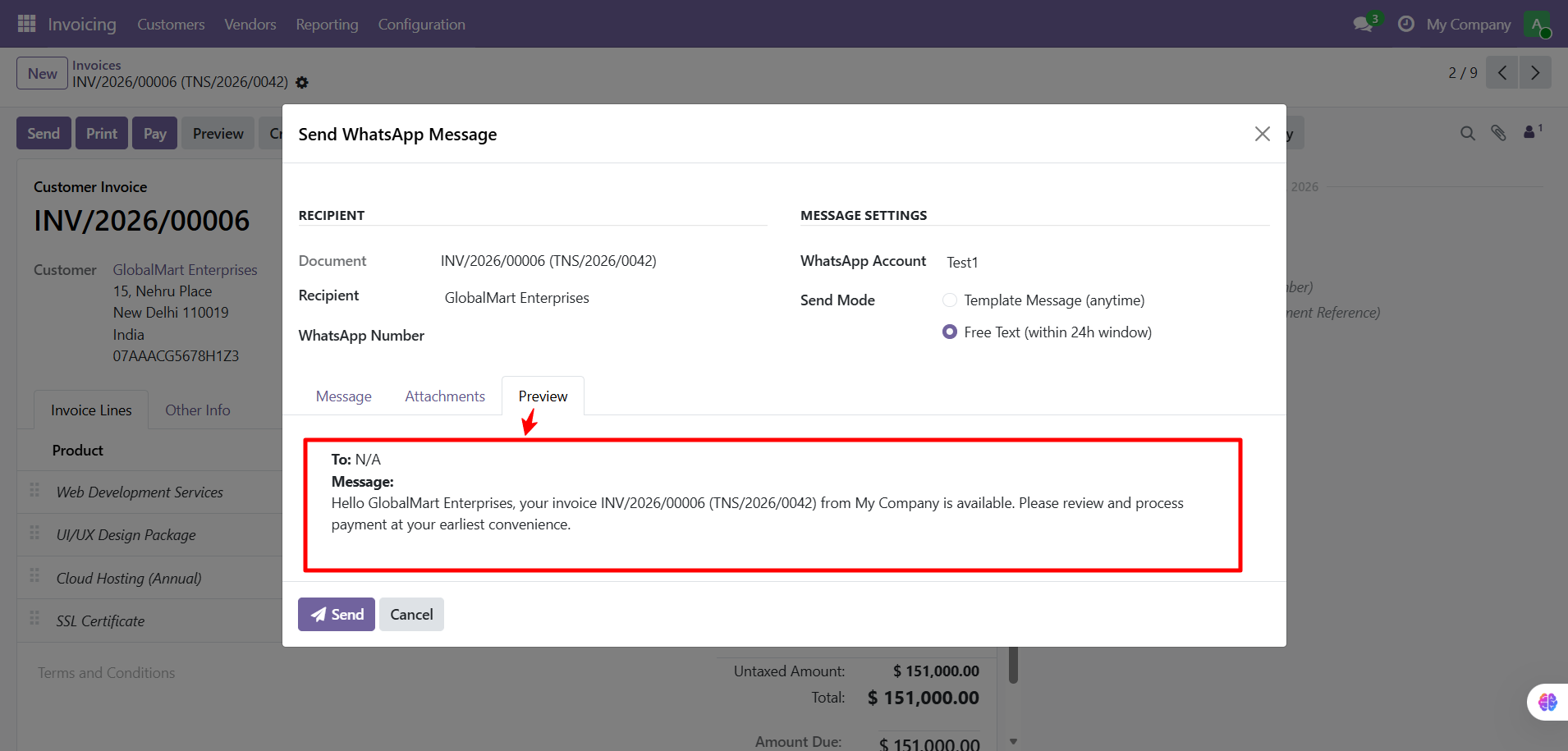
Preview Tab
Review exactly how the message will appear to the recipient:
Step 4: Send
Click Send. A success notification appears and the message is logged in the document's chatter.
Template Message vs Free Text
| Mode | When to Use | Restriction |
|---|---|---|
| Template Message | First contact, confirmations, notifications | Uses pre-approved template. Can send anytime. |
| Free Text | Follow-ups, answering questions | Any content. Only within 24 hours after customer last messaged you. |
warning
If you see "24-hour window expired", switch to Template Message mode. Free Text is only available within the 24-hour conversation window.
Need Help?
Contact SDLC Corp at sdlccorp.com/contact-us or email sales@sdlccorp.com