Viewing & Tracking Messages
Overview
Every WhatsApp message sent through the connector is logged so you can confirm delivery, retry failures, and audit what was sent to whom. This page covers the two places that log surfaces in Odoo: the dedicated message log and the document chatter.
Message Log
Go to WhatsApp Messenger > Messages to see all sent messages:
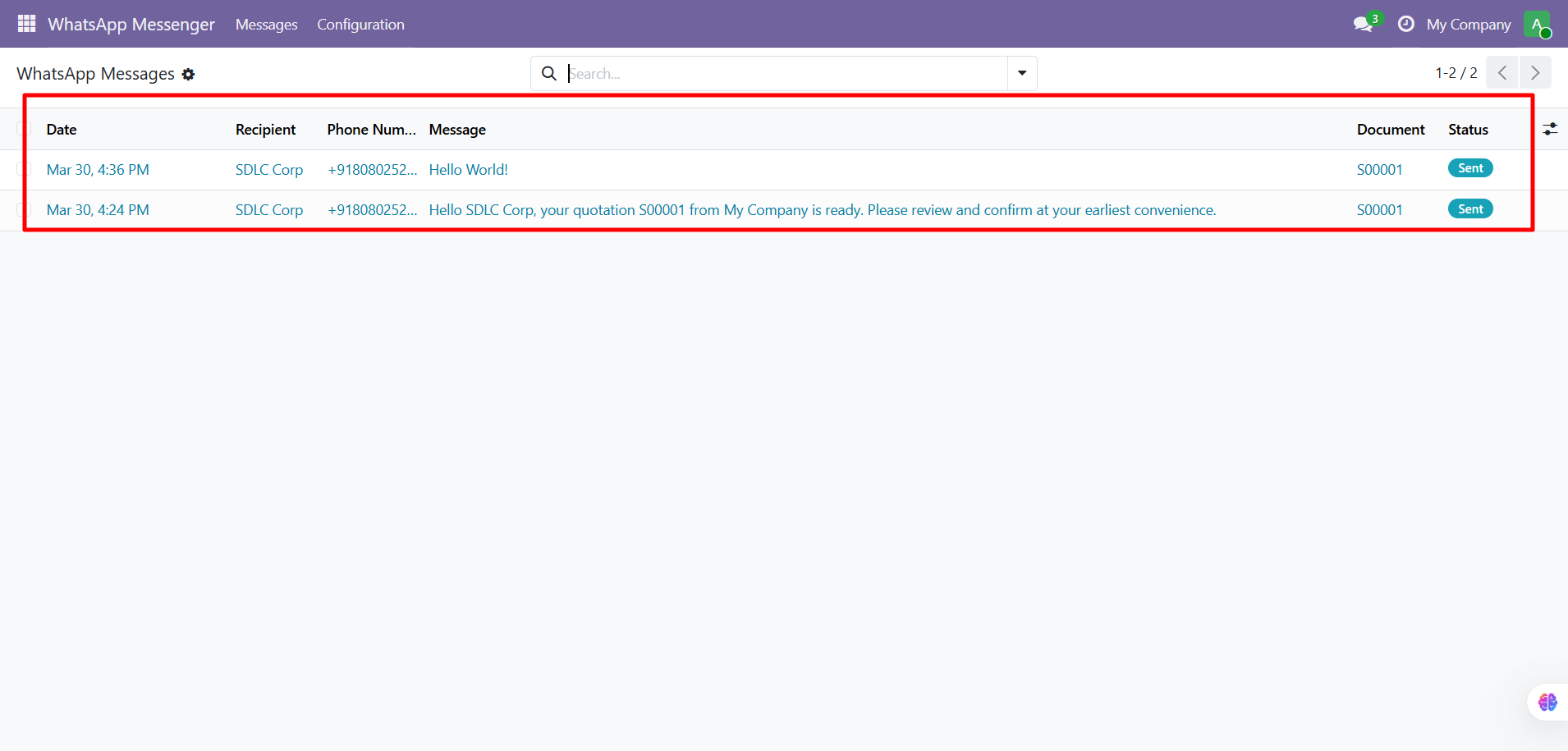
| Column | Description |
|---|---|
| Date | When the message was sent |
| Recipient | Customer name |
| Phone Number | Recipient's WhatsApp number |
| Message | Message content preview |
| Document | Linked sale order or invoice |
| Status | Current delivery status |
Message Statuses
| Status | Meaning |
|---|---|
| Draft | Message created but not yet sent |
| Sent | Message sent to WhatsApp servers |
| Delivered | Message delivered to recipient's device |
| Read | Recipient has read the message |
| Failed | Delivery failed: check failure reason |
Viewing from Document Chatter
Every WhatsApp message is also logged in the document's chatter (activity feed). Open any Sale Order or Invoice to see entries like:
"WhatsApp message sent to +91XXXXXXXXXX with PDF attached"
Retrying Failed Messages
- Go to WhatsApp Messenger > Messages
- Find the message with Failed status
- Open it to see the Failure Reason
- Click Retry
- On success, status changes to Sent
Changing Phone Numbers
From the composer: Edit the WhatsApp Number field and check "Save phone to contact" to persist it.
From Contacts: Go to Contacts, open the contact, edit the Mobile or Phone field.
Always include the country code (e.g., +91 for India, +1 for US). The module automatically strips special characters.
Contact SDLC Corp at sdlccorp.com/contact-us or email sales@sdlccorp.com