WooCommerce Connector — Configuration and Settings
Field Mapping
Navigate to WooCommerce > Field Mapping.
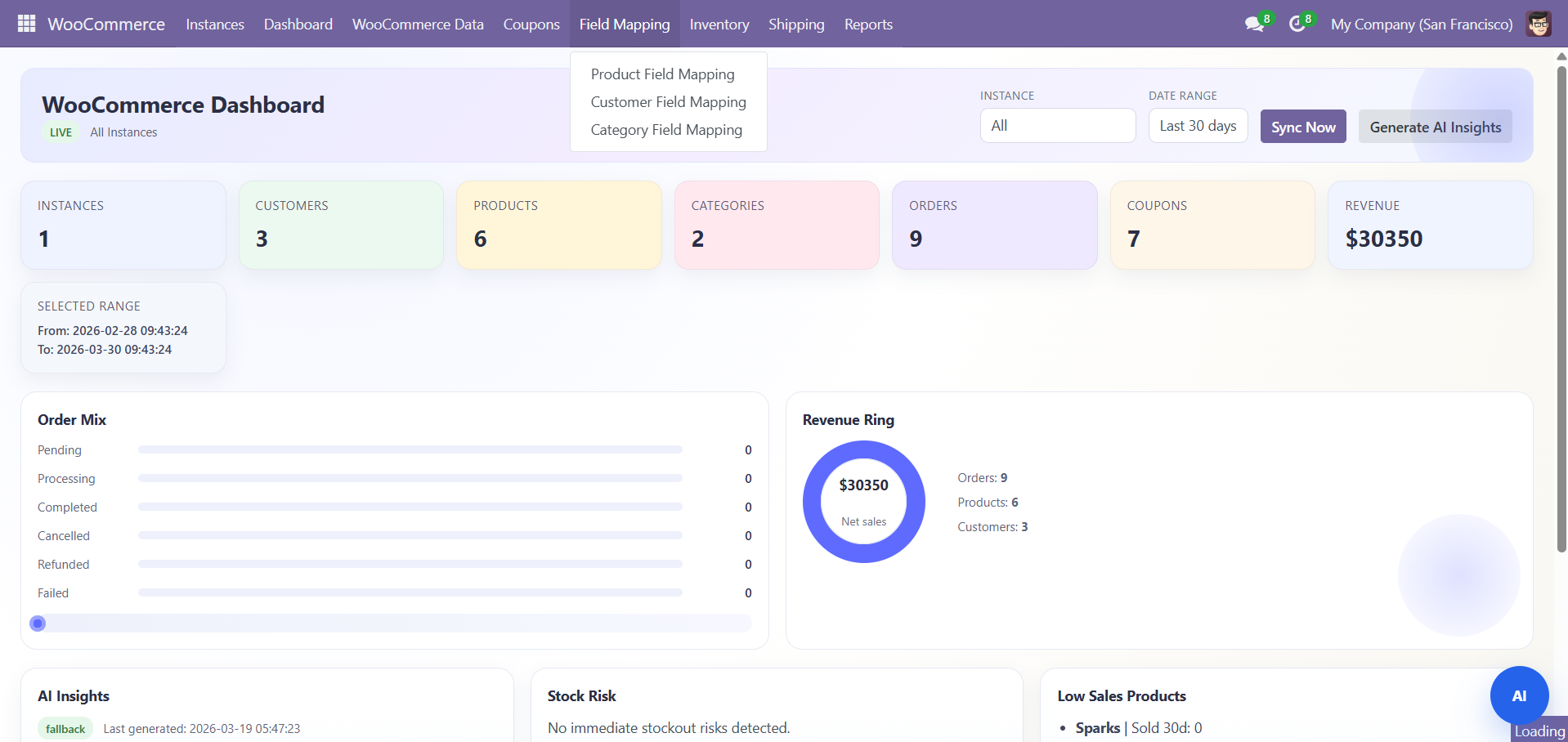
Mapping Types
| Type | Description |
|---|---|
| Product Mapping | Map Odoo product fields to WooCommerce product fields |
| Customer Mapping | Map Odoo contact fields to WooCommerce customer fields |
| Category Mapping | Map Odoo category fields to WooCommerce category fields |
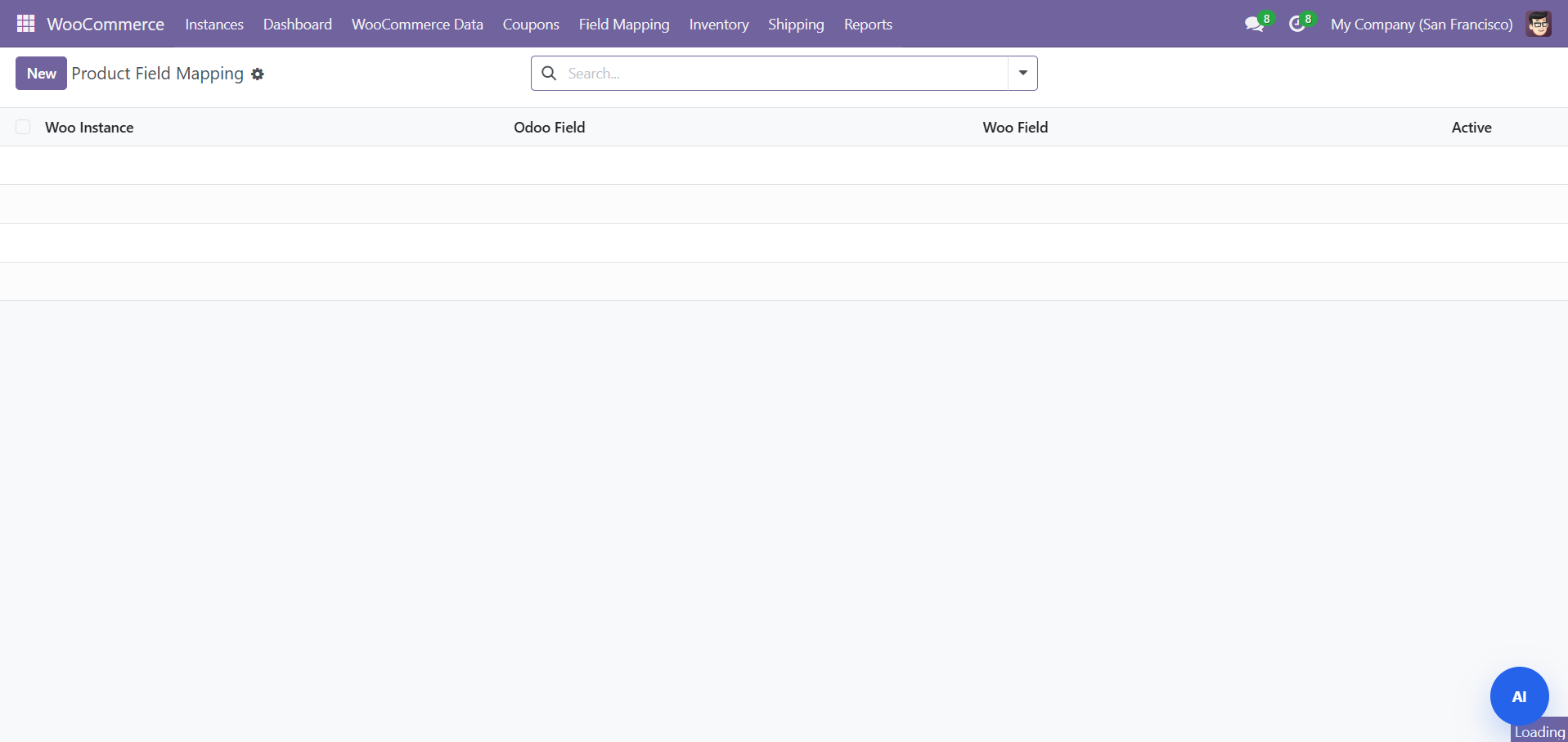
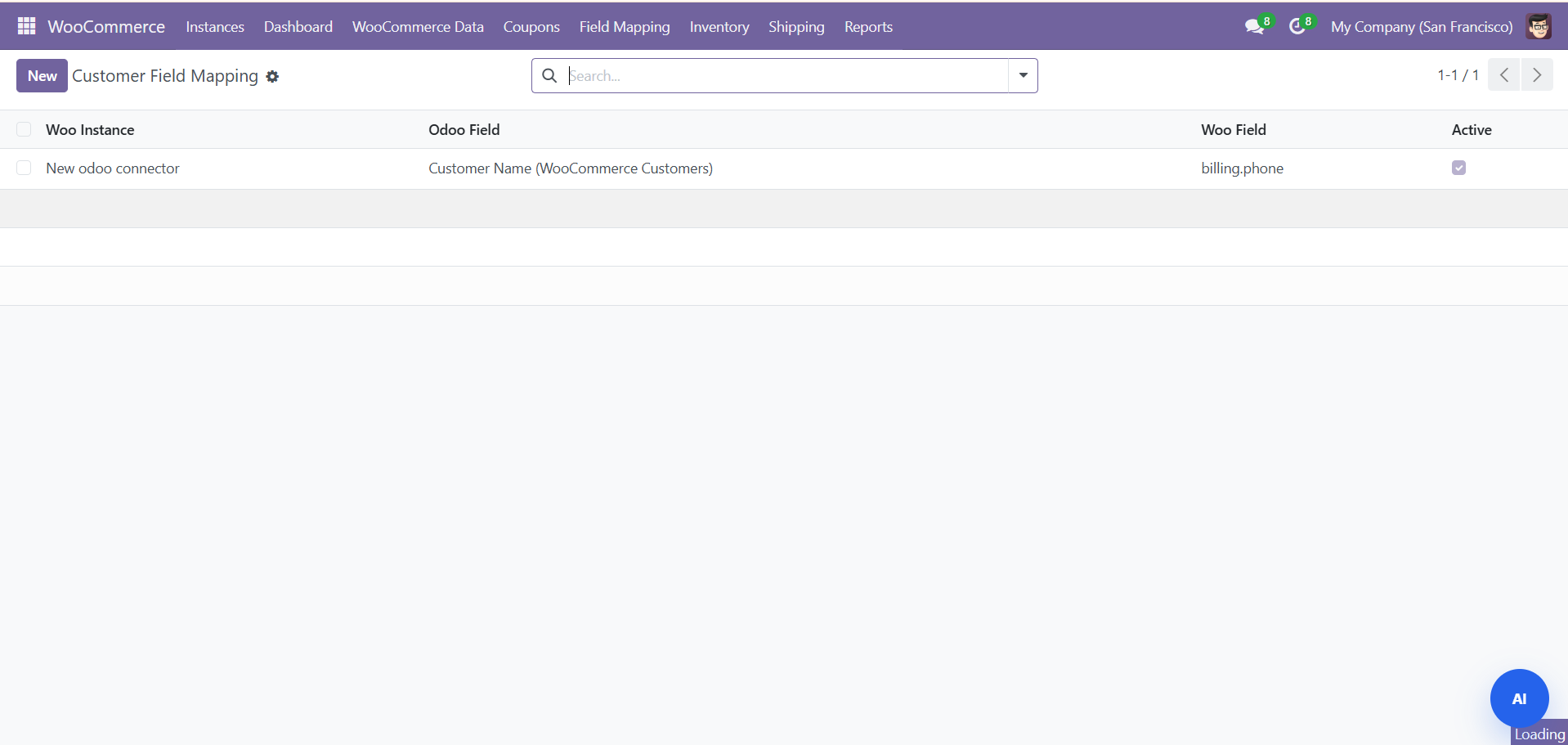
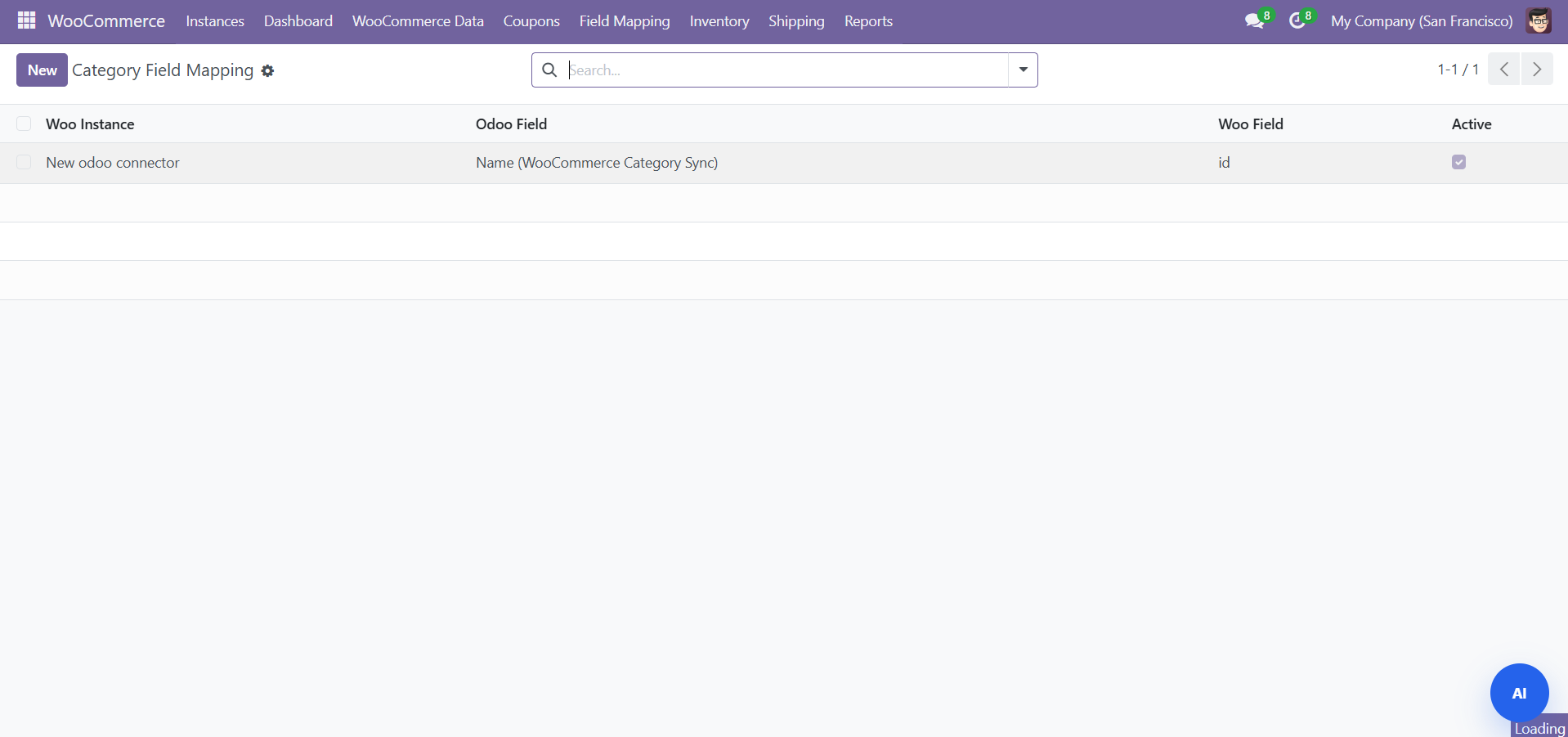
- Each row maps an Odoo Field to a WooCommerce Field
- Supports dot-notation for nested data (e.g., 'dimensions.length')
- Load default mappings with one click, then customize
Webhooks
In your WooCommerce admin:
- Go to WooCommerce > Settings > Advanced > Webhooks
- Add a new webhook for each event
- Set Delivery URL to:
https://your-odoo-domain.com/woo/webhook - Set Secret to match the Webhook Secret in your Odoo instance
Supported events: Order created/updated/deleted, Product created/updated/deleted, Customer created/updated, Coupon created/updated
Reports and Sync Logs
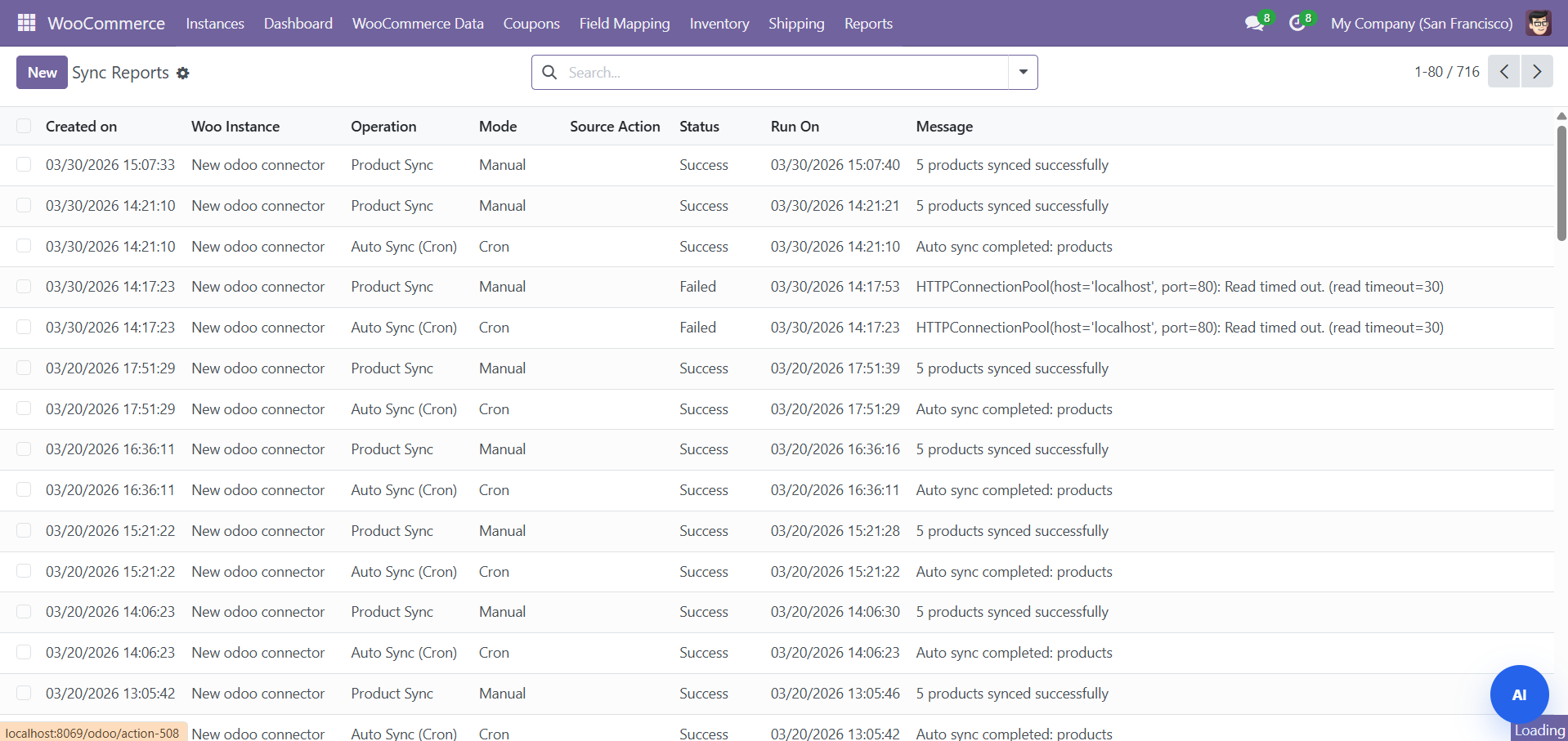
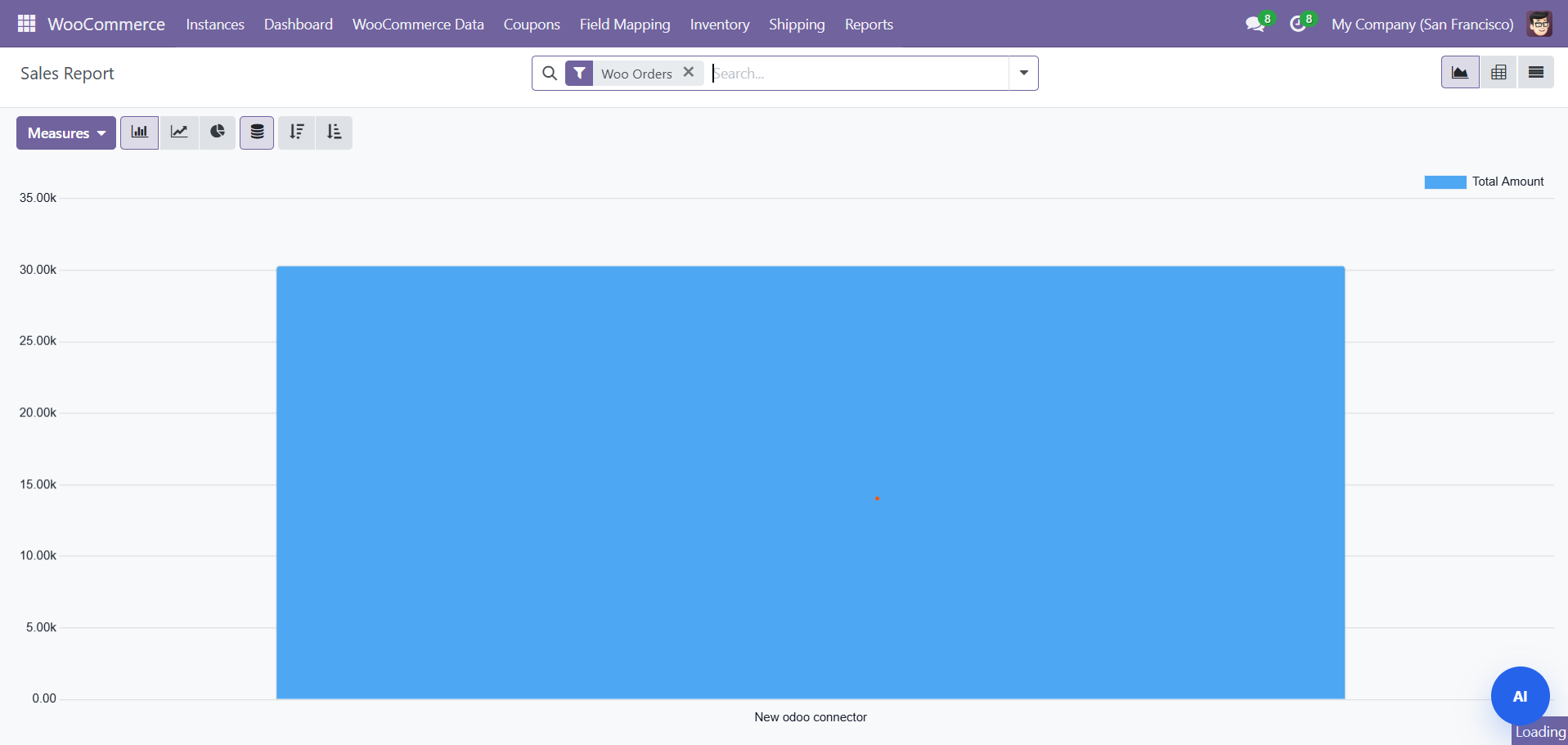
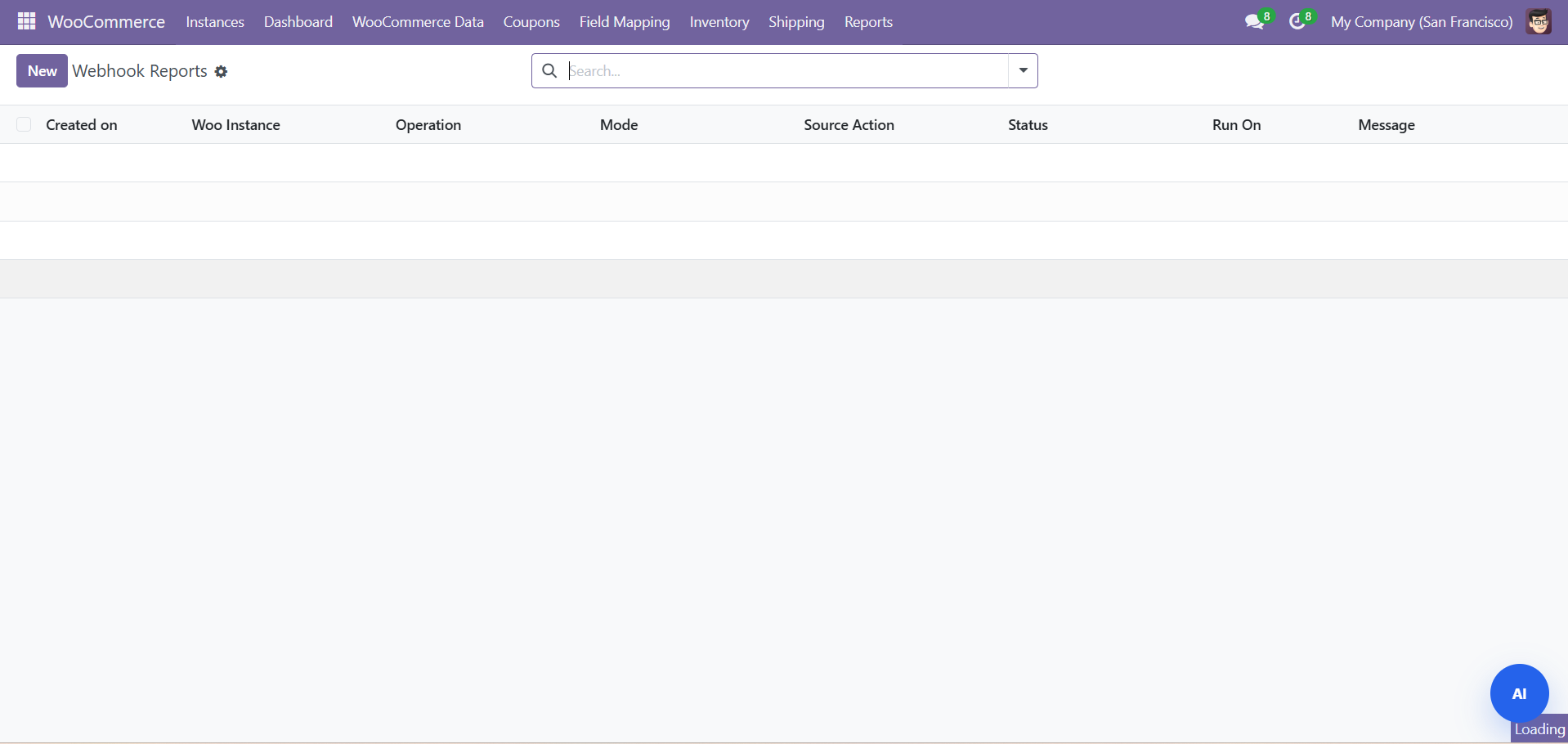
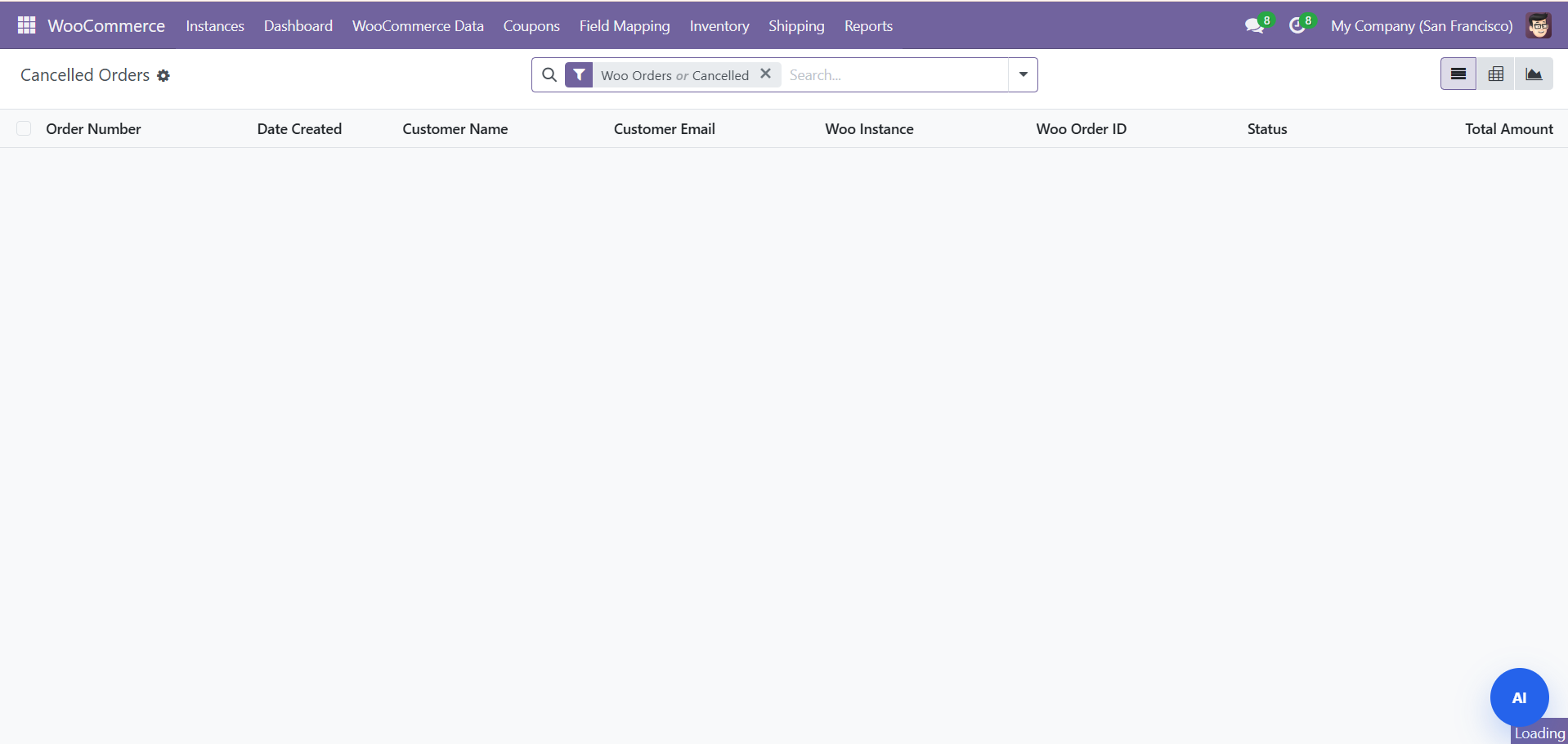
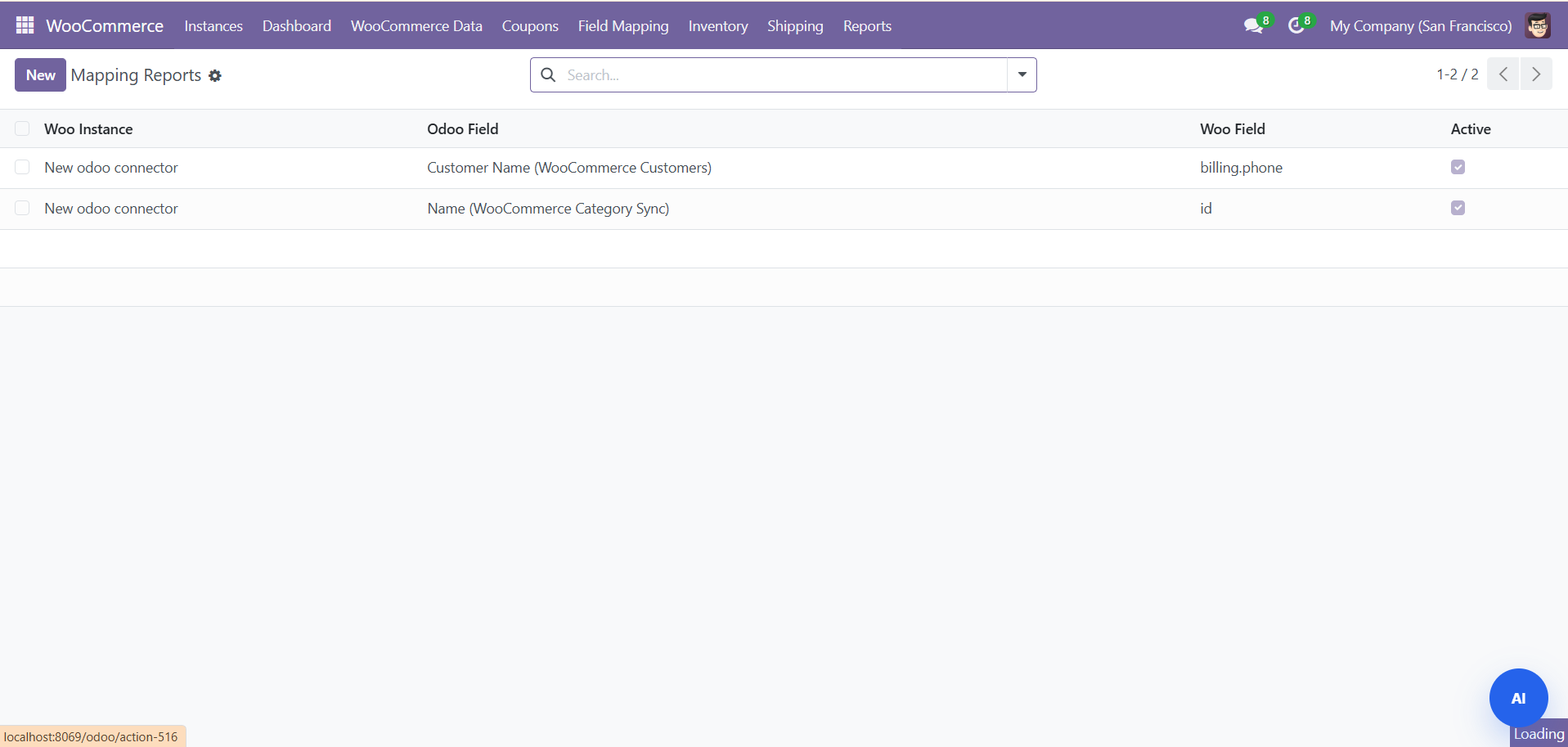
| Report | Description |
|---|---|
| Sync Reports | All sync operation reports with status and counts |
| Sales Report | Revenue and order analytics |
| Webhook Reports | Incoming webhook event logs |
| Cancelled Orders | Filtered view of cancelled/refunded orders |
| Mapping Reports | Field mapping usage and coverage analysis |
Cron Jobs
| Cron Job | Interval | Default | Description |
|---|---|---|---|
| WooCommerce Auto Sync | Every 15 min | Enabled | Syncs all enabled entities |
| Sync Woo Order Status | Every 5 min | Enabled | Pulls latest order status changes |
Global Settings
Navigate to Settings > WooCommerce:
- Default Instance: Select the default WooCommerce instance
- Sync Log Retention: Days to keep sync logs (default: 30)
- Enable Webhooks: Toggle webhook processing
- AI Provider: Configure AI service for content generation
Need Help?
Contact SDLC Corp at sdlccorp.com/contact-us or email sales@sdlccorp.com