BigCommerce Connector - Installation and Setup
Prerequisites
- Odoo 18 Community or Enterprise edition
- Active BigCommerce store with API access
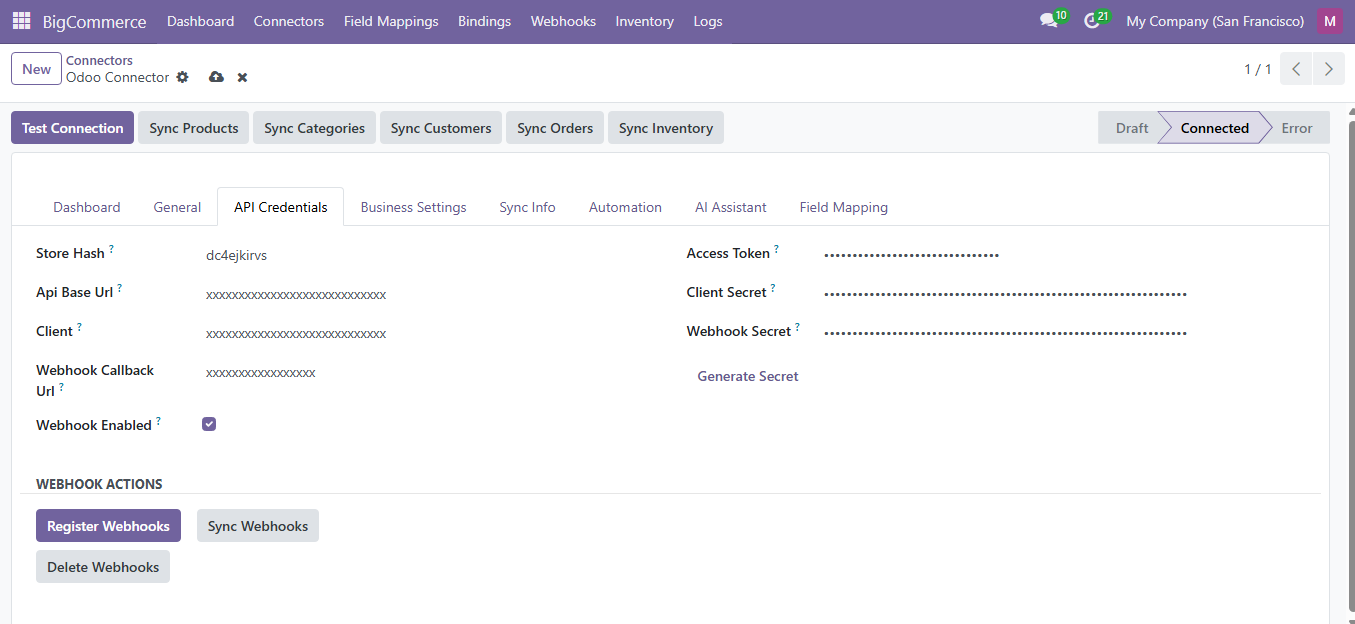
- BigCommerce API credentials (Store Hash, Access Token, Client ID, Client Secret)
BigCommerce API Setup
In your BigCommerce admin panel:
- Go to Advanced Settings > API Accounts
- Click Create API Account > Create V2/V3 API Token
- Set name: 'Odoo Connector'
- Grant OAuth scopes: Products (modify), Orders (modify), Customers (modify), Content (modify)
- Click Save and copy the Access Token, Client ID, Client Secret, and Store Hash
warning
The Access Token is only shown once. Save it securely before closing.
Instance Configuration
Navigate to BigCommerce > Connectors.
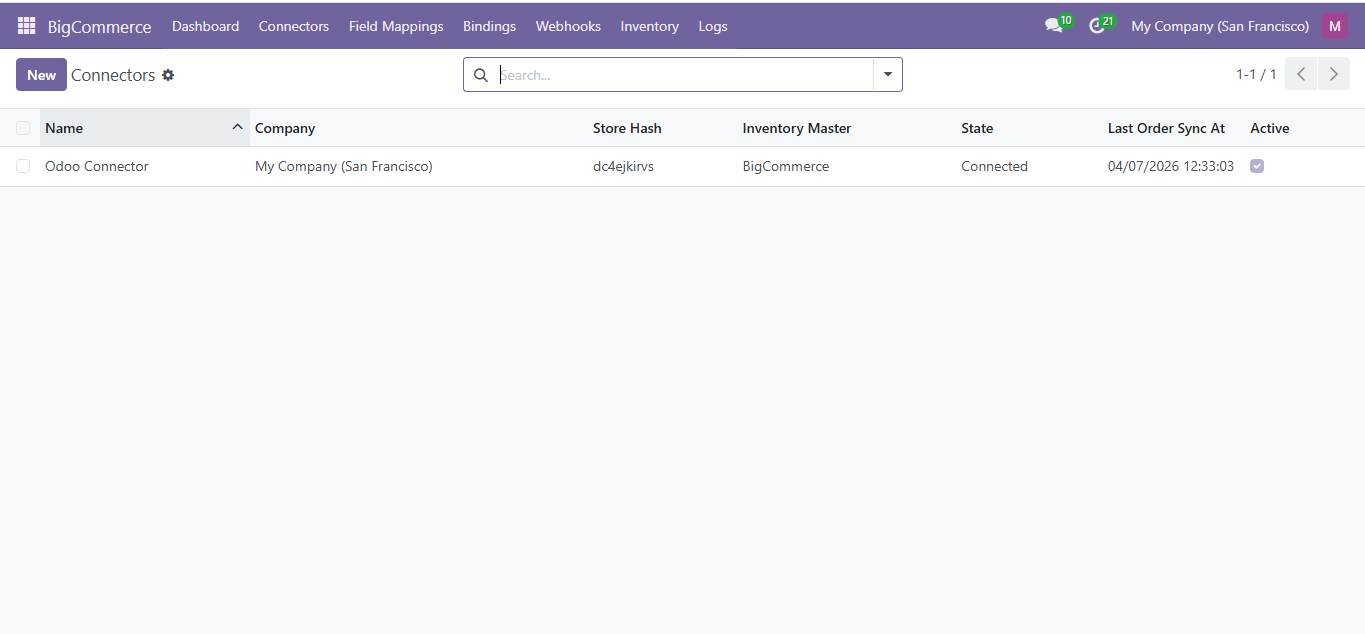
Click New and fill in:
| Field | Required | Description |
|---|---|---|
| Name | Yes | Descriptive name (e.g., "US Store") |
| Store Hash | Yes | Your BigCommerce store hash |
| Access Token | Yes | BigCommerce V2/V3 API access token |
| Client ID | Yes | OAuth client ID |
| Client Secret | Yes | OAuth client secret |
| Company | Yes | The Odoo company this instance belongs to |
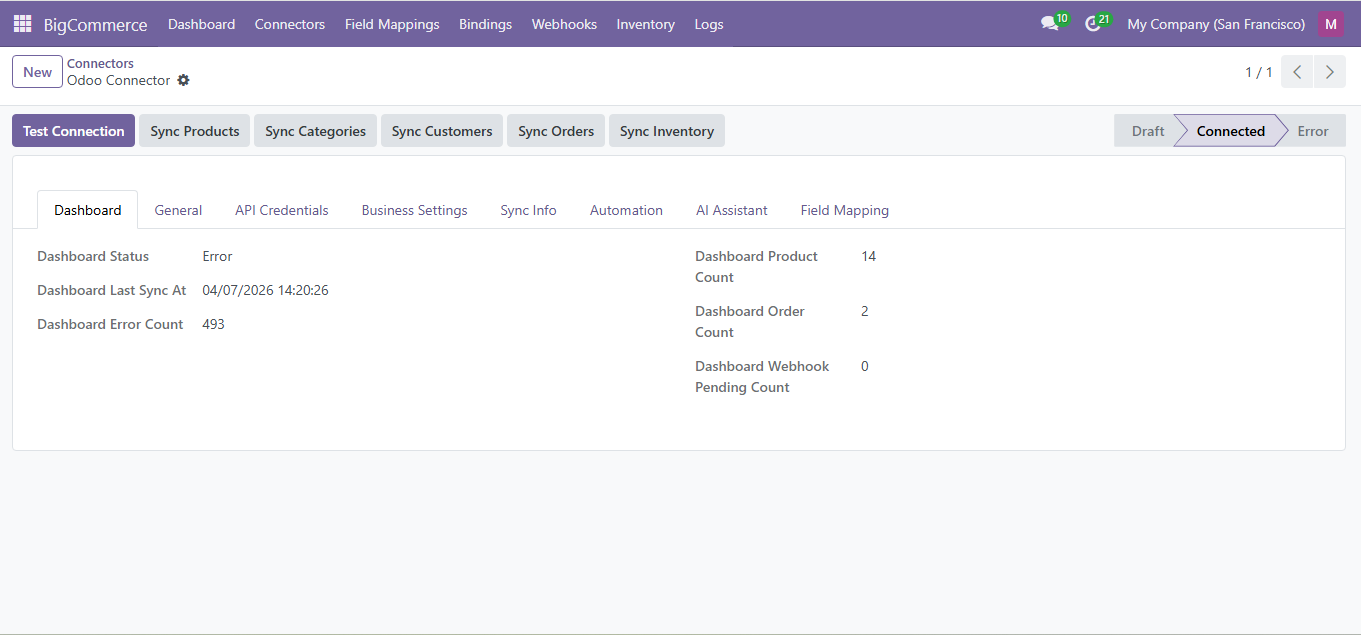
Click Test Connection to verify. A green 'Connected' status confirms success.
Sync Actions
Each instance provides header buttons for manual sync:
- Sync Products / Sync Orders / Sync Customers / Sync Categories / Sync Inventory
Need Help?
Contact SDLC Corp at sdlccorp.com/contact-us or email sales@sdlccorp.com