Admin Configuration
Administrators can configure the AI provider, default model, and user access.
API Key Setup
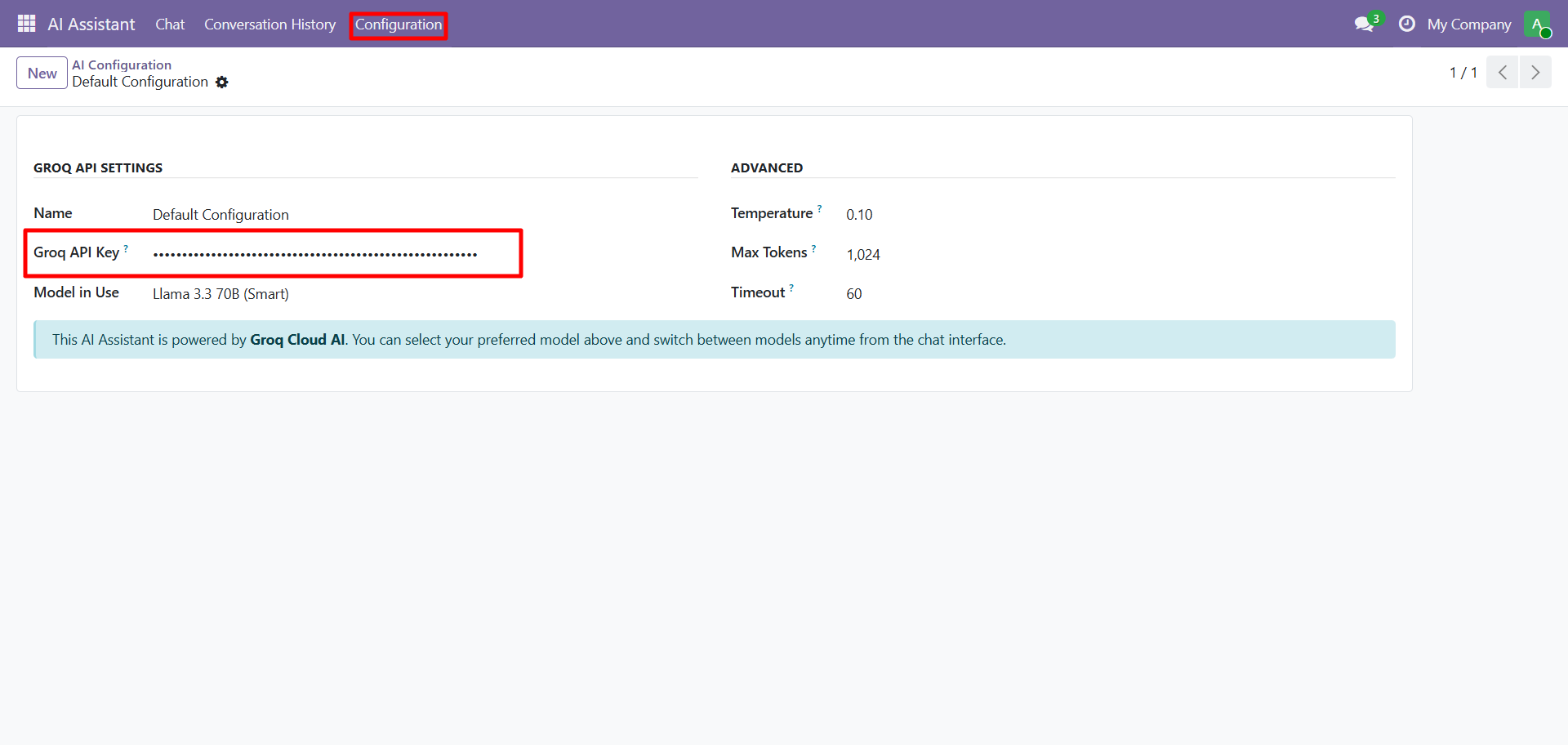
Go to the AI Assistant configuration page:
| Setting | Description |
|---|---|
| Groq API Key | Your Groq Cloud API key (free tier available at console.groq.com) |
| Model in Use | Default AI model for all users |
| Temperature | Creativity level (0.1 = precise, 1.0 = creative). Default: 0.10 |
| Max Tokens | Maximum response length. Default: 1,024 |
| Timeout | Request timeout in seconds. Default: 60 |
Access Control
Set user permissions in Settings > Users > Access Rights:
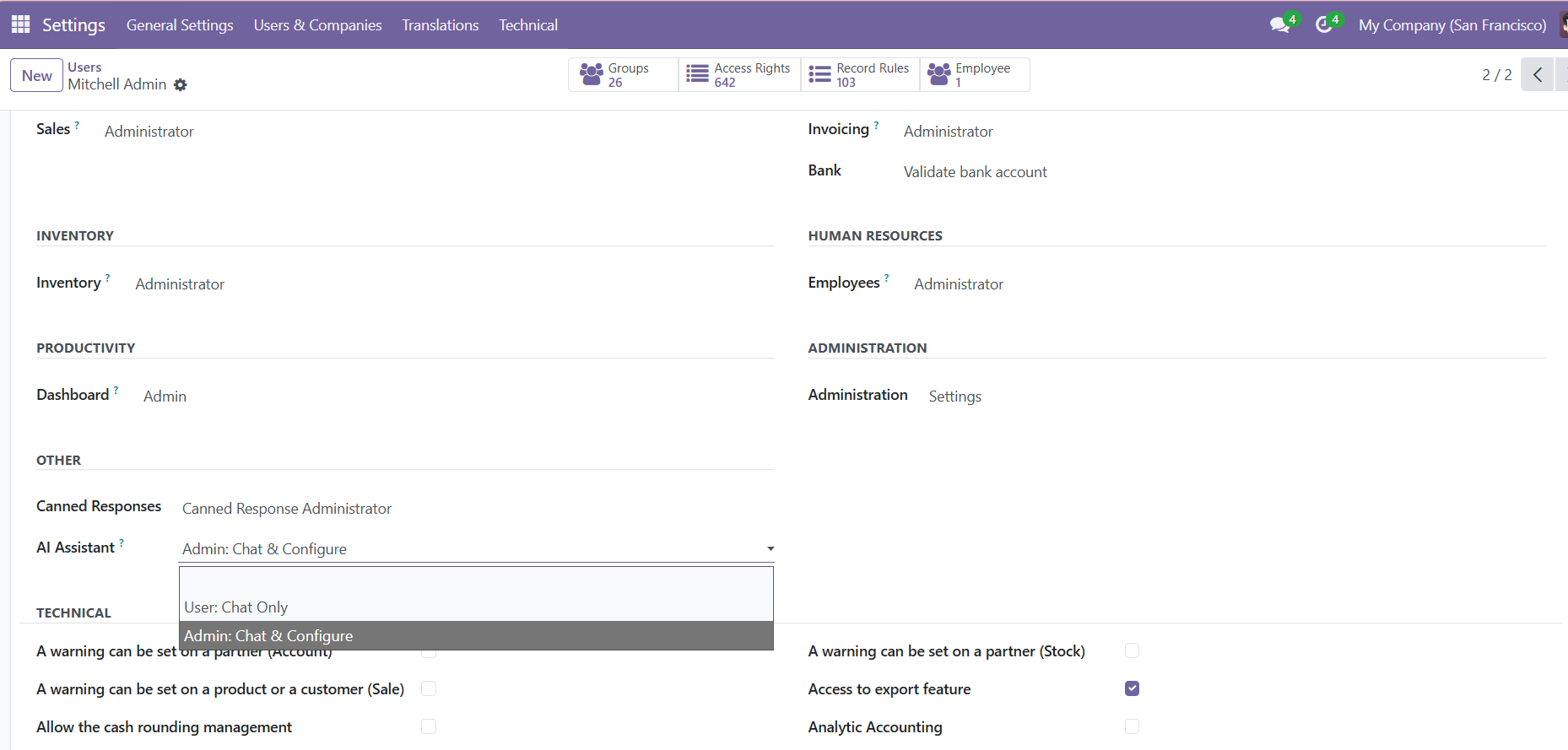
Three Access Roles
| Role | Permissions |
|---|---|
| No Access | AI Assistant is completely hidden |
| User: Chat Only | Can chat with AI and view own conversation history |
| Admin: Full Access | Chat + configure AI settings, models, and user access |
Setting Permissions
- Go to Settings > Users & Companies > Users
- Open the user record
- Click the Access Rights tab
- Find AI Assistant under the "Other" section
- Select the appropriate role from the dropdown
- Click Save
Intent Mappings
Admins can enable or disable specific data areas that the AI can query. Go to the AI Assistant configuration to manage which of the 18 business areas are available to users.
Need Help?
Contact SDLC Corp at sdlccorp.com/contact-us or email sales@sdlccorp.com