Creating and Executing Queries
Learn how to create, execute, and export SQL queries using the PSQL Query Execute interface.
Creating a Query
Step-by-Step
- Open the menu -- Navigate to Settings > Technical > PSQL Query
- Click "New" -- Click the New button to create a new query record
- Enter a Query Name -- Type a descriptive name in the title field (e.g., "Active Partners Count", "Sales Order Summary"). This field is required and changes are tracked in the chatter.
- Write your SQL Query -- Enter your PostgreSQL SELECT statement in the query text area. The field uses a large text widget for comfortable editing.
- Save the record -- Click Save (or the record auto-saves). Your query is now stored for future use.
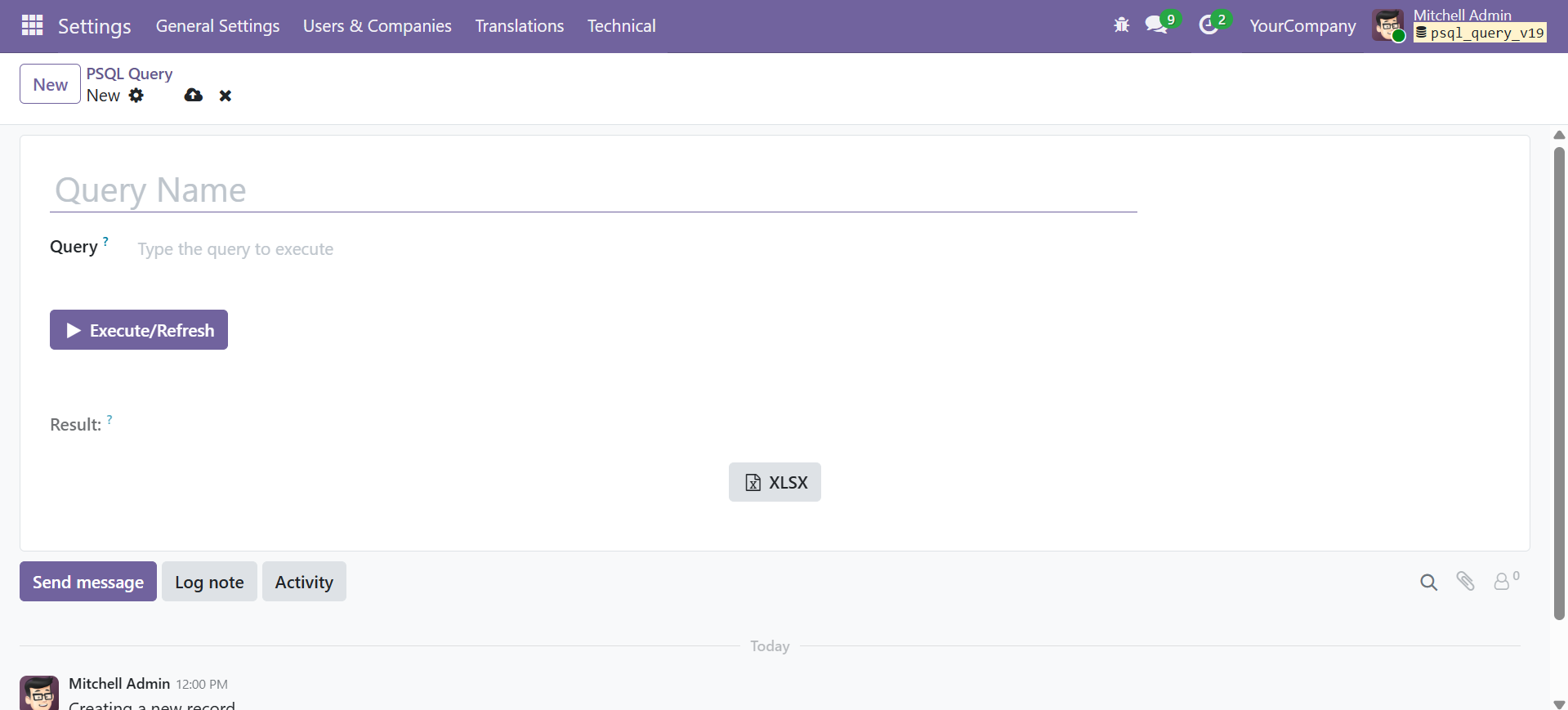
Form Layout
The form view is organized as follows:
| Area | Description |
|---|---|
| Title (Query Name) | Large heading-style input field. Required, tracked for changes. |
| Query Field | Multi-line text area for entering the SQL statement. Placeholder: "Type the query to execute". |
| Execute/Refresh Button | Blue primary button with play icon. Triggers query execution. |
| Result Area | Read-only HTML field that displays the formatted result table after execution. |
| XLSX Button | Grey secondary button with Excel icon. Downloads results as an Excel file. |
| Chatter | Message thread, follower list, and activity scheduler at the bottom. |
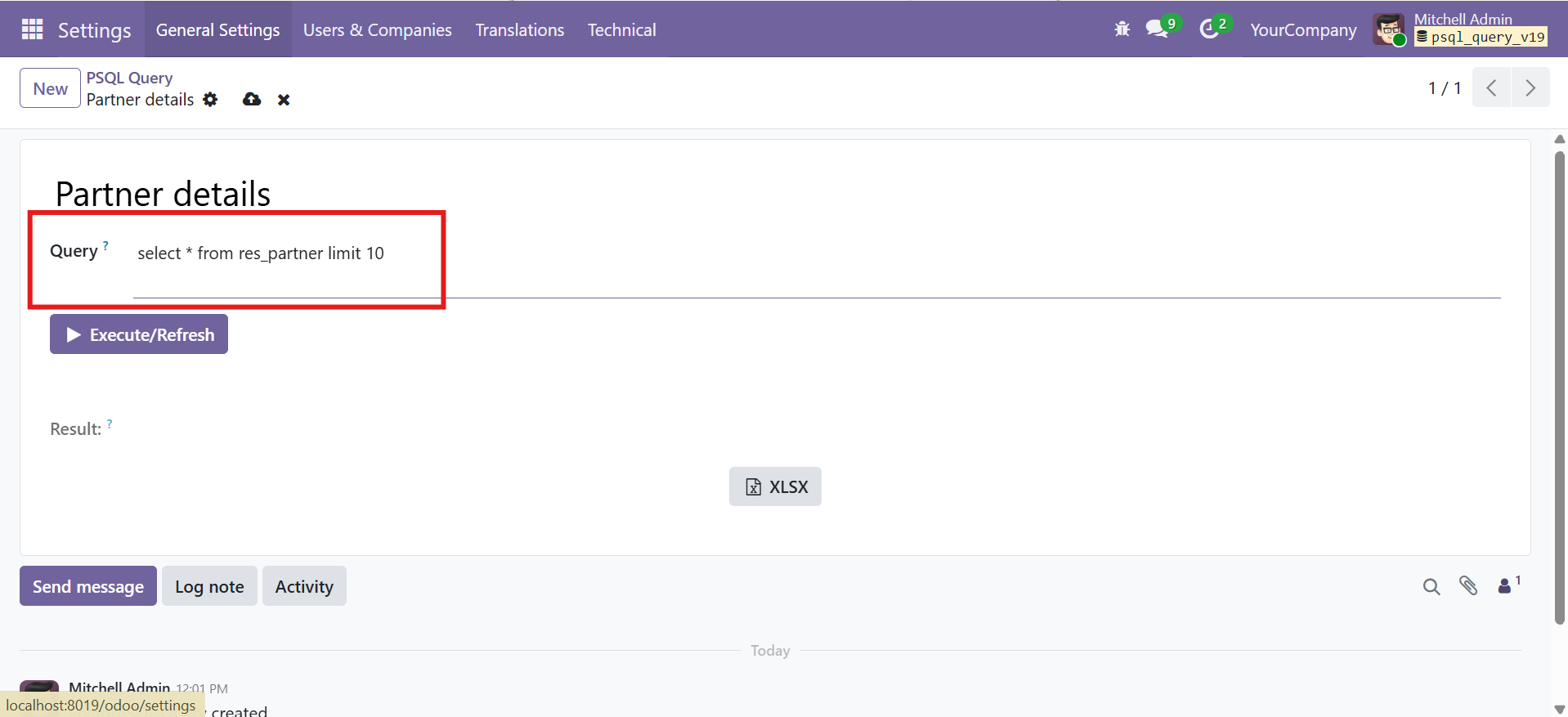
Example Queries
List all active partners:
SELECT id, name, email, phone
FROM res_partner
WHERE active = true
ORDER BY name
LIMIT 100;
Count records per model:
SELECT model, COUNT(*) AS record_count
FROM ir_model_data
GROUP BY model
ORDER BY record_count DESC
LIMIT 20;
Check recent sale orders:
SELECT name, state, amount_total, date_order
FROM sale_order
ORDER BY date_order DESC
LIMIT 50;
Always use LIMIT in your queries to avoid loading very large result sets into the browser. Start with a small limit and increase as needed.
Executing Queries
Run your SQL queries and see results instantly with the Execute/Refresh button.
How to Execute
- Ensure your query is saved -- The query field must contain a valid SELECT statement.
- Click the Execute/Refresh button -- The blue Execute/Refresh button (with play icon) is located below the query field.
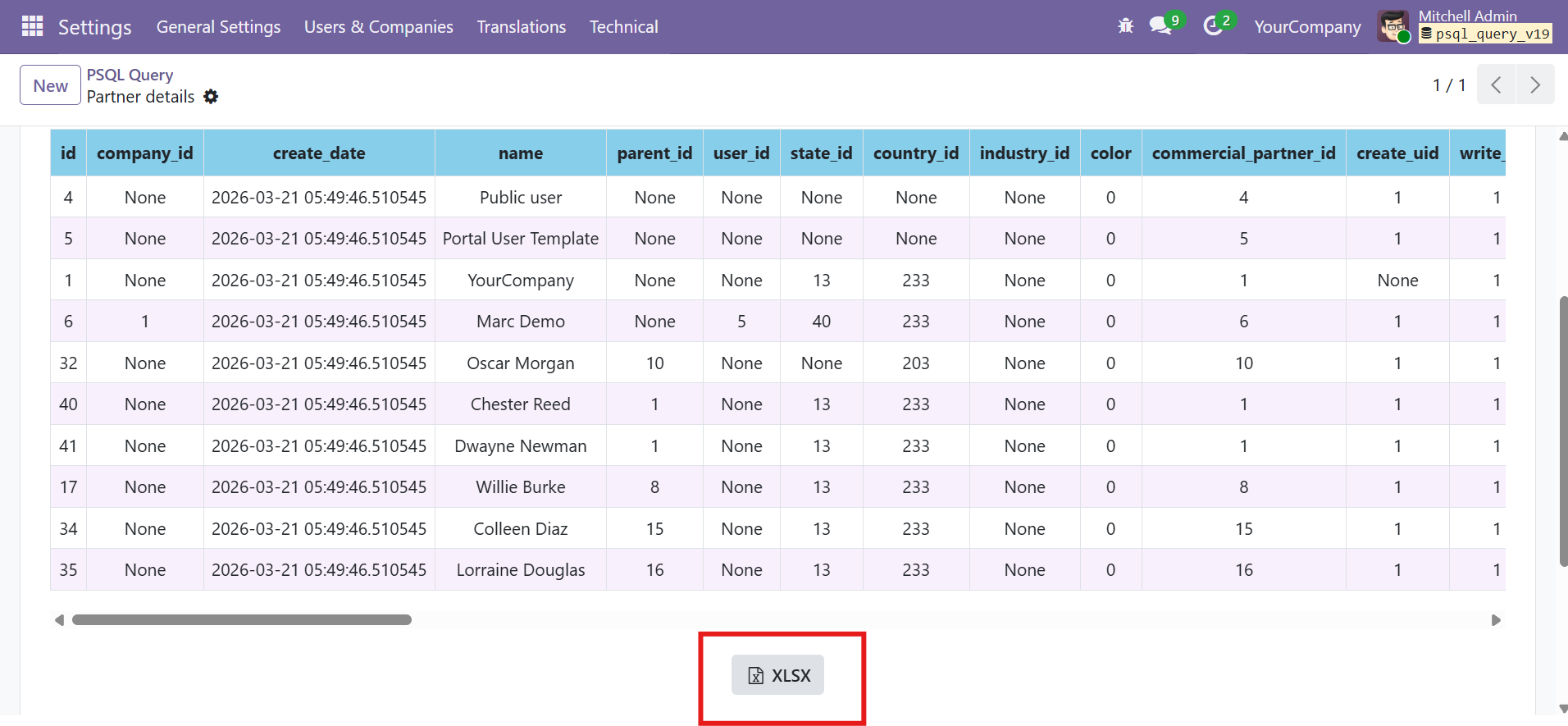
- View results -- Results appear immediately in the Result area below the button as a formatted HTML table.
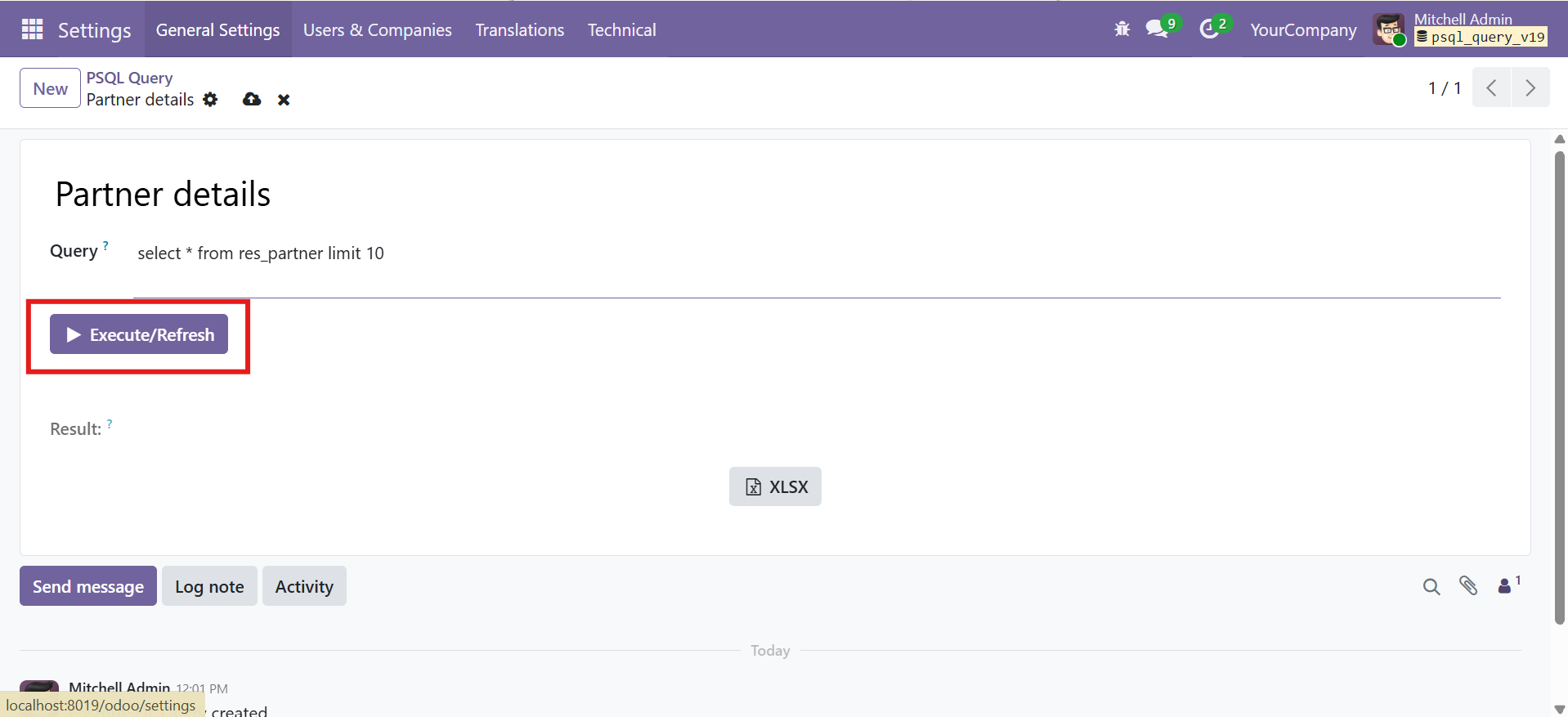
Execution Process
When you click Execute/Refresh, the following happens internally:
| Step | Action |
|---|---|
| 1. Validation | Checks that the query field is not empty |
| 2. Safety Check | Verifies the query starts with SELECT (case-insensitive after stripping whitespace) |
| 3. Execution | Runs the query against the PostgreSQL database via Odoo's database cursor |
| 4. Column Extraction | Reads column names from the cursor description |
| 5. Data Fetch | Fetches all result rows |
| 6. HTML Rendering | Builds a styled HTML table and stores it in the result field |
| 7. Data Storage | Stores column names and row data as JSON for XLSX export |
Re-executing and Refreshing
You can modify your query and click Execute/Refresh again at any time. The result area will update with the new results, replacing the previous output. This makes it easy to iterate on queries.
Only SELECT queries are allowed. If you attempt to run an INSERT, UPDATE, DELETE, DROP, ALTER, or any other non-SELECT statement, the module will display a validation error and block execution.
Viewing Results
Query results are rendered as a professionally styled, scrollable HTML table directly within the Odoo form view.
Table Formatting
| Element | Style |
|---|---|
| Header Row | Sky blue background (#87CEEB), bold text, centered, 8px padding, nowrap |
| Data Rows (Odd) | White background, centered text, 6px padding, nowrap |
| Data Rows (Even) | Light purple background (#f8f0fc) for alternating color readability |
| Borders | 1px solid #dee2e6 on all cells |
| NULL Values | Displayed as the string None |
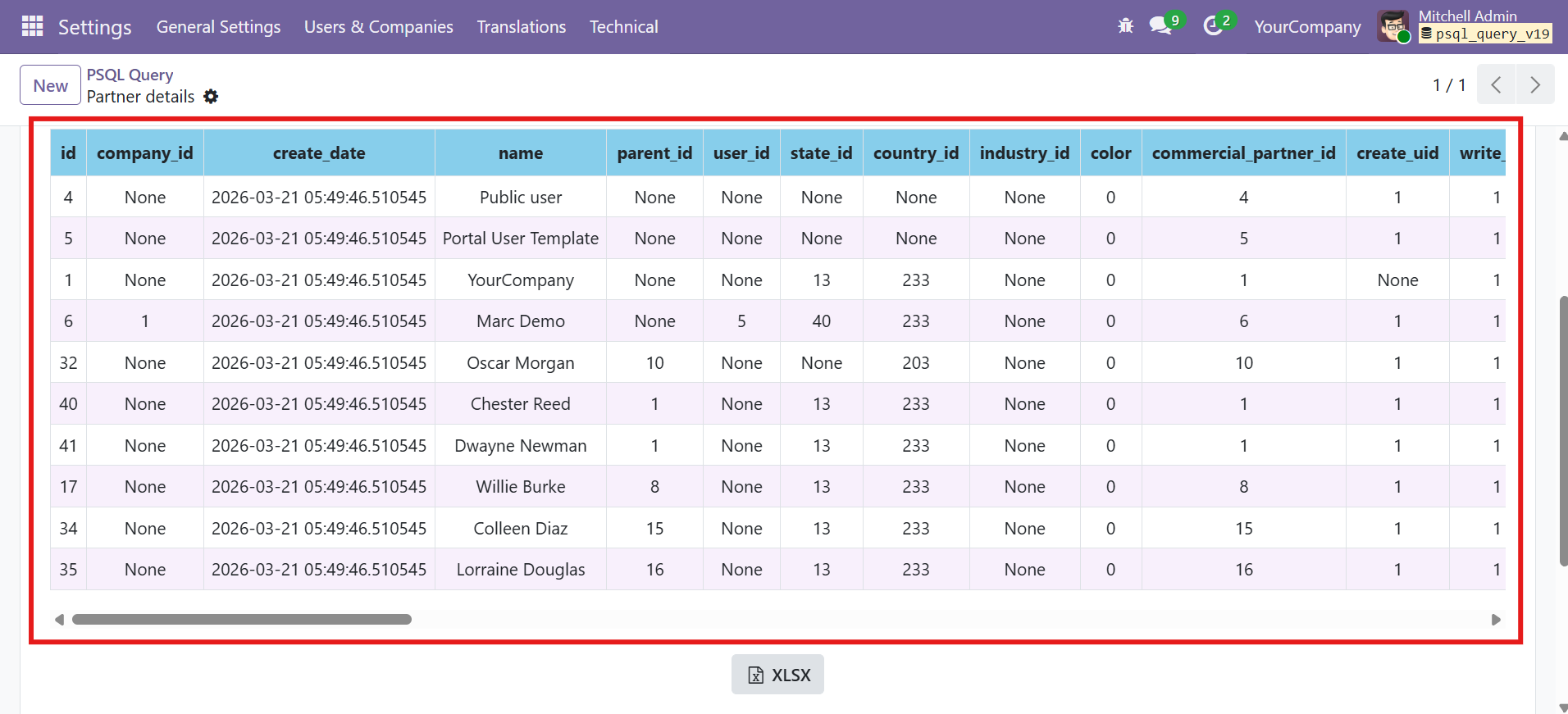
Scrolling Behavior
The result container supports both horizontal and vertical scrolling for large result sets:
- Horizontal scroll: When results have many columns, the table extends beyond the container width and a horizontal scrollbar appears
- Vertical scroll: The result container has a maximum height of 500px. If results exceed this height, a vertical scrollbar appears
- Table width: Set to
max-contentwith a minimum of 100%, ensuring columns are never truncated
Internal Data Storage
When a query executes successfully, three fields are populated:
| Field | Content | Visibility |
|---|---|---|
result | Rendered HTML table | Visible (readonly) |
column_names | JSON array of column header strings | Hidden |
row_data | JSON array of row arrays (all values stringified) | Hidden |
The column_names and row_data fields are stored invisibly and used by the XLSX export feature. They are populated each time a query is executed and persist until the next execution.
XLSX Export
Export query results to a professionally formatted Excel file with one click.
How to Export
- Execute a query first -- You must have results displayed before exporting. Run the query using the Execute/Refresh button.
- Click the XLSX button -- The grey XLSX button (with Excel icon) is located below the result area.
- Download starts automatically -- The file opens in a new browser tab and downloads as
[query_name].xlsx.
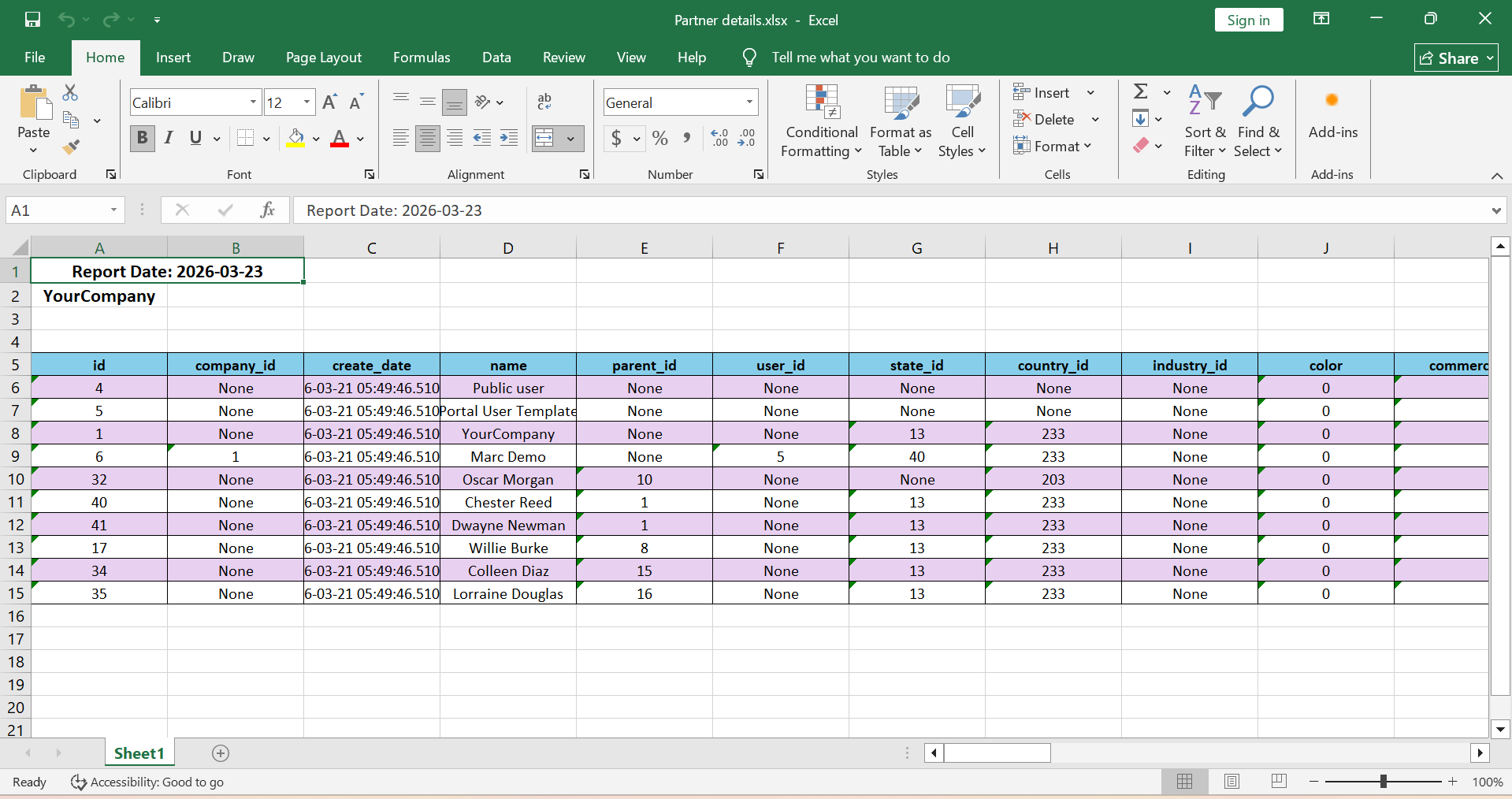
Excel File Structure
| Row | Content | Formatting |
|---|---|---|
| Row 1 | Report Date: YYYY-MM-DD | Bold, 12pt, centered (title style) |
| Row 2 | Company name | Bold, 12pt, centered (title style) |
| Row 3-4 | (blank spacer rows) | -- |
| Row 5 | Column headers | Bold, 10pt, centered, sky-blue background (#87CEEB), bordered |
| Row 6+ | Data rows | 10pt, centered, bordered, alternating light purple (#E8D0F0) for even rows |
Excel Formatting Features
- Auto-fit column widths -- Columns are sized based on header length:
max(header_length + 4, 15)characters - All borders -- Every cell has a thin border on all sides
- Alternating row colors -- Even data rows have light purple background for readability
- Centered text -- All content is horizontally centered
- String conversion -- All values are converted to strings to prevent type errors
- In-memory generation -- No temporary files are created on the server; the file is generated entirely in memory
Filename Convention
The downloaded file is named after the query record's name field:
- If the query name is "Active Partners", the file downloads as
Active Partners.xlsx - If the query has no name, the fallback filename is
query_result.xlsx
You must execute the query before clicking the XLSX button. If no results are available (column_names and row_data are empty), the module will display a validation error: execute the query first.
Error Handling
The module provides clear, descriptive error messages for all common error scenarios.
Error Scenarios
| Scenario | Error Message | Solution |
|---|---|---|
| Empty query | ValidationError: "Please enter a SQL query." | Enter a valid SELECT statement in the query field |
| Non-SELECT query | ValidationError: "Only SELECT queries are allowed for safety reasons." | Modify your query to use only SELECT statements |
| SQL syntax error | ValidationError: "Query execution error: [detailed PostgreSQL error]" | Fix the SQL syntax based on the error details provided |
| Invalid table/column name | ValidationError: "Query execution error: relation/column does not exist" | Check table and column names against the actual database schema |
| XLSX without results | ValidationError: "No data to export. Execute query first." | Execute the query before clicking the XLSX button |
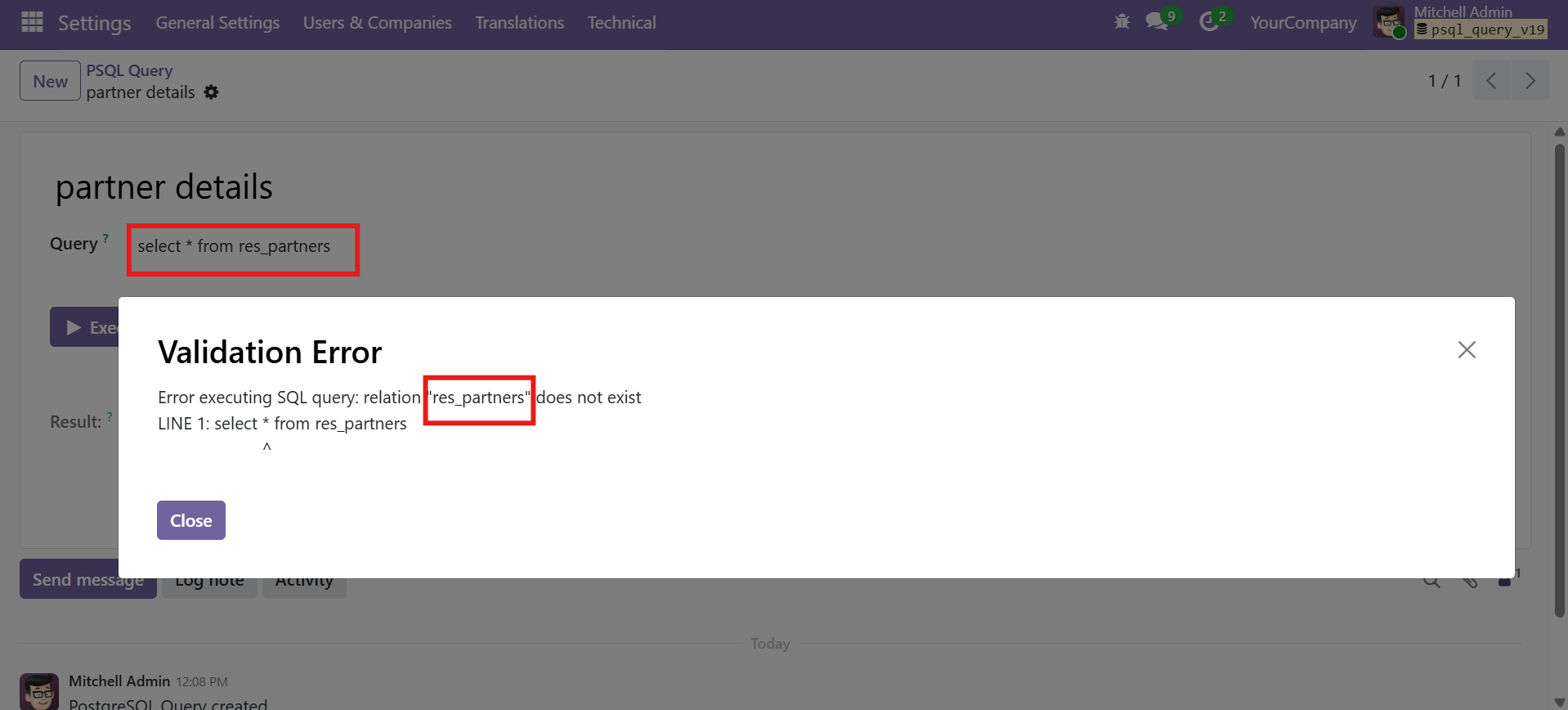
If you get a "relation does not exist" error, you can find the correct table name by running: SELECT tablename FROM pg_tables WHERE schemaname = 'public' ORDER BY tablename;
Chatter and Tracking
The module integrates with Odoo's mail system for collaboration, audit trails, and activity management.
Chatter Features
Each query record includes a full chatter section at the bottom of the form with three components:
| Component | Description |
|---|---|
| Messages | Post internal notes, comments, or discussions about a query. Useful for documenting why a query was created or sharing findings with colleagues. |
| Followers | Subscribe users to receive notifications when the query record is modified. Followers see updates in their Odoo inbox. |
| Activities | Schedule to-do items, reminders, or follow-up tasks linked to a specific query record. |
Change Tracking
The Query Name field has change tracking enabled (tracking=True). When the name is modified, the chatter automatically logs a message showing the old and new values. This provides an audit trail of query name changes.
The psql.query model inherits from both mail.thread (for messages and followers) and mail.activity.mixin (for activities). This is why the mail module is a required dependency.
Contact SDLC Corp at sdlccorp.com/contact-us or email sales@sdlccorp.com