Depreciation Management
The Asset Management module includes an automated depreciation engine with configurable rules per asset type, daily cron execution, and full entry history.
Depreciation List
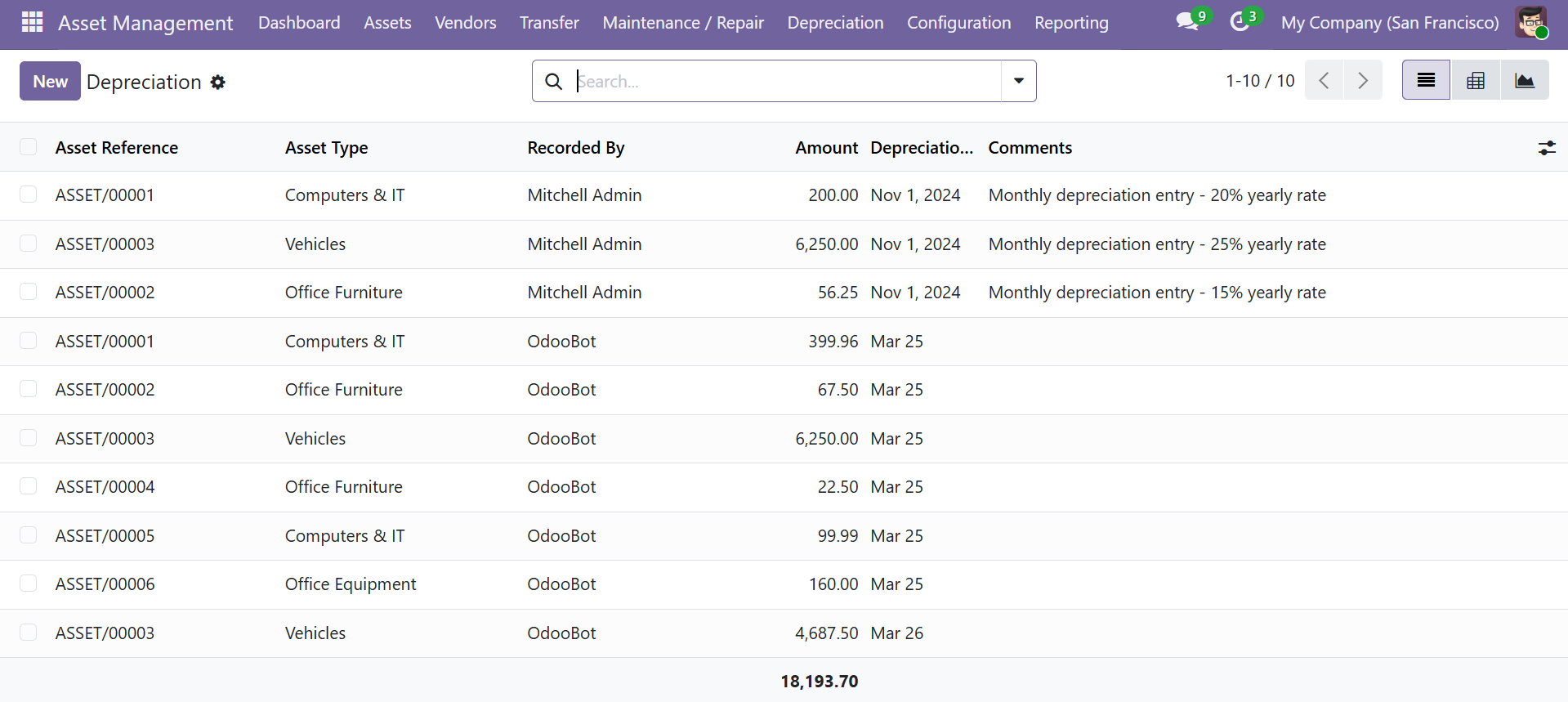
The Depreciation menu displays all depreciation entries across your assets, showing the asset reference, type, recorder, amount, depreciation date, and comments.
How Depreciation Works
- Enable depreciation on the asset form by toggling the Depreciation Apply setting
- Assign an Asset Type with depreciation rules configured (frequency, method, rate, basis, max entries)
- A daily cron job (
generate_depreciation_entries) runs automatically - Entries are created based on the type's method, rate, frequency, and basis
- Book value updates automatically: Current Book Value = Purchase Price minus Total Depreciation
Calculation Methods
| Method | Formula | Example |
|---|---|---|
| Fixed | Deduct a fixed amount each period | Rate = 500 means deduct $500/month |
| Percentage | Deduct a percentage of the basis | Rate = 20%, Basis = Purchase Price ($10,000) means $2,000/year |
Depreciation Basis
| Basis | Description |
|---|---|
| Real Value | Always apply to the original purchase price (straight-line depreciation) |
| Depreciation Value | Apply to the current book value (declining balance depreciation) |
Use Real Value (straight-line) for assets that lose value evenly over time, such as office furniture. Use Depreciation Value (declining balance) for assets that lose more value early in their life, such as vehicles and electronics.
Configuration Per Asset Type
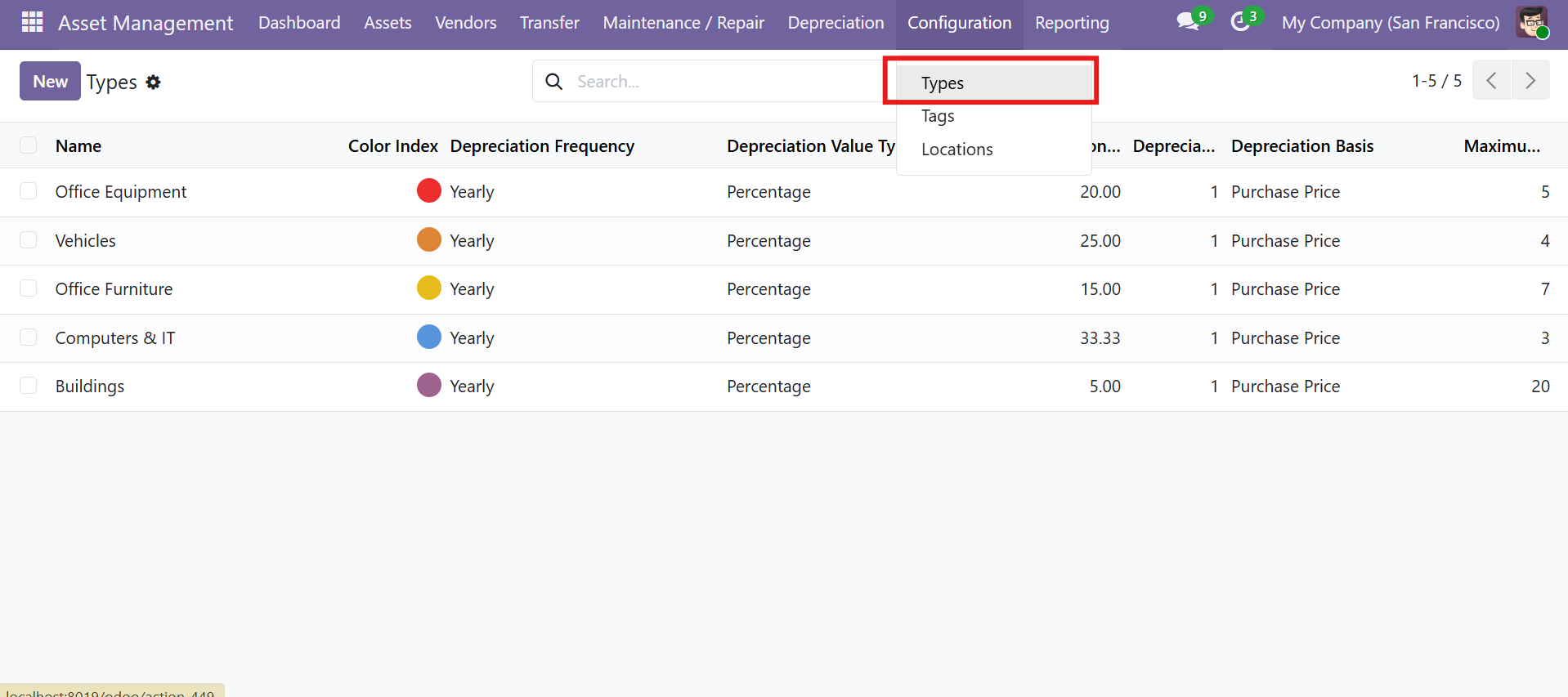
Depreciation rules are set at the Asset Type level. All assets of a given type inherit the same depreciation schedule.
| Field | Description |
|---|---|
| Depreciation Frequency | Monthly, Yearly, or Days |
| Depreciation Method | Fixed (fixed amount) or Percentage (rate-based) |
| Depreciation Rate | Amount or percentage per period |
| Start Delay | Days/months to wait before the first depreciation entry |
| Depreciation Basis | Real Value (original price) or Depreciation Value (current book value) |
| Max Entries | Maximum number of depreciation records (prevents over-depreciation) |
Demo Asset Type Depreciation Settings
| Type | Rate | Frequency | Basis | Max Entries |
|---|---|---|---|---|
| Office Equipment | 20% | Yearly | Purchase Price | 5 |
| Vehicles | 25% | Yearly | Purchase Price | 4 |
| Office Furniture | 15% | Yearly | Purchase Price | 7 |
| Computers & IT | 33.33% | Yearly | Purchase Price | 3 |
| Buildings | 5% | Yearly | Purchase Price | 20 |
Safety Guards
The depreciation engine includes several protections to prevent incorrect calculations:
- Destroyed assets are skipped automatically (status = "Destroyed")
- Processing stops when
maximum_depreciation_entriesis reached - The start delay is respected before the first entry is generated
- The frequency interval is checked against the last entry date to prevent duplicate entries
Depreciation entries are created by an automated daily cron job. If you need to manually trigger depreciation, an admin can run the scheduled action Generate Depreciation Entries from Settings > Technical > Scheduled Actions.
Financial Tracking on Assets
Each asset form tracks the following computed financial fields:
| Field | Calculation |
|---|---|
| Purchase Price | Set manually when creating the asset |
| Total Depreciation | Sum of all depreciation entry amounts |
| Current Book Value | Purchase Price minus Total Depreciation |
| Total Maintenance Cost | Sum of all maintenance entry costs |
| Depreciation Count | Number of depreciation entries |
Dashboard & Reporting
Depreciation data flows into the dashboard and reporting views:
- Dashboard Hero Banner displays Total Depreciation across all assets
- KPI Cards show Depreciation This Month
- Depreciation Over Time bar chart tracks amounts by entry date
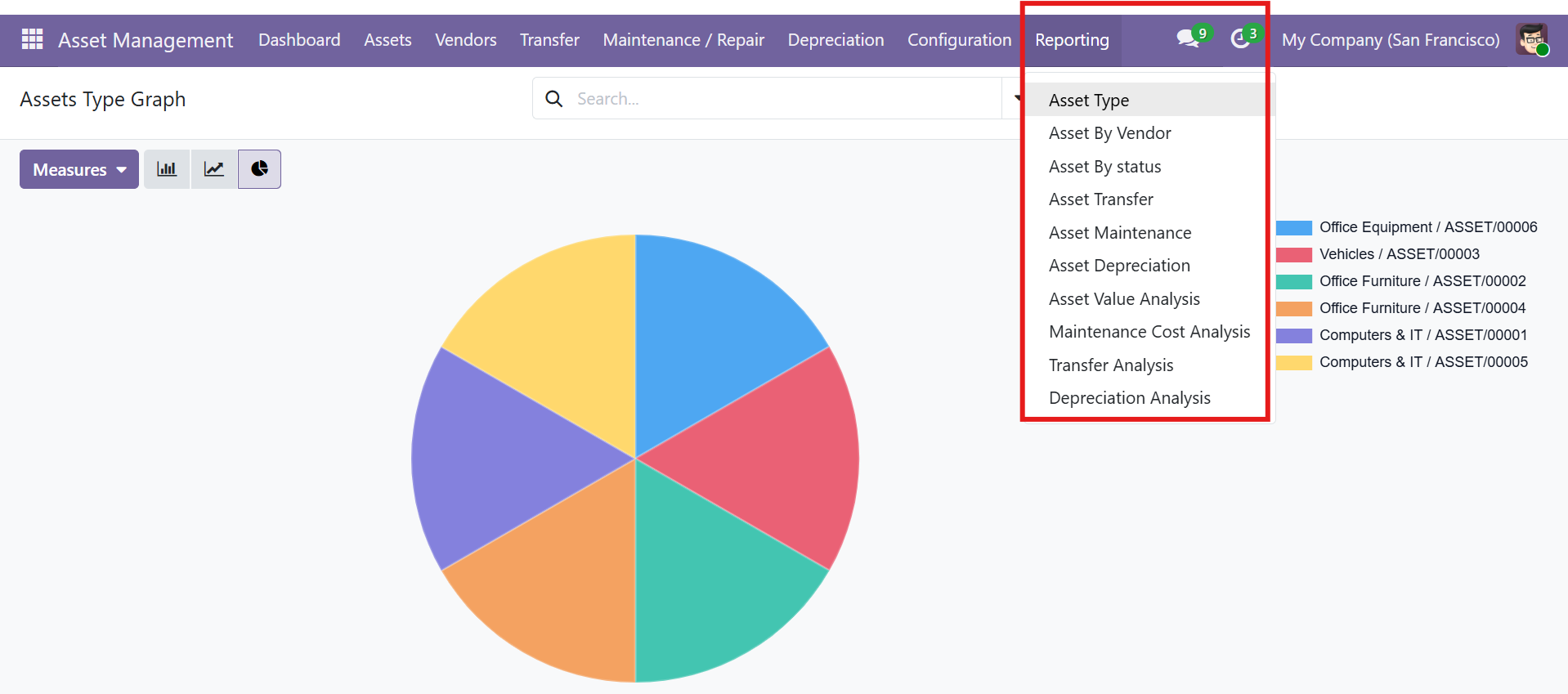
- Depreciation Analysis pivot view breaks down monthly amounts by asset type
- Asset Value Analysis pivot view shows amount vs. current book value per asset
Contact SDLC Corp at sdlccorp.com/contact-us or email sales@sdlccorp.com