Cost Tracking & Management
The Project Costing module captures project costs from three sources: extra costs (miscellaneous expenses), client payments (for variable cost projects), and timesheet costing (automatic labor cost calculation). This page covers how to use each of these features.
Extra Costs
Track miscellaneous project expenses such as software licenses, travel, subcontractor fees, or any other non-labor costs directly from the project form.
Overview
The Extra Costs tab is available on every project form, regardless of project type. Each extra cost entry records a date, description, amount, and optional notes. The Total Extra Cost is computed automatically as the sum of all entries.
Adding Extra Costs
- Open the project from Project > All Projects
- Navigate to the Extra Costs tab
- Click Add a line to create a new entry
- Fill in the Date, Cost Name, and Amount
- Optionally add Notes for additional context
- Save the project
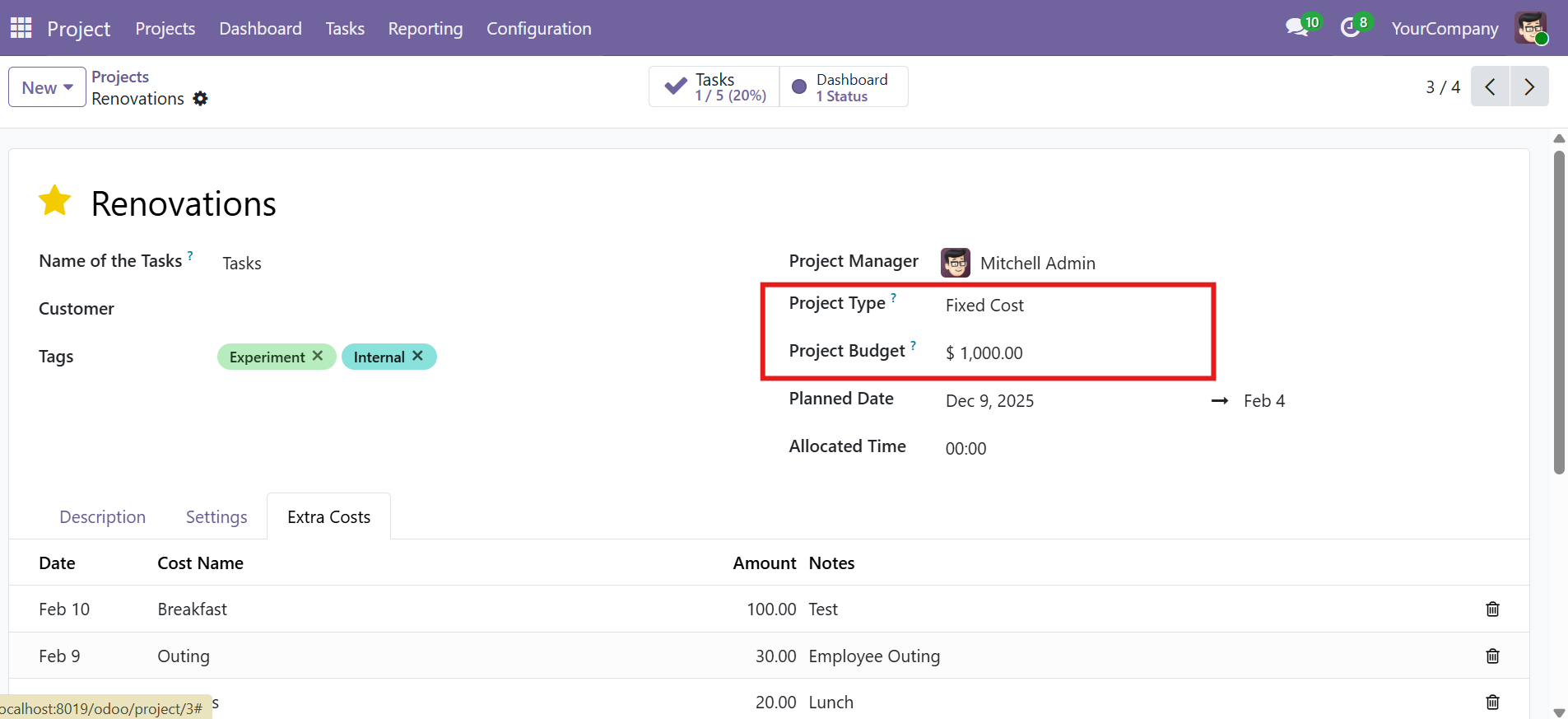 Extra Costs tab -- log miscellaneous project expenses with date, name, and amount
Fields Reference
| Field | Type | Description |
|---|---|---|
| Date | Date | The date the expense was incurred |
| Cost Name | Text | Short description of the expense |
| Amount | Monetary | Cost amount in the project's currency |
| Notes | Text | Optional additional details or justification |
Total Extra Cost
The Total Extra Cost is a computed field displayed at the bottom of the Extra Costs tab. It automatically sums all extra cost entries for the project and feeds into the dashboard's cost breakdown.
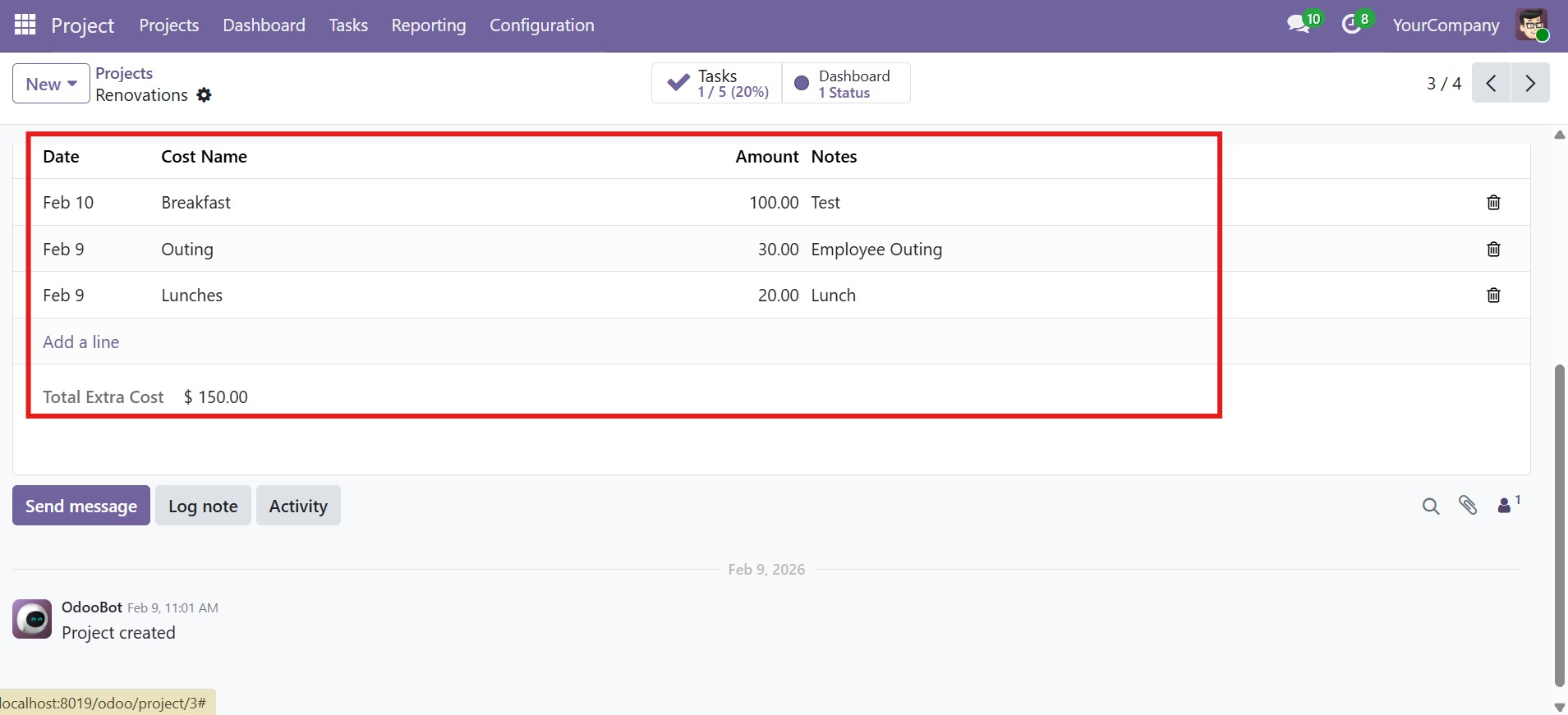 Itemized expenses and computed Total Extra Cost ($150.00) at the bottom of the tab
Client Payments
Record and track payment installments or milestone-based payments from clients for Variable Cost projects.
Overview
The Client Payments tab is visible on the project form only when the project type is set to Variable Cost. It allows you to record each payment received from the client with a date, name, amount, and optional notes.
Client Payments are only available for Variable Cost projects. For Fixed Cost projects, revenue is derived from the Project Budget field instead.
Recording a Payment
- Open the project and ensure the Project Type is set to Variable Cost
- Navigate to the Client Payments tab
- Click Add a line
- Enter the Payment Date, Payment Name, and Amount
- Optionally add Notes
- Save the project
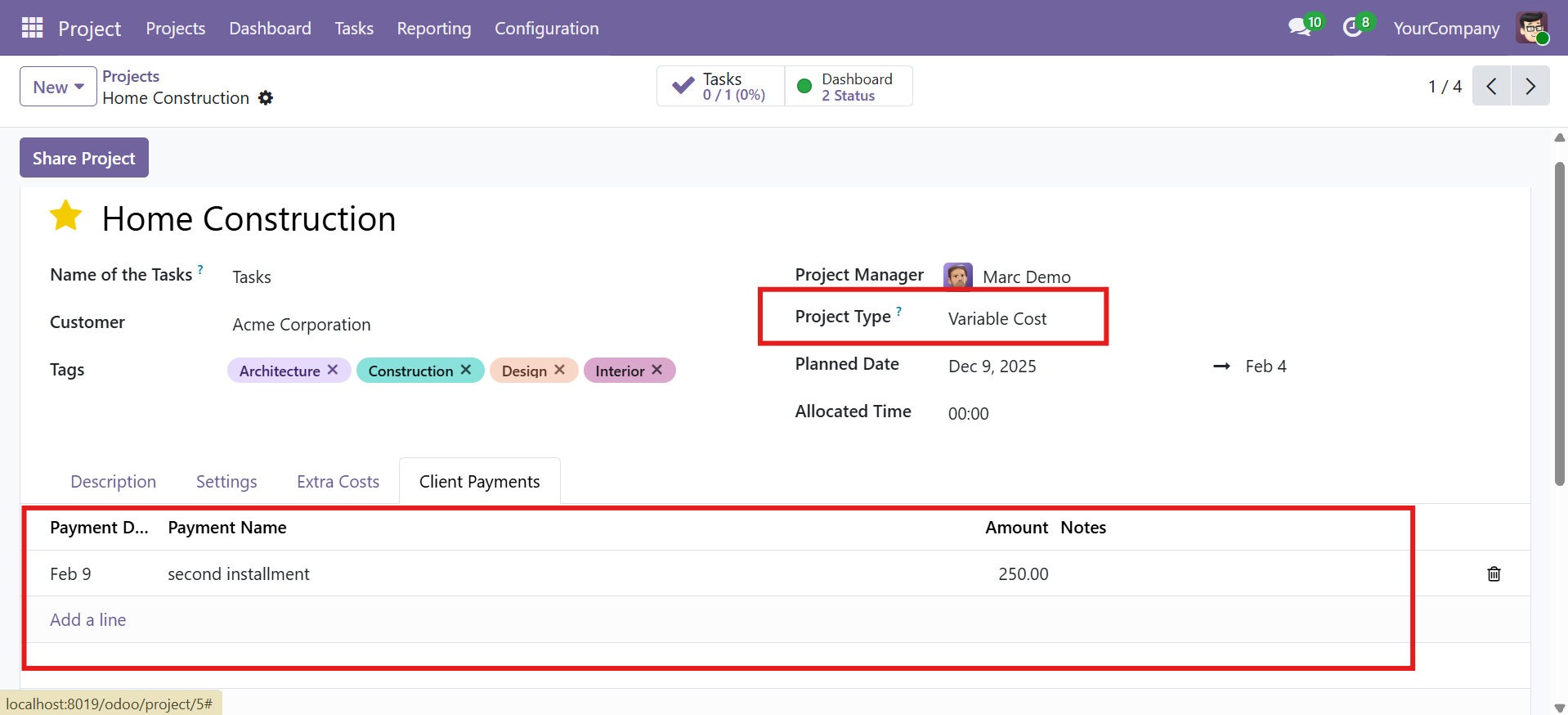 Client Payments tab -- record payment installments from clients with date, name, and amount
Fields Reference
| Field | Type | Description |
|---|---|---|
| Payment Date | Date | The date the payment was received |
| Payment Name | Text | Description of the payment (e.g., "Milestone 1 Payment") |
| Amount | Monetary | Payment amount in the project's currency |
| Notes | Text | Optional additional details about the payment |
Total Client Payment
The Total Client Payment is computed automatically as the sum of all payment entries. For Variable Cost projects, this total becomes the project's Total Revenue on the dashboard.
Revenue Calculation Logic
| Project Type | Revenue Source | Formula |
|---|---|---|
| Fixed Cost | Project Budget | Total Revenue = Project Budget |
| Variable Cost | Client Payments | Total Revenue = Sum of Client Payments |
Timesheet Costing
The module extends Odoo's timesheet views with an auto-calculated Cost field based on each employee's hourly cost rate.
How It Works
The module inherits the account.analytic.line model (Odoo's timesheet model) and adds a computed Cost field. Every time an employee logs hours on a timesheet, the cost is calculated automatically:
Cost = Unit Amount (hours) x Employee Hourly Cost
Where Cost Appears
The Cost field is added to all four standard timesheet views:
| View | Type | Cost Field |
|---|---|---|
| My Timesheets | Form view | Read-only, auto-computed |
| My Timesheets | List/Tree view | Read-only column |
| All Timesheets | Form view | Read-only, auto-computed |
| All Timesheets | List/Tree view | Read-only column |
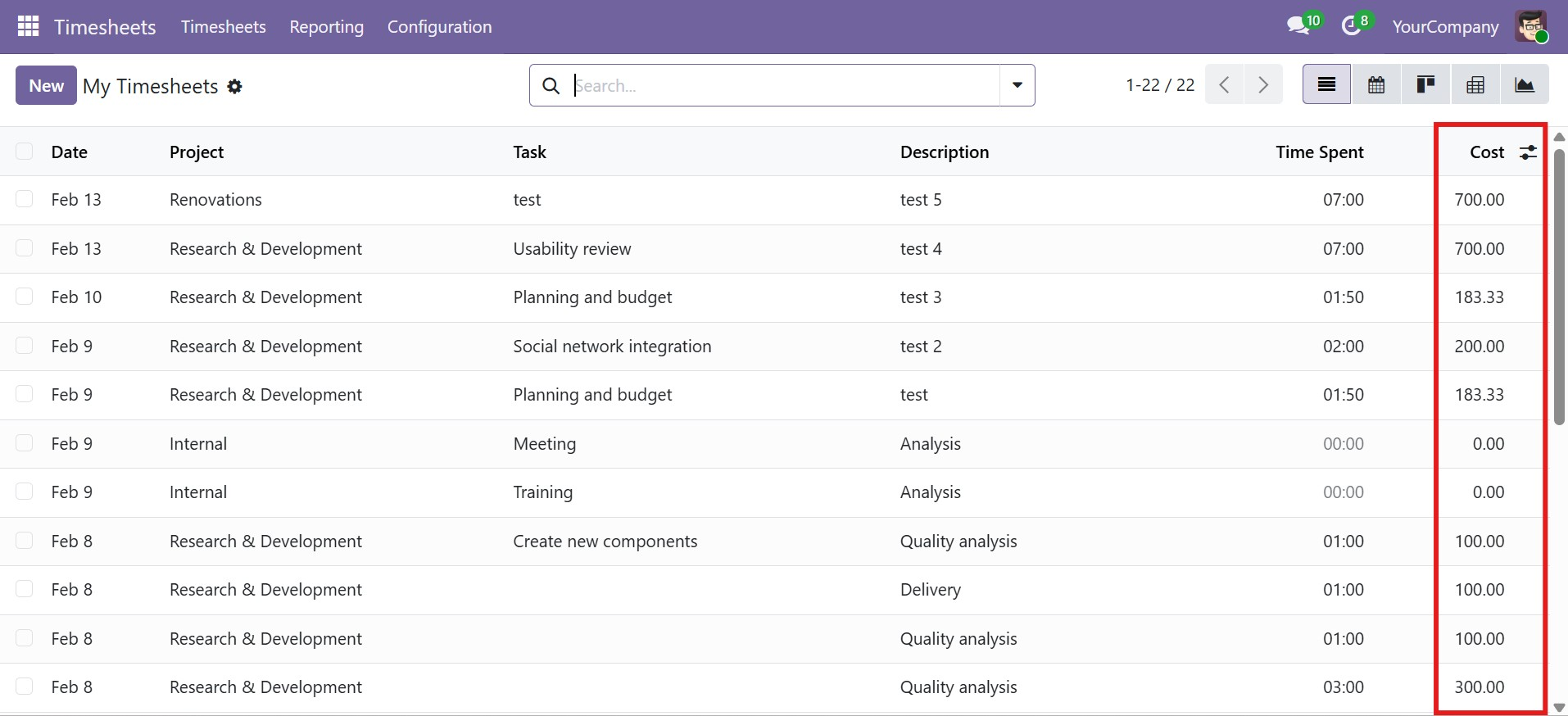 Timesheet entries with auto-calculated Cost field (rightmost column) based on employee hourly rate and hours logged
Impact on Dashboard
Timesheet costs feed into multiple dashboard components:
- Total Cost KPI card -- includes all labor costs across projects
- Cost Breakdown panel -- shows Labor Cost as a separate line item
- Cost Analysis chart -- displays Labor Cost vs Extra Costs per project
- Budget Details table -- shows hours logged and labor cost per project
Total Cost Calculation
The module tracks two cost components that together make up the total project cost:
| Component | Source | Description |
|---|---|---|
| Labor Cost | Timesheets | Sum of all hours x hourly_cost for the project |
| Extra Costs | Extra Costs tab | Sum of all miscellaneous expense entries |
| Total Cost | Computed | Labor Cost + Extra Costs |
If an employee's timesheet entries show a cost of zero, verify that their Hourly Cost is set in Employees > Employee Record > HR Settings.
Contact SDLC Corp at sdlccorp.com/contact-us or email sales@sdlccorp.com