Guest Profiles
Complete guest relationship management with identification tracking, VIP status, preferences, and stay history.
Guest Form
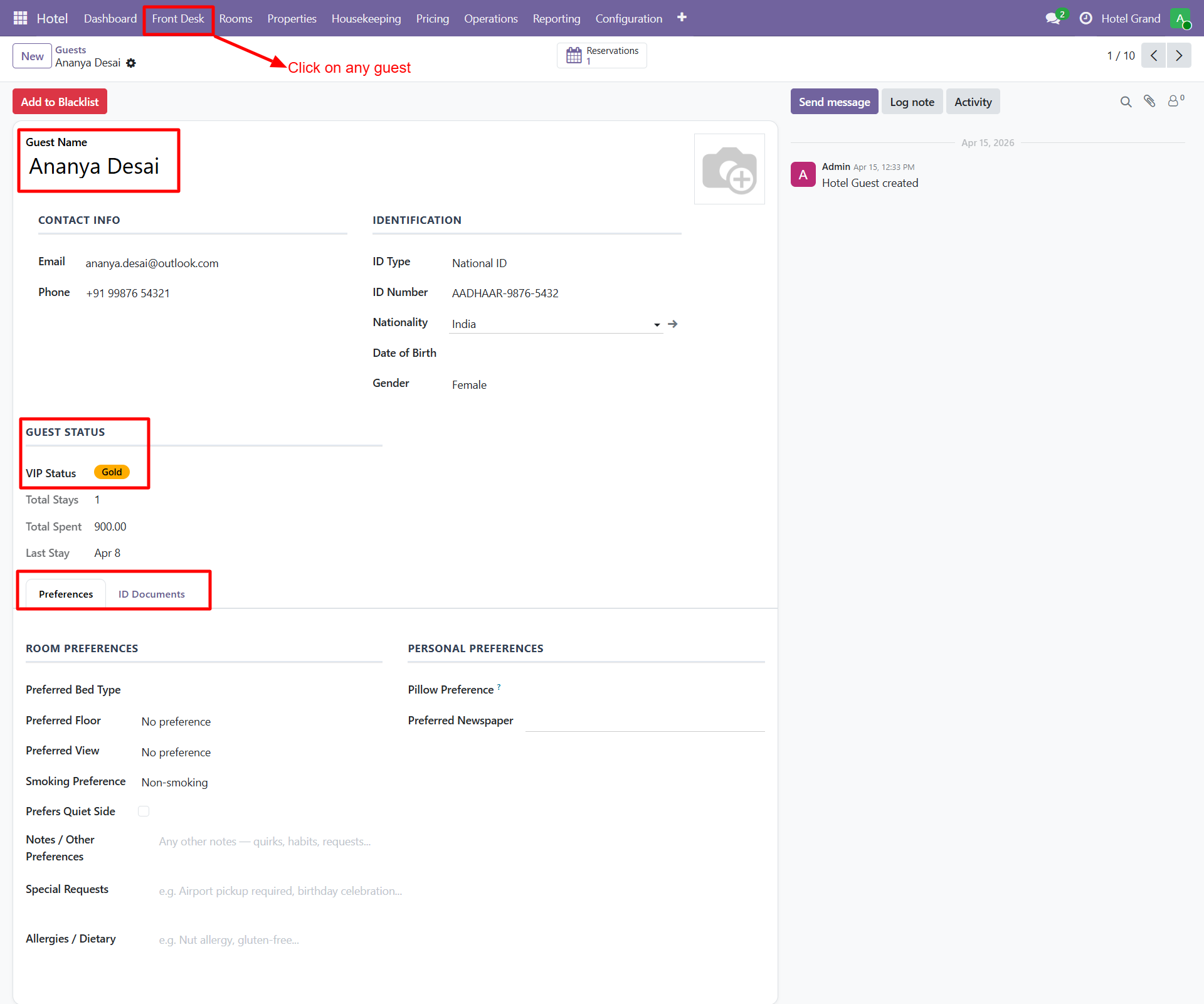
Main Fields
| Field | Description |
|---|---|
| Guest Name | Full name (or pulled from linked contact) |
| Contact | Linked res.partner for integrated contact management |
| Guest email for confirmations and communications | |
| Phone | Primary contact number |
| Nationality | Country of nationality |
| Date of Birth | For age verification and birthday offers |
| Gender | Male / Female / Other |
| Guest Photo | Profile image |
| VIP Status | Mark as VIP for priority treatment |
Identification
ID Types Supported
- Passport (international travelers)
- National ID (residents)
- Driving License (common in hotels)
- Other (custom ID types)
ID Document Capture
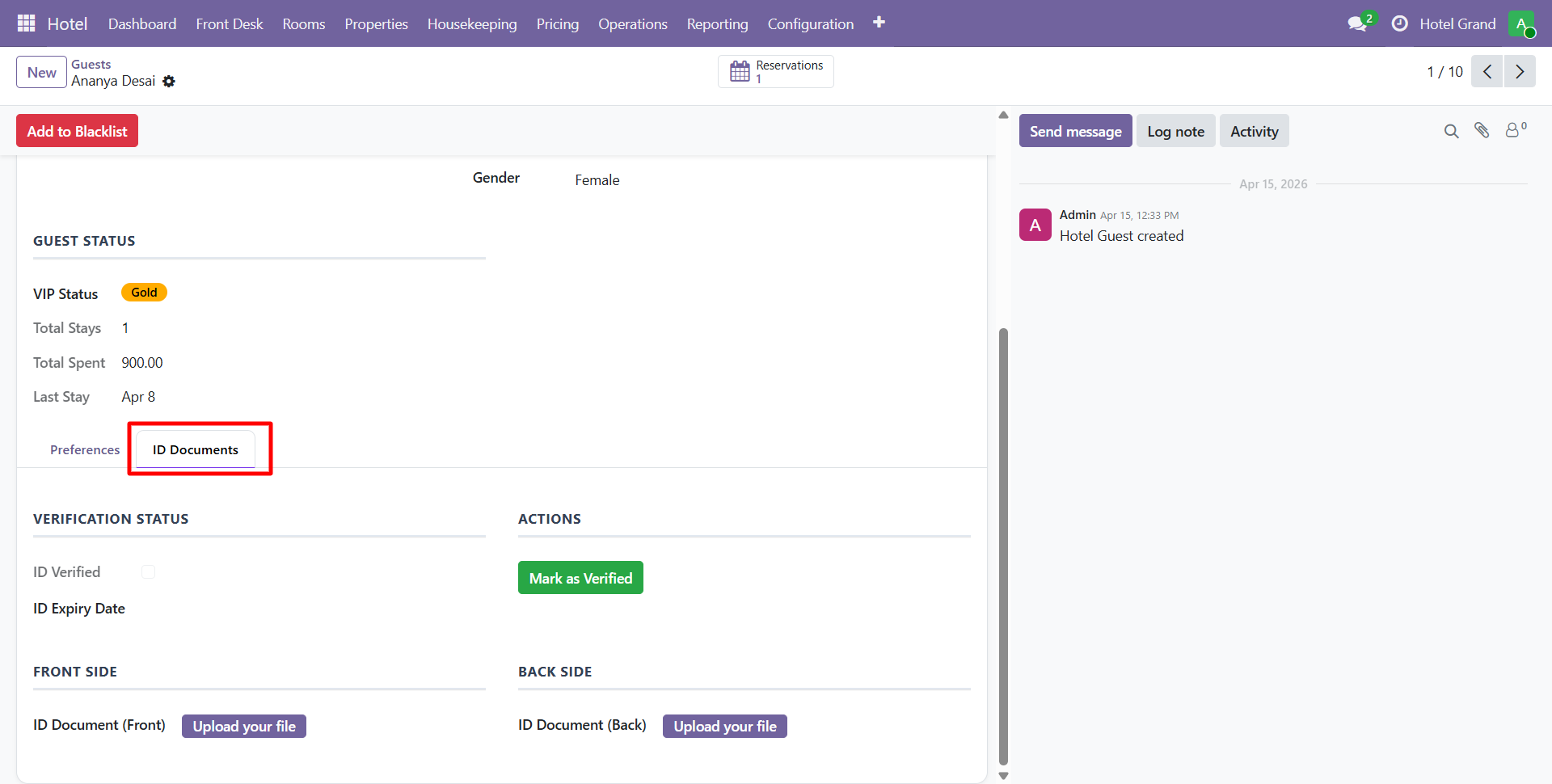
Upload front and back images of identification:
- ID document (front)
- ID document (back)
- Expiry date tracking
- Automatic expiry alerts
Capture ID documents at check-in for compliance. Some countries require ID verification by law - the module keeps everything in one place.
Guest Preferences
Track guest preferences to personalize their stays:
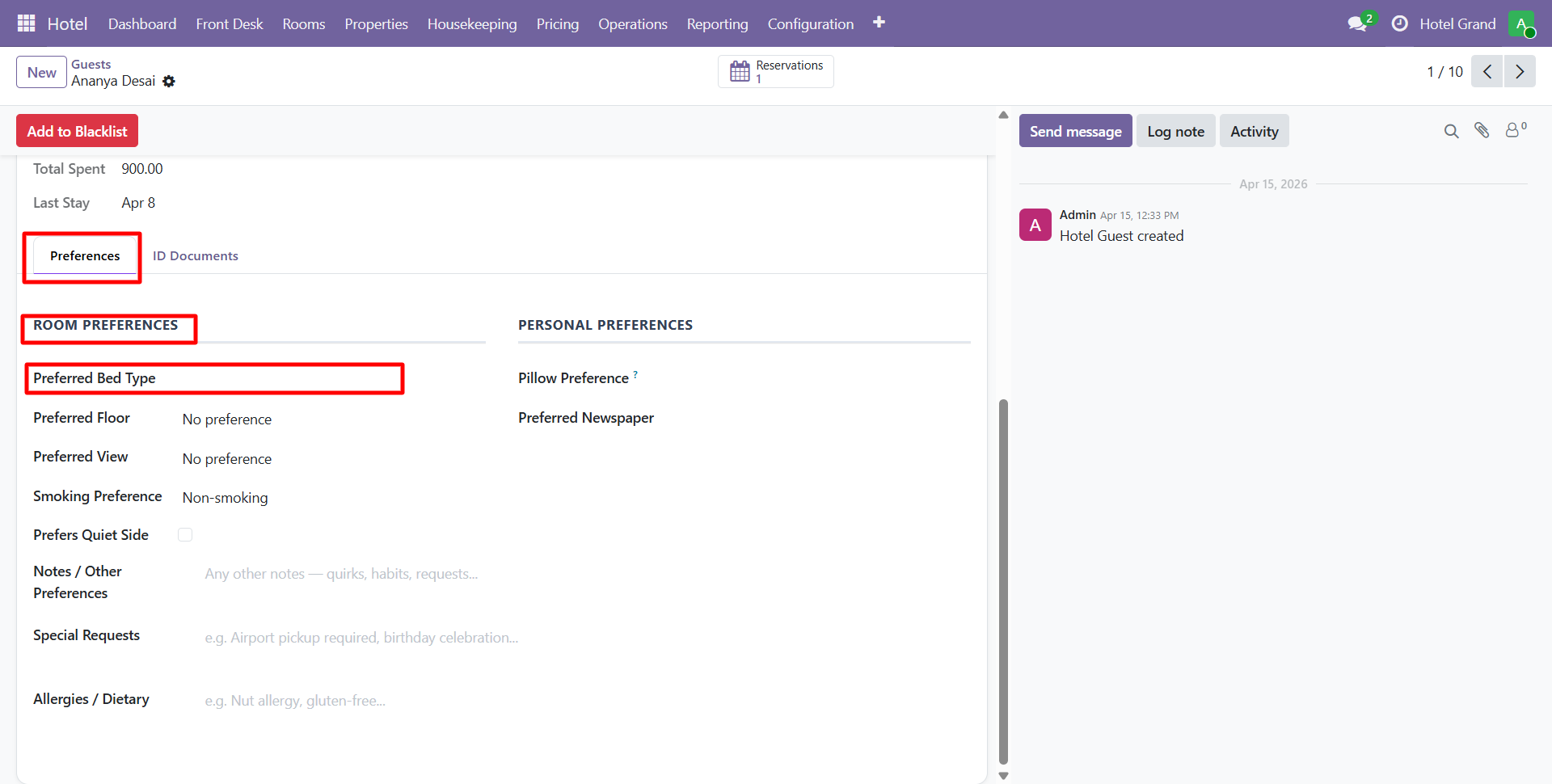
Examples:
- Preferred room type or view
- Bedding preferences
- Dietary restrictions
- Allergies
- Special requests (extra pillows, non-smoking, etc.)
- Preferred check-in time
Preferences appear on future reservation forms and reports so staff can prepare in advance.
VIP Guests
Mark guests as VIP for:
- Priority room assignment
- Automatic welcome gifts
- VIP-only dashboards / reports
- Front desk alerts when they arrive
- Custom rate plans
View all VIP guests in Reporting > VIP & Repeat Guests:
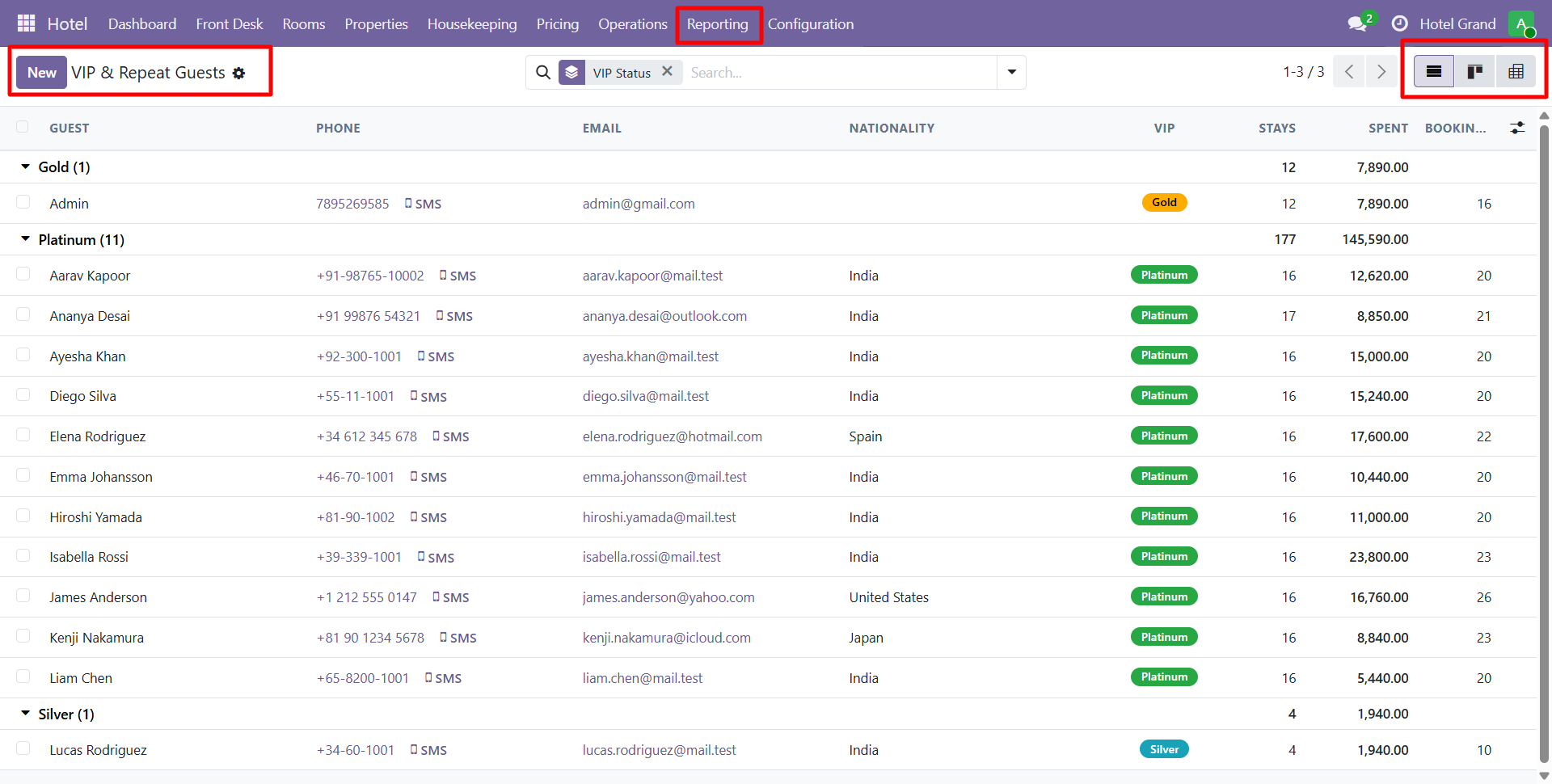
Stay History
Each guest profile shows:
- Total stays
- Total nights
- Total revenue generated
- Last visit date
- Favorite rooms
- Previous folios and invoices
- Previous feedback ratings
This helps staff provide personalized service and identify your best customers.
Creating a New Guest
Three ways to add a guest:
1. From a Reservation
When creating a reservation, click Create and Edit in the Guest field. Fill in guest details and save.
2. From Contacts
Navigate to Contacts, create a contact, then it can be used as a Hotel Guest.
3. Directly
Navigate to Front Desk > Guests and click New. Fill in all guest information.
Merge Duplicate Guests
If duplicate guest records are created (same person booked twice with different emails), use the Merge feature to combine them. All reservations, folios, and history consolidate into one guest record.
Contact SDLC Corp at sdlccorp.com/contact-us or email sales@sdlccorp.com