Guest Portal & Online Booking
Let guests book rooms directly through your website and manage their reservations online via the portal.
Public Booking Portal
Navigate to /hotel/booking on your Odoo website for the public-facing booking interface.
Search Availability
Guests enter their criteria to find available rooms.
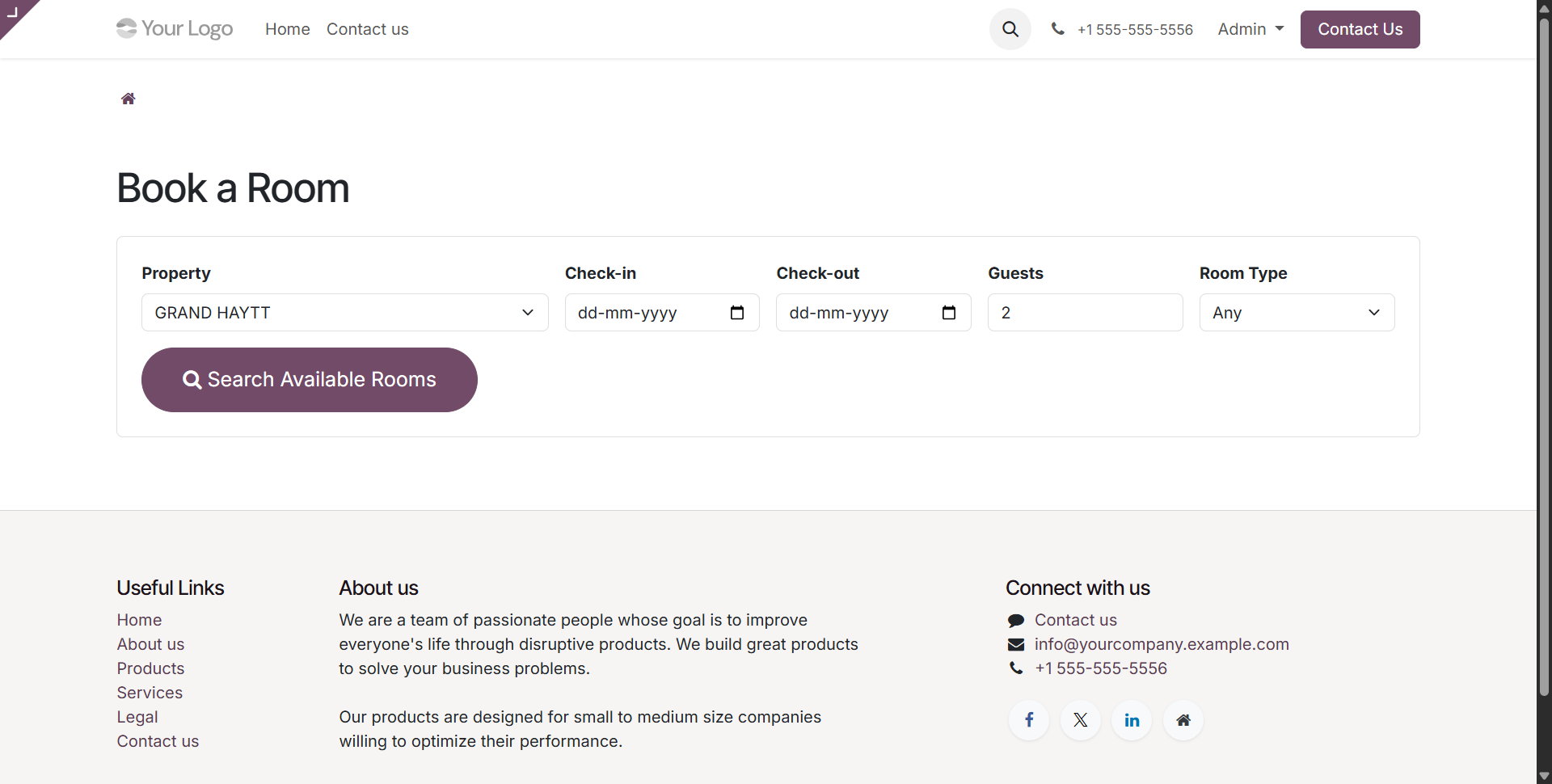
Search by:
- Property (for multi-property hotels)
- Check-in and check-out dates
- Number of adults and children
- Room type preference
- Budget range
Browse & Book Rooms
Results show available rooms with photos, amenities, and pricing.
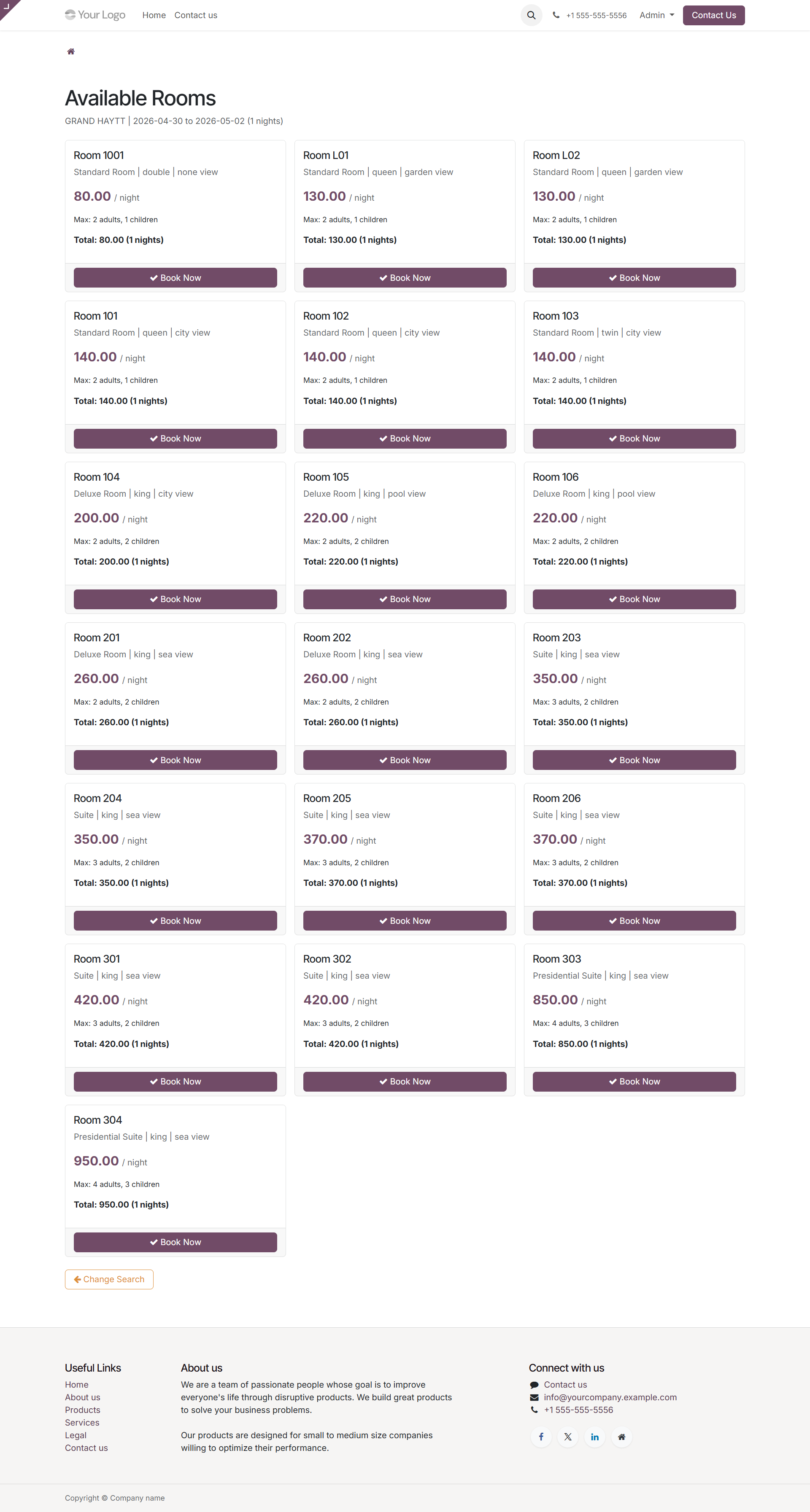
Each room card displays:
- Room type image
- Amenities list
- Rate per night
- Total cost for stay
- Availability confirmation
- Book Now button
Booking Confirmation
After submission, guests receive an instant confirmation.
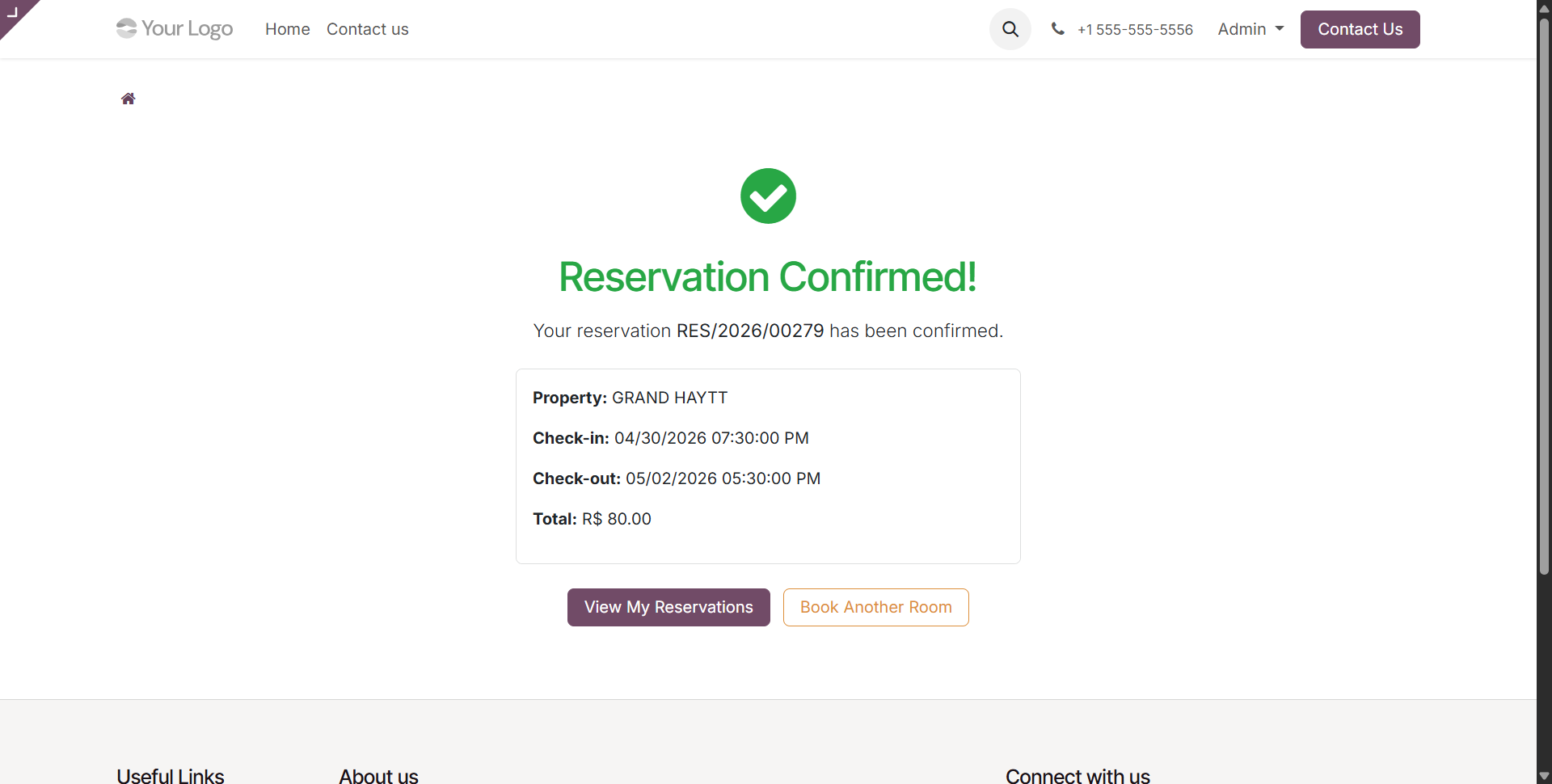
The confirmation includes:
- Reservation number
- Dates and room details
- Total cost
- Cancellation policy
- Email confirmation link
- Payment instructions (if pre-payment required)
Guest Portal Access
After booking, guests can log into the portal to manage their reservations.
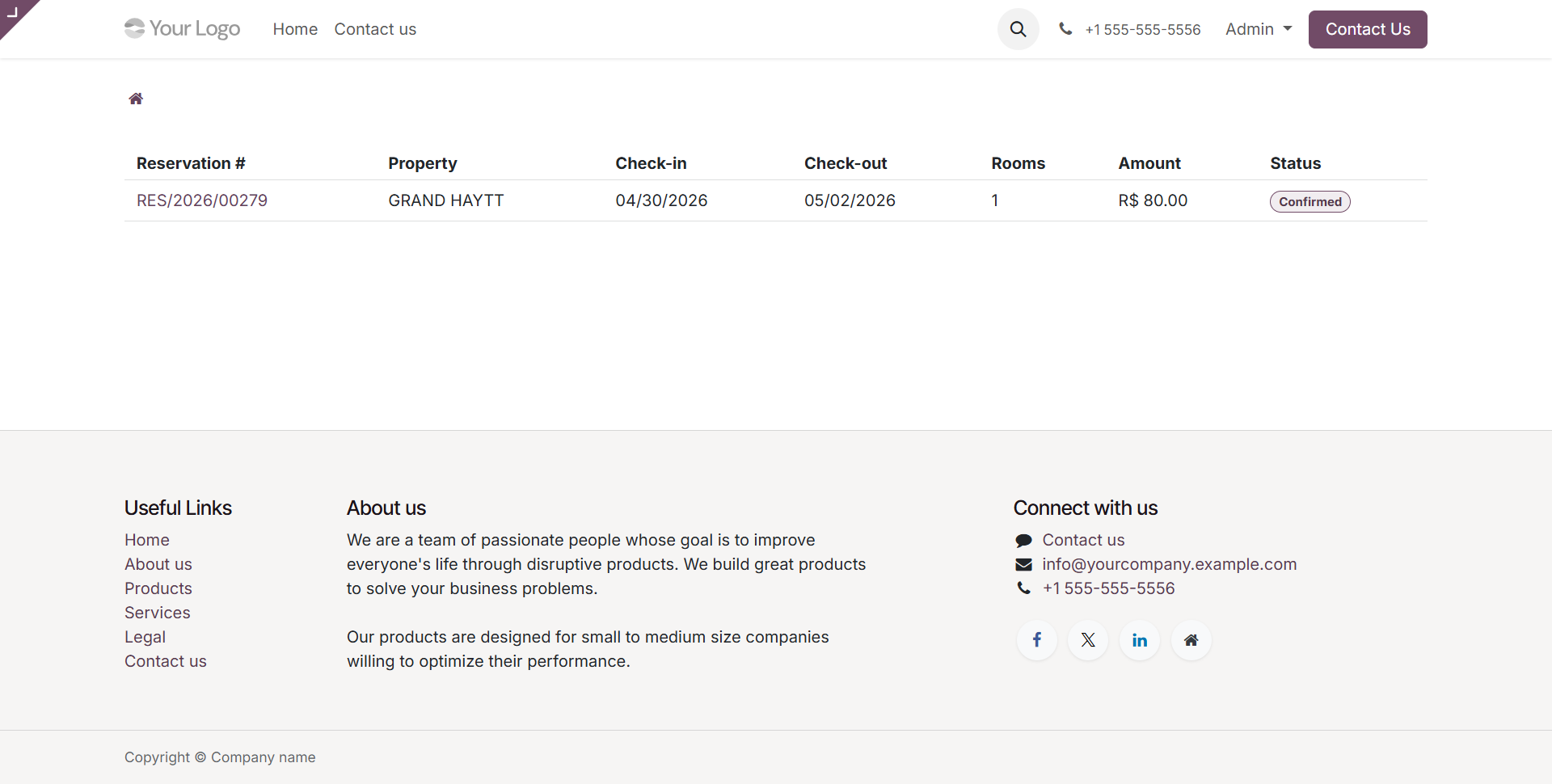
Portal Features
| Feature | Description |
|---|---|
| My Reservations | View all past and upcoming bookings |
| Reservation Details | Check dates, rooms, pricing |
| Modify Booking | Request date changes (subject to policy) |
| Cancel Booking | Self-service cancellation (if allowed) |
| Download Invoice | Access folio PDFs |
| Submit Feedback | Post-stay feedback form |
| Contact Hotel | Send message to front desk |
Portal Access
Guests access the portal via:
- Magic link in confirmation email (no password needed)
- Portal login with email + password (if registered)
- Guest token in URL (secure, single-use)
Configuring Online Booking
Step 1 - Enable Portal
Install the portal module (included as dependency).
Step 2 - Configure Properties for Online Booking
For each property, enable:
- Available for Online Booking toggle
- Public Description (shown to guests)
- Photos Gallery (main images)
- Amenities shown (which to highlight publicly)
Step 3 - Configure Rate Plans for Public
Mark rate plans as Public to appear on the portal. Keep corporate/OTA rates hidden.
Step 4 - Set Cancellation Policy
Define the cancellation policy displayed on the portal:
- Free cancellation until (X hours before check-in)
- Deposit required (amount or percentage)
- Non-refundable option (with discount)
Step 5 - Configure Email Templates
Go to Configuration > Email Templates to customize:
- Booking confirmation email
- Pre-arrival reminder
- Check-in instructions
- Post-stay feedback request
Payment Integration
Online bookings can require upfront payment or deposit.
Supported Payment Methods
- Credit / Debit cards (via Odoo payment acquirers)
- PayPal
- Stripe
- Razorpay
- Bank transfer (manual confirmation)
Payment Flow
- Guest selects room and dates
- Enters payment info
- Payment is authorized/captured
- Reservation moves to Confirmed status
- Confirmation email sent
OTA Channel Manager Integration
For connecting to Booking.com, Expedia, Airbnb, etc., integrate with a third-party channel manager. The module exposes APIs for:
- Room availability updates
- Rate updates
- Reservation imports
- Cancellation sync
Contact SDLC Corp for channel manager integration services.
Pre-fill the guest profile with data from the booking form. When they stay again, all their info is already on file - smoother experience.
Contact SDLC Corp at sdlccorp.com/contact-us or email sales@sdlccorp.com