Import Customers
Sync your Shopify customers into Odoo contacts.
Manual Import
- Navigate to Shopify → Shopify Data → Customers
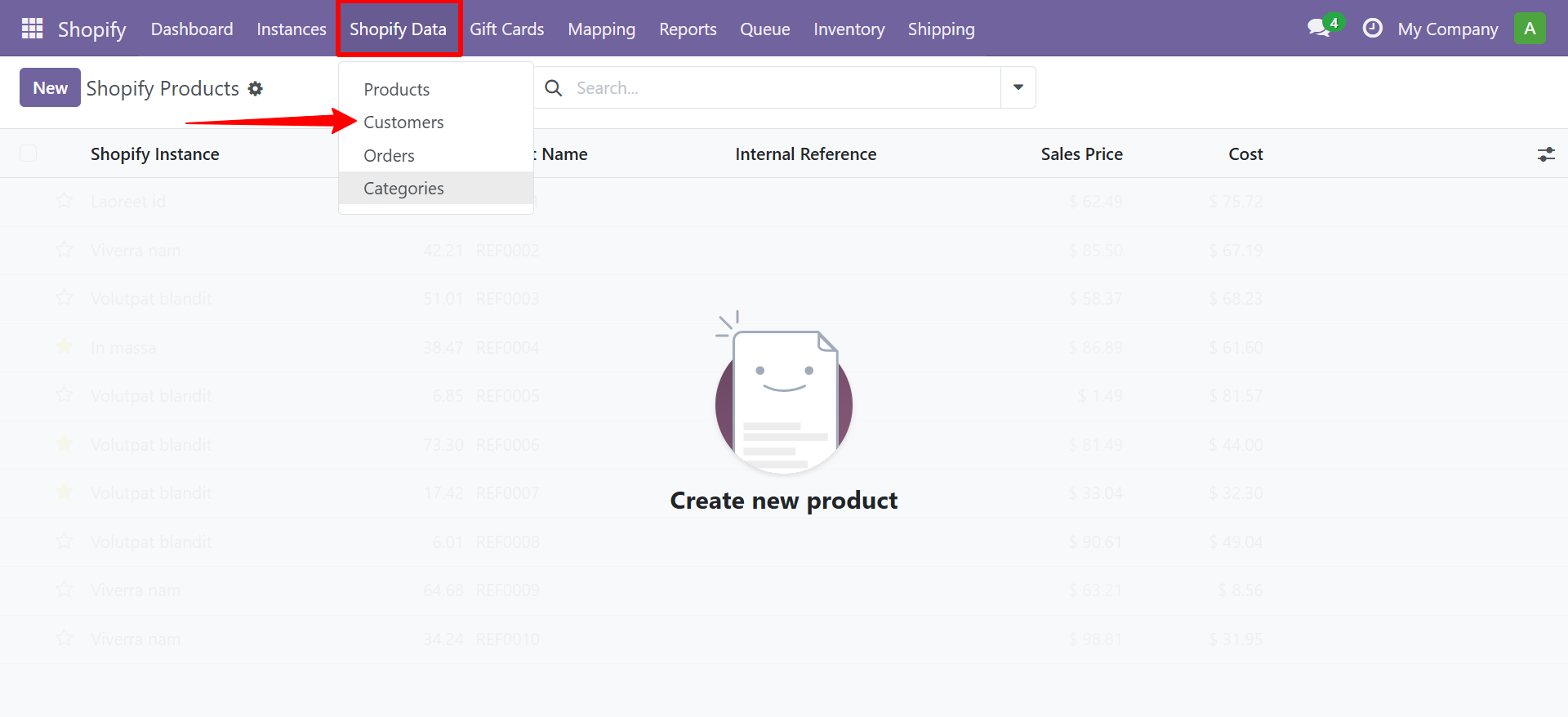
- The customer list view shows all imported Shopify customers.
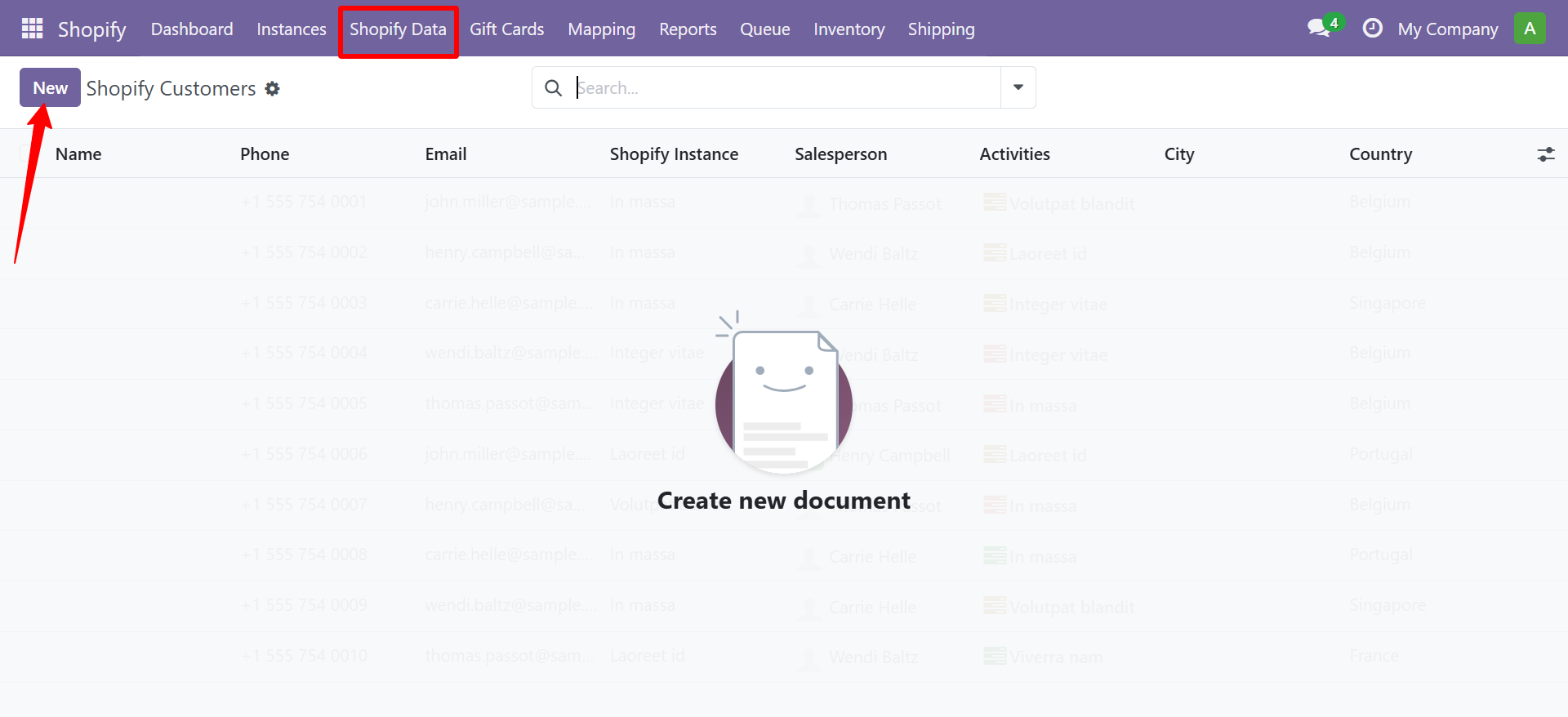
- Select your Shopify Instance
- Set the From Date (leave empty to import all)
- Click Import Now
What Gets Imported
| Shopify Field | Odoo Field |
|---|---|
| First Name + Last Name | Contact Name |
| Phone | Phone |
| Address | Delivery Address |
| Company | Company Name |
Creating or Updating Customers
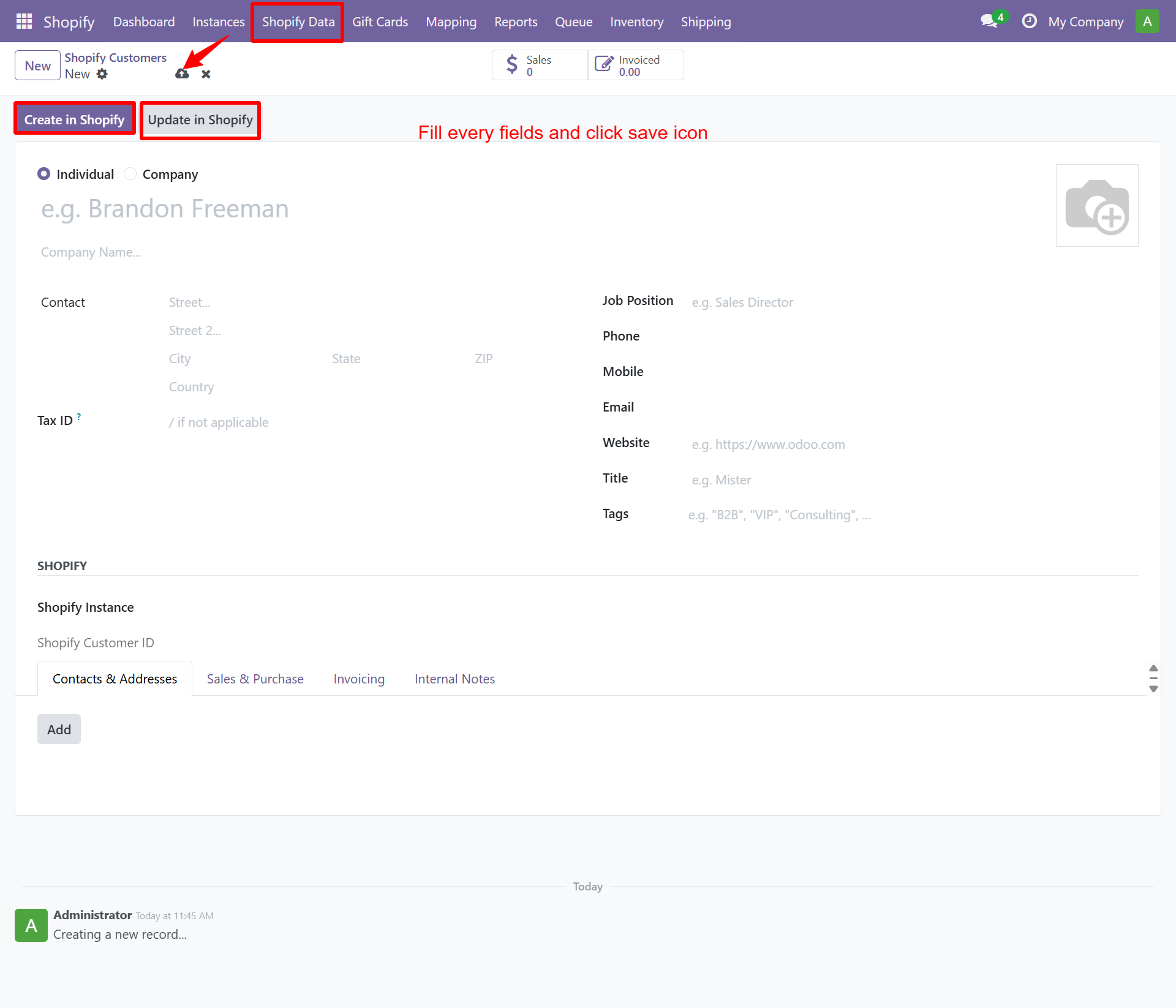
To create a new customer or update an existing one, open the customer form and fill in all required fields. Use the Create in Shopify or Update in Shopify buttons to sync the customer data.
Customer Field Mapping
You can also configure custom field mapping between Odoo and Shopify customer fields. Navigate to Shopify → Mapping → Customer Mapping.
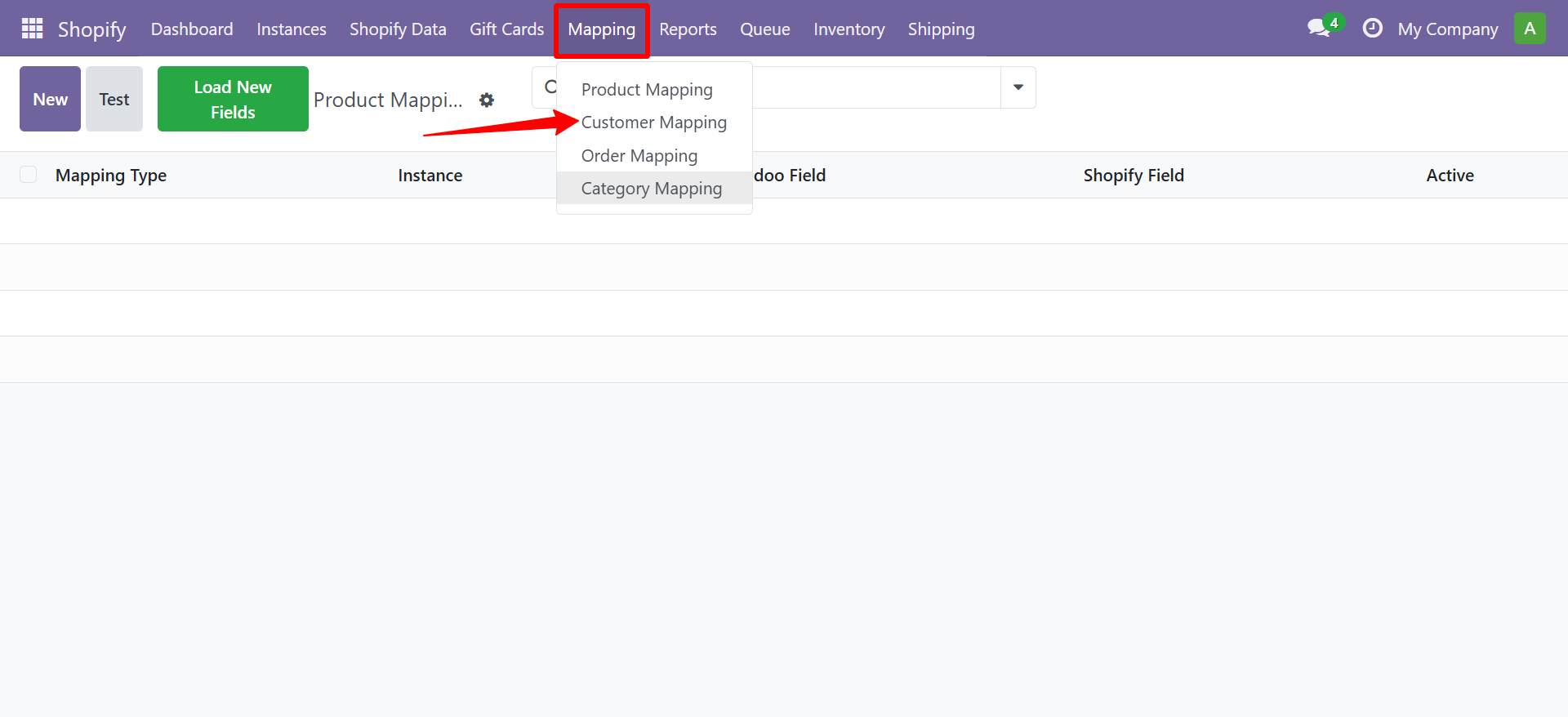
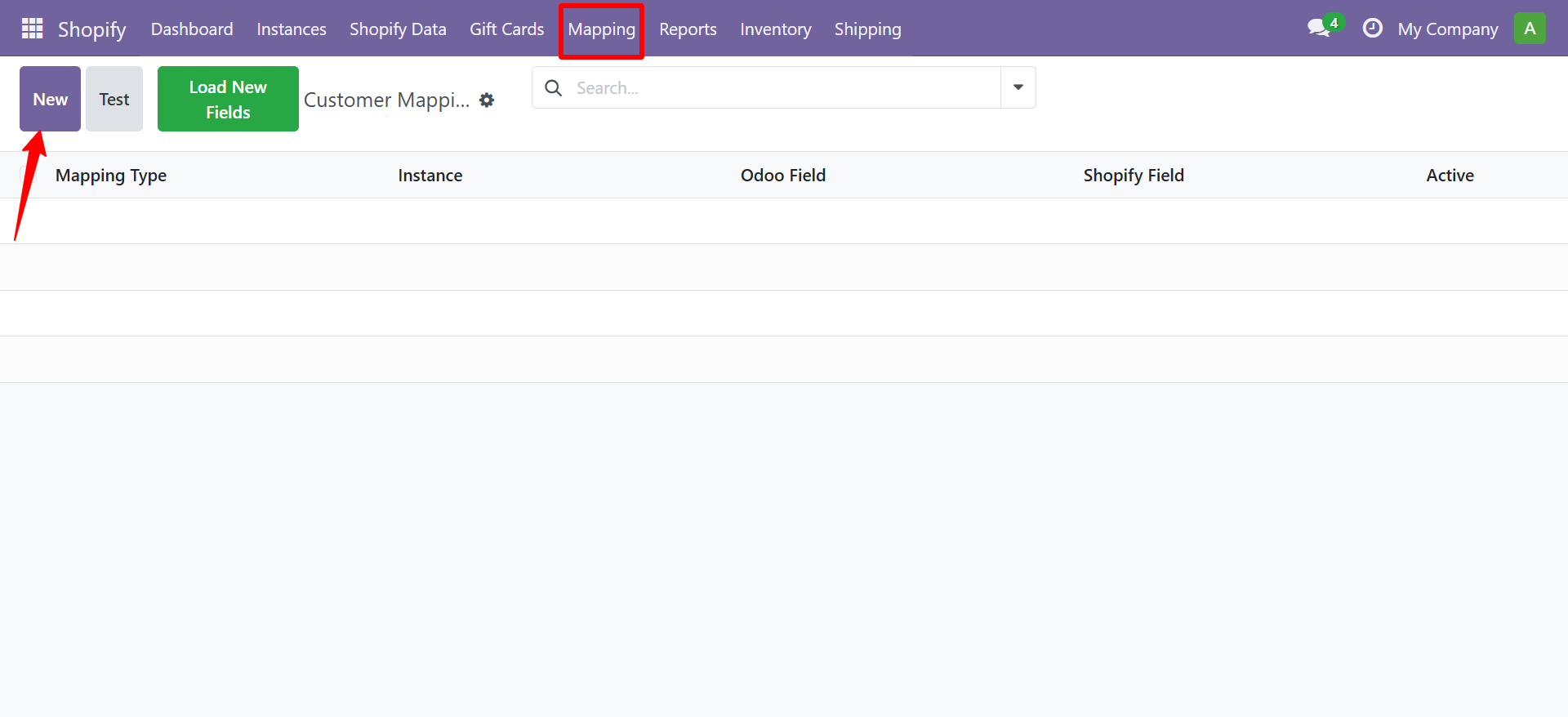
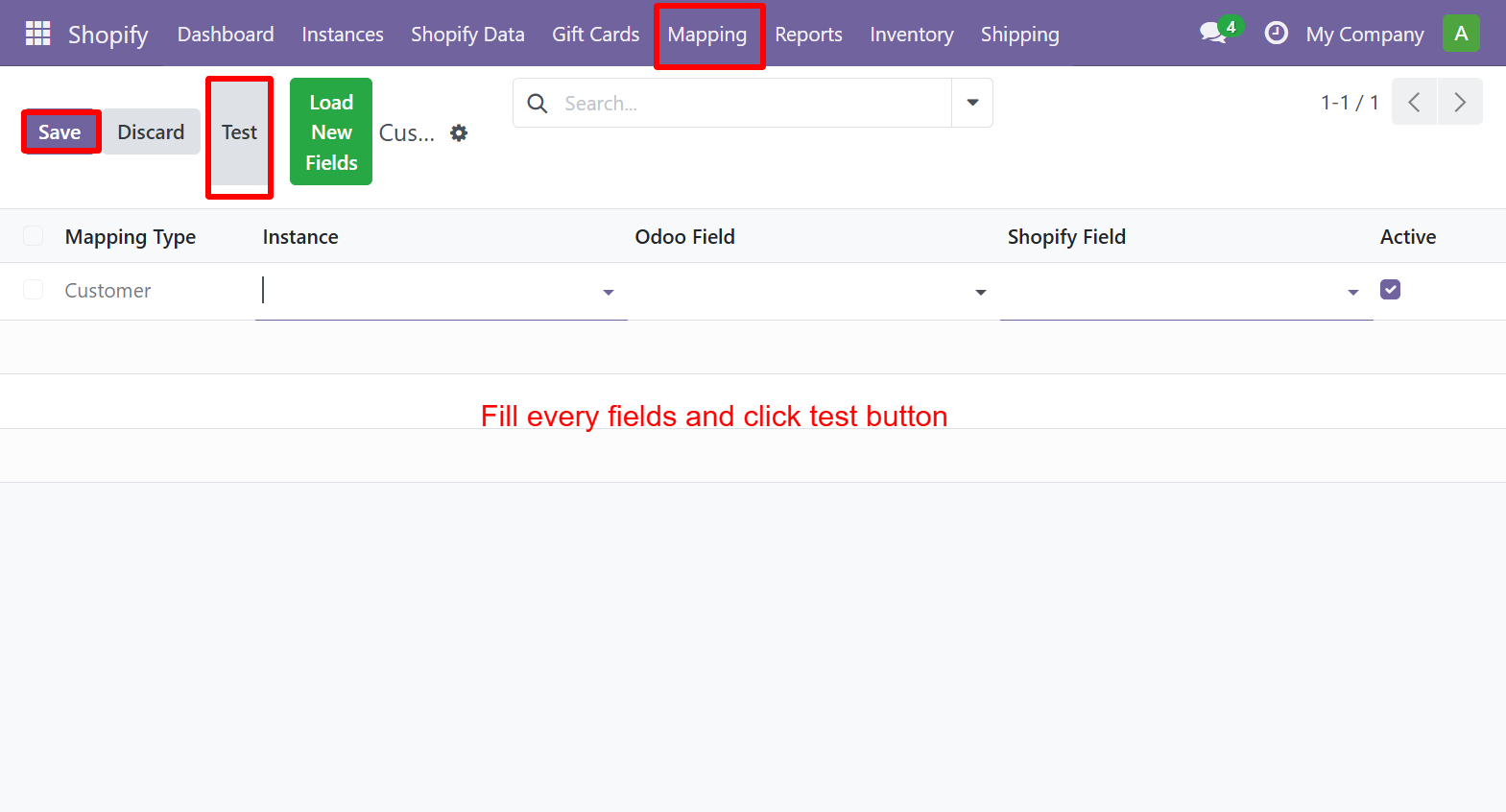
To create a new mapping, click New, fill in the fields, and click Test to verify.
Need Help?
Contact SDLC Corp at sdlccorp.com/contact-us or email sales@sdlccorp.com